

How to Change Default Program Files Folder Location in Windows
If you’ve ever installed a Windows program or even if you have used Windows for any part of time, then you will probably know that whenever you install a program on your Windows system, all those installed programs are stored in C:\Program Files or C:\Program Files (x86) folder. In fact, most Windows programs are stored…

If you’ve ever installed a Windows program or even if you have used Windows for any part of time, then you will probably know that whenever you install a program on your Windows system, all those installed programs are stored in C:\Program Files or C:\Program Files (x86) folder. In fact, most Windows programs are stored in these directories.
But there will be times when you want to change the default program files directory. Maybe you have a second hard disk or may be the disk space of your C drive is running out. No matter what the reason is, here is how you can change the default location of Windows Program Files folder in Windows.
Related Articles
- How To Install.DLL File Manually In Windows
- How to Configure Windows to Index Encrypted Files
- How To Disable Hardware Acceleration In Chrome, Firefox, and Opera
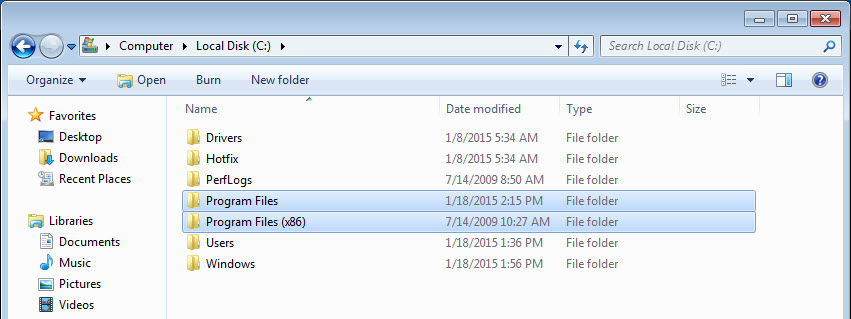
Note: Even though I’m showing the procedure in Windows 7, the same procedure applies to Windows 8 or 8.1.
Change Default Program Files Location in Windows
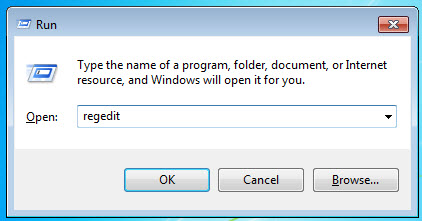
Since Windows doesn’t provide any native options, you need to hack Windows Registry. To start off, press “Win + R,” type “regedit” and press the enter button to open the Windows Registry.
Once the Windows Registry has been opened, navigate to the following key in the left pane.
HKEY_LOCAL_MACHINE\SOFTWARE\Microsoft\Windows\CurrentVersion
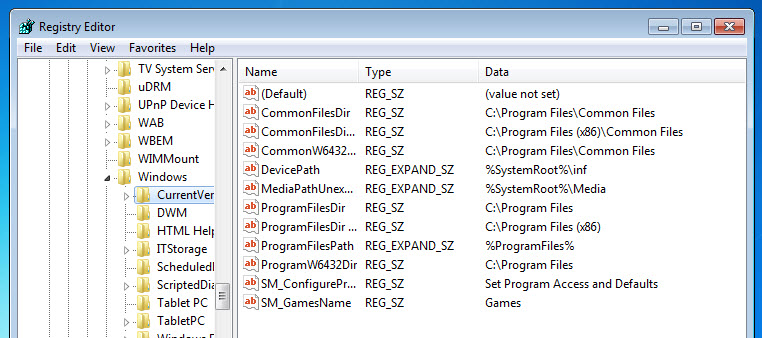
Once you are here, find the key “ProgramFilesDir” and double-click on it. This action will open the Edit String window. Here, enter your desired location and click on the “Ok” button to save the changes. As per me, I want my program files location to be in my D drive, so I’ve changed it accordingly.
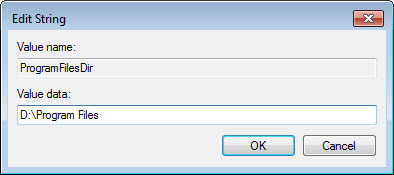
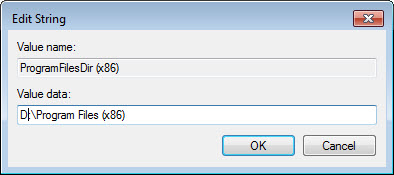
If you are using a 64-bit system, then you also want to edit the key “ProgramFilesDir (x86).”
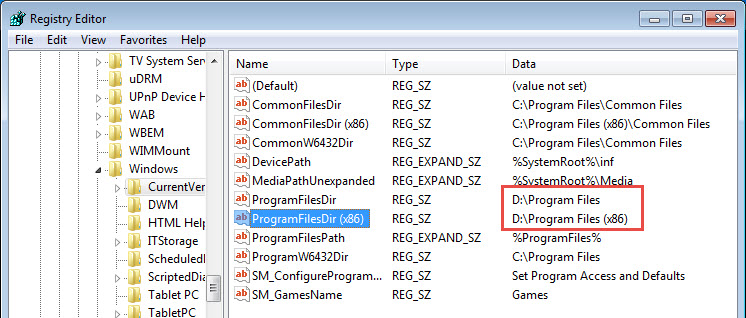
Once you are done with the editing, this is how it looks like in your Windows Registry.
That’s all there is to do, and it is that simple to change default program files location in Windows.
Even though the process of changing the default Program Files location is pretty easy, Only do it when it is absolutely required. This is because Windows doesn’t natively support changing program files directory and because of that, some Windows programs may have trouble functioning as they should.
That’s all there is to do, and it is that simple to change default program files location in Windows.
Hopefully, that helps and do comment below sharing your thoughts and experiences about changing the default program files location in your Windows system.
More in How-to
How to Find the Windows 11 Startup Folder Location
Microsoft officially revealed the latest Windows 11 OS which is scheduled to launch in late 2021. Windows 11 has already got appreciation in terms of new features and attractions. Some of the attractive features are Integrated Android app usage, latest widgets, Microsoft Teams integration, better multi-tasking features, virtual desktop support, and many more. Coming to…

How To Stop Microsoft Edge Opening Automatically In Windows 10
Are you looking to stop Microsoft Edge opening automatically In Windows 10? After installing a fresh copy of Windows 10 or after opening a brand new laptop or desktop the first thing you experience is Microsoft Edge as the default browser. Microsoft introduced Edge browser as a replacement of the Internet Explorer. When you start…

Locate iTunes Library File, Change Backup Location & Delete iTunes Duplicates in Windows 10
iTunes usually gets installed in the C drive, unless the user chooses otherwise. However, there are some disadvantages of installing iTunes in the default installation location as the backup itself is stored in the same location. A Windows corruption can cause irreversible damage and loss of iTunes data in this case. So it is wise…
The week in tech, minus the noise.
New reviews, fixes and the stories that matter — once a week, straight to your inbox.
We only use your email to send the newsletter. Unsubscribe any time. See our privacy policy.
Comments