

How To Stop Microsoft Edge Opening Automatically In Windows 10
Are you looking to stop Microsoft Edge opening automatically In Windows 10? After installing a fresh copy of Windows 10 or after opening a brand new laptop or desktop the first thing you experience is Microsoft Edge as the default browser. Microsoft introduced Edge browser as a replacement of the Internet Explorer. When you start…


How To Stop Microsoft Edge Opening Automatically In Windows 10
Are you looking to stop Microsoft Edge opening automatically In Windows 10?
After installing a fresh copy of Windows 10 or after opening a brand new laptop or desktop the first thing you experience is Microsoft Edge as the default browser. Microsoft introduced Edge browser as a replacement of the Internet Explorer.
When you start Windows, it will be load automatically as default browser because it is integrated with the startup menu item. Edge will be a default browser until you install an alternative browser.
Over the past few years, there are a number of browsers have been created. It is sad to say this but many people prefer Google Chrome, or Firefox or Opera or any other advanced browser than using Microsoft Edge.
How To Stop Microsoft Edge Opening Automatically In Windows 10
Method 1: Install an alternative browser
- Select your favourite browser and install on your PC.
- For example, download and install Google Chrome.
- Now change the default browser option.
- Type Default apps in the Start menu.
- Now, click on the Web browser and here select the Google Chrome.
- That’s it. Now you have changed the default browser from Microsoft Edge to Google Chrome.
Method 2: Using Active Folder In C Drive
- Click on This PC and click on the C drive folder.
- Now, navigate to the below-given location.
C:\Users\your PC name\AppData\Local\Packages\Microsoft.MicrosoftEdge_8wekyb3d8bbwe\AC\MicrosoftEdge\
User\Default\Recovery\Active
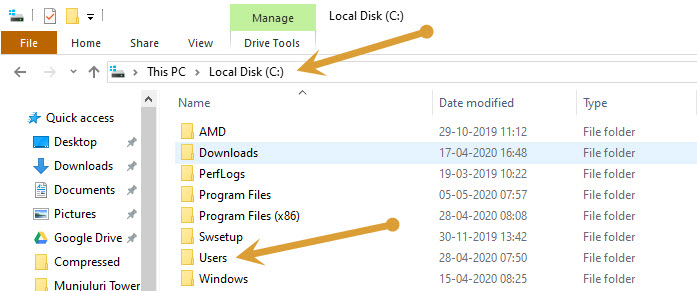
- Go to Users
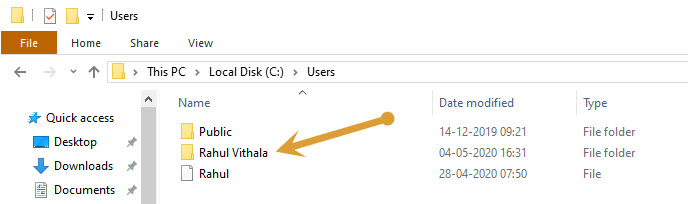
- In the Users folder, go to your PC name folder. (Here I’m opening Rahul Vithala folder)
- Double-click on App Data.
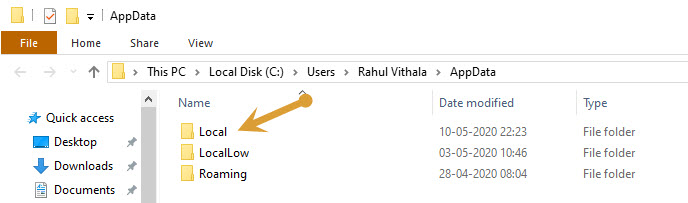
- Double-click on Local.
- Now, double-click on Packages.
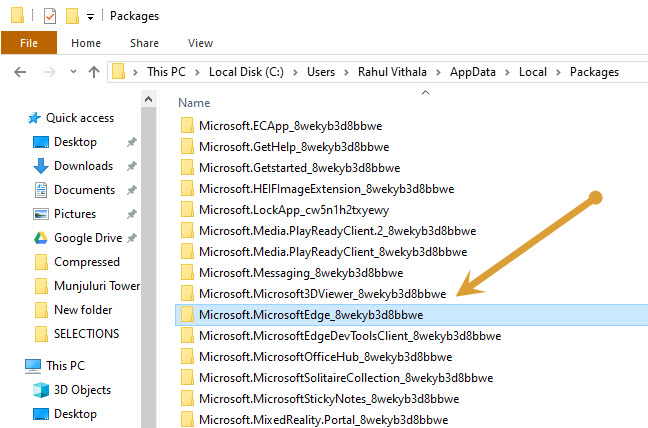
- Find Microsoft.MicrosoftEdge_8wekyb3d8bbwe and double-click on it.
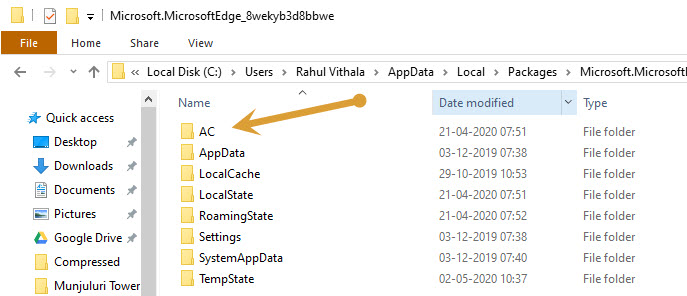
- Next, double-click on AC.
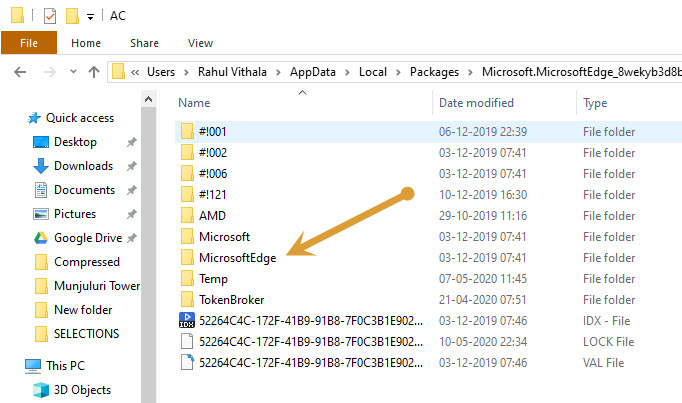
- Double-click on Microsoft Edge.
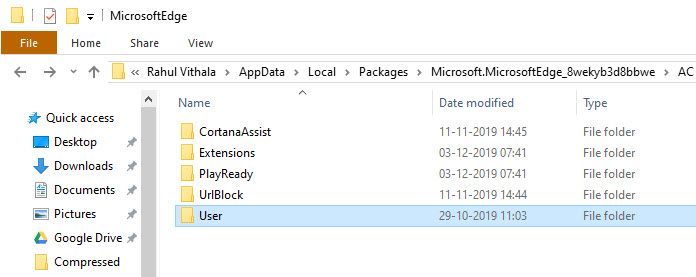
- Now, double-click on the User folder.
- Here, double-click on Default.
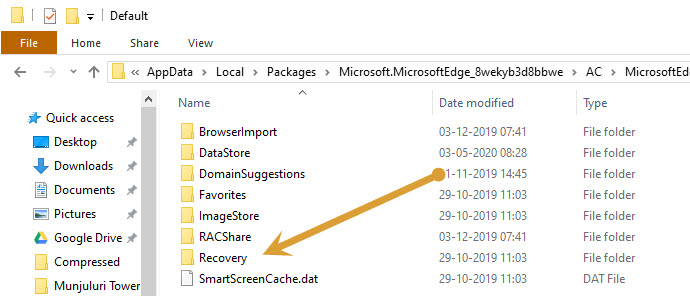
- In the Default folder, double-click on Recovery.
- You have reached the Active folder and now double-click on it.
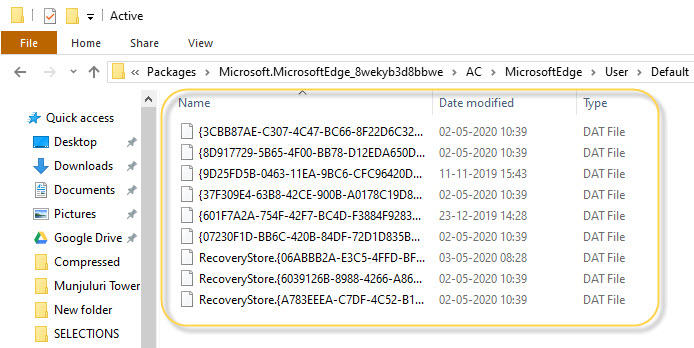
- Now select all files present on the Recovery folder by pressing Ctrl+A keys and delete them.
- After deletion of the files and the Recovery folder, now restart your PC.
After the system restart, Microsoft Edge will no more open automatically with the startup programs.
Let us know which method you used to get rid of the Microsoft Edge on your PC in the comment section below.
More in How-to
How to Fix Microsoft Edge Crashing When Printing on Windows
If Microsoft Edge crashes, freezes or stops responding when you try to print, the quickest fix is to press Ctrl + Shift + P to print with the Windows system dialog instead of Edge’s own print preview. If that works, the problem is Edge’s print preview, and the fixes below will sort it out for…

Bing Chat not working on Edge or Windows? Best fixes to get it running today
Bing Chat, now powered by the latest ChatGPT-based model and integrated across Microsoft Edge and Windows, is drawing strong adoption, but users frequently report that it stops responding, fails to load, or throws generic “Something went wrong” errors. The good news is most issues are routine and fixable with a handful of browser, network, and…

How To Turn Off Automatic Updates in Skype for Windows 10
As a regular Internet user, I can say Skype is one of the best communication apps which is suitable for both personal and business use. Skype has exceptionally clean navigation, situation friendy emo’s, fluid user-interface and a ton of great set of features which gives tough competition to the other apps. Skype regularly pushes the…
The week in tech, minus the noise.
New reviews, fixes and the stories that matter — once a week, straight to your inbox.
We only use your email to send the newsletter. Unsubscribe any time. See our privacy policy.
Comments