

How To Install .DLL File Manually In Windows
Every user of the popular Microsoft Windows Operating System on their computer may have at one point or another, especially during the installation of games, been faced with the problem of having to fix missing DLL files which are essential for smooth running of computer programs. DLL is a computer acronym for “Dynamic Link Library”…

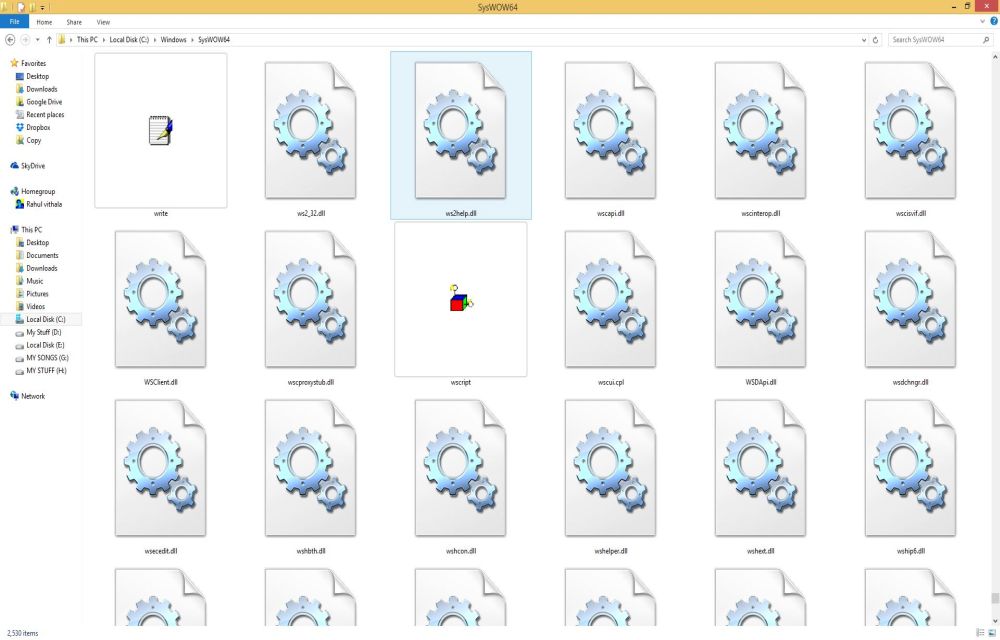
Every user of the popular Microsoft Windows Operating System on their computer may have at one point or another, especially during the installation of games, been faced with the problem of having to fix missing DLL files which are essential for smooth running of computer programs.
DLL is a computer acronym for “Dynamic Link Library” which according to Wikipedia, “provides a mechanism for shared code and data, allowing a developer of the shared code and data to upgrade functionality without requiring applications to be relinked or recompiled”. DLLs is to Windows what Shared Objects is to the Linux OS.
DLL files are a part of Windows operating system, these are used to share information for multiple programs at the same time. In some cases when we used to open a program it shows DLL file is missing from your computer.
To solve the issue, we need to install that specific DLL file on your computer in order to run the program. You actually do not need a knowledge of coding to fix the DLL issues on your computer. There are quite simple ways to do that.
ALSO READ: How to Configure Windows to Index Encrypted Files

Using the Copy and Paste Method to Fix DLL Issue
- Download a DLL file manually from reputable online sources like from DLL-Files. Be careful where you download from, or you may download a virus in form of a DLL. The downloaded DLL file will come in a zip folder.
- Extract it from the ZIP folder > right click on it and select “Cut” (Ctrl + X).
- Navigate to the your root drive folder where the DLL is supposed to be, in this case, C://windows/system32/ by opening your “Computer” > open “Local Disk (C:)” > then “Windows” > open “system32” and press Ctrl + V to paste the DLL file you cut in step 2.
You’re almost done, now is the time to register the DLL on your computer. You can register your DLL using the Run Command or the Command Prompt in Administrator Mode.
Read on…
Using the Run command to register a DLL
- On your keyboard, press the Windows key + R buttons to bring up the run command box.
- Enter the command “regsvr32 name.dll” where the “name” is the name of the DLL you want to register. E.g. regsvr32 shell35.dll.
Using the Command Prompt in Administrator Mode
Depending on the version of Windows you’re using, the steps may slightly differ, but they are almost the same. For this section of the tutorial, Windows 8.1 is being used.
- Press the Windows Key + Q to bring up the search feature and type in “CMD” (or simply click the start menu and type in “CMD”)
- The Command Prompt option will appear first. Right-Click on it and select the “Run as Administrator” option. On Windows 8 or lower operating systems, the procedure is the same save for the fact that on Windows 8, the “Run as Administrator” options that appear after right-clicking are seen on the bottom lower part of the screen.
- When the Command Prompt is open, type in “cd\” and press Enter to open the root directory (C:)
- Simply type in “regsvr32 name.dll” and press Enter on your keyboard.
Voila! You’ve successfully installed a DLL file on your computer.
More in Windows
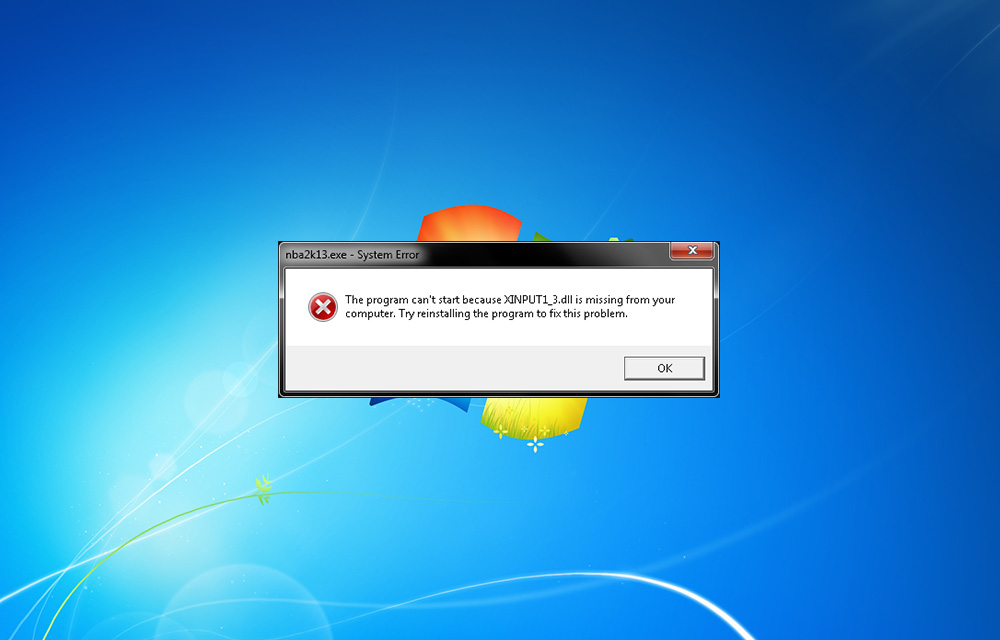
How To Fix Xinput1_3.dll is Missing Error On Windows
You may be faced Xinput1_3.dll is missing error while playing games. It is a common error comes during game play. Many of us just click on “OK” to exit the pop-up and continue the game. Unfortunately, this error doesn’t end by tapping ok. The reason of this error is the missing DirectX 9, which is…
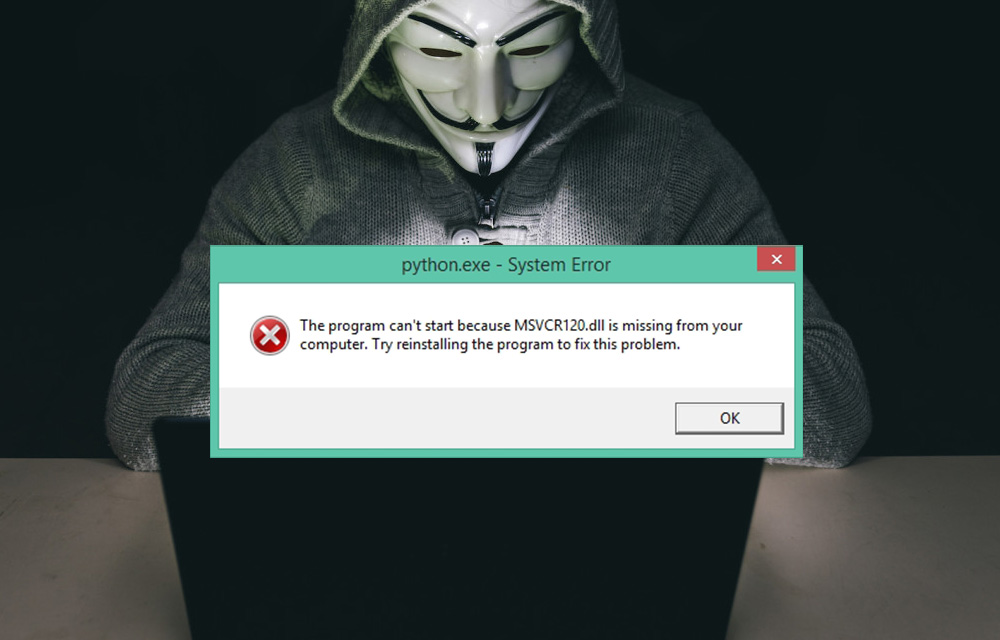
How to Fix MSVCR120.dll is Missing Error in Windows
DLL files are essential in your computer to perform tasks and functions. Missing files will create problems like they won’t run specific programs and sometimes you can’t even install a game or program in Windows if any particular DLL file is missing in your computer. In the past, we discussed the fixing procedure of Mss32.dll…
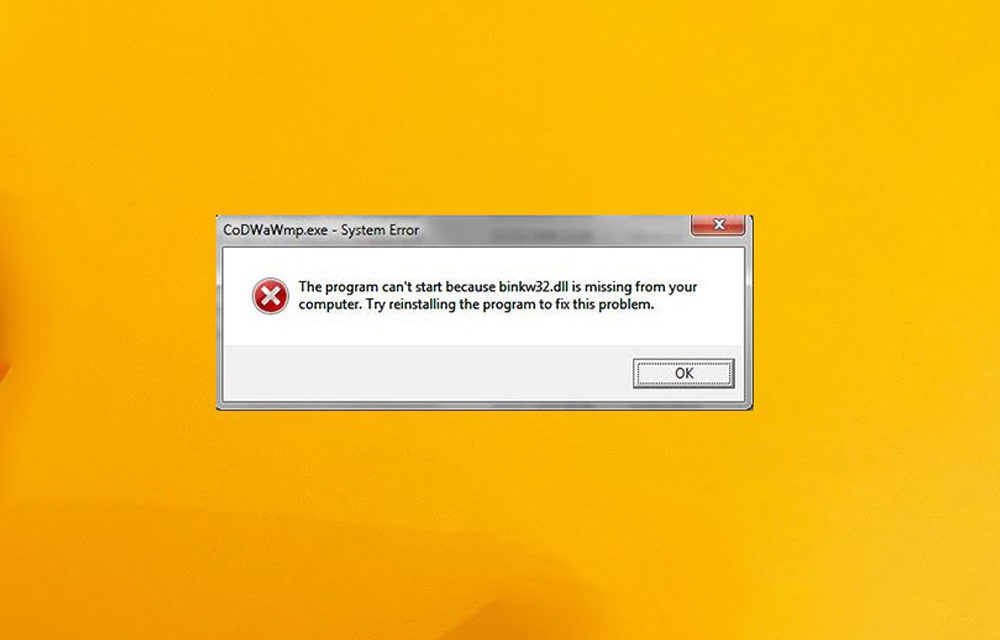
How to Fix Mss32.dll Missing Error
Dynamic Link Library or DLL is one of the most useful as well as the problematic file types in computers. Many times problems occur with the DLL files either when trying to run a newly borrowed game or while trying to install some applications. Mss32.dll such a file required by many applications especially the audio…
The week in tech, minus the noise.
New reviews, fixes and the stories that matter — once a week, straight to your inbox.
We only use your email to send the newsletter. Unsubscribe any time. See our privacy policy.
Comments