

How To Save My Documents In Cloud Directly
What would you do when situations like hard drive failure and corrupt OS problems occur. No doubt we completely loose our saved important files on Desktop and My Documents. Whether it is a work file and marriage or vacation picture losing data gives a lot of pain. Recently I faced this kind of situation when…


How To Save My Documents In Cloud
What would you do when situations like hard drive failure and corrupt OS problems occur. No doubt we completely loose our saved important files on Desktop and My Documents. Whether it is a work file and marriage or vacation picture losing data gives a lot of pain. Recently I faced this kind of situation when my hard drive unexpectedly crashed. I’ve tried my best for data recovery in many ways. But the result is zero, I’ve lost all my important documents, Bank bills, Credit card expenditure files and most important precious pictures.
In a browsing session when we like a picture or downloading a document generally we save the file in Desktop or My Documents.After losing my all important data on hard drive failure, I’ve tried to change the locations of these two most important file locations. Changing the default locations of Desktop and My Documents may solve the problem of losing data in accidental conditions.
When you buy a new system or you recently formatted your drive change the default locations to a cloud service. Get a large size cloud service of your choice, whether it is a Dropbox or a Google Drive size matters. Dropbox gives 2GB when you signup and give extra space on referrals if you want more space on Dropbox you have to spend a couple of bucks to the service. Google Drive give 5GB when you sign up for any of Google service. My personal choice is Copy. Copy give you a whopping 15GB when you sign up. I’ve installed Copy desktop client to use as a system default locations.
How To Save My Documents In Cloud Directly
- Download and install the Cloud service of your choice first.
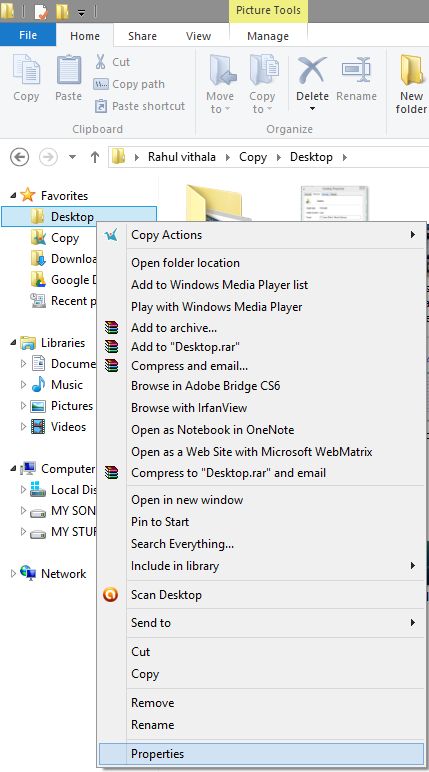
- To change the Desktop default location open windows explorer –>look in the sidebar and under the Favorites–>right click on Desktop on the top left the side of the menu and select Properties.
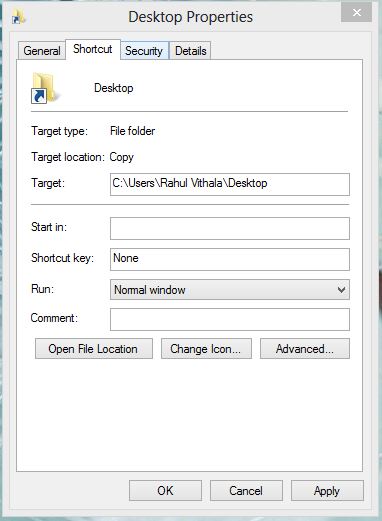
- Here the tab shows the default location of Desktop. For my system, it is “C: \Users\Rahul Vithala\Desktop”.
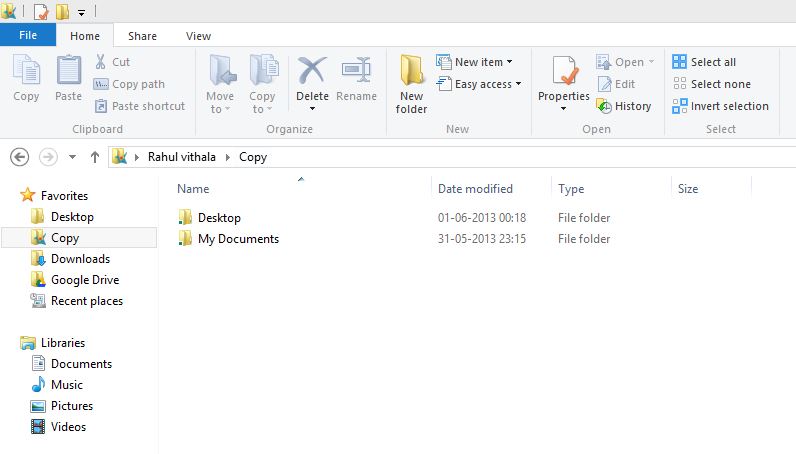
- Now create a new folder in the installed cloud service folder named as “Desktop”.
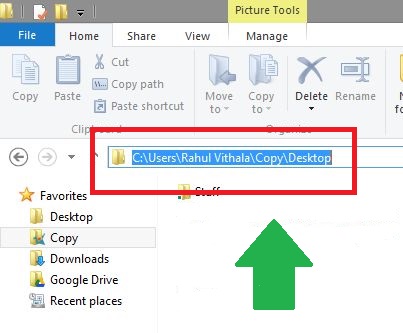
- Look for the location of created Desktop named folder in cloud service.Copy the location of the service to the clipboard.

- Paste it on the above-mentioned location on step 3 and click on apply & Ok to save.
- Repeat the same process on My Documents also.Here create a new folder named as My Documents in Cloud service folder.
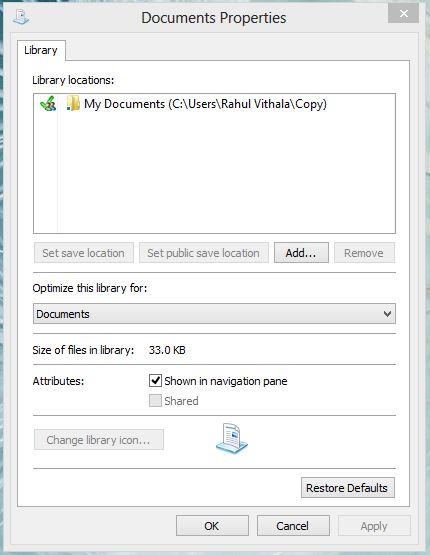
- Add the location of new My Documents location in the Documents properties and click on apply & Ok.
From now when you save any file on Desktop or My Documents it directly saves on Cloud service, you can access these files anytime in a physical location or in cloud service website without any hassle. Now you can relax at any disastrous situation of PC crash without losing a single file.
More in How-to
How to make Google Doc available offline
How to make google doc available offline: This article is about making online Google doc to offline access. Google doc is a document creating service which works under the Google Drive cloud service. This service lets you create documents online and it saves automatically in the cloud. Google Docs has three types of document support…
How to Recover Deleted Files from Cloud Drives
How to Recover deleted files from Cloud drives: Cloud drives are very important in today’s life. We keep our important files and data on cloud drives.

How To Download iPhone Photos From iCloud To Your Mac
Apple has a fantastic storage option called iCloud to save our precious documents, photos and many more in their cloud storage. The free plan allows you up to 5GB of space and whereas the paid subscription model lets you use 50GB, 200GB and up to 1TB of online storage. Most of the people are using…
The week in tech, minus the noise.
New reviews, fixes and the stories that matter — once a week, straight to your inbox.
We only use your email to send the newsletter. Unsubscribe any time. See our privacy policy.
1 comment
thanks for explaning all the restore history.
im nick and i have a question if you can help me i would be grateful
how can i see on a smartphone if somody has a facebook acount and his logging in through the smartphone and how can i see deleted web searches
thanks hope to hear from you soon
its very important for me to know