

How to Password Protect your Photos Using Vaulty on your Android device
Worried about the protection of your personal photos and videos being accessed or viewed by anyone else?. If you are living in a crowdy condition, it might happen. So, you want to take some precautions for preventing others from accessing your Images or videos. Vaulty is an android app which helps you to hide or…

password-protect-your-photos-using-vaulty-on-your-android-device
Worried about the protection of your personal photos and videos being accessed or viewed by anyone else?. If you are living in a crowdy condition, it might happen. So, you want to take some precautions for preventing others from accessing your Images or videos. Vaulty is an android app which helps you to hide or password protect your images or videos with custom credentials. The app has several features to protect all those important photos and videos on your device and once protected, anyone can’t even take a look at those files without your permission.
Vaulty is naughty too. If someone tries to open those password protected files by repeatedly entering some incorrect passwords, the vaulty app will automatically take their pictures using the front camera and will be saved for you. So, stealers will take their own selfies without even knowing. So, beware. The app provides a private gallery for you where you can view your password protected or hidden images and videos and manage them if you desire.
To protect your files using vaulty, read our complete guide on ‘How to password protect your photos using Vaulty on your Android device’. Follow the simple steps given below.
Steps to Password Protect your Photos Using Vaulty app
- First of all, you need to have the vaulty app. Download Vaulty.
- Install the app by following the instructions.
- After the installation process completed, simply Launch the app.
- It will prompt to enter the password or PIN that you want to use to open the app and the protected files.
- Just enter a rememberable but strong password for the app.
Note: It is recommended to note down the app password in some safe place. Because it will be helpful once you forget it. - Once you are on the Vaulty screen, Tap on the “Hide Pictures & Videos.” option.
- Choose all the photos you want to hide/lock.
- Once you are done selecting the specific photos to lock, Tap the “Pad lock” option.
Now, your photos are protected by the password you are given to them and others can’t view them without your permission. So, feel free to left your phone anywhere. lol…
How to access those locked files again?
All done. Protected your photos and videos. Now, how to access them again and manage them?. Follow the simple steps given below to do that.
- Start the Vaulty app.
- Provide the required password or PIN when prompted.
- Now, you will find all those secret files there and you can manage the protection from this screen itself.
If you have faced any errors or need any help, you can always let us know by the comment box below. We are always happy to hear it from you.
You might also like
How to Open Password Protected Android Apps
We always use some app locks to protect our apps from external access. It is good to lock the important apps like Whatsapp and Facebook where the important chat sessions and files exist. This prevention can protect your files thus, you can use your device without worrying about the anonymous usage of them. All set and…
How To Hide or Password Protect Photos On Your iPhone or iPad?
Apple devices are not prone to vulnerable security issues. They can save you online threats, but what if your friend or sibling tries to access your photos on your iPhone or iPad. Smartphones come with so many features, one of them is instant photo saving. If you want to hide the pictures or images stored in…
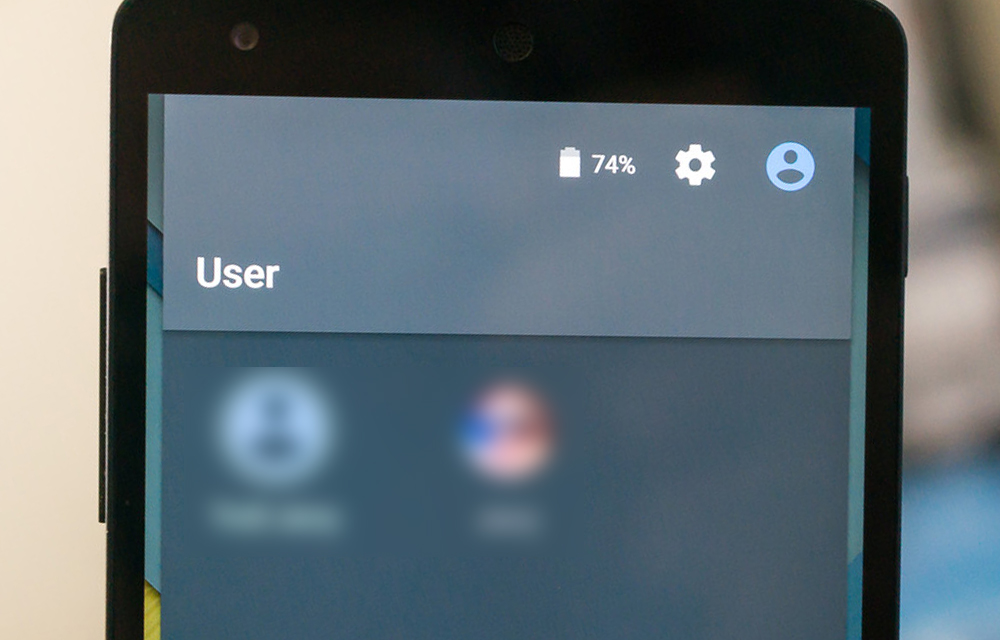
How to Secure Android Lollipop Guest Mode
Do you know how secure is the Android Guest mode in your Lollipop? Are you completely protected by just tapping a button to enable guest mode? I don’t think so. In this article, we are going to secure your Android Lollipop Guest mode to ensure maximum privacy while sharing your smartphone with someone else. For…
The week in tech, minus the noise.
New reviews, fixes and the stories that matter — once a week, straight to your inbox.
We only use your email to send the newsletter. Unsubscribe any time. See our privacy policy.
Comments