

Fix “Microsoft Excel Cannot Open or Save Anymore Documents Because there is not Enough Available Memory or Disk space” Error in Excel
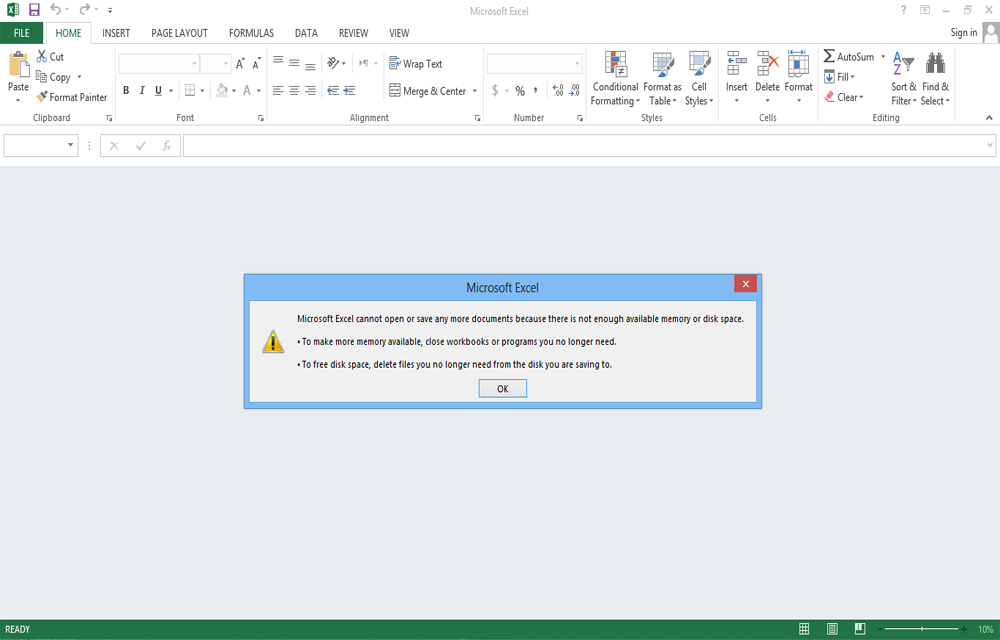
While trying to access some Excel files, Getting an error saying “Microsoft Excel cannot open or save any more documents because there is not enough available memory or disk space“? You probably answer, Yes. That’s why you are here now. This error occurs mostly when trying to access some excel sheets downloaded from some websites or…

Fix Microsoft Excel Cannot Open or Save Anymore Documents Because there is not Enough Available Memory or Disk space Error in Excel main image
While trying to access some Excel files, Getting an error saying “Microsoft Excel cannot open or save any more documents because there is not enough available memory or disk space“? You probably answer, Yes. That’s why you are here now. This error occurs mostly when trying to access some excel sheets downloaded from some websites or emails. Those files are blocked by your computer to protect the privacy and security. Thus, Excel denies opening the sheet. But, we can’t go with this error any more. So, we must fix this error as soon as possible.
You may also like:
Fixing this error is not that much of a tough task. Any one could do it with some very simple steps. We listed the steps to Fix “Microsoft Excel cannot open or save any more documents because there is not enough available memory or disk space” Error in Excel. So, let’s have a look.
Steps to Fix “Microsoft Excel Cannot Open or Save Any more Documents Because there is not Enough Available Memory or Disk Space” Error in Excel.
Fixing this excel error is very easy and can be done by any one. Carefully follow the simple steps given below to make the task done within minutes.
- Go to the folder where the file located. If you have downloaded the file, it might be on the Downloads folder of your computer.
- Find the file and Right click it and Choose “Properties“.
- Now, you might get a window like below.
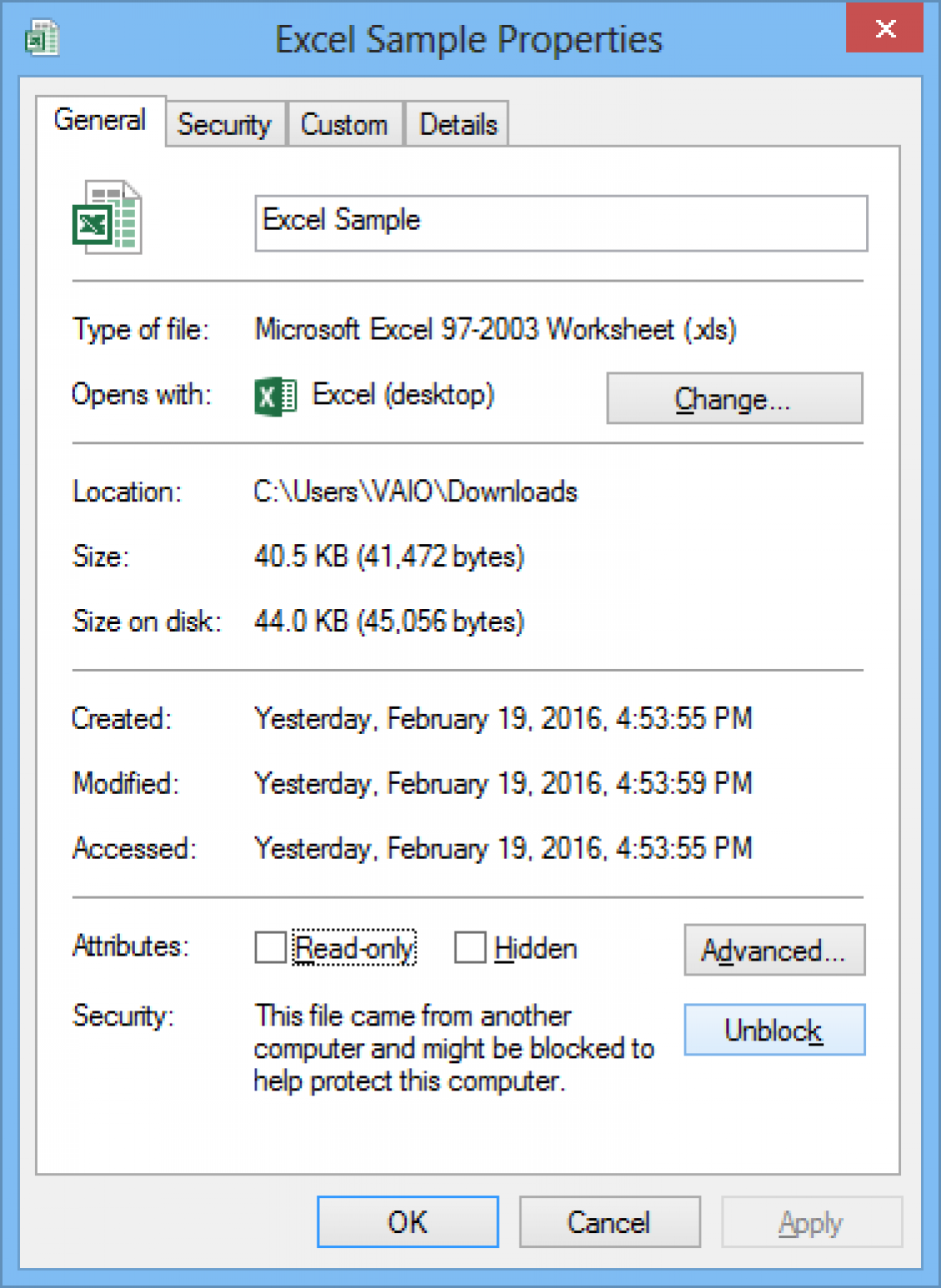
- There you can see a button namely “Unblock“. Click on the button.
- Click Apply button.
- Now, the window will look like below screenshot.
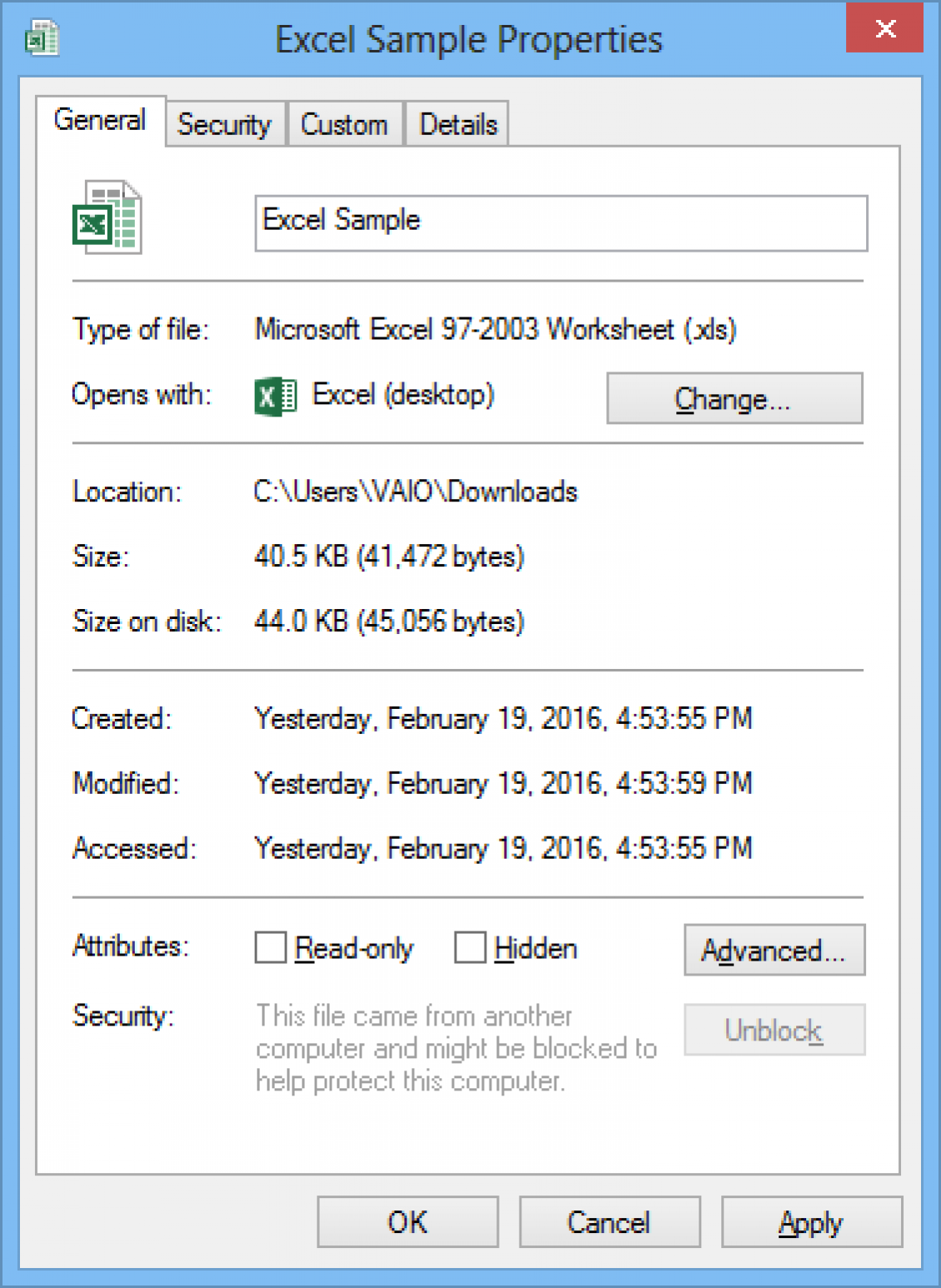
- Try to access the file again. The problem will be solved now.
Now, we removed the restrictions made by the OS against the excel sheet thus unblocking it. So, the excel can again read the document, and you can work with it as before. If need a better visual of the process. Check out this video which shows the complete steps to fix the excel error.
This video will guide you through the complete step by step process to solve the issue. If the problem still exists and want further assistance, you could always contact us or comment below. We are always happy to serve you.
More in How-to
How To Fix The 0x8024401c Error In Windows 10
0x8024401c is a common error code usually appear on the Windows update page on your computer. It is an error caused by the registry keys of Windows update and you can easily fix them by running the registry script on your computer. Before going to proceed the below methods, first, check your Windows is activated…
How to Password Protect a PDF file
The PDF format is the most widely used format for documents. It is a regular format to use important documents including bank transactions and other personal information related files. If you want to protect a PDF file, there are several ways available to password protect a PDF file. Password protection to a file is necessary…

How to Fix Microsoft Edge Crashing When Printing on Windows
If Microsoft Edge crashes, freezes or stops responding when you try to print, the quickest fix is to press Ctrl + Shift + P to print with the Windows system dialog instead of Edge’s own print preview. If that works, the problem is Edge’s print preview, and the fixes below will sort it out for…
The week in tech, minus the noise.
New reviews, fixes and the stories that matter — once a week, straight to your inbox.
We only use your email to send the newsletter. Unsubscribe any time. See our privacy policy.
Comments