

How to Fix USB Headset or Speakers With No Sound (Code 10) on Windows 11
Disclosure: TheTechHacker has no paid relationship with Microsoft or any company mentioned here. You plug in your USB headset for a call and Windows behaves as if it isn’t there at all, so there’s no sound, the volume slider sits stuck at zero, and Device Manager shows a yellow warning that says “This device cannot…

Photo by Petr Macháček on Unsplash
Disclosure: TheTechHacker has no paid relationship with Microsoft or any company mentioned here.
You plug in your USB headset for a call and Windows behaves as if it isn’t there at all, so there’s no sound, the volume slider sits stuck at zero, and Device Manager shows a yellow warning that says “This device cannot start (Code 10).” The headset worked fine last week, and the thing that changed in between is Windows itself.
This is a known issue that Microsoft has confirmed, because since a Windows update in September 2026 some USB audio devices have no sound on Windows 11, or they fail to start with Code 10. Windows 11 version 26H2 is now rolling out to every eligible PC, which means more people are running into it, so below I’ll walk through what’s going on and the workarounds that can get your audio back.
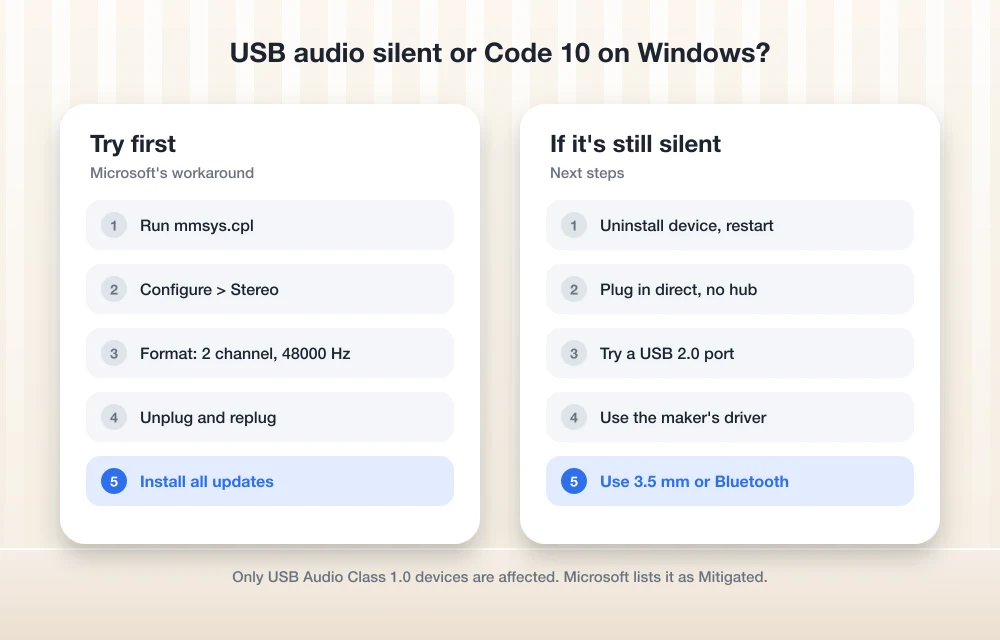
Short version: The bug only hits USB Audio Class 1.0 devices, and that covers a lot of basic USB headsets, speakers and DACs. I’d start by setting the device to 2-channel stereo in the classic Sound control panel, since Microsoft says that restores audio for some people, and then install every available update, try a different USB port and reinstall the device in Device Manager. Microsoft lists the issue as “Mitigated” rather than fixed, and it says a full fix is coming in a future update.
What Microsoft Says About the USB Audio Bug
The issue appears on Microsoft’s Windows 11 version 26H2 release health page under the title “USB audio devices might fail to start or produce no sound,” and according to Microsoft, affected devices can show one or more of the following symptoms:
- Device Manager shows the message “This device cannot start (Code 10)” for the USB audio device.
- The device produces no audio output at all, even though it’s plugged in and selected.
- The volume controls don’t respond, or they stay stuck at zero no matter what you do.
- Sound settings become unresponsive or simply aren’t available.
There are two details on that page that are easy to miss. The first is that Microsoft says the problem is limited to USB Audio Class 1.0 devices, and the second is that it isn’t really a 26H2-only bug, because Microsoft ties it to the September 8, 2026 update and lists a long range of affected versions, from Windows 11 versions 23H2 through 26H2 to several Windows 10 releases and a fair number of Windows Server editions. That means skipping 26H2 won’t protect you, and holding back updates won’t fix a PC that’s already affected.
Microsoft released an out-of-band update, KB5129195, on September 14, 2026, and it fixed one part of the problem, where devices that worked in stereo failed in multichannel modes, but it left the Code 10 and no-sound symptoms open. The status was last updated on September 29, and Microsoft says it’s working on a fix that will arrive in a future Windows update.
Is Your Headset a USB Audio Class 1.0 Device?
Most people have never heard of audio “classes,” and that’s perfectly reasonable, so rather than guessing you can check yours in Device Manager with the steps below.
- Right-click Start and open Device Manager, which is where Windows keeps the details for each piece of hardware.
- Expand Sound, video and game controllers and double-click your USB headset or speaker to open its properties.
- Go to the Details tab and pick Compatible Ids from the drop-down so you can see how the device identifies itself.
- Look for a line starting with
USBClass_01, and if it ends in Prot_00 you have a USB Audio Class 1.0 device, while Prot_20 means it’s USB Audio Class 2.0.
If yours turns out to be Class 2.0, this particular bug probably isn’t what’s causing your trouble, so you can skip ahead to the general fixes near the end of the article.
How to Fix USB Audio No Sound and Code 10 on Windows 11
Step 1: Switch the device to 2-channel stereo
This is the workaround Microsoft itself mentions, and it’s the first thing I’d try, because some users got their audio back simply by switching the device over to 2-channel mode.
- Press Win + R, type
mmsys.cpland press Enter, and the classic Sound window will open. - On the Playback tab, select your USB device and click Configure, then choose Stereo and work through the wizard until it finishes.
- Select the device again, click Properties, open the Advanced tab, and set the Default Format to a 2-channel option such as 2 channel, 16 bit, 48000 Hz.
- Click Apply, then unplug the device, wait a few seconds and plug it back in so Windows picks up the new setting.
If the headset has a microphone, it’s worth checking the Recording tab as well and setting its format to a basic option like 1 channel or 2 channel, 16 bit, 48000 Hz.
Step 2: Install every available update
Open Settings > Windows Update and click Check for updates, because Microsoft’s fixes for this bug have been arriving in pieces and a later update may well cover your exact symptom. While you’re there, open Advanced options > Optional updates and look under driver updates too, since your PC maker may have posted an audio or USB controller driver in that section.
Once you’ve updated, press Win + R, type winver and make a note of your build number, which is handy to have if you end up contacting support later on.
Step 3: Uninstall the device and let Windows reinstall it
In Device Manager, right-click the USB audio device and choose Uninstall device, but leave the box for deleting the driver unticked. Unplug the device, restart the PC and then plug it back in, so Windows loads a fresh copy of the USB audio driver, which sometimes clears a stuck Code 10.
Step 4: Try a different USB port, and skip the hub
Plug the device straight into the PC rather than into a hub, dock or the USB port on a monitor, and if you’re using a front-panel port, try one on the back of the motherboard instead. If the device is on a USB 3.x port and your PC still has a USB 2.0 port, give that a go as well, because although it sounds old-fashioned, older audio devices sometimes behave better there.
Step 5: Install the maker’s own software or driver
A lot of gaming and pro headsets ship with their own app and driver (the companion apps from Logitech, Razer, SteelSeries and similar companies are good examples), and using the maker’s driver instead of the generic Windows one can sidestep the bug entirely. I’d check the support page for your exact model to see what’s on offer.
Step 6: Use a different connection for now
If your headset also has a 3.5 mm jack or Bluetooth, I’d switch to that until the fix lands, since it isn’t the most elegant solution but it will get you through the week’s meetings.
Step 7: Consider rolling back, carefully
If you upgraded to 26H2 within the last 10 days, you can go back under Settings > System > Recovery > Go back, though keep in mind that Microsoft says the bug also affects older versions, so rolling back may not help at all. I also wouldn’t uninstall security updates just to chase an audio bug, because that leaves the PC exposed and is unlikely to fix this particular problem anyway.
If you’re running a business, Microsoft says IT admins who need an immediate workaround for the remaining symptoms can get in touch with Microsoft Support for Business.
Still No Sound? Rule Out the Usual Suspects
If your device turned out to be USB Audio Class 2.0, or the steps above didn’t help, there’s a good chance you’re dealing with a different problem, so it’s worth running through a few quick checks.
- Click the speaker icon on the taskbar and make sure the right output device is selected, because Windows has a habit of switching to the monitor’s speakers after an update.
- Right-click the speaker icon, choose Sound settings, and run Troubleshoot common sound problems to let Windows look for obvious faults.
- Try the headset on another PC, and if it’s silent there as well, the problem is with the hardware rather than Windows.
If 26H2 has brought you other trouble, take a look at our guide to fixing the Windows 11 26H2 black screen after sign-in. For USB drives that are acting up too, we also cover how to fix an external drive not showing up on Windows 11, and if the Xbox app stopped opening after the same update, see how to fix the Xbox app not opening on Windows 11.
FAQs
Why does my USB headset say Code 10 on Windows 11?
Code 10 means Windows couldn’t start the device, and since the September 2026 update Microsoft has confirmed that some USB Audio Class 1.0 devices fail in exactly this way. Switching the device to 2-channel stereo and installing the latest updates are the first things I’d try.
Has Microsoft fixed the Windows 11 USB audio bug?
Only partly, because KB5129195 fixed the multichannel problem, but Microsoft still lists the Code 10 and no-sound symptoms as “Mitigated,” with a full fix planned for a future update.
Does this only affect Windows 11 26H2?
It doesn’t, since Microsoft lists Windows 11 versions 23H2 to 26H2, several Windows 10 releases and a number of Windows Server editions as affected.
That covers everything for now, and the stereo trick is the one I’d try first, with the rest of the steps there to catch the cases it misses. Once Microsoft ships the full fix, I’ll come back and update this page with the KB number.
You might also like

Windows 10 Sound Not Working? Use these Fixes
Windows 10 is the latest Microsoft OS for the computers. Microsoft made a lot of changes to the recent Windows versions to craft a perfect OS like Windows 10. However, still, there are few issues reported by the users. The sound problem is one of them. Many users reported that they are not able to…

How To Fix No Sound From Headphones In Windows 10
When it comes to hardware, headphones are a common device that we use every day for various purposes, such as listening to music, participating in online meetings, or gaming. Typically, connecting headphones to your system’s audio jack is a straightforward process, and you should be able to hear audio without issue. However, in some cases,…
How to Fix Windows 10 Error Code 0xc00000e
The 0xc00000e is an error commonly found on Windows 10 systems faced by thousands just like yourself. In a plethora of errors, we have one more to resolve. Going behind the solutions may require hours no matter how much of a novice you are to the Microsoft OS. Trying out tens of solutions, still without…
The week in tech, minus the noise.
New reviews, fixes and the stories that matter — once a week, straight to your inbox.
We only use your email to send the newsletter. Unsubscribe any time. See our privacy policy.
Comments