

How to Disable Automatic Updates in Windows 10
Windows 10 is one of the most advanced operating systems available today. Even it has some problems and bugs in it, there is no doubt in the reliability and functionality of the Microsoft OS. If you’ve ever faced a situation where you need to disable automatic updates in Windows 10 due to excess internet usage…


How to disable automatic updates in windows 10
Windows 10 is one of the most advanced operating systems available today. Even it has some problems and bugs in it, there is no doubt in the reliability and functionality of the Microsoft OS. If you’ve ever faced a situation where you need to disable automatic updates in Windows 10 due to excess internet usage or other kind of problems, we have the solution for you. We’ve written this article for those who need to disable automatic updates in windows 10. So, step over to the following paragraphs to know how to do it.
Steps to Disable Automatic Updates in Windows 10
If you’ve used the earlier version of windows like windows 7, 8 or 8.1, you will feel the process is a little different from them. Like the previous versions, there are no direct options on the windows 10 control panel which allows the users to disable automatic updates. The steps are a bit complicated. If you follow it carefully, it will pay the results. So, carefully follow the steps given below to disable automatic updates in windows 10.
- Open Run Command window by pressing Win+R keys together or You could also access it by pressing Win+X keys together and selecting the Run option from the drop-down list.
- Type gpedit.msc in the Run command and press Enter.
- On the opened window, click on Computer Configuration option.
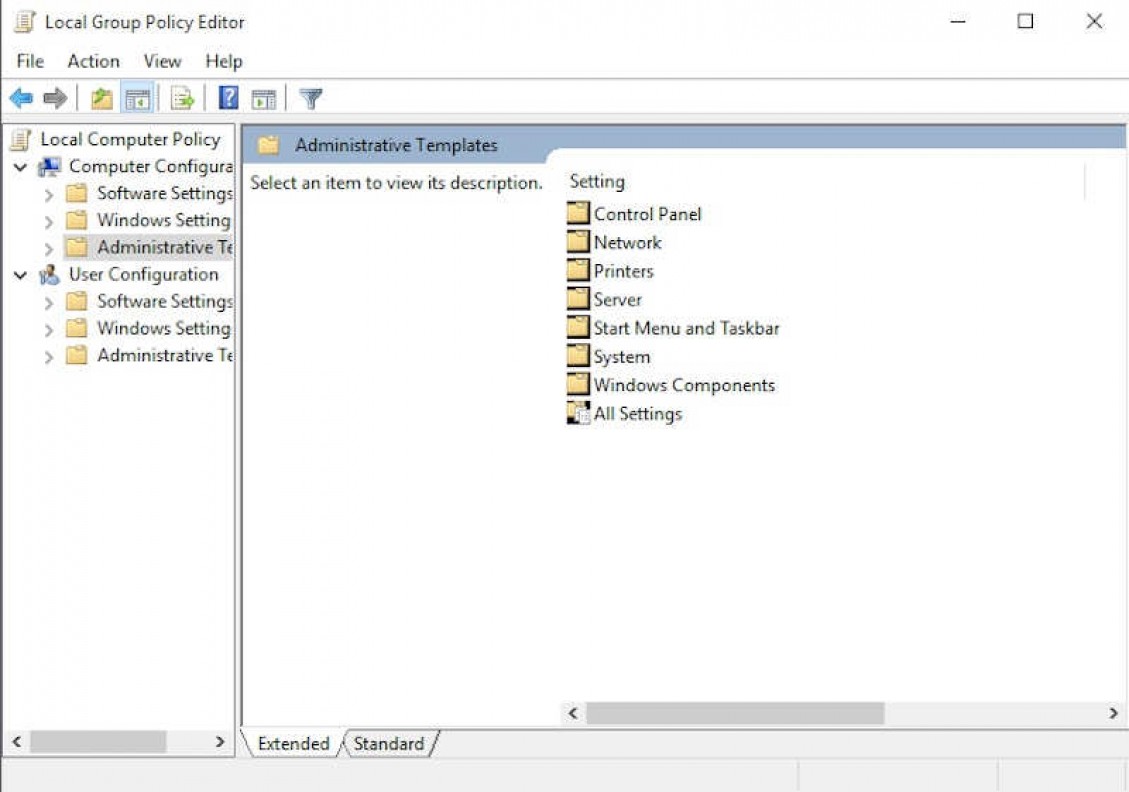
- Now, Select Administrative Templates from the left panel.
- Select All Settings from the right pane.
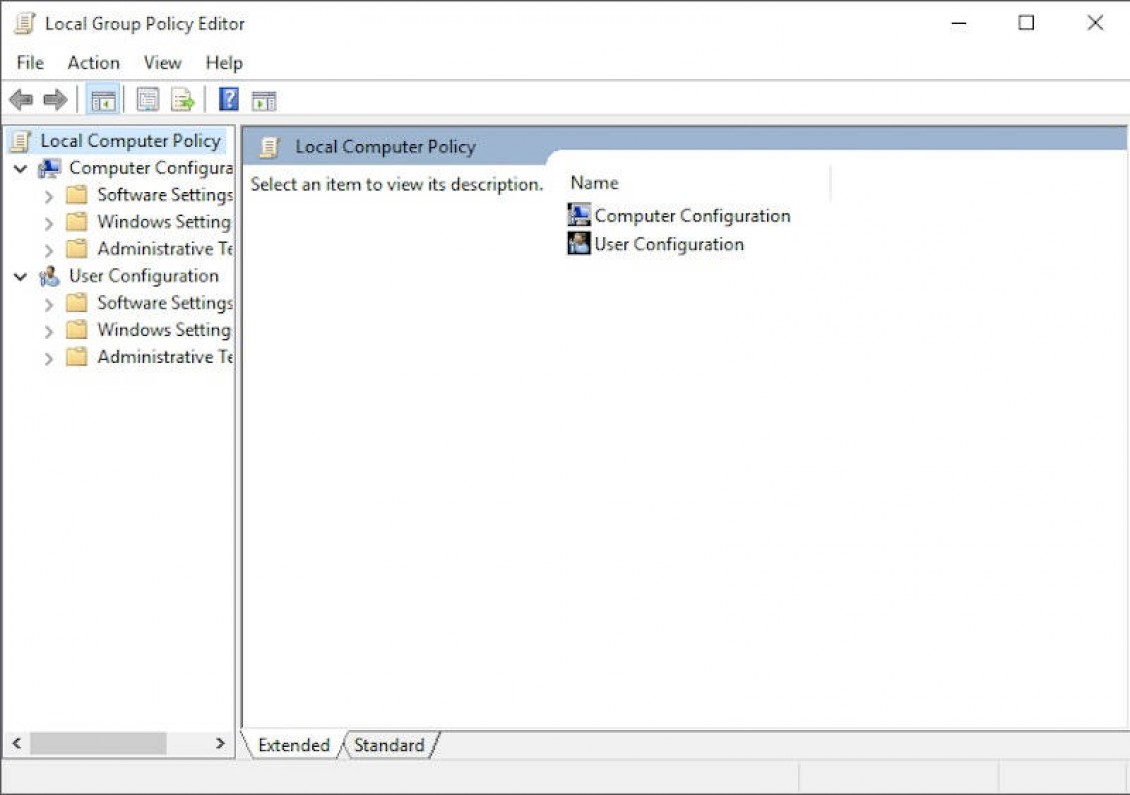
- Scroll down and double-click the options namely Configure Automatic Updates.
- Select Enabled radio button in next window.
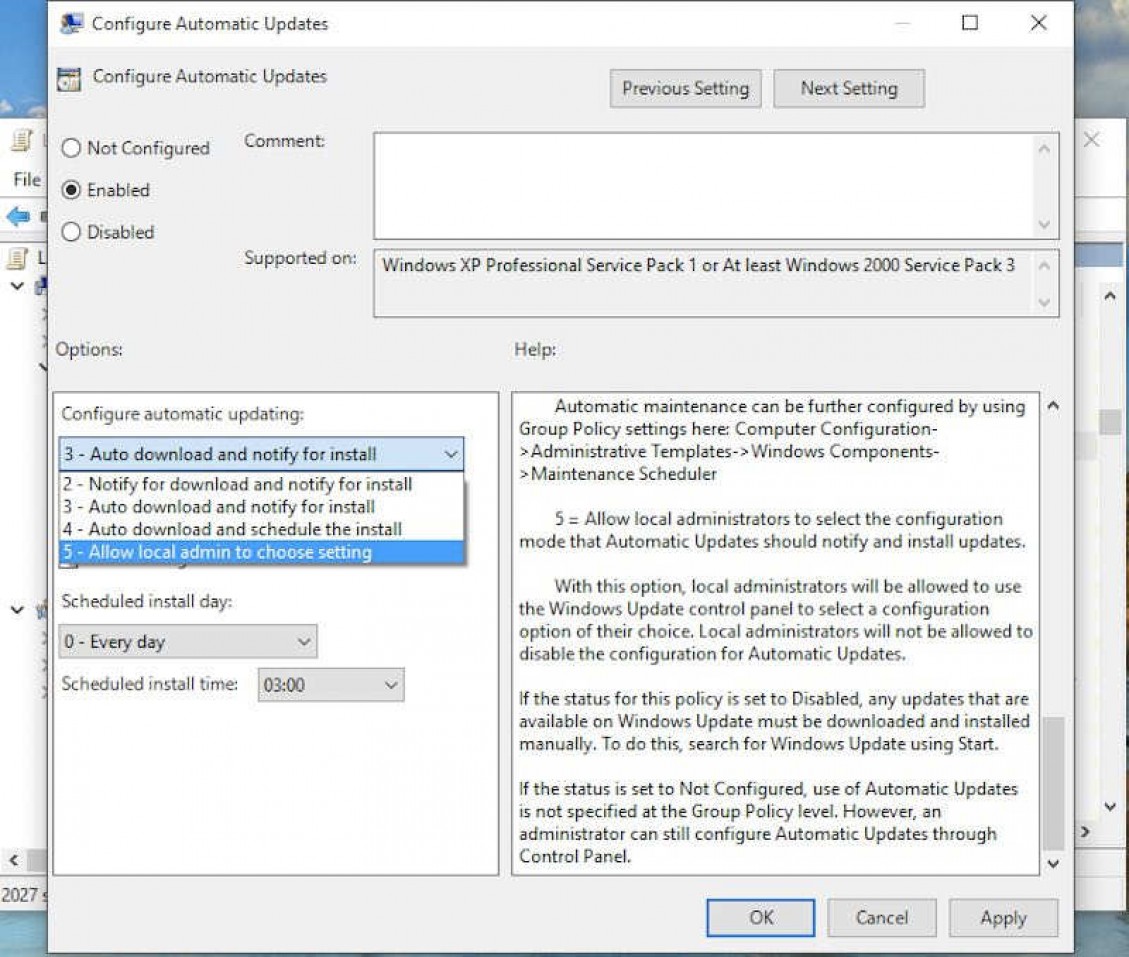
- Now, the Options section at the bottom will be activated, and you can change the values.
- Click the drop bar and select Allow local admin to choose setting.
- Click Apply button and then OK.
Now, you will be able to change the automatic updates settings on the control panel as you were in previous versions of the windows. To change the automatic updates settings on the control panel, follow the steps below. - Go to Control Panel either by the desktop icon on searching it in the menu.
- Click on System and Security option.
- On the next screen, Click on Windows Update.
- Select Change settings option on the following screen.
- Now, you will see an option namely Check for updates but let me choose whether to download and install them. Select it and Save changes.
- Exit the control panel.
Now, you’ve successfully disabled automatic updates in windows 10. if you are facing any types of problems or if you need any help, we are always here for you. Leave your doubts and problems in the following comment box and we will get to you as soon as possible.
More in Windows

How to Fix Windows 10 Adaptive Brightness Not Working
In the past few years mobile devices coming with the adaptive brightness which detects the light conditions in the environment and adjusts the screen brightness accordingly. This feature will save the user time by adjusting the screen brightness automatically, For example, if you are outside on a sunny day, the screen will automatically increase the…

How to Fix Xbox App Not Opening on Windows 11
If the Xbox app won’t open on Windows 11, flashes and closes, or sits on the loading screen and stops responding, the cause is almost always Gaming Services, the background component the Xbox app depends on. Repairing or reinstalling Gaming Services, and then repairing the Xbox app itself, fixes most cases. In this article, we…
How to Fix Windows 11 Widgets Not Working
Windows 11’s Widgets panel gives quick glances at weather, news, stocks, and more right from your taskbar. But if clicking the icon does nothing, shows a blank screen, or fails to load, it’s a common technical glitch. Often tied to missing components like Edge WebView2 or the Windows Web Experience Pack, these fixes get most…
The week in tech, minus the noise.
New reviews, fixes and the stories that matter — once a week, straight to your inbox.
We only use your email to send the newsletter. Unsubscribe any time. See our privacy policy.
Comments