

How to Add Website Links to Windows 10 Start Menu
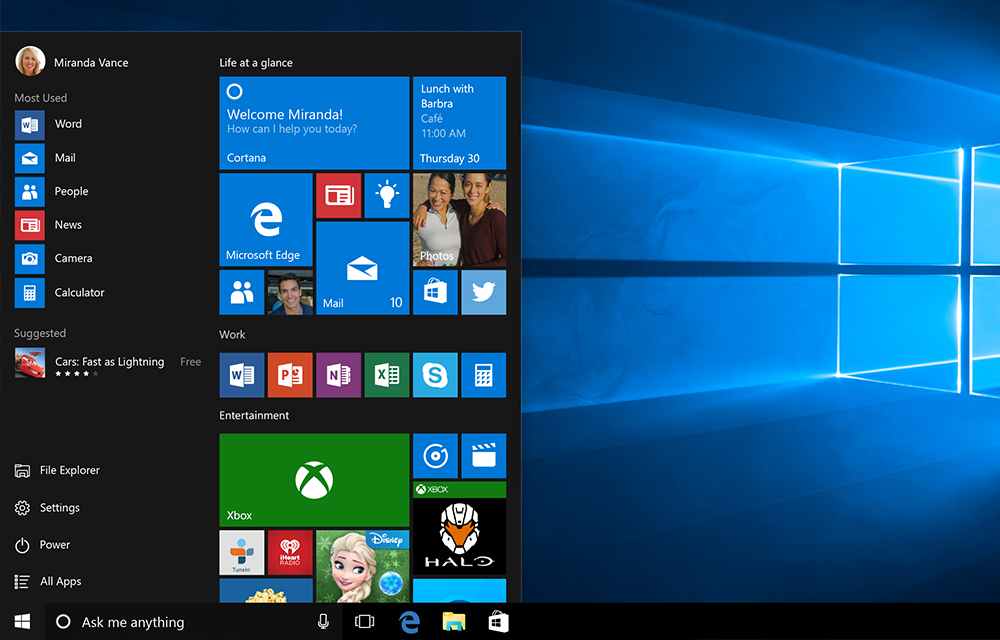
Thanks to the Microsoft for bringing back the Charming start menu in Windows 10. Alongside numerous existing features, Windows 10 start menu comes with a lot of new addition. Such a noticeable addition is that the users can now pin their favorite websites to the start menu to quickly access them. This feature will be…

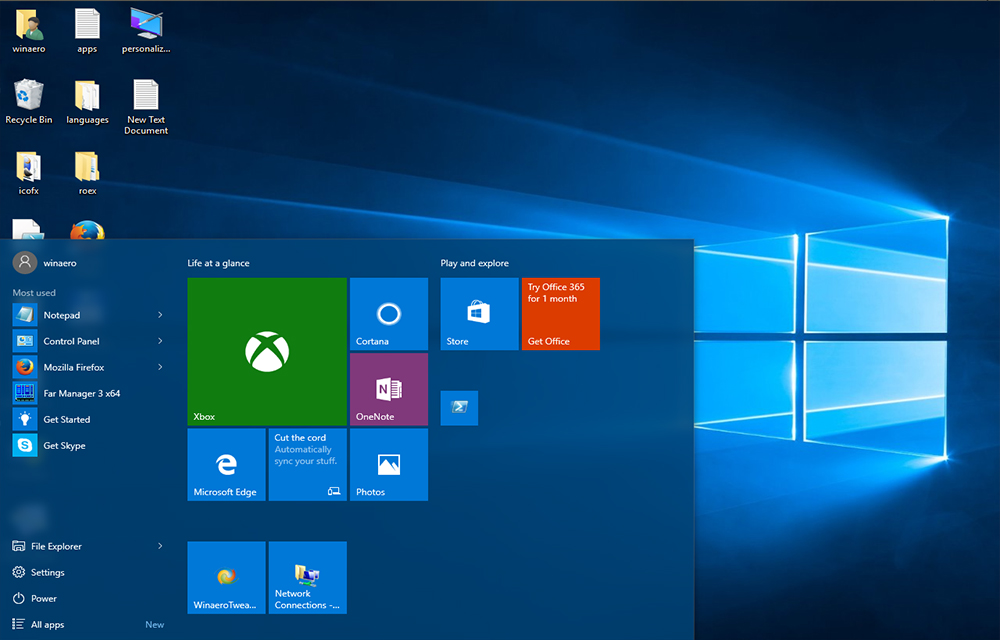
Thanks to the Microsoft for bringing back the Charming start menu in Windows 10. Alongside numerous existing features, Windows 10 start menu comes with a lot of new addition. Such a noticeable addition is that the users can now pin their favorite websites to the start menu to quickly access them. This feature will be a blessing to those who working a lot on Internet and want to reach websites as easier as possible. It is also very helpful to the social nerds to pin their social networks like Facebook and Twitter.
Read these windows 10 articles:
So, in this article, we are providing the methods to add website links to Windows 10 start menu that will help you access them as quick as possible. So, let’s have a look at them.
How to Add Website Links to Windows 10 Start Menu
Pin Websites using Edge
The best way to pin the websites to the windows start menu is through the edge browser. To do this, follow the simple steps given below.
- Open Edge Browser.
- Open the website that you want to pin to the start menu.
- Now, click on the “Menu” Button at the upper right corner of the window.
- Then, click on the option “Pin this page to Start.”
- Click “Yes” on the confirmation window.
- Now, the website will be added to the menu of your Windows 10.
You can tweak the tiles as you like for a better view of the websites on the start. You can any time remove the pinned website from the start menu by right-clicking it and selecting the option “Unpin from Start.”
Pin Website Links Using Other Web Browsers
The things are a little different in other browsers. As they didn’t have such a built in feature to directly add the website links to the start menu. You should do it manually. To do this,
- Open the browser. (Like Google Chrome, Mozilla Firefox or Safari.)
- Open the website that you want to add to the start menu.
- After the website completely loaded, click on the “View Site Information” icon and drag and drop it onto the desktop.
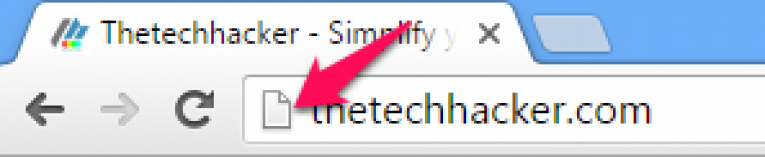
- If the website is secured with SSL, you will see a Lock icon instead of a Page icon.
- Now, the shortcut of the website will be created on your desktop.
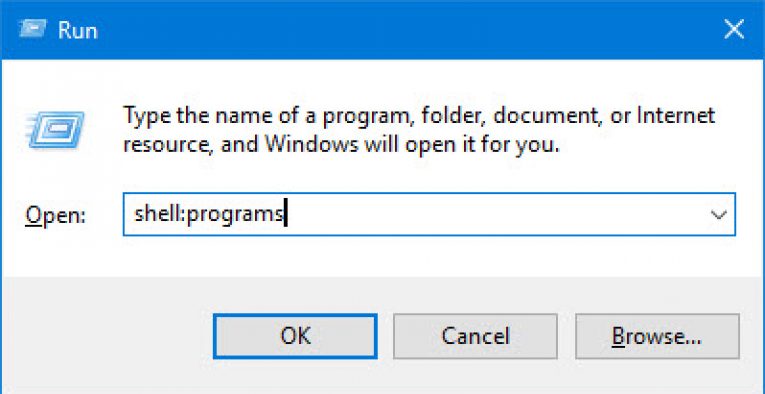
- Now, open the Run command by pressing Win+R keys together. Enter the following command in the Run dialog box and press Enter.
- This will open the “Programs” folder of the Start Menu in Windows 10.
- Now, copy the website shortcut on the desktop to this folder and close the window.
- Open the Start Menu and click on “All apps” option.
- Scroll down and find your website link.
- Once you’ve found that, right-click on it and then select the option “Pin to Start.”
- Now, the website will be pinned to the Start successfully.
shell:programs
When compared to this method, it is far easier to do the first method if you have edge browser installed. If you are facing any problems in the process, feel free to comment on the below comment box. We will be happy to help you.
More in Windows
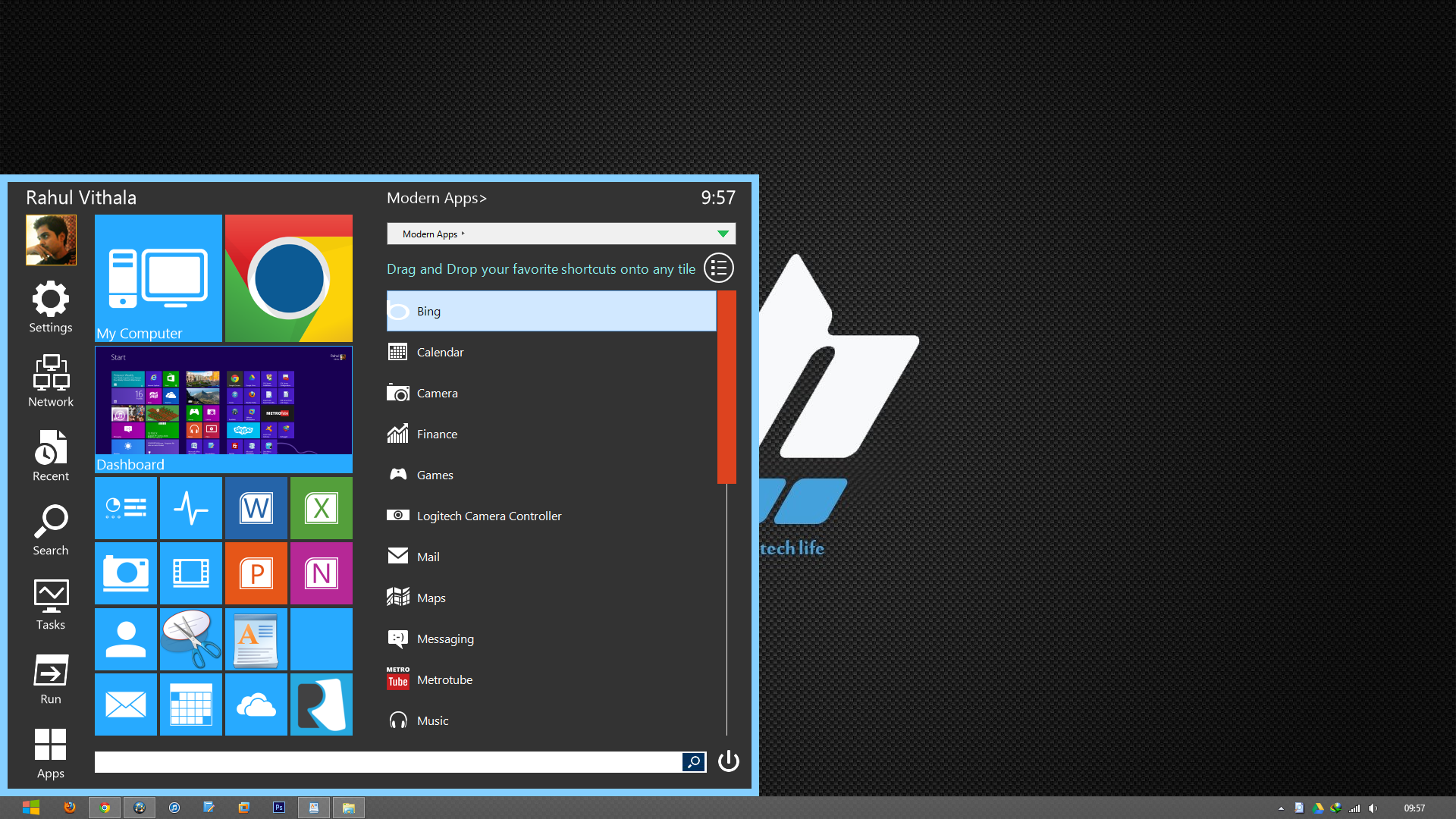
Bring Tile Styled And Customizable Start Menu In Windows 8 Using Start Menu Reviver
A significant number of Windows 8 users are without a very helpful function, which is the start menu. Without a button, it might be quite challenging for certain individuals to operate and to become used to traditionally doing things. One of the most helpful features of Windows is the Start menu, which allows users to…
Make Windows 10 To Run Faster Finally
Windows has been existing for just over two decades in the consumer market, from entry level computers to high-end computers. The secret of Windows to be popular is being flexible, customizable and comprised with rich contents compared to other operating systems. In addition to the aforesaid traits, Windows is also quite good at performance with…

Top 10 Stunning Windows 7 Themes For Your Desktop’s Visual Style
After the most successful and stable Windows XP, the Microsoft’s another successful operating system is Windows 7. It’s 64-bit architecture, performance, start menu and user interface are the main attractions of the Windows 7. Another fantastic feature comes with Windows 7 is theme support. You can apply the built-in themes, or you can download and…
The week in tech, minus the noise.
New reviews, fixes and the stories that matter — once a week, straight to your inbox.
We only use your email to send the newsletter. Unsubscribe any time. See our privacy policy.
Comments