

How to Try again after an Unsuccessful Android Update
Android updates are always important to stay tuned for all latest improvements to the OS. You might be tried to update your Android smartphone at least once. But, in a few situations, it is common to have problems with the update process or someone may not even able to start the process. So, we wrote this…

Android Update
Android updates are always important to stay tuned for all latest improvements to the OS. You might be tried to update your Android smartphone at least once. But, in a few situations, it is common to have problems with the update process or someone may not even able to start the process. So, we wrote this article to help such people who have already failed many times trying to update their Android smartphone.
In most of the cases, If an update failed to download or install successfully, your Android device will automatically try it again after a few days. But, you won’t be able to see the notification until the system automatically finds an update to download. This might not be favourable if you urgently need an Android update or your current installed version is very old than the latest android version. So, you should check it manually without waiting for the automatic process.
To Try again after an Unsuccessful Android Update, just follow the simple steps given below
- First of all, you should wait for at least 24-hours after the unsuccessful update to try the next one.
- Then, Open your device’s Settings.
- Scroll to the bottom and tap on About phone or About tablet > System updates option according to your smartphone.
- Tap on Check for update option.
- If the update is available, it will show you the message with a Download button.
- Tap Download to try again the Android update.
- If the download is available, the system will start downloading them and after the download is finished it will automatically install the latest Android version on your android device.
This is the basic way to Try again after an Unsuccessful Android Update. Basically, the steps are same as that of the Android update, but a little different from that.
Please do share your views in the comment box below.
More in Android
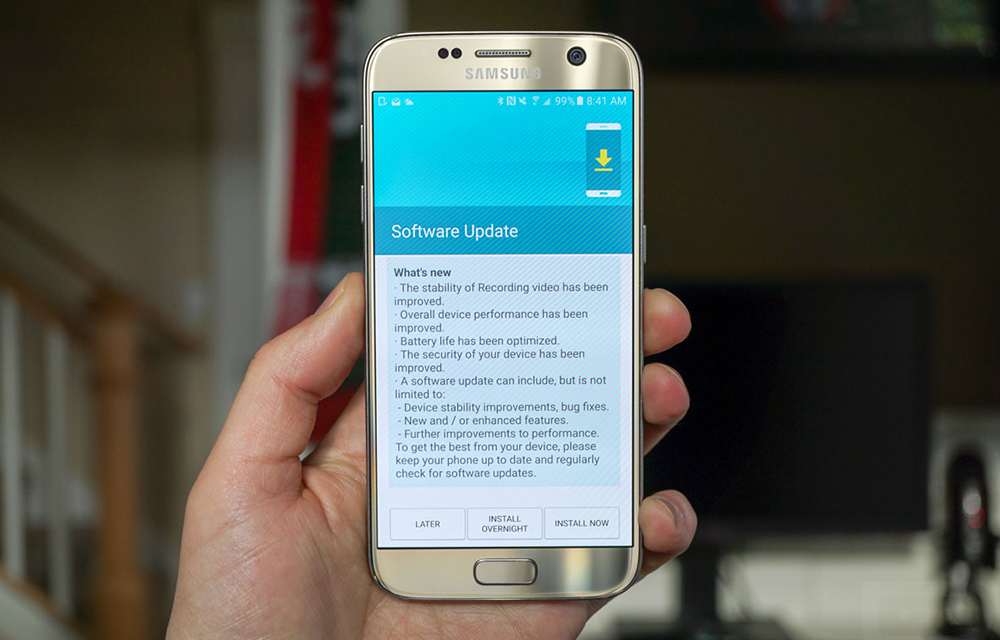
What to do if you Can’t Download or Install Latest Android Update
Tried updating your android device many times? Fixed all the errors during the update and still Can’t Download or Install Latest Android Update? In this article, we are going to provide some methods to try if you are unable to download or install the latest android update on your smartphone even after several tries. We will…
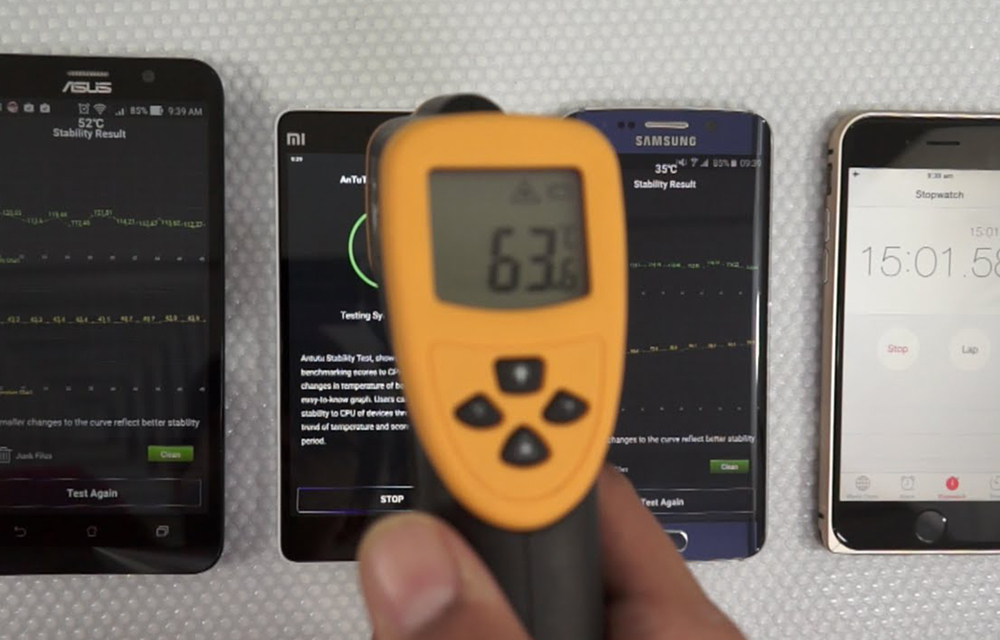
How to Prevent Over Heating of Android Smartphones? Things to Try Before Pouring Some Water
Overheating devices are always a nightmare to the smartphone users. Many times during long game sessions and video streaming, your device hesitated to stay cool. It became hot like a pancake. This modern era is of high-end usage and gaming where we need a lot of resources to perform the tasks. The things are not…

How to Stop Google Play Store Auto Updating Apps Over WiFi
Have you ever faced a situation where you turn on WiFi after a long time and Google Play Store start updating installed apps continuously? This situation is irritating and consumes all the bandwidth while updating apps. Keeping the apps updated is always a good thing. But not that likeable in every situation. Sometimes, you may…
The week in tech, minus the noise.
New reviews, fixes and the stories that matter — once a week, straight to your inbox.
We only use your email to send the newsletter. Unsubscribe any time. See our privacy policy.
Comments