

How to Fix Wi-Fi and Mobile Data Dropping on Samsung Galaxy After One UI 9
Disclosure: TheTechHacker has no paid relationship with Samsung or any company mentioned here. Your Galaxy installs One UI 9 and for an hour or so nothing seems wrong, and then the Wi-Fi starts connecting and disconnecting by itself with a “Connection failed” message that only clears when you restart the phone. Some owners are dealing…

Photo by Amanz on Unsplash
Disclosure: TheTechHacker has no paid relationship with Samsung or any company mentioned here.
Your Galaxy installs One UI 9 and for an hour or so nothing seems wrong, and then the Wi-Fi starts connecting and disconnecting by itself with a “Connection failed” message that only clears when you restart the phone. Some owners are dealing with something worse than that, where mobile data won’t load a single page unless the phone is also on Wi-Fi, and a smaller number have watched the phone lose its SIM and show “No SIM” instead.
Reports of Wi-Fi and mobile data dropping after One UI 9 began piling up in early November 2026 and they’ve come from people with Galaxy S-series phones, Z Fold models and a few A-series phones, so it isn’t tied to one model. Samsung hadn’t said anything public about the cause or a patch as of November 9.
What follows is the order I’d work through things in right now, and a couple of the steps are on your router rather than the phone, since a Wi-Fi connection has two ends and most guides only ever look at the phone.
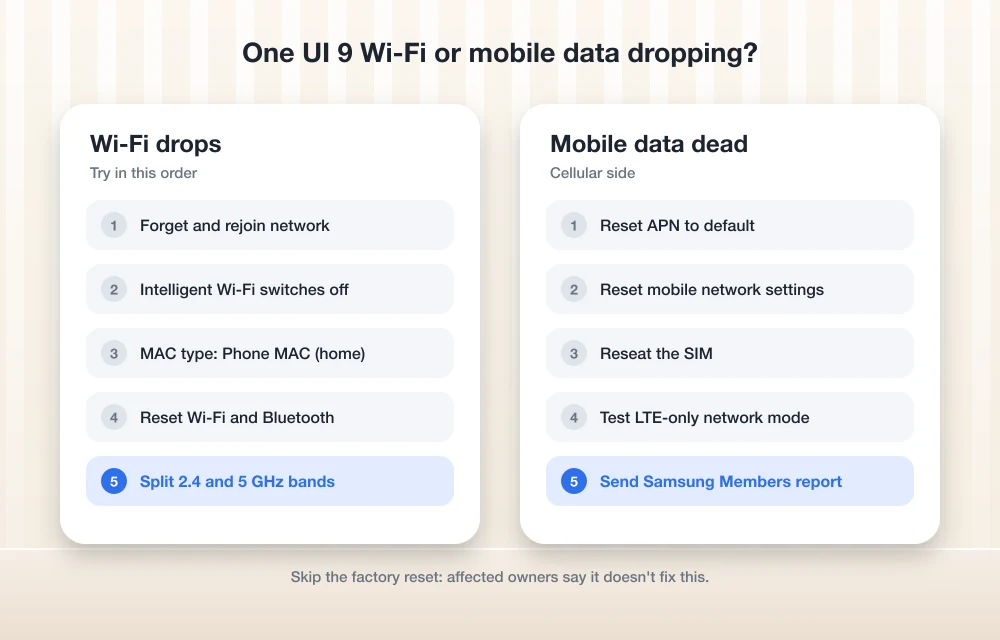
Quick answer: restart the phone and then forget the Wi-Fi network and join it again. If it still drops after that, turn off the Intelligent Wi-Fi options and run Reset Wi-Fi and Bluetooth settings from Settings > General management > Reset, and if it’s mobile data that’s broken, reset the APN to default. On the router it’s worth splitting the 2.4 GHz and 5 GHz bands into two network names, and I’d hold off on a factory reset because the owners who tried one say it didn’t change anything.
What’s Going On With One UI 9 Connectivity?
Going by what Galaxy owners have described so far, the problem shows up in a few different ways and not every phone gets all of them. The most common one is Wi-Fi that works after a restart and then drops a while later with “Connection failed,” after which the phone won’t reconnect on its own. Some phones will happily join a 2.4 GHz network but fail every time on 5 GHz, while others have normal-looking signal bars and still can’t load anything over cellular, and a smaller group of owners has seen the SIM disappear from the phone altogether.
TVs, laptops and tablets on the same network usually stay connected the whole time, which points at the phone’s software rather than your internet service. Toggling Airplane mode or restarting brings the connection back for most people, but only for a while, and that’s a useful clue because it means a restart is hiding the problem rather than fixing it.
Nobody outside Samsung knows yet whether this is one bug or several separate ones, so the steps below are best treated as workarounds that keep you online until an update arrives.
How to Fix One UI 9 Wi-Fi Dropping
1. Restart, then forget and rejoin the network
It’s a basic step, but it’s worth doing properly, so restart the phone first and then go to Settings > Connections > Wi-Fi, press and hold your network, tap Forget network and join it again with the password. Doing this clears the saved profile the phone keeps for that network, which can get messed up after a big update, and Samsung’s own Wi-Fi troubleshooting page lists it as one of the first steps too.
2. Turn off the Intelligent Wi-Fi switches
Some Galaxy owners say this one helped them, and it makes sense from a networking point of view because Intelligent Wi-Fi is constantly making decisions for you, jumping to networks it thinks are better, flipping to mobile data when Wi-Fi looks weak and turning Wi-Fi off and on by itself. When the Wi-Fi stack is already flaky, all of that switching around only makes things worse.
Open Settings > Connections > Wi-Fi, tap the three dots in the top corner and go into Intelligent Wi-Fi, where you’ll want to turn off Switch to mobile data, Switch to better Wi-Fi networks and Turn Wi-Fi on/off automatically. After that, give it a day and see whether the drops settle down.
3. Check the MAC address setting for your network
Tap the gear icon next to your Wi-Fi network, then View more, and look at MAC address type, which Android sets to a randomized MAC by default. If your router relies on MAC filtering, parental controls or a reserved IP for your phone, an update that changes that random address can lock you out without any explanation, so switch it to Phone MAC for your home network only and reconnect (on public Wi-Fi you should leave it randomized).
4. Reset Wi-Fi and Bluetooth settings
Go to Settings > General management > Reset, and depending on your model you’ll either see Reset Wi-Fi and Bluetooth settings and Reset mobile network settings as separate options or one combined Reset network settings. I’d start with the Wi-Fi and Bluetooth one if it’s there.
Keep in mind that you’ll lose your saved Wi-Fi passwords and have to pair your earbuds, watch and car again, and for some people the fix only held for a few hours before the drops came back. It’s still worth doing, because when it does work it’s the closest you’ll get to a clean slate without wiping the phone.
5. Split your router’s 2.4 GHz and 5 GHz bands
This is the part where the router comes in, since most modern routers and mesh systems broadcast a single network name for both bands and steer devices between them. That band steering works nicely when the phone behaves, but if your Galaxy can hold 2.4 GHz while it keeps failing on 5 GHz, the router can end up bouncing it back and forth all day.
In the router’s app or admin page, look for an option called something like “Smart Connect,” “Band steering” or “Separate bands” and give 5 GHz its own name, then connect the phone to the 2.4 GHz network for now, which is slower but a lot better than a fast connection that keeps breaking. If you have a Wi-Fi 7 router, it’s also worth switching off MLO (Multi-Link Operation) as a test because it’s the newest and least proven part of the setup, and while you’re in there you may as well check for a router firmware update.
6. Try the Wi-Fi 7 Mode toggle (only if you have it)
Some users have suggested turning off Wi-Fi 7 Mode under Developer options > Connectivity Labs, but I’d treat this one as a maybe since it hasn’t been confirmed and the option only appears on models with Wi-Fi 7 hardware, so plenty of phones won’t show it at all. If you don’t see it, just skip it rather than flipping random developer settings in the hope that one of them sticks.
How to Fix Mobile Data Not Working After One UI 9
Reset the APN to default
APN settings tell the phone how to reach your carrier’s data network, and you can reset them by going to Settings > Connections > Mobile networks > Access Point Names, tapping the three dots and choosing Reset to default. If you’re on a smaller carrier or an MVNO and the defaults don’t work, your carrier’s site will list the correct APN values, and Samsung’s mobile data guide walks through the same menu if you want a second reference.
Reset mobile network settings
Back in General management > Reset, run Reset mobile network settings if your phone lists it as a separate option, since it only touches the cellular side and leaves your saved Wi-Fi passwords where they are.
Reseat the SIM or re-download the eSIM
If the phone says No SIM, power it off, pop the tray out and check that the SIM sits flat before putting it back in. With an eSIM, I wouldn’t delete the profile just to “refresh” it unless your carrier has told you how to get it back, because deleting it can leave you without service until the carrier sends a new QR code, and that’s a phone call nobody wants to make on a Monday morning.
Check the network mode
Under Mobile networks > Network mode, try switching from 5G/LTE/3G/2G (auto connect) to LTE/3G/2G as a test, and if data comes back on LTE you can be fairly sure the problem sits in the 5G handoff. In that case you can stay on LTE until a fix arrives, since US carriers’ LTE networks are plenty fast for everyday use.
Should You Factory Reset or Roll Back?
I’d hold off on a factory reset, because some affected owners say a full reset didn’t fix the mobile data problem and you’d lose a day setting the phone up again for nothing.
Rolling back isn’t really an option either, since Samsung doesn’t offer a simple downgrade from One UI 9 and the unofficial methods can trip Knox or brick the phone, which is a lot of risk to take on for a bug that will most likely get patched.
What I’d do instead is open the Samsung Members app, go to Support and run the Wi-Fi test under Phone diagnostics, then send an Error report from the same screen right after a drop happens. That gives Samsung’s engineers logs from a real affected phone, which helps them track the bug down faster, and after that you just keep an eye on Settings > Software update.
If One UI 9 has also been eating your battery, we have a separate guide on fixing One UI 9 battery drain and freezing, and Android Auto users hit by the same update can check how to fix Android Auto not connecting after One UI 9. If there’s an iPhone in the house acting up as well, iOS 26 had a similar mess, which we covered in how to fix Wi-Fi or cellular drops after the iOS 26 update.
FAQs
Why does my Samsung keep disconnecting from Wi-Fi after the One UI 9 update?
Galaxy owners started reporting Wi-Fi drops right after One UI 9 installed, and Samsung hasn’t explained the cause yet. The workarounds that help most often are forgetting the network, turning off Intelligent Wi-Fi and resetting your Wi-Fi and Bluetooth settings.
Why won’t my mobile data work unless I’m on Wi-Fi?
That’s one of the reported One UI 9 symptoms, so start by resetting the APN to default, then run Reset mobile network settings and try LTE-only network mode. If nothing changes after that, contact your carrier so they can rule out an account or network problem on their end.
Will a factory reset fix One UI 9 Wi-Fi problems?
Probably not, since some affected users say a full reset didn’t fix it, so I’d try the network resets and router changes first and then wait for a Samsung update.
Can I downgrade from One UI 9?
Samsung doesn’t offer an official downgrade, and the unofficial methods are risky because they can affect Knox and your warranty, so it’s safer to stick with the workarounds until a patch arrives.
Final words: This one is frustrating because the phone looks fine right up until it drops the connection. I’d start with the network resets and the Intelligent Wi-Fi switches, take a look at your router’s band steering, and send Samsung an error report so the fix comes sooner, and when a patch shows up I’ll update this guide.
You might also like
How to Fix Galaxy S26 Ultra Stuck at Samsung Account Sign-In on One UI 9
Is your Galaxy S26 Ultra frozen or looping at the Samsung Account sign-in screen during setup on One UI 9? Here are the workarounds Samsung and other owners have shared, and why you shouldn’t reach for a factory reset.
How to Fix One UI 9 Battery Drain and Freezing on Samsung Galaxy Phones
Battery draining faster or your Galaxy stuck on a setup or error screen after One UI 9? Here’s what Samsung has confirmed, the checks to do first, and the workarounds people are using until the next patch.
How to Fix Android Auto Not Connecting After the One UI 9 Update
Android Auto stopped working after your Galaxy phone got One UI 9? Here’s what Google said about its fix, how to make sure you get it, and the wired and wireless workarounds worth trying while you wait.
The week in tech, minus the noise.
New reviews, fixes and the stories that matter — once a week, straight to your inbox.
We only use your email to send the newsletter. Unsubscribe any time. See our privacy policy.
Comments