

Ways to Transfer Photos from iPhone to Windows 7 and 8
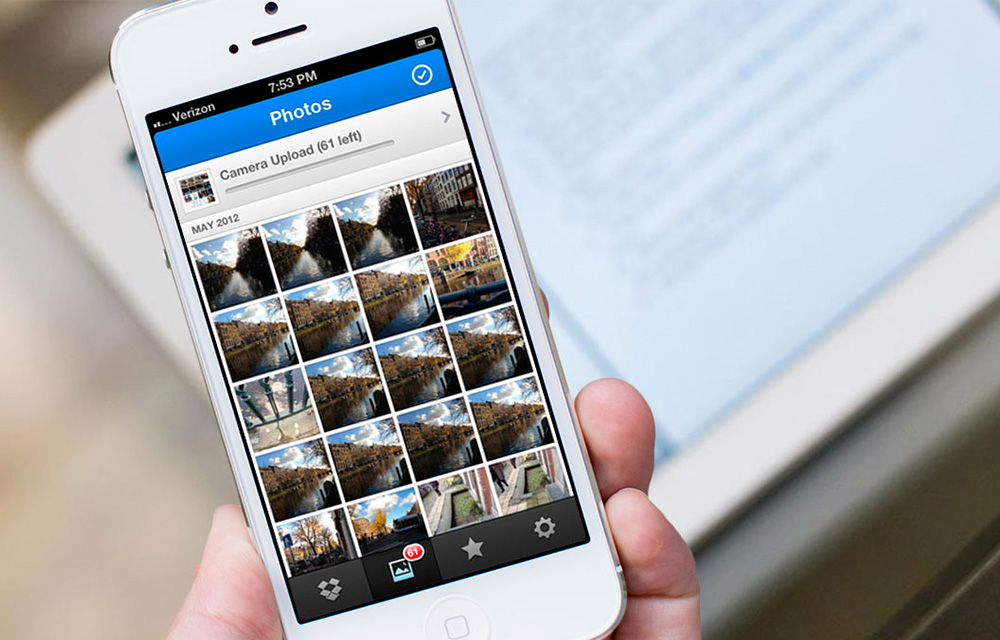
Maybe you’re one of the many users who have an iPhone full of photos, and you’re trying to figure out how to transfer them to your computer. Maybe you are not very familiar with the sync features of your iPhone. In this post, we will be looking at ways to do just that.

Maybe you’re one of the many users who have an iPhone full of photos, and you’re trying to figure out how to transfer them to your computer. Maybe you are not very familiar with the sync features of your iPhone. In this post, we will be looking at ways to do just that.
Transfer Your Photos from iPhone to Windows 7
First, we will look into importing your photos from your iPhone to a Windows 7 Computer. This is how you can do it.
- First, connect your iPhone to your computer using the provided cable.
- The AutoPlay window will then appear. You can click there “Import Pictures and Videos Using Windows.”
- After that, click the Import Settings link.
- A window will pop up, and you will be able to change the folder where your photos from your Camera Roll will be transferred. You will have to click the Browse button. It is next to the “Import to” field.
- When you have set up your import options, you can now click OK and choose the desired tag.
- Click the Import button, and you’re good to go.
Transfer Photos from iPhone to Windows 8
For transferring photos from your iPhone to your Windows 8 computer, it won’t be very different from the previous one. The first thing you have to do is to
- connect your iPhone to your PC using a cable.
- For this process, you will have to Wait for your computer to detect your iPhone.
- You will then see a notification with the Trust option. Click “Trust” and continue.
- The next thing you have to do is to open “The PC” and then right-click on the iPhone device.
- Then select the “Import pictures and videos” option.
- After that, you can select the option “Review, organize, and group items to import” so you can import the new images from your phone.
- If you have already done this, you can choose “Import all new items now” so the photos that will be transferred are only the new ones and you won’t be creating duplicate copies of the old ones.
- After that, click “Next.”
- Now, click on “More Option” so you can select folders where you want to transfer your photos from your iPhone.
- Browse the target folder and Click “OK” and then click “Next.”
- You can now select the photos that you want to transfer and simply click the Import button, and you’re done!
Now you have successfully transferred your iPhone photos into your computer.
More in iOS
Top 8 File Manager Apps For iPhone To Manage Files On The Go
Recently purchased iPhone or any other iOS device? You may notice that it don’t have any file manager app to browse or manage your files. Apple iOS ecosystem not allows the users to access its internal file system. However, we have few File Manager apps for iPhone, iPad. Don’t worry you don’t need to Jailbreak…
How To Sync Gmail Contacts To an iPhone
As a tech enthusiast, I regularly switch my phones. When it is coming to Android and iOS these two platforms way much different from each other and raises compatibility issues while migrating data. I faced these issues many times especially switching from Android to iOS. iOS works it’s in an own way. When coming to…

What Does “Low Disk Space” Mean on iPhone? (And How to Clear It)
You try to take a photo, and the camera refuses. You try to update iOS, and it says there’s not enough space. Somewhere in between, you see a warning about storage and start wondering: what does low disk space mean on iPhone, and how serious is it? Don’t worry, it is one of the most…
The week in tech, minus the noise.
New reviews, fixes and the stories that matter — once a week, straight to your inbox.
We only use your email to send the newsletter. Unsubscribe any time. See our privacy policy.
Comments