

How To Erase iPhone Data Completely
iPhone’s are great devices to use. A true user always stores all his personal data like photos, music, videos, camera recordings, emails, messages and much more. Apple always stays updated by launching new devices every year. Recently Apple launched iPhone 7, and 7 Plus and rumors are going circulating for upcoming iPhone 8. Many iPhone…

How To Erase iPhone Data Completely
iPhone’s are great devices to use. A true user always stores all his personal data like photos, music, videos, camera recordings, emails, messages and much more. Apple always stays updated by launching new devices every year. Recently Apple launched iPhone 7, and 7 Plus and rumors are going circulating for upcoming iPhone 8. Many iPhone lovers upgrade their iPhone’s when a new iPhone launch in the market.
Are you planning to sell your old iPhone? It is not good to sell without deleting data. Before going to sell the iPhone follow these steps to remove every bit of traces on the device.
How To Make A Backup of Your iPhone
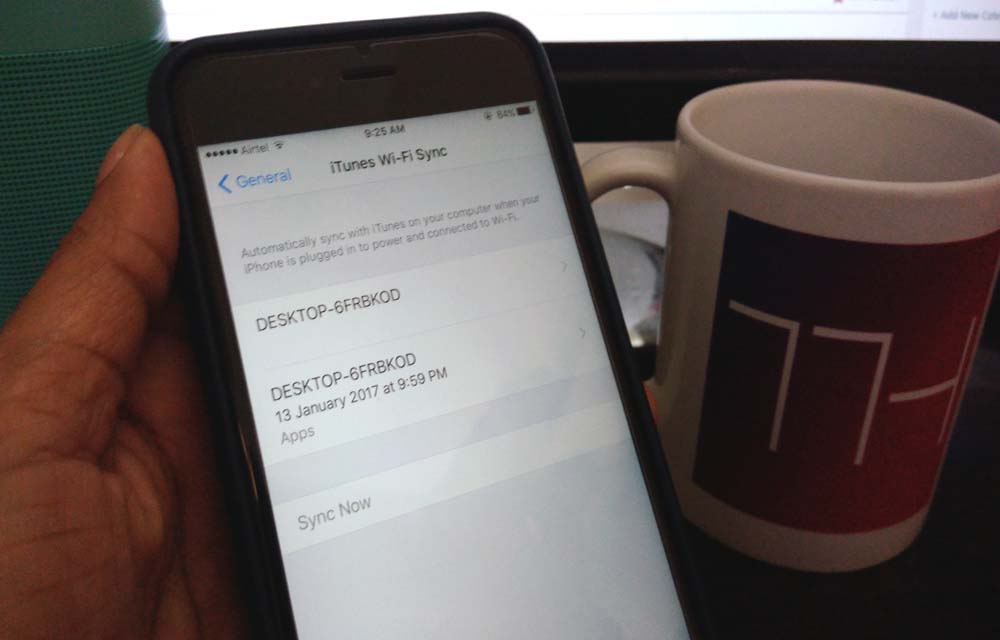
If you never connected your iPhone to your computer, now it is the time to sync your device. To get started you need a computer with iTunes installed. Now connect the device to the computer using cable or iTunes Wi-Fi sync.
After successful connection to the iTunes, you will have a backup option on the screen. Under Backups, you will have backup options like Automatically Backup to the iCloud or This computer. Also, you can manually Backup your iPhone using iTunes.
If you have sensitive data on your iPhone, you can encrypt the backup file which is offered by iTunes.
How To Erase iPhone Data Completely
After successful backup of the device now it is the time to remove your data and settings from the iPhone Completely. This process involves clean wipe of all your data; you may not get the data after the wipe.
- Open Setting icon from the device home screen.
- Now go to “General” settings.
- Here, choose “Reset” option.
- Tap on the “Erase All Content and Settings” option.
After finishing steps, iPhone will start the erasing process. Depending on the size of the data it may take several minutes or hours time. After a successful wipe, the iPhone starts as new iPhone with a welcome screen.
However, it is always advisable to cross-check the data completely wiped or not. Some apps will use the device hardware ID to start their service, even after the complete wipe there is a chance of connecting to your account even after reset. It is always advisable to manually unlink the iPhone from the corresponding app website.
Please share your comments and thoughts in the comment box below.
More in iOS
How to Fix Software Update Failed on iPhone?
An iOS update can fail for simple reasons like low free storage, slow internet, VPN/firewall interference, or a partially downloaded update file stuck in storage. The fixes are straightforward, clear residual update packages that free up space, and if over‑the‑air keeps failing, update via a computer using Finder, iTunes, or the Apple Devices app. Why…

Apple Watch App on iPhone Crashing? Here’s How to Fix It
The Watch app on your iPhone keeps crashing? You tap it, it opens for a second, and then disappears. Sometimes it freezes instead. Either way, it’s annoying. This usually happens because of a software glitch, bad sync data, or a version mismatch between iPhone and Apple Watch. After iOS updates, the Watch app can get…

How to fix iPhone Files App Not Showing Recent Downloads?
If your recent downloads are missing from the iPhone Files app, the issue is usually not serious. In most cases, it comes down to a wrong download location, a temporary indexing glitch, an iCloud sync problem, or a minor iOS bug. The good news is that this is usually fixable in a few minutes. Quick…
The week in tech, minus the noise.
New reviews, fixes and the stories that matter — once a week, straight to your inbox.
We only use your email to send the newsletter. Unsubscribe any time. See our privacy policy.
Comments