

How to Fix Software Update Failed on iPhone?
An iOS update can fail for simple reasons like low free storage, slow internet, VPN/firewall interference, or a partially downloaded update file stuck in storage. The fixes are straightforward, clear residual update packages that free up space, and if over‑the‑air keeps failing, update via a computer using Finder, iTunes, or the Apple Devices app. Why…
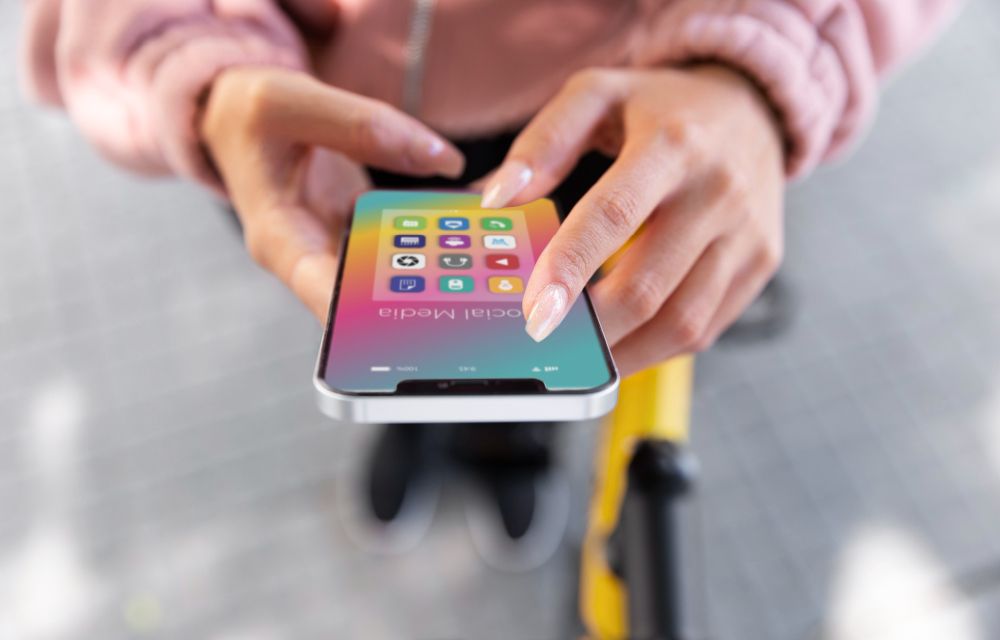
How to Fix Software Update Failed on iPhone
An iOS update can fail for simple reasons like low free storage, slow internet, VPN/firewall interference, or a partially downloaded update file stuck in storage. The fixes are straightforward, clear residual update packages that free up space, and if over‑the‑air keeps failing, update via a computer using Finder, iTunes, or the Apple Devices app.
Why do updates fail?
iOS needs enough temporary space to unpack and verify the installer, and when storage is tight, the process aborts with generic errors. Network instability, captive portals, or USB/cable issues can also interrupt the download or verification step, leaving a corrupt update bundle. Occasionally, a stalled process after a major release requires a recovery‑mode update from a computer to complete cleanly.
Fix 1: Delete the partial update file
-
Go to Settings > General > iPhone Storage, find the iOS update in the list, and delete it to remove the corrupted or partial package.
-
Restart the iPhone, return to Settings > General > Software Update, and download the update again on a reliable Wi‑Fi network.
Fix 2: Free up storage (free up to 6–10 GB)
-
In iPhone Storage, review recommendations and large apps, media, and “synced” content, then offload or delete items to create headroom.
-
iOS often needs several GB of space for unpacking; freeing more than the visible installer size improves success rates.
Fix 3: Update with a computer
-
On Mac: use Finder for macOS Catalina or later; on Windows: use iTunes or the Apple Devices app to download and install the update.
-
Connect the iPhone, select the device, choose Check for Update, then Download and Update, which bypasses many on‑device space and Wi‑Fi issues.
Fix 4: Use Recovery Mode if stuck
-
If the iPhone is stuck on the Apple logo or the update repeatedly fails, enter Recovery Mode and choose Update to reinstall iOS without erasing data.
-
If the download exceeds 15 minutes and the device exits the Recovery screen, let the download finish, then re‑enter Recovery Mode to proceed.
Fix 5: Check network, VPN, and cable
-
Disable VPN or private DNS temporarily, use stable Wi‑Fi or Ethernet on the computer, and prefer the original or MFi‑certified USB cable.
-
If iTunes or the Apple Devices app shows connection or verification errors, switch the port/cable and retry after unlocking and trusting the computer.
Fix 6: General check before retrying
-
Plug into power, keep over 50% battery, and ensure automatic date/time is enabled to avoid certificate or server validation hiccups.
-
Reboot the iPhone before each new attempt to clear cached installers and stalled background processes.
Fix 7: Restore
-
If the update fails even from Recovery Mode, perform a restore from Finder or iTunes, which erases the device and installs a fresh copy of iOS.
-
Always back up to iCloud or a computer first so data can be restored afterward without loss.
Additional tips
-
Keeping a few extra gigabytes free year‑round makes future updates smoother and reduces the chance of “More Storage Required” alerts.
-
When OTA is unreliable, a computer‑based update is often faster and more resilient because the download and verify steps run on the desktop.
FAQs
Q1: Why does my iPhone say “Software Update Failed”?
A: The most common causes are not enough free space, unstable Wi‑Fi, a corrupted partial download, or VPN/DNS filtering that blocks Apple’s update servers.
Q2: How much free space is recommended for an iOS update?
A: Ensure at least 4–6 GB free, though creating 6–10 GB headroom improves reliability because iOS needs temporary space to unpack and verify.
Q3: Can I update without Wi‑Fi?
A: Yes, a computer update via Finder, iTunes, or the Apple Devices app works over Ethernet or any stable connection and is ideal when OTA fails.
Q4: Will a failed update erase my data?
A: No, a failed OTA update does not erase data, but a restore in recovery mode will, so always back up before attempting repairs.
Q5: What if the iPhone is stuck on the Apple logo?
A: Put the device into Recovery Mode and choose Update; if that fails, perform a Restore, then recover from the latest backup.
More guides: See all our iPhone and iOS fixes.
More in iOS
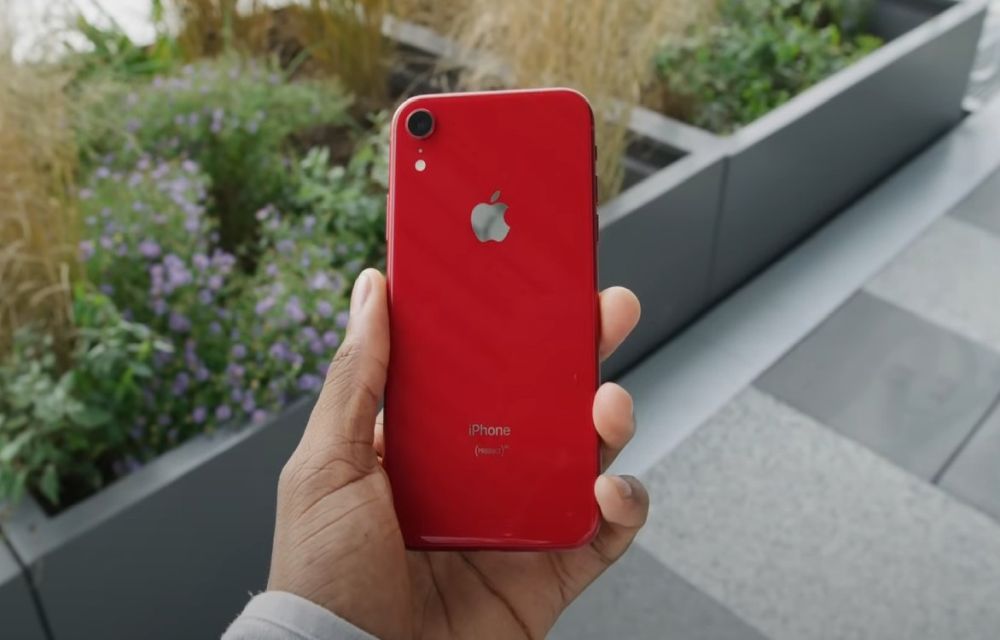
Can’t Update iPhone XR? Try These Fixes
If you are unable to update your iPhone XR, then you are in the right place. Running into update errors on an iPhone XR is more common than it should be, and it usually occurs due to 3 reasons: not enough free space, a partial download that got stuck, or the wrong update channel selected.…
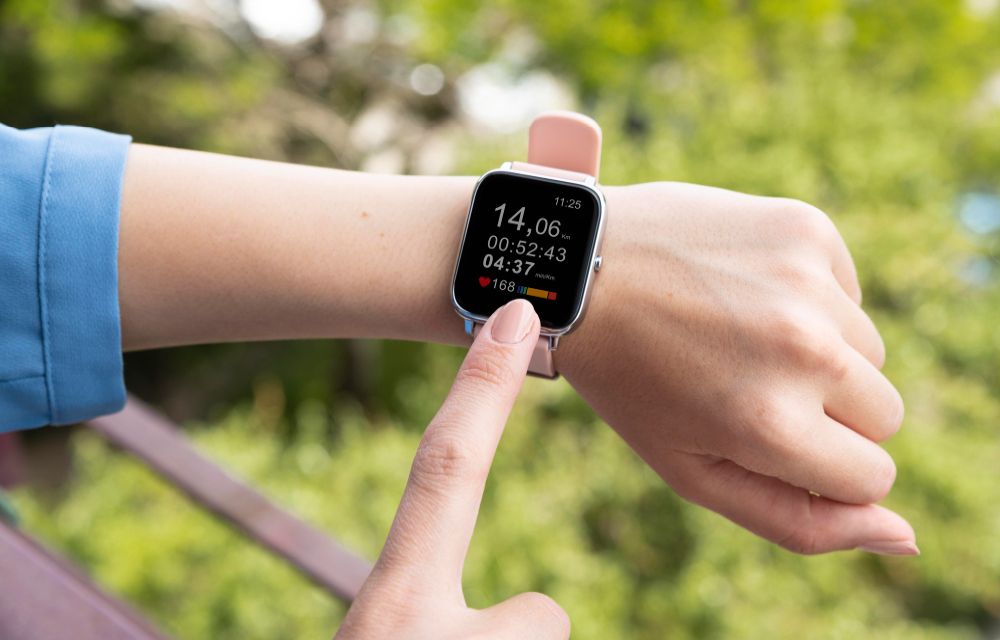
Apple Watch App on iPhone Crashing? Here’s How to Fix It
The Watch app on your iPhone keeps crashing? You tap it, it opens for a second, and then disappears. Sometimes it freezes instead. Either way, it’s annoying. This usually happens because of a software glitch, bad sync data, or a version mismatch between iPhone and Apple Watch. After iOS updates, the Watch app can get…
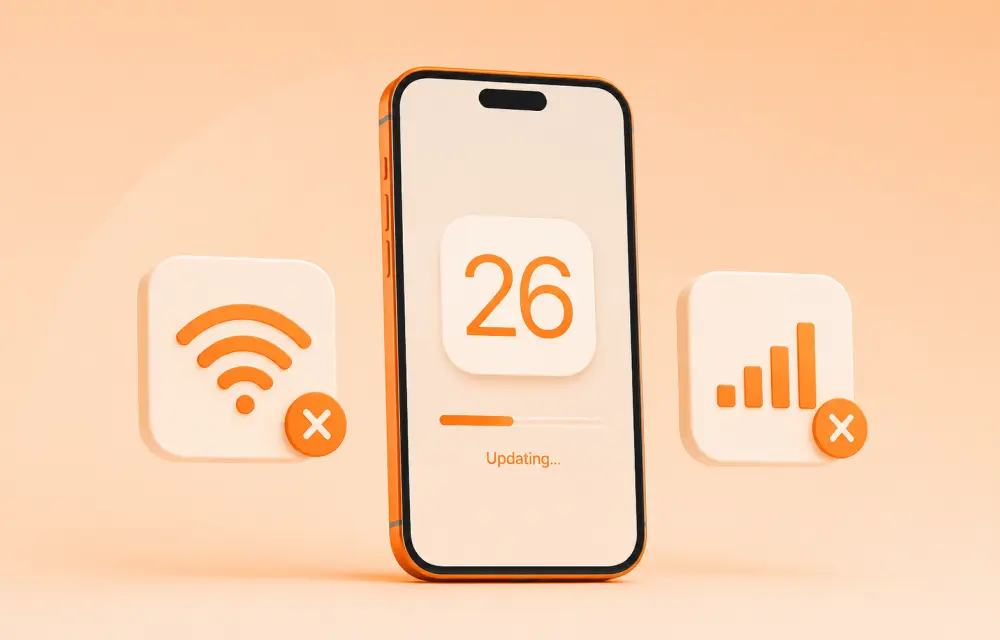
How to Fix Wi-Fi or Cellular Connectivity Drops After iOS 26 Update
After updating to iOS 26, some iPhone users have reported weak Wi-Fi, unstable mobile data, or random cellular drops. In most cases, this is not a permanent hardware issue. It is usually caused by a network settings conflict, a temporary software glitch, or a carrier profile that needs refreshing after the update. The good news…
The week in tech, minus the noise.
New reviews, fixes and the stories that matter — once a week, straight to your inbox.
We only use your email to send the newsletter. Unsubscribe any time. See our privacy policy.
Comments