

How to Enable Chrome Extensions in Incognito Mode
Enable Google Chrome Extensions in Incognito In our previous articles, we already discussed Incognito mode in all browsers and uses. Incognito mode allows you to browse the web securely by not allowing to store cookies and search queries.


How to Enable Chrome Extensions in Incognito Mode
Enable Google Chrome Extensions in Incognito
In our previous articles, we already discussed Incognito mode in all browsers and uses. Incognito mode allows you to browse the web securely by not allowing to store cookies and search queries.
Google Chrome is a user-friendly modern browser from Google. You can launch Chrome directly in Incognito mode for time-saving. But unfortunately, the Chrome will disable all your installed extensions, because Chrome does not want to track your information from extensions.
Some extensions will track your location and data to provide better results, for example, shopping extensions will track your location and browsing history to show the related and money saving discounts. It is the main reason for disabling extensions in Incognito mode.
For example, ad disabling extensions like Ublock Origin and Adblocker are must for every browsing session. These also will not work in Incognito mode, it is pretty painful browsing without ad blockers. And also there are many reasons for allowing extensions in Incognito mode. If you are one of them, who want extensions in Incognito mode this article is for you.
Activate Chrome Extensions in Incognito Mode
If you want any extension, enable while in Incognito mode, follow the below steps.
- Launch Google Chrome and click on the three dots menu at the top right corner of the window.
- Here in the drop down menu select “More Tools” and then Extensions.
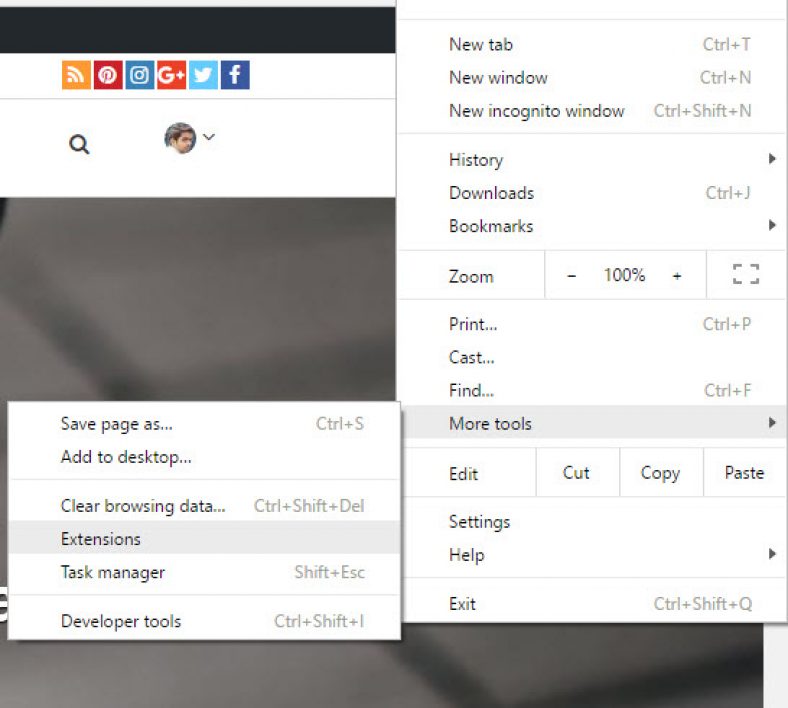
- Clicking on the extensions option will open the Extension Manager, here you will see all the installed extensions.
- Now go to your desired extension you want to enable in Incognito and click on the “Allow in Incognito” option.
- Now launch Google Chrome in Incognito mode, and you will see your desired extension working in Incognito.
Note: Google Chrome will display a warning message for some extensions that it cannot prevent extensions from recording your browser history. Make sure to enable trustworthy extensions only and check extension log and complete details while allowing.
Conclusion of Enabling Extensions in Incognito
It is pretty simple to allow a favorite extension even in Incognito mode. Please comment your views and feedback in the below comment box.
More in How-to

How to Launch Chrome Directly in Incognito Mode
Incognito Mode in Google Chrome is very useful in many aspects. It hides all the user browsing data including browsing history, cookies, download history, etc. as well as protecting you from being tracked by websites and services. If you even wanted to turn on the Incognito mode in Chrome, just pressing Control+Shift+N for Windows and Linux, Command+Shift+N…
How To Try Google Chrome Web Apps Without Installing Them
Extensions have been a thing for quite some time for PC users. They were brought more into the fray thanks to Google Chrome and its avid use of them. Extensions are great, and all, but some of them do have their problems. Some of you can testify to having issues with browser crashing or juts…

How to Enable YouTube Dark Mode in Google Chrome, Firefox and Edge
YouTube has some special features, one of them is dark mode. This mode is for those who want a dark background in the YouTube interface. For regular video watchers, a white and red background is pretty bright and dominating at night. Luckily, YouTube is offering Dark Mode for users like me and you to get…
The week in tech, minus the noise.
New reviews, fixes and the stories that matter — once a week, straight to your inbox.
We only use your email to send the newsletter. Unsubscribe any time. See our privacy policy.
Comments