

Best Password Managers for Families and Small Businesses (2026)
I compared 1Password, Bitwarden, Dashlane and the built-in Apple and Google options using official vendor pages, so you can choose the right password manager for your family or small team.

Password-Managers-Featured
In most households, password management lives in one person’s head. One parent knows the bank login, the kids know the streaming passwords, and the Wi-Fi key sits on a sticky note on the fridge. Plenty of small offices aren’t any better, with a shared spreadsheet called “logins” standing in for a credential store.
A password manager replaces all of that. It keeps every login in an encrypted vault, autofills credentials, and lets you share specific items with specific people instead of texting them around. The hard part is picking one. Family and team plans change often, and the pricing pages don’t always make it easy.
Quick answer: For most US families, Bitwarden Families is the best value I could confirm: $3.99 a month billed annually for up to 6 people, each with a full Premium account. 1Password Families ($5.99 a month list price, up to 5 members) is the pick if you want unlimited shared vaults and its Watchtower breach alerts. For a small team of up to 10, 1Password’s Teams Starter Pack is a flat $24.95 a month, and Dashlane Business makes sense if you need single sign-on. The free Apple and Google tools can work for a household that lives in one ecosystem, but as far as I know neither has a business admin console.
What to Look for Before You Pick One
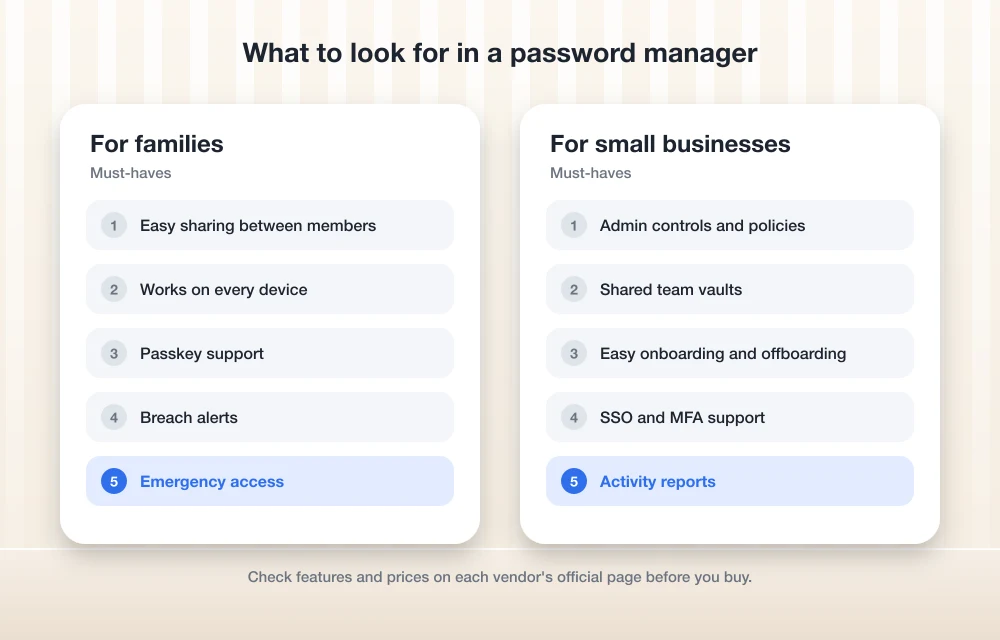
Ignore the marketing pages. A handful of features decide whether a password manager actually protects your household or team, and they’re below.
Zero-knowledge encryption
With zero-knowledge encryption, your vault gets encrypted on your own device using a key derived from your master password, so the company holding the data can’t read it. If the vendor gets breached, attackers walk away with ciphertext. Not your logins.
Look for that term on each vendor’s security page. I didn’t re-check every company’s security documentation for this update, so read that page yourself before you commit. Security companies get breached too. That’s exactly why this design matters.
Sharing that matches how your household works
A good family plan gives each person a private vault and lets them share selected items, like streaming logins or the health insurance portal. 1Password, for example, says each family member can keep items private while sharing others through shared vaults.
Bitwarden points out that family members don’t have to live together. Handy if you manage logins for a parent in another state (a pretty common setup).
Admin controls and recovery
Someone has to own the account. In a family, that’s usually whoever gets the call when Grandma forgets her master password. In a business, admin controls let you add and remove people, set permissions, and cut off access the day someone leaves.
Growing teams may also want SSO (single sign-on, so staff log in with their work account) and SCIM, a standard that adds and removes users automatically from your company directory. Small team, no directory? You can probably skip both for now.
Breach alerts
Breach alerts flag passwords that have shown up in a leak, along with weak or reused ones. 1Password calls its version Watchtower. Dashlane lists phishing alerts on its Business plan. And these nudges are often what finally gets someone to retire the password they’ve been using since 2012.
Two-factor authentication and hardware keys
Two-factor authentication (2FA, or MFA for multi-factor) puts a second check on top of the password, like a code or a physical key. The US Cybersecurity and Infrastructure Security Agency publishes clear guidance on strong passwords that’s worth dropping into your family group chat.
Hardware security keys, small USB or NFC devices built on the FIDO standard, are the strongest second factor you can get. But I couldn’t confirm which of these apps let you lock the vault itself with a hardware key, so if that’s a requirement for you, check each vendor’s help pages.
Support for every device in the house
Most homes run a mix: iPhones, Android phones, a Windows laptop, maybe a Chromebook. If the password manager doesn’t run on all of them, someone goes back to sticky notes. Simple as that. 1Password lists apps for macOS, iOS, watchOS, Windows, Android and Linux. For the others, hold the download page up against the devices you actually own.
What Passkeys Are
A passkey swaps your password for a cryptographic key pair. The website keeps the public key. Your phone, computer or password manager keeps the private key, and you approve each sign-in with your fingerprint, face or device PIN.
Why bother? There’s nothing to type, so a fake login page has nothing to steal. A passkey only works on the real site it was created for. That’s a big deal for families, because a convincing fake login page is exactly what catches a busy parent or a less technical grandparent.
The catch is coverage. Not every site supports passkeys yet, so you’ll be using passwords for a while. Keeping your passkeys in a cross-platform password manager also stops them from being tied to one brand of phone. I believe all the paid apps below support passkeys, but I couldn’t confirm the details on each vendor’s page for this update, so verify that before you rely on it.
1Password, Bitwarden, Dashlane and the Built-In Options
1Password
1Password’s Families plan covers up to 5 members, with unlimited shared vaults and simple admin controls. Everyone keeps their own items private and shares the rest.
List price is $5.99 a month for Families and $3.99 for Individual. When I checked the pricing page, there was also a first-year promo at $4.49 and $2.99 a month, billed yearly, but promos come and go. Both personal plans include Watchtower breach alerts and a 14-day free trial.
For small businesses, the Teams Starter Pack is $24.95 a month for up to 10 users, paid annually. You get sharing, security alerts, role-based permissions and developer tools, plus a 14-day trial. Past 10 users, it’s the Business plan at $8.99 per user per month.
That flat Starter Pack price is the best thing in this lineup for a small office. Ten people for under $25 a month is an easy expense to sign off on.
Bitwarden
Bitwarden is the one I’d point budget-conscious families to first. The Families plan covers up to 6 users, and each of them gets a full Premium account. You also get unlimited shared collections (Bitwarden’s name for shared folders), 10 GB of total storage and a family admin dashboard.
Bitwarden announced its current pricing on January 20, 2026. Premium is $1.65 a month ($19.80 billed annually) and Families is $3.99 a month ($47.88 billed annually). It also lists built-in TOTP codes, the time-based 6-digit codes lots of sites use for two-step login, so you don’t need a separate authenticator app for those accounts.
On the business side, every Bitwarden business plan comes with a free Families plan for each user. Nice perk. I couldn’t confirm current Teams and Enterprise prices on Bitwarden’s official business pricing page, though, so check that before you budget.
Dashlane
Dashlane has trimmed its business lineup. The Starter, Team and Standard plans are gone. What’s left is the Business plan, which Dashlane calls “Password Management,” at $8 per user per month billed annually, with an optional “Credential Protection” add-on at $4 per user per month. Enterprise is a custom quote.
The Business plan packs in a lot: SSO, SCIM, phishing alerts, phone support, a VPN and a free Friends & Family plan for each user. That last one is a solid employee perk. I couldn’t confirm Dashlane’s standalone personal or family prices, so if you’re only buying for your household, check its pricing page.
Apple Passwords and Google Password Manager
If your household is all iPhones and Macs, Apple’s Passwords app is already installed. All on Android and Chrome? Google Password Manager is built in. For a lot of families, that’s the right answer, because the best password manager is the one people actually open.
One caveat. I couldn’t verify Apple’s or Google’s feature pages for this update. Going from memory, both support passkeys and some kind of sharing with family members, Google has a Password Checkup feature that spots leaked passwords, and Apple’s app runs on Windows through iCloud for Windows. As far as I know, neither has a business admin console, so I wouldn’t run a company on them. Mixed households (one iPhone, two Androids, a Windows PC) are usually better off with a cross-platform app.
Proton Pass and Keeper
Both are worth a look, but I couldn’t confirm their current plans or prices for this guide. My understanding is that Proton Pass leans on encryption and email aliases (throwaway addresses that forward to your real inbox), and Keeper has family and business tiers with breach monitoring sold as an add-on. Treat that as unverified, and check Proton’s and Keeper’s pricing pages before you decide.
Plans and Prices Side by Side
Every figure below comes from the vendors’ own pages. “Not confirmed” means I couldn’t verify it there, not that the feature doesn’t exist. Prices are in USD and change often, so recheck before you pay.
| App | Family option | Small business option | Confirmed highlights |
|---|---|---|---|
| 1Password | Families: up to 5 members, $5.99/mo list price | Teams Starter Pack: $24.95/mo for up to 10 users (annual); Business: $8.99/user/mo | Watchtower breach alerts, role-based permissions, 14-day trial, apps for macOS, iOS, watchOS, Windows, Android, Linux |
| Bitwarden | Families: up to 6 users, $3.99/mo ($47.88/yr) | Business plans include a free Families plan per user; business prices not confirmed | Built-in TOTP codes, 10 GB family storage, family admin dashboard |
| Dashlane | Free Friends & Family plan with each Business seat; standalone price not confirmed | Business: $8/user/mo (annual); Credential Protection add-on $4/user/mo; Enterprise custom | SSO, SCIM, phishing alerts, VPN, phone support |
| Apple Passwords | Not confirmed | No business console (from memory) | Built into Apple devices |
| Google Password Manager | Not confirmed | No business vault (from memory) | Built into Chrome and Android |
| Proton Pass | Not confirmed | Not confirmed | Not confirmed |
| Keeper | Not confirmed | Not confirmed | Not confirmed |
Which One Should You Pick?
For families
Want the most seats per dollar? Bitwarden Families is hard to beat: six seats, full Premium for everyone, and relatives don’t have to live at your address.
If five seats covers you and you want Watchtower flagging weak passwords across the family, go with 1Password Families. Use the 14-day trial to see whether everyone actually sticks with it.
All-Apple or all-Google household? Start with what’s already on your devices. You can move to a paid app later.
For small businesses
Under 10 people, 1Password’s Teams Starter Pack is the first one I’d evaluate, since the price is flat and predictable. If you already run a company directory and want SSO and automated onboarding, Dashlane Business lists both. And Bitwarden makes sense if a free family plan for every employee matters to you, once you’ve confirmed its current business pricing.
A password manager is just one layer. If you’re building out security for a small company, my roundup of cybersecurity tools small businesses need covers the rest.
How to Move Your Family or Team onto a Password Manager
Installing the software takes minutes. Getting people to use it is the real work. Menu names vary between apps, so follow your vendor’s help center for the import screens, but stick to this order.
- Set up the admin account first. Pick a long master password (a passphrase of several random words works well), turn on two-factor authentication, and set up whatever account recovery option the app gives you.
- Run a small trial. Just you and one other person to start. If there’s a free trial, like 1Password’s 14 days, this is where you use it.
- Import existing passwords. Export saved logins from your browser or old password manager, usually as a CSV file, and import them following the vendor’s instructions.
- Delete the export file. That CSV has every password in plain text. Delete it right after importing, then empty your trash or recycle bin. Don’t skip this one.
- Create shared vaults. For a family, something like “Streaming,” “Bills” and “Wi-Fi and devices.” For a team, split by role or department. Personal items stay private.
- Invite everyone and help the less technical users. Ten minutes sitting next to a parent while they set up their phone saves you weeks of “what’s my password again?”
- Change the critical passwords first. Email goes first, since it’s the reset path for every other account. If your team’s email setup needs work, see my guide to secure enterprise email solutions. Then banking, and anything with saved payment details.
- Disable browser password saving. If you leave it on, new logins end up split across two places. Not ideal.
- Plan for departures. In a business, revoke the person’s access the day they leave and rotate any shared passwords they knew.
Where to Start
You don’t need the perfect password manager. You need one your family or team opens every day. For most households, that’s Bitwarden Families or 1Password Families. For a small office, it’s 1Password’s Starter Pack or Dashlane Business, depending on whether you need SSO.
Whichever you pick, turn on two-factor authentication for the vault, save passkeys where sites support them, and confirm current prices on the vendor’s site before you pay. For a few more quick wins, here are some simple ways to improve your digital safety that pair well with a password manager.
Frequently Asked Questions
Is a free built-in password manager good enough for my family?
It can be, if everyone’s on the same ecosystem, like all iPhones or all Android and Chrome. Mixed households usually do better with a cross-platform app such as 1Password or Bitwarden. As far as I know, neither Apple nor Google offers a business admin console, so I wouldn’t rely on them for a company.
How many people can share a family password manager plan?
According to their official pages at the time of writing, 1Password Families covers up to 5 members and Bitwarden Families covers up to 6 users. I couldn’t confirm current limits for the other apps, and plans and prices change often, so check each vendor’s pricing page before you pay.
What is the difference between a passkey and a password?
You type a password, which means a fake login page can steal it. A passkey uses a pair of digital keys: the website keeps a public key, and your device or password manager keeps a private one that you approve with your fingerprint, face or PIN. It only works on the real site, so it’s much harder to phish.
Does a business password manager plan also cover my family?
With some vendors, yes. Bitwarden says its business plans include a free Families plan for every user, and Dashlane says its Business plan includes a free Friends & Family plan for each user.
Is it safe to export my browser passwords to move them?
Yes, as long as you’re careful with the file. The exported CSV holds every password in plain text, so import it right away, then delete it and empty your trash or recycle bin.
More guides: See all our small business software guides.
Disclosure: TheTechHacker has no paid relationship with the companies in this article.
You might also like

Best MDM Software for Small Businesses (2026): Intune vs Jamf vs Iru vs Hexnode vs ManageEngine
Someone in your company is going to leave a laptop in a rideshare this year. When that happens, the question isn’t whether the hardware is gone. The question is whether you can lock it, wipe it and prove to a client or an insurer that their data didn’t walk off with it. Mobile device management…

Do You Still Need Antivirus on Windows 11 and Mac in 2026?
Windows 11 and macOS both ship with built-in malware protection that’s on by default. Here’s what it covers, what paid suites add, and who should still pay for one.

Best Warehouse Management Systems for Small Businesses (2026)
Six warehouse management systems for small businesses, compared on picking, barcode scanning, multi-warehouse support and pricing. I’ve flagged clearly which prices I could confirm on official vendor pages.
The week in tech, minus the noise.
New reviews, fixes and the stories that matter — once a week, straight to your inbox.
We only use your email to send the newsletter. Unsubscribe any time. See our privacy policy.
Comments