

How to Take Ownership of files in Windows 10
Taking ownership of files is an extreme but subsequently difficult task. Owning files completely with unbarred access process to be a hurdle to users. The administrative access lets you open and customizes files in whatever manner you may wish to. It can be a little tricky to pry them open though. The steps below will…

How to Take Ownership of files in Windows 10
Taking ownership of files is an extreme but subsequently difficult task. Owning files completely with unbarred access process to be a hurdle to users. The administrative access lets you open and customizes files in whatever manner you may wish to. It can be a little tricky to pry them open though. The steps below will help you through the process.
- Open the File Explorer program from your computer. This is where all the files are. Anything that exists on your device’s memory can be found here.
- Find the file you need access to. Either browse by category or use the search bard for this task.
- When you see the icon of the file that you are supposed to open, right click on it. A drop-down menu listing various options will become visible. Click on the option called “ properties”. This shows the specifications as well as the features of the file.
- There will be multiple tabs in this window. Click on the one labeled Security. This will be your access point into NTFS permissions.
- Click on the advanced button. Once inside this tab, you will find the Permissions tab. Click on it and then click on the add option.
- Click on the option to Select a principal and add your user account here.
- You will be displayed the “Select User or Group” page. When you reach here, click on the Find Now button.
- Upon getting the search results, identify and select your user account, and click OK. Make sure it’s the right one.
- When you are shown “Select User or Group” page, click on OK.
- When you are displayed the “Permission Entry”, check on the Full control option. This will ensure that you will have complete access and fully extended control?
- Next click on OK.
- Now click on OK again. This will save the changes you made
- Then click on Apply. The changes will be applied and put into effect immediately.
- Click on OK once more.
- Click OK to close the file or folder and then try accessing it with full permissions.
Remember all of this only works if you have administrative access. In case you don’t, you will require a third party application to gain access to these files. In case an error shows up, try closing the properties tab and starting again.
More in Windows

Edit Music Tags Quicky In Windows Explorer With AudioShell Add-on
These days, our hard disks contain several GB’s of music files. This means tons of audio file stored in a computer, by default most of the music files miss meta information. If you leave them, they will appear in audio players with missing album covers, song name, artist name and more. Improper music library takes…
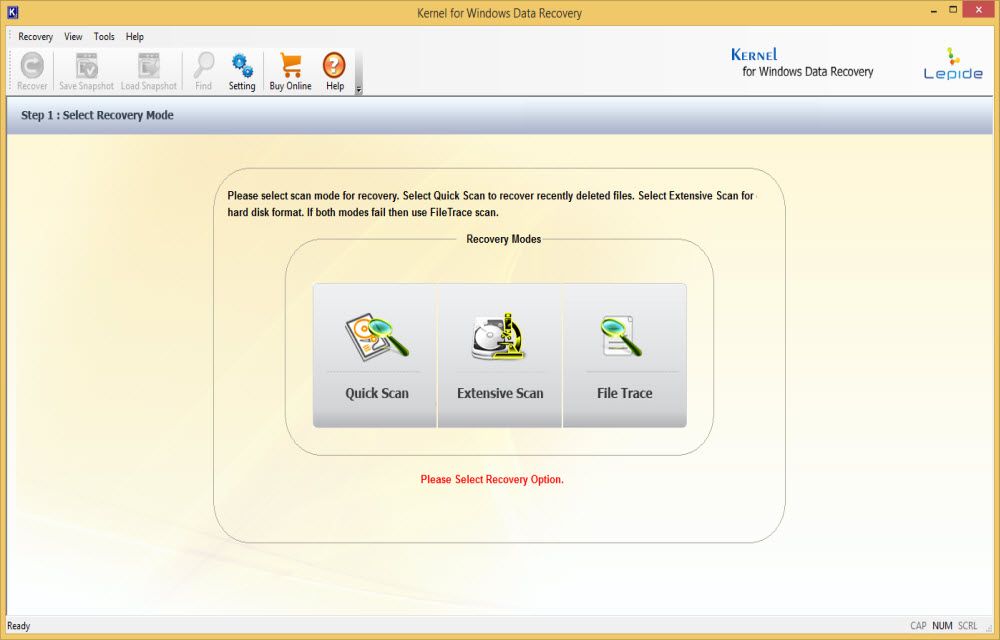
Recover Data From Corrupted Drives With Kernel Data Recovery For Windows
We have seen plenty of Windows data recovery programs out there, instead of using a poor quality confusing program to recover your files Kernel is a simple, intuitive option to restore back the deleted files. Kernel Data Recovery is a Windows utility to restore files that have been accidentally crashed computer. Kernel Data Recovery for Windows…

How to Know the Size of a Folder in Windows 10
There are several situations when you want to know the size of a certain folder in your Windows 10 PC. Especially when trying to clear up some space and you come across some folders that you no longer recognize, you might want to know the amount of space they occupy. The usage cases are limitless,…
The week in tech, minus the noise.
New reviews, fixes and the stories that matter — once a week, straight to your inbox.
We only use your email to send the newsletter. Unsubscribe any time. See our privacy policy.
Comments