

How to Fix Windows 10 Won’t Shut Down, Restarts Instead
When you try to shut down Windows and it seems to be too slow, it can be something temporary or due to some system overload or Windows has a lot of programs to close before shutting down the computer. But, if it restarts instead? What do you do? Fret not, we have you covered if…

How to Fix Windows 10 Won’t Shut Down, Restarts Instead
When you try to shut down Windows and it seems to be too slow, it can be something temporary or due to some system overload or Windows has a lot of programs to close before shutting down the computer. But, if it restarts instead? What do you do?
Fret not, we have you covered if you are facing this weird issue of Windows restarting instead of shutting down. Of course, we can’t be too sure of a single solution as to why it is happening on your system. So, we will give you multiple options to troubleshoot which should perfectly solve your problem.
Let’s get right into it:
1. Keep your Windows OS updated
For obvious reasons, to solve most of the common issues, you should keep Windows updated. So, if you haven’t updated it yet – now is the right time to do it.
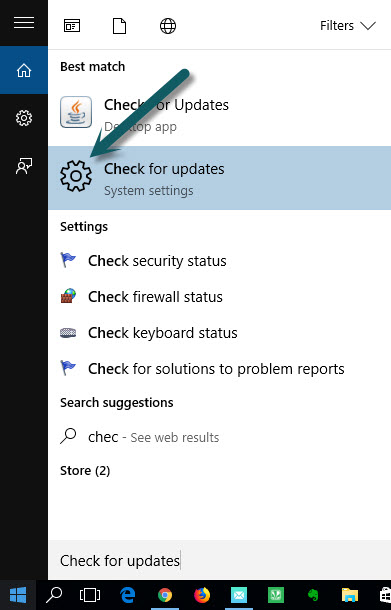
Type “check for updates” in the start menu, it will open up the updates Window. Here check for new updates and install if available. Also, here is how to restart your Windows 10 PC after a successful update.
In case you already have the latest build installed, follow the tips below to troubleshoot.
2. Power Plan settings
If you have a laptop, you should try this one. Just search for “power plan” and you will get an option to “Edit Power Plan”.
Go ahead and then you will notice an option for advanced settings where you will find all the settings for your power plan directing Windows what to do when you close the lid when you shut down or the sleep schedule.
You need to verify these settings first – if that is all cool, continue with the next potential solution.
3. Perform a clean boot in Windows 10
A 3rd party software or a driver could be conflicting with Windows to cause the problem. You cannot easily identify which one’s causing the issue if you have hundreds of things installed.
But, if you want to patiently troubleshoot, you should perform a clean boot in Windows 10 by following Microsoft’s official help guide.
Here, all the non-system services, programs, and drivers are disabled. So, you can be sure whether it’s Windows causing the issue or some other program that is conflicting.
4. Disable Fast Startup
- Type “control panel” in the Windows menu.
- In the Control Panel, change the view of icons to small icons on the top right side.
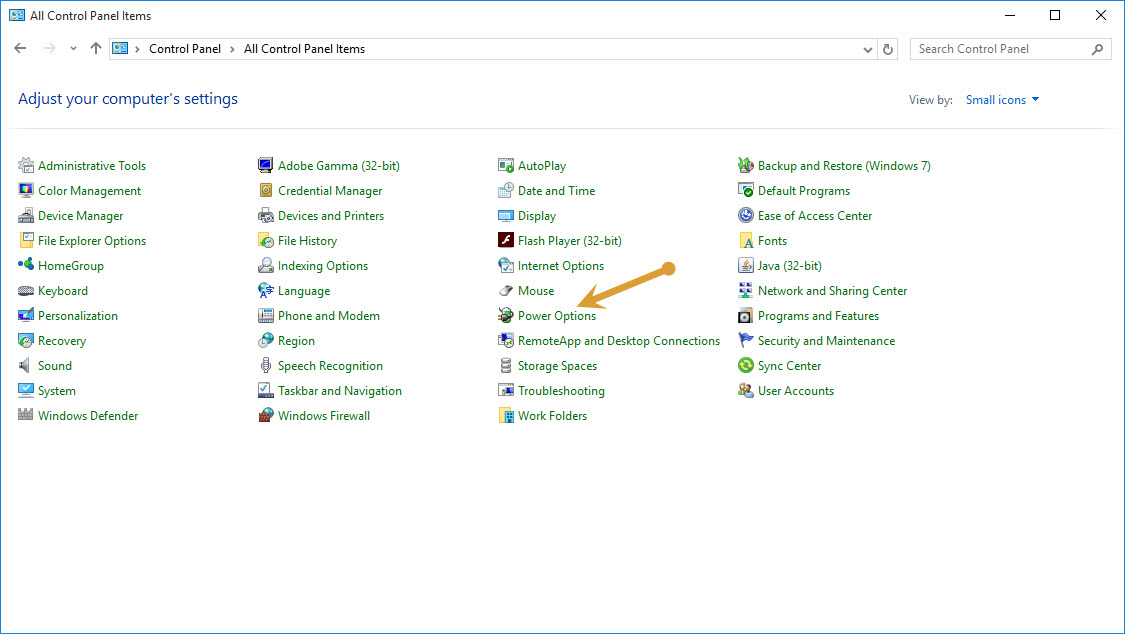
- Now open Power Options.
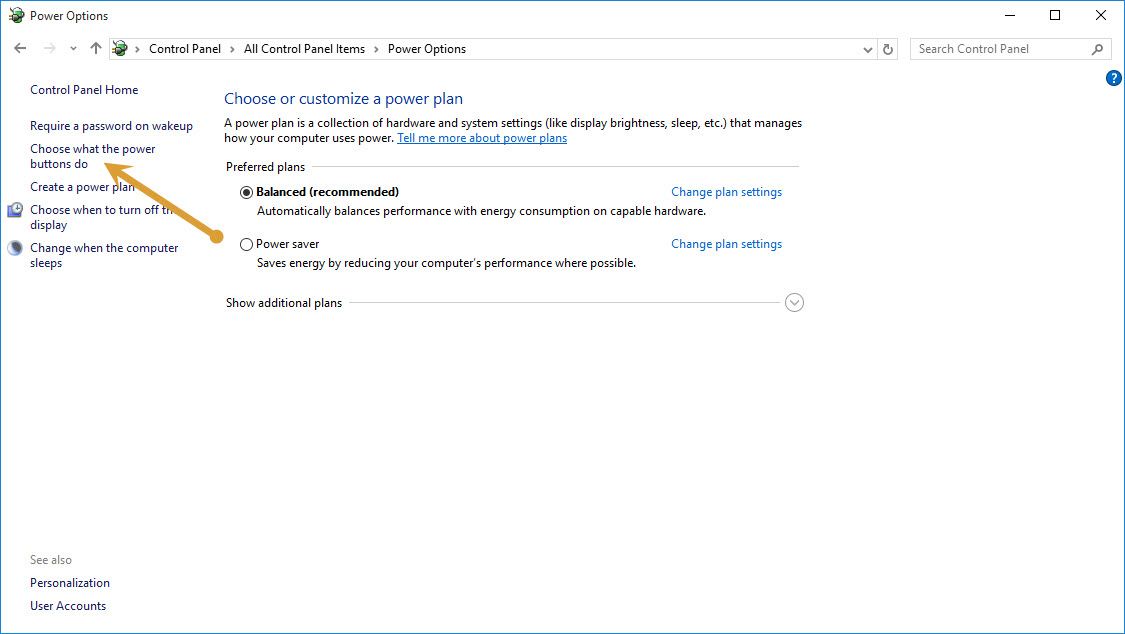
- On the left side panel, click on Choose what the power button do.
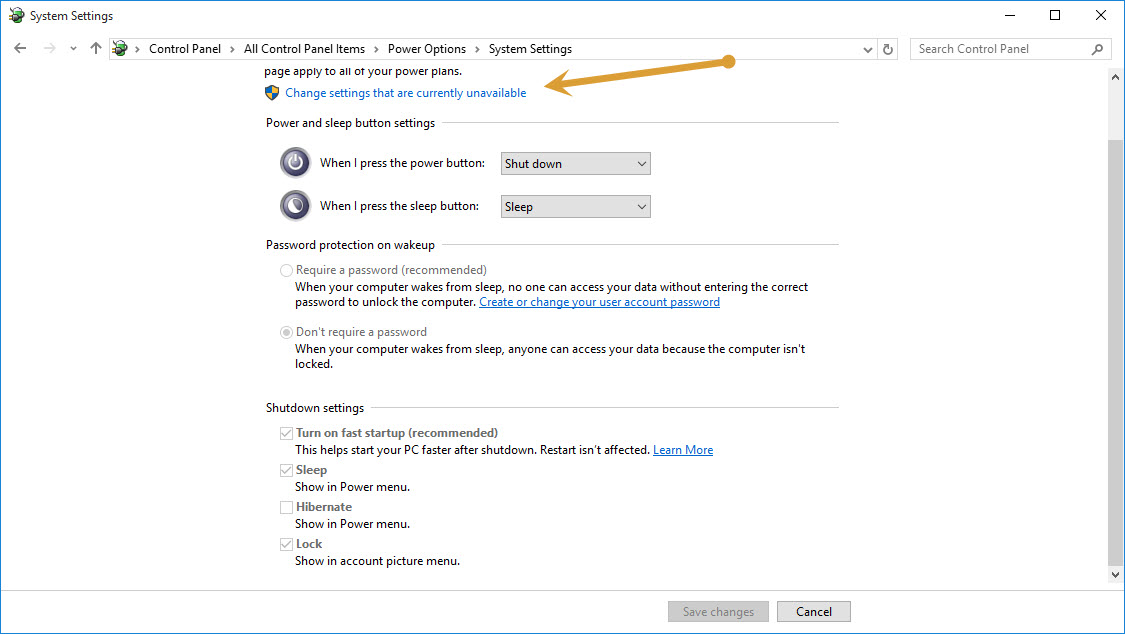
- Click on Change the Settings that are currently unavailable.
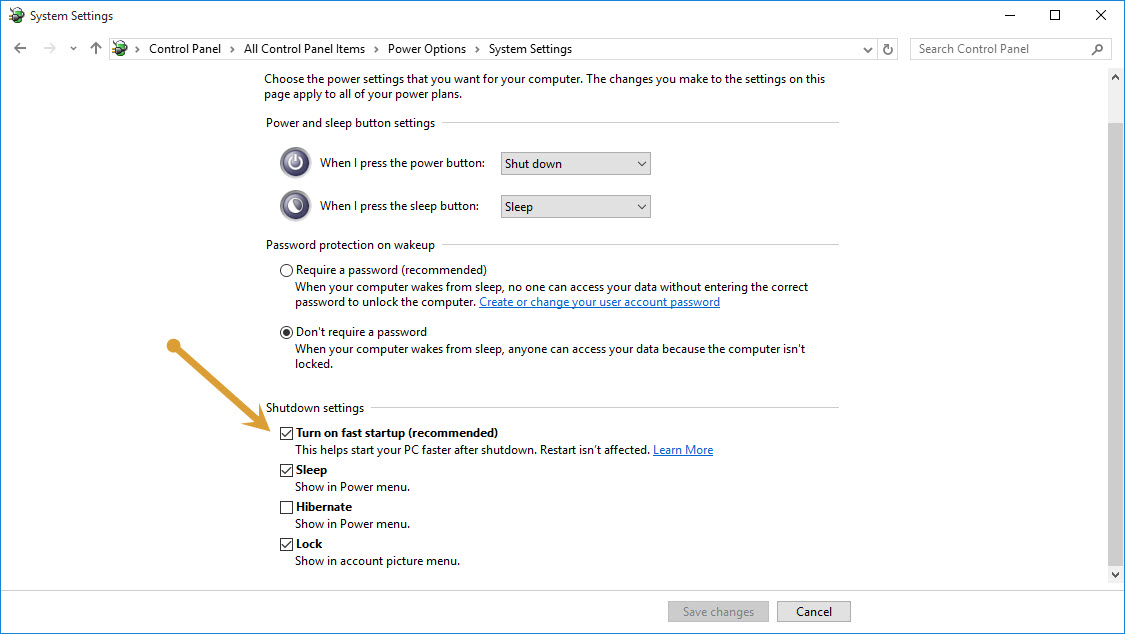
- Here, uncheck the Turn on fast Startup and save the settings.
5. System Restore
Sometime system restore will fix the issue by restoring the PC back to the error-free time. To do a system restore, follow the procedure below.
- Press Windows key and I together to open the Settings Menu and then click on Update & Security.
- Here click on recovery.
- Now click on Get Started in the Reset this PC section to start System Recovery procedure.
These are the best options to fix the Windows 10 Won’t Shut Down, Restarts Instead error. If all fails, you can just try a reset or a clean wipe to resolve the issue. Let us know how it goes for you.
More in Windows

Getting Windows Ready, Don’t Turn off Your Computer Fix
Are you getting “Getting Windows Ready, Don’t Turn off Your Computer” error while trying to shut down your computer or even restart it? You are not alone. It is one of the most common issues faced by thousands of Windows users. Which is why we decided to provide some possible fixes for the error. Simply…

How to Fix Remote Desktop Stuck on “Please Wait” in Windows 11
Is your Remote Desktop session stuck on “Please wait” or “Please wait for the Remote Desktop Configuration” in Windows 11? In most cases, the remote PC is hanging during sign-in, usually because of RDP’s network detection, a UDP transport problem, a stuck old session, or a user profile that won’t load. The quickest fixes are…
Shutdown or Restart Windows 10 Using Cortana with your Voice
Shutting down your computer is as simple as pressing a switch or using the traditional way of using your mouse for it. Wanna take it to the next level? What if you can just interact with your computer and even tell it to shut down itself or restart? Cortana makes it possible if you are…
The week in tech, minus the noise.
New reviews, fixes and the stories that matter — once a week, straight to your inbox.
We only use your email to send the newsletter. Unsubscribe any time. See our privacy policy.
Comments