

How to lock WhatsApp on iOS with Face ID or Touch ID
Recently, WhatsApp announced a new feature for iOS users. This latest feature announced by the company is one for the privacy lovers out there. WhatsApp has finally added the ability to lock its application, on iOS only, for now. Now you can lock your WhatsApp app on the iPhone with the latest version of the…

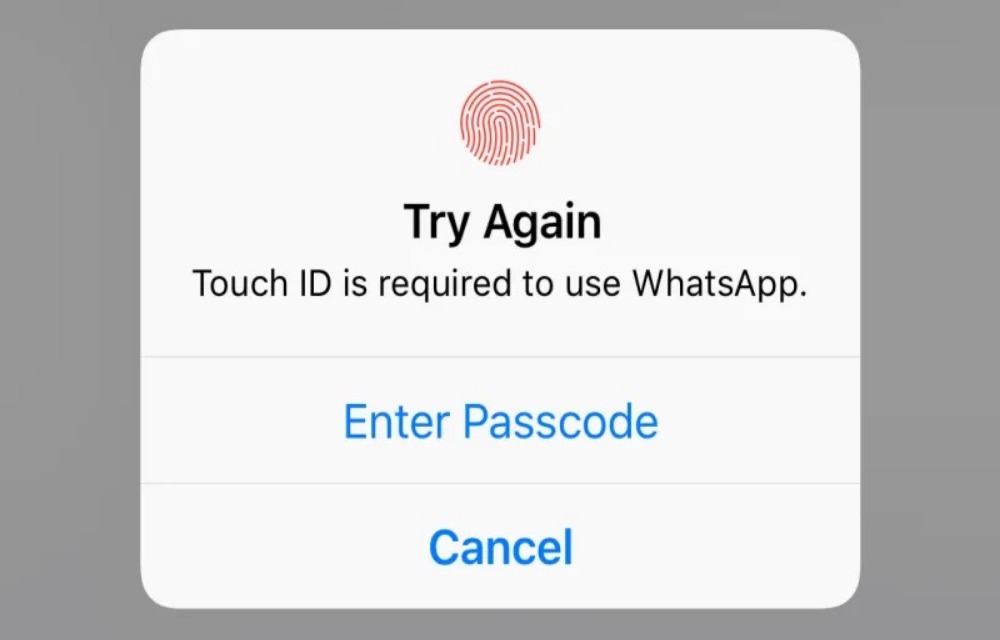
Lock WhatsApp on iOS
Recently, WhatsApp announced a new feature for iOS users. This latest feature announced by the company is one for the privacy lovers out there. WhatsApp has finally added the ability to lock its application, on iOS only, for now.
Now you can lock your WhatsApp app on the iPhone with the latest version of the app. You can do this with the help of Face ID as well as Touch ID. For iPhone 8 and lower devices, there is no option for Face ID so you can do this via your Touch ID. On the other hand, users of iPhone X and above don’t have Touch ID so Face ID is the option you can choose.
However, you still have more options if you want to choose neither of Touch ID or Face ID. This is with the help of conventional PIN or Password but we recommend using Face ID or Touch ID as it is much faster in comparison. Also, it is known that Face ID for iPhones is the most secure face unlock mechanism out there. As it relies on dedicated sensors rather than being included in the software.
Well, you will now have the question of how to do it. If you are one of those iOS users looking for a way to enable WhatsApp’s lock using Face ID or Touch ID, we are here to help. You will find the steps on how to lock your WhatsApp chats using Face ID/Touch ID below
Steps to enable lock for WhatsApp using Face ID or Touch ID
- First of all, make sure that you are on the latest version of WhatsApp for iOS. To make sure, open App Store and see if there is an update available for WhatsApp. If there is an update available, download and install the update.
- After that, ensure that you also have Touch ID or Face ID on your iPhone already enabled. If not, you need to enable Face ID or Touch ID (whichever is available) on your device.
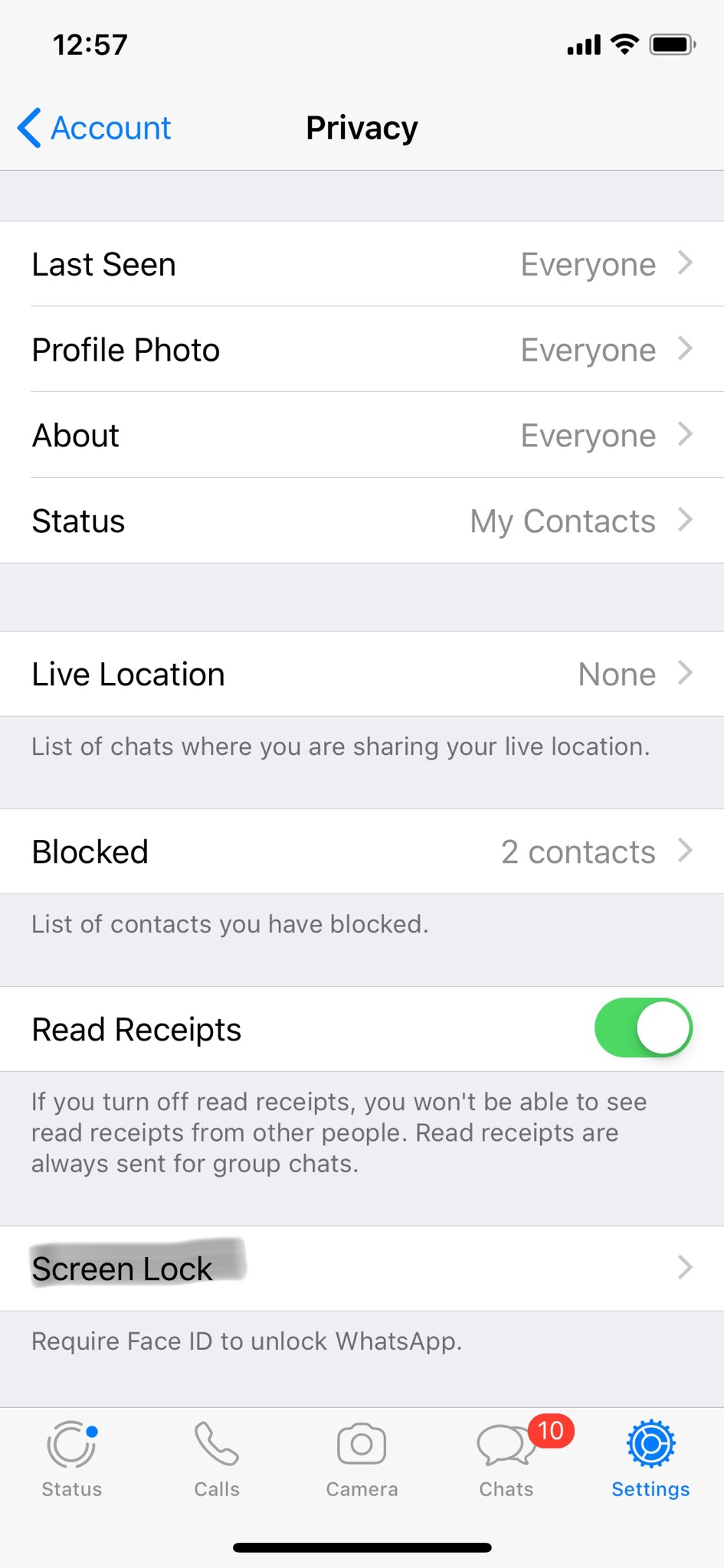
- Then, open WhatsApp and go to its Settings–> Account. In WhatsApp’s Accounts option, go to the Privacy tab and click on Screen Lock. Enable “Require Touch ID” or “Require Face ID” button as per your device from here.
- Once enabled, you will be asked if you want to lock WhatsApp immediately or wait for some time. Select the option according to your choice and WhatsApp lock will be enabled.
In case your Face ID or Touch ID fails to register for some reason, you can always unlock your device with Password or PIN. Moreover, this latest feature adds a layer of security to your WhatsApp app. Also, there is the two-step verification feature on WhatsApp for iOS which is a bonus. However, reports suggest that you will mostly not see two-step verification on iOS once you enable Touch ID or Face ID lock on WhatsApp.
Also, some users suggest that this same feature could soon be available on Facebook Messenger as both WhatsApp and Messenger are owned by Facebook.
More in How-to

Protect Your Privacy: Easy Steps to Lock Your Secrets on WhatsApp
Handing over your unlocked phone to someone can be a tense experience. Will they respect your privacy or stumble upon those embarrassing messages you’d rather keep hidden? While many messaging apps leave you hanging, with its brand-new feature, aptly named “Chat Lock,” you can now lock away specific chats and shield them from prying eyes.…
How to Send Stickers on WhatsApp?
After a ton of rumors, WhatsApp finally rolled out Stickers update both on Android and iOS. This update will let you send stickers in your chats. We already know the use of stickers on Facebook messenger. WhatsApp rolled out stickers support in the version 2.18.329 on Android, whereas on iOS it comes with 2.18.100 version…

How to Get FaceTime for Android?
Does FaceTime work on Android? Let me answer this question for you. As we all know, FaceTime is developed by Apple exclusively for iOS devices. FaceTime is used for video calling between iOS devices. FaceTime is used for video calling between iOS devices. It is nothing just an exclusive video calling service between iOS devices.…
The week in tech, minus the noise.
New reviews, fixes and the stories that matter — once a week, straight to your inbox.
We only use your email to send the newsletter. Unsubscribe any time. See our privacy policy.
Comments