

How to Create a Group in Gmail?
How to create a group in Gmail: Gmail is a very popular email service from the house of Google. It has fantastic features in emailing as no one has in the competition. A user can send attachments, enable alerts, create folders, scheduling emails, labelling and sending group emails. In this article, we will learn how…


How to create a group in Gmail
How to create a group in Gmail: Gmail is a very popular email service from the house of Google. It has fantastic features in emailing as no one has in the competition. A user can send attachments, enable alerts, create folders, scheduling emails, labelling and sending group emails.
In this article, we will learn how to create a group in Gmail for sending email to multiple people. This feature will work like a WhatsApp group message. It will let you send an email to a multiple at the same time. You don’t need to send manually to everyone. It is a pretty useful feature for business people, family and other related people.
These are the steps required to create a group in Gmail. These steps are suitable for Web, Outlook, and Thunderbird clients.
Creating a group in web Gmail
Webmail is the most common format for accessing Gmail. The below steps are for creating a group in Gmail webmail.
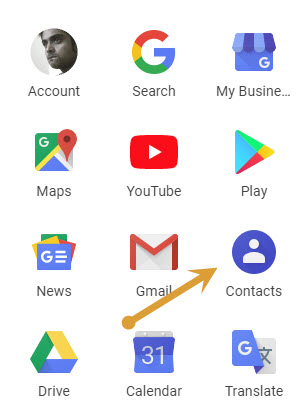
- To create a Gmail group in your webmail, login to your Gmail account. Go to the app drawer on the top-right corner and click on “Contacts.”
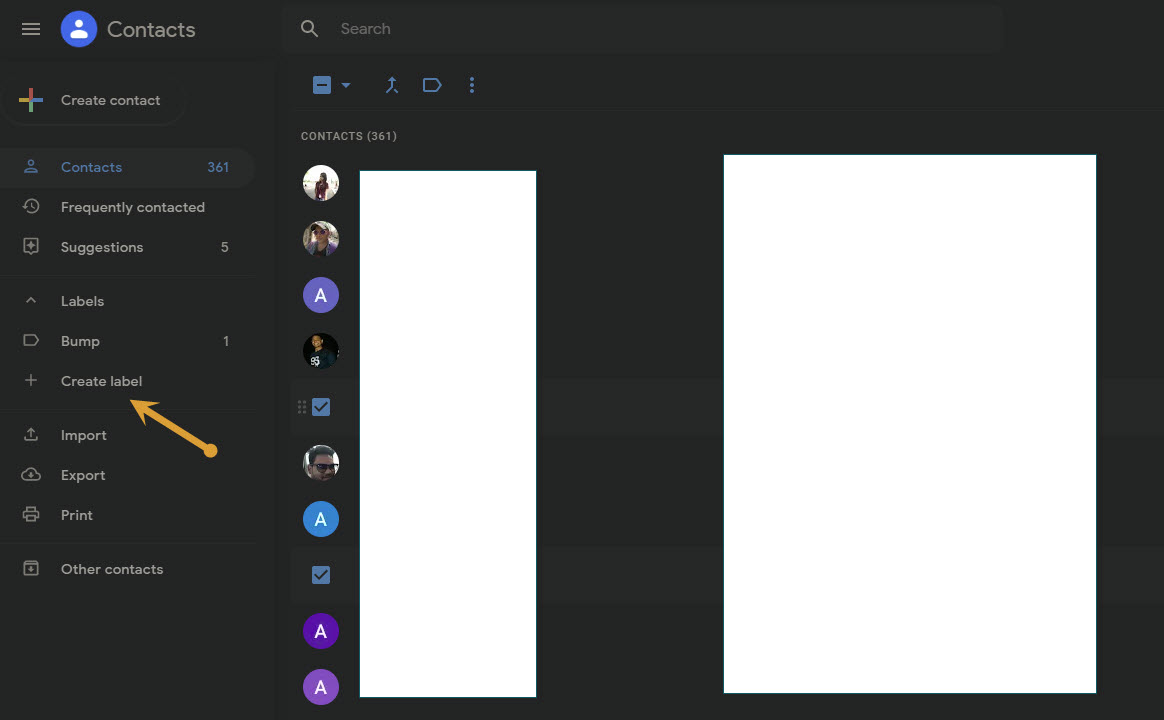
- After clicking contacts, you will see all your contacts as a list. Here you will find an option called labels. For the first time use, you need to click on “Create label” to create a new email group.

- Give the name to the label you are created such as friends list, colleagues-1 etc.
- When you click on a saved label, it will ask you to add new contacts from your contacts list. To import contacts into this new label, simply select a contact and click its three-dot icon.
- You can add as many as contacts available in the list to a Gmail group.
- Once you added them to a group, now it is ready to send any email in that particular group contacts at one time.
Adding Gmail Groups in Outlook
Many people are using Outlook as a default email client on Windows-based computers. If you are using Gmail in Outlook, these steps will help you to create labels within the Outlook interface.
- On the Outlook home screen, click on “Contacts.” Next, click “new contact group.”
- Here you can add each contact to the group. Or alternatively, you may import them from your Outlook contacts or other address groups.
- Once the group is created, you can use the group in sending group emails.
Adding Gmail Groups in Thunderbird
If you are using Thunderbird as a default email client for your Gmail, you can easily create Groups.
- Click “Address Book” on your top window. Next, click “New list” to start adding email addresses to your group.
- Once the group is created with the emails, now you can use the groups to send group emails.
Conclusion
We are already covered various Gmail related tips and tricks in the past. We come up with more solutions in future as well. For sending group emails on Gmail, follow the above procedures. Let us know your valuable feedback in the comment section below.
More in How-to

How to Create a Gmail Account
Creating a Gmail account is not that much of a tough task. Having a Gmail account is a necessity in this communicative world. Most of your friends might have a gmail account for emailing each other. Why don’t you have one?. Gmail allows you to transfer your files and important information over the internet in…

How To Recover Deleted Gmail Account – Detailed Guide
Most of you might be using, at least, one Gmail account. Some of you have even multiple accounts. The beginners on Gmail may create multiple accounts and once they aware of the basic operations or if they find a better Gmail id, They may switch it to the new one. This happens several times in…

How to Get FaceTime for Android?
Does FaceTime work on Android? Let me answer this question for you. As we all know, FaceTime is developed by Apple exclusively for iOS devices. FaceTime is used for video calling between iOS devices. FaceTime is used for video calling between iOS devices. It is nothing just an exclusive video calling service between iOS devices.…
The week in tech, minus the noise.
New reviews, fixes and the stories that matter — once a week, straight to your inbox.
We only use your email to send the newsletter. Unsubscribe any time. See our privacy policy.
Comments