

How To Spoof A MAC address in Windows, Mac, and Linux
Media Access Control aka MAC address exists in every network-enabled devices. It is a physical address assigned to every hardware which deals with network connections. In detail, the MAC address gives a unique identifier for every hardware that’s connected to a network. You can identify the device connected to the network from checking the MAC…


How To Spoof A MAC address in Windows, Mac, and Linux
Media Access Control aka MAC address exists in every network-enabled devices. It is a physical address assigned to every hardware which deals with network connections.
In detail, the MAC address gives a unique identifier for every hardware that’s connected to a network. You can identify the device connected to the network from checking the MAC address.
In routers, you can see the connected devices to a specific network by checking the MAC address in the list.
Some people want to change the MAC address for their reasons. Few popular reasons are, to hide the identity of a device, or to fool a network to regain its access to connect to the Internet.
MAC address spoofing is popular among colleges and educational institutions. The Universities and colleges block specific MAC addresses to stop accessing the Internet from the network. People use to change the MAC address to regain the connection.
In this article, we will know how to spoof a MAC address on Windows, Mac and Linux systems.
How to spoof a MAC address in Windows?
In Windows, you have an easy option to set a custom MAC address from the Device Manager. Follow the below steps to spoof MAC address on Windows.
- Open Device Manager.
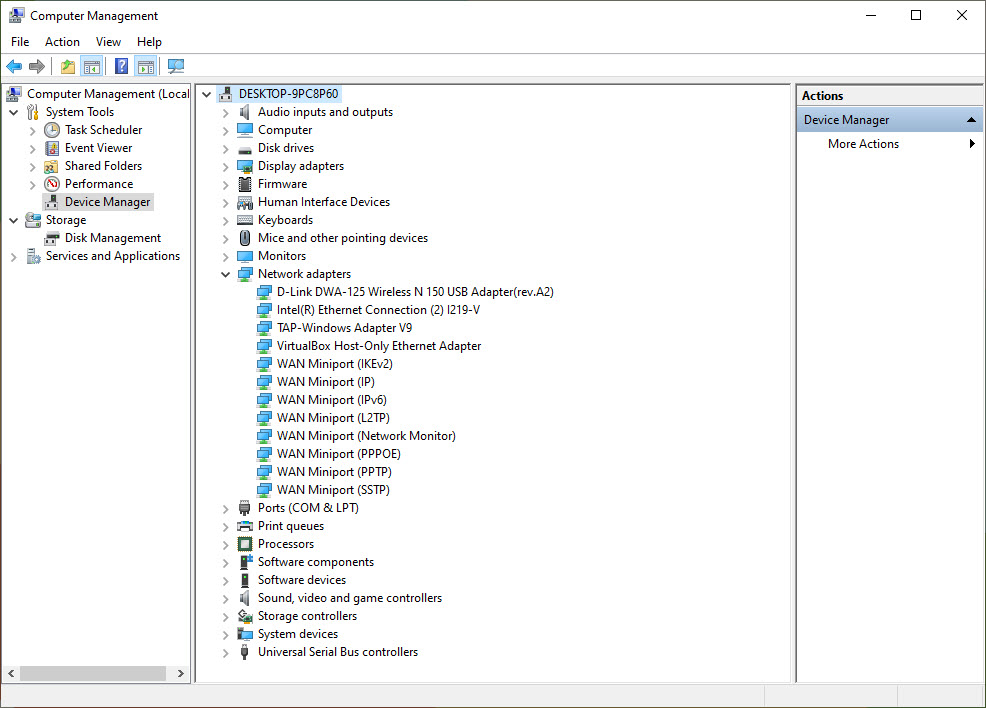
- Select Network adapters to expand the options.
- Right-click your network adapter, then select Properties.
- Select the Advanced tab.
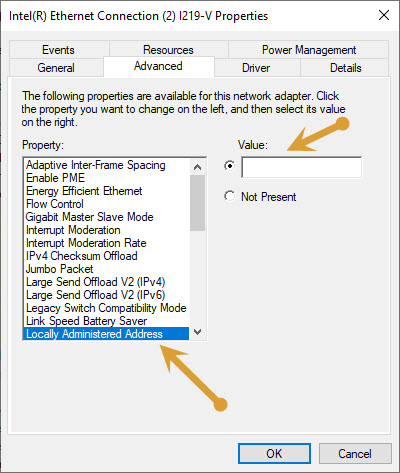
- Here, select Network Address or Locally Administered Address in the list of properties.
- Now, enter your desired MAC address in the Value box, then select OK.
To verify the MAC address change, follow the step on Windows.
Open the command prompt and enter ipconfig /all to verify that your new MAC address has been set.
How to spoof a MAC address in macOS?
Changing the MAC address on macOS is an easy process and requires Terminal to perform the action. However, it is not a permanent change of MAC address on macOS. You will need to do these steps again every time you restart your computer.
- Open Terminal from the Applications folder.
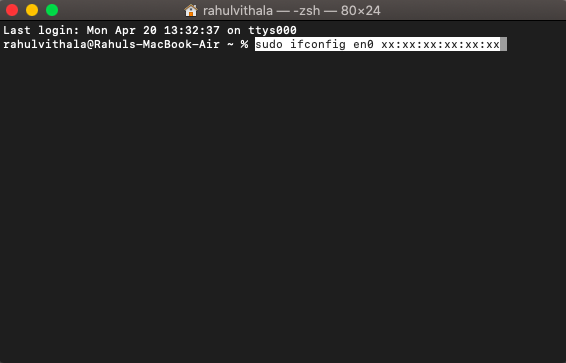
- Type
sudo ifconfig en0 xx:xx:xx:xx:xx:xxand press Enter. - Type
ifconfigand press Enter to verify that your new MAC address has been set.
How to spoof MAC address in Linux?
Changing of MAC address on Linux is purely depends on the distribution you are using. The terminal needs action to change the MAC address on a Linux computer. The steps are as follows.
- Open the terminal.
- Type
sudo ifconfig eth0down, and then press Enter to take your network interface down. - Type
sudo ifconfig eth0 hw ether xx:xx:xx:xx:xx:xxand press Enter to change your MAC address. - Type
sudo ifconfig eth0up and press Enter to bring your network back up. - To check the changes, type
ifconfigand press Enter to verify that your new MAC address has been set.
That’s it. Now you will have the desired MAC address on you Windows, Mac, or Linux computer. Let us know your feedback in the comment section below.
More in How-to

How To Block Red Shell On Your PC, Mac, and Linux
If you are a gamer then you must aware of the latest tracking software which is embedded in the games. The package is called Red Shell and it is collecting the data from the gamers more than the developers thought. Originally it is created to collect some basic user data from the gamer. Unexpectedly, the…

Virtual Machine Applications To Run More Than One Operating System – Windows / Linux / Mac
While we cross through an App or a software program that would be useful for us but only run in different OS that what we are using, we will think that we are not lucky to use that App or Software. But, there is an easy solution to run more than one OS in same…
How To Run Android On Windows With GenyMotion
Android on Windows sounds super cool? Yes anyone can run Android on Windows with Genymotion. This is very useful for normal people who want play games and developer’s to test their apps without buying device. What is GenyMotion Android Emulator? Whatever your needs may be, GenyMotion solves your problem easily. GenyMotion is a third-party application…
The week in tech, minus the noise.
New reviews, fixes and the stories that matter — once a week, straight to your inbox.
We only use your email to send the newsletter. Unsubscribe any time. See our privacy policy.
Comments