

Windows 11 26H2 Is Installing Automatically: How to Pause or Delay It
Microsoft is now installing Windows 11 version 26H2 automatically. Since November 18, 2026, Microsoft says it is “gradually expanding automatic delivery, beginning with devices running Windows 11, versions 24H2 and 25H2, that are not managed by IT departments,” according to the Windows 11 26H2 release health page. If you’d rather wait, you can pause it…


Image: Microsoft
Microsoft is now installing Windows 11 version 26H2 automatically. Since November 18, 2026, Microsoft says it is “gradually expanding automatic delivery, beginning with devices running Windows 11, versions 24H2 and 25H2, that are not managed by IT departments,” according to the Windows 11 26H2 release health page. If you’d rather wait, you can pause it for up to 35 days on any PC, or hold it off longer on Windows 11 Pro. How long you can safely delay depends on which version you’re on now, because 24H2 Home and Pro have already stopped getting security updates.
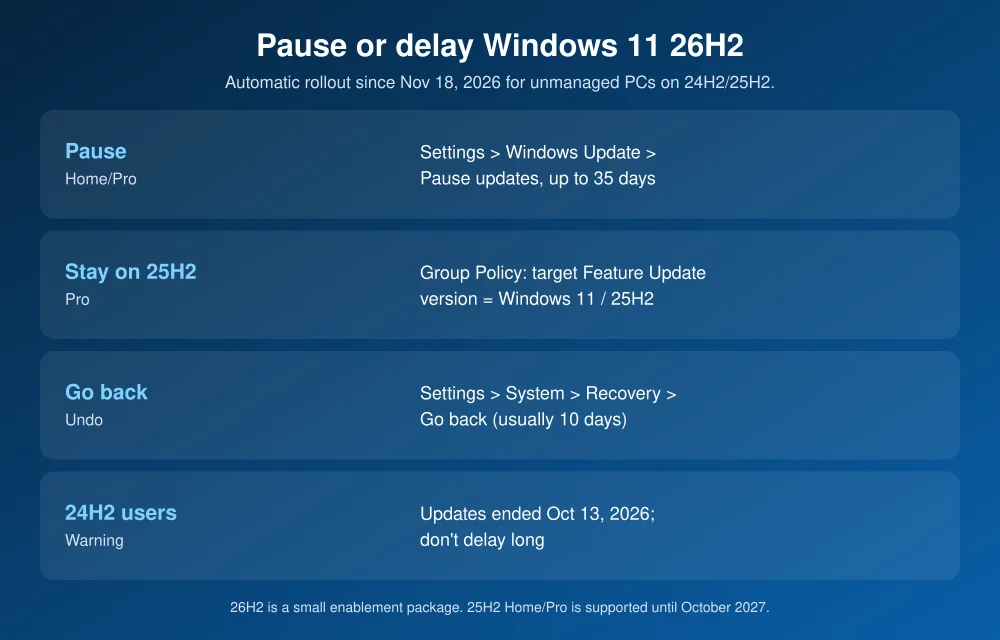
Quick answer: To pause the Windows 11 26H2 update, go to Settings > Windows Update and use Pause updates. You can pause for up to 35 days, then updates resume automatically. On Windows 11 Pro, open Group Policy and set Select the target Feature Update version to Windows 11 and 25H2 to stay on 25H2. If 26H2 already installed, go to Settings > System > Recovery > Go back, usually within 10 days. Don’t delay forever on 24H2 Home or Pro: it reached end of updates on October 13, 2026.
Should you delay 26H2?
For most people, 26H2 is a small update. Microsoft’s IT Pro guide to 26H2 says it’s delivered as an enablement package to PCs on 24H2 or 25H2, which “activates features already present on the device.” It downloads and installs much like a monthly update, so it isn’t a full reinstall.
| Your version | Home/Pro updates end | Safe to delay? |
|---|---|---|
| 24H2 | Ended October 13, 2026 | No. You’re already missing security fixes. |
| 25H2 | October 2027 | Yes, for now |
| 26H2 | October 10, 2028 | Supported for 24 months |
Dates are from Microsoft’s Windows 11 Home and Pro lifecycle page. To see which version you have, go to Settings > System > About and look under Windows specifications.
Known 26H2 issues to know about
- USB audio devices with no sound (Code 10): resolved by KB5132061. See our USB audio Code 10 fix.
- Remote Desktop error 0xC000000D for non-admin users on PCs with Administrator protection on: resolved by KB5127936.
- SQL Server linked server connections staying open: affects servers, with a fix promised. See our SQL Server linked server fix.
Microsoft lists no 26H2 safeguard hold right now, so the update isn’t being blocked on any known hardware.
How to pause the 26H2 update in Settings (Home and Pro)
- Open Start > Settings > Windows Update.
- Next to Pause updates, choose Pick a date or a pause length.
- Pick a date up to 35 days from today.
Per Microsoft’s manage updates guide, updates resume automatically when the pause ends. You can set a new date, but never more than 35 days ahead. Pausing also stops monthly security updates, so don’t use it for long, and install updates before pausing again.
How to stay on 25H2 longer (Windows 11 Pro)
Windows 11 Pro can hold a PC on a specific version using Group Policy. Per Microsoft’s Update policy reference:
- Press Windows + R, type
gpedit.mscand press Enter. - Go to Computer Configuration > Administrative Templates > Windows Components > Windows Update > Manage updates offered from Windows Update.
- Open Select the target Feature Update version and choose Enabled.
- Under the product version, type
Windows 11. Under Target Version for Feature Updates, type25H2. Click OK.
You need both values for it to work. You’ll keep getting monthly security updates for 25H2. Microsoft says a PC set this way will still update automatically once its version is 60 days past end of service, so this delays 26H2 rather than blocking it forever. To undo it, set the policy back to Not configured.
Another option is Select when Preview Builds and Feature Updates are received in the same folder. It defers feature updates by up to 365 days after release. Windows 11 Home doesn’t include Group Policy, so Home users should rely on the 35-day pause.
Already upgraded? How to go back
- Go to Settings > System > Recovery.
- If it’s shown, select Go back and follow the prompts.
Microsoft says “in most cases, you have 10 days to go back.” Your files stay, but apps and drivers installed after the upgrade are removed. If the button is missing, the window has passed. If Windows won’t start properly after the update, see our 26H2 black screen fix, or compare Cloud Rebuild vs Reset this PC for a clean start.
What’s new in 26H2
Highlights from Microsoft include Administrator protection, Windows settings backup and restore, point-in-time restore, File Explorer and Start improvements, NPU usage in Task Manager, and accessibility updates to Narrator, Magnifier and Voice access. Some features that were off by default in 25H2 are now on by default.
FAQs
Why is Windows 11 26H2 installing automatically?
Microsoft began automatic delivery on November 18, 2026, starting with personal and unmanaged PCs on 24H2 and 25H2. It’s a phased rollout, so not every PC gets it at once.
How long can I pause the Windows 11 26H2 update?
Up to 35 days from the current date in Settings > Windows Update. Updates then resume automatically, and pausing also stops security updates during that time.
Can I stay on Windows 11 25H2?
On Windows 11 Pro, set Select the target Feature Update version to Windows 11 and 25H2 in Group Policy. 25H2 Home and Pro get updates until October 2027.
Can I uninstall 26H2?
Yes, in most cases within 10 days. Go to Settings > System > Recovery and select Go back if it’s available.
Featured image: Microsoft Windows.
Disclosure: TheTechHacker has no paid relationship with Microsoft or any company mentioned here.
More in How-to

How to Fix KB5132061 Not Installing on Windows 11 (0x800f0993 and More)
Windows 11’s November security update, KB5132061, arrived on Patch Tuesday, November 10, and on some PCs it just won’t go in. You click Install, the progress bar crawls, and then Windows Update shows 0x800f0993, 0x80070306 or 0x800f0989, or quietly tries again on the next restart. Microsoft has acknowledged the problem, which helps, because it means…
How to Fix Windows 11 26H2 Black Screen After Sign-In
Seeing a black screen after signing in on Windows 11 26H2? Microsoft confirmed the issue, mainly on Azure Virtual Desktop with FSLogix, and fixed it in KB5127648. Here’s how to get your desktop back.
How to Fix the Passkey “Something Went Wrong” Error on Android When Signing In on Windows 11
You scan the QR code on your Windows 11 PC, approve the passkey on your Android phone, and the website signs you in. Then your phone says “Something went wrong.” It’s a Windows bug, not a problem with your phone or your account. Microsoft fixed it in the November 19, 2026 preview update, KB5132057, for…
The week in tech, minus the noise.
New reviews, fixes and the stories that matter — once a week, straight to your inbox.
We only use your email to send the newsletter. Unsubscribe any time. See our privacy policy.
Comments