

How To Fix The 0x8024401c Error In Windows 10
0x8024401c is a common error code usually appear on the Windows update page on your computer. It is an error caused by the registry keys of Windows update and you can easily fix them by running the registry script on your computer. Before going to proceed the below methods, first, check your Windows is activated…

How To Fix The 0x8024401c Error In Windows 10
0x8024401c is a common error code usually appear on the Windows update page on your computer. It is an error caused by the registry keys of Windows update and you can easily fix them by running the registry script on your computer.
Before going to proceed the below methods, first, check your Windows is activated or not. The updates are usually not available for non-activated versions of Windows. You can check the activation status by searching “Activation Settings” in the Start menu.
Also, makes sure you have connected to an active Internet connection with sufficient speed. The slow connections will not be able to download the latest Windows updates on your computer.
How To Fix The 0x8024401c Error In Windows 10
Method 1. Create a registry script
By creating a registry script on your computer to change the value will fix the issue.
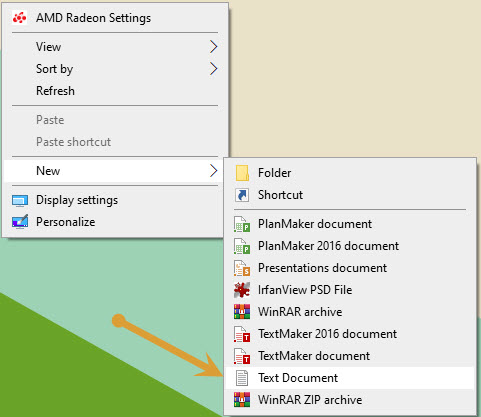
- Create a new text document by clicking on the empty space of desktop then New->Text Document.
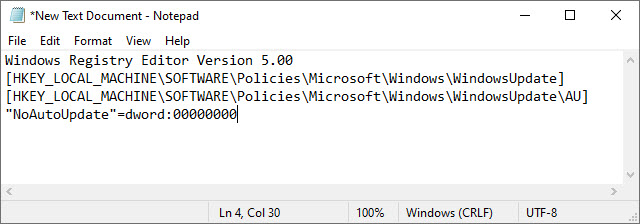
- In the Notepad window, copy and paste these lines.
Windows Registry Editor Version 5.00
[HKEY_LOCAL_MACHINE\SOFTWARE\Policies\Microsoft\Windows\WindowsUpdate]
[HKEY_LOCAL_MACHINE\SOFTWARE\Policies\Microsoft\Windows\WindowsUpdate\AU]
"NoAutoUpdate"=dword:00000000 - Now, click on “File” in the menu-bar and then click on “Save as“.
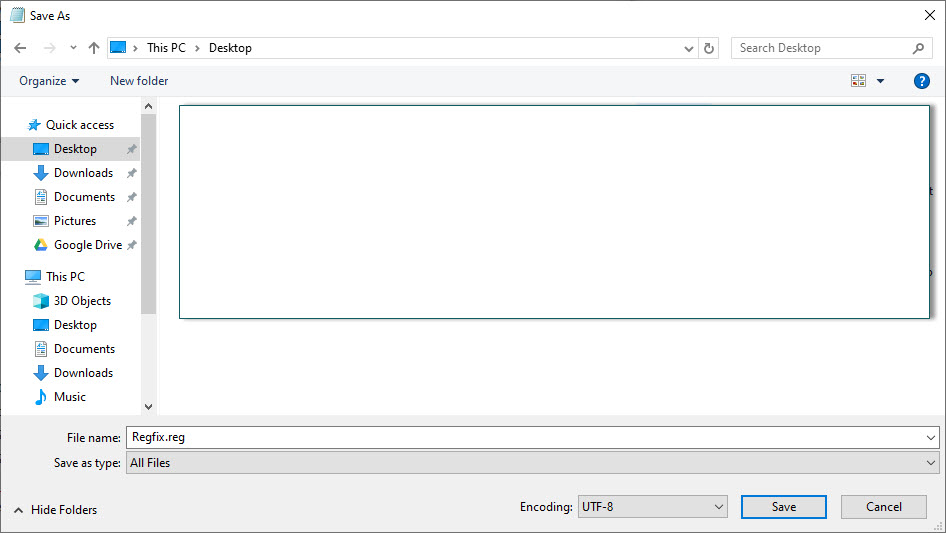
- In “Save As” window, name the file as “Regfix.reg” and choose “All Files” from the file type.
- Here, choose a location to save the file on your computer. Here, I have chosen “Desktop” as the file saving location.
- Now, click on “Save” to save the file on your computer.
- Open the saved document on the Desktop by double-clicking on it.
- Now, click on “Merge” to merge it with your original registry.
- If you receive a warning message, just click on “Yes” to run the script on your computer.
- Now, reboot the system to make changes.
Method 2. Modify Registry manually
- Click on the Search box and then type “regedit“.
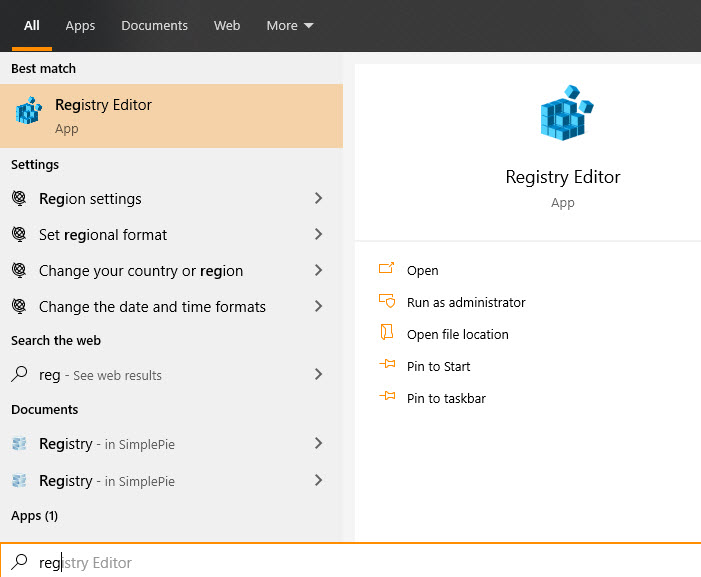
- Now, open “Registry Editor” from the search results to open it on your computer.
- Inside Registry Editor window, on the left-hand side, navigate to the following location.
HKEY_LOCAL_MACHINE > Software > Policies > Microsoft > Windows > WindowsUpdate - Now, on the right-hand side, double click on “UseWUServer” to modify it.
- Set the ‘Value Data:‘ to “0“.
- Click on “OK” to save the changes on your computer.
- Now, close Registry Editor window.
That’s it. Your problem should be solved by trying either of these above-given methods. Which method worked for you? Let us know in the comment section below.
More in How-to
How To Fix “Printer Needs User Intervention” In Windows 10
Windows and printer is a deadly combination of productivity. But in cases, the combination is a nightmare too. There are some errors codes appear when you get a particular type of printer error. Previously we written few printer errors fixes such as 0x00000709 error, printer driver update problem, Printer Has Experienced An Unexpected Configuration Problem…

How To Fix Steam API DLL Missing Error In Windows 10
Steam API DLL missing error is a most commonly occurring error for Steam players. This error will come due to the missing file of Steam API in the DLL files library. This is a quite annoying error for serious Steam gamers online. This error appears when a user launches the Steam app and it will…

How to Fix ‘No Internet, Secured’ Connection Error
No Internet, Secured is a most common error when you try to connect Windows 10 machine with an active Internet connection. It is a strange error by Windows OS and it shows No Internet even after when you connected to an Internet connection. Why No Internet Secured error occurs? In many types of Windows 10…
The week in tech, minus the noise.
New reviews, fixes and the stories that matter — once a week, straight to your inbox.
We only use your email to send the newsletter. Unsubscribe any time. See our privacy policy.
Comments