

How to Set Default Printer in Windows 10
If you are one of those tired of selecting the printer every time you want to print something, you are in the right place. You no longer have to select the printer whenever you print something from your browser or a PDF document or anywhere else. Windows have a feature that allows you to select…

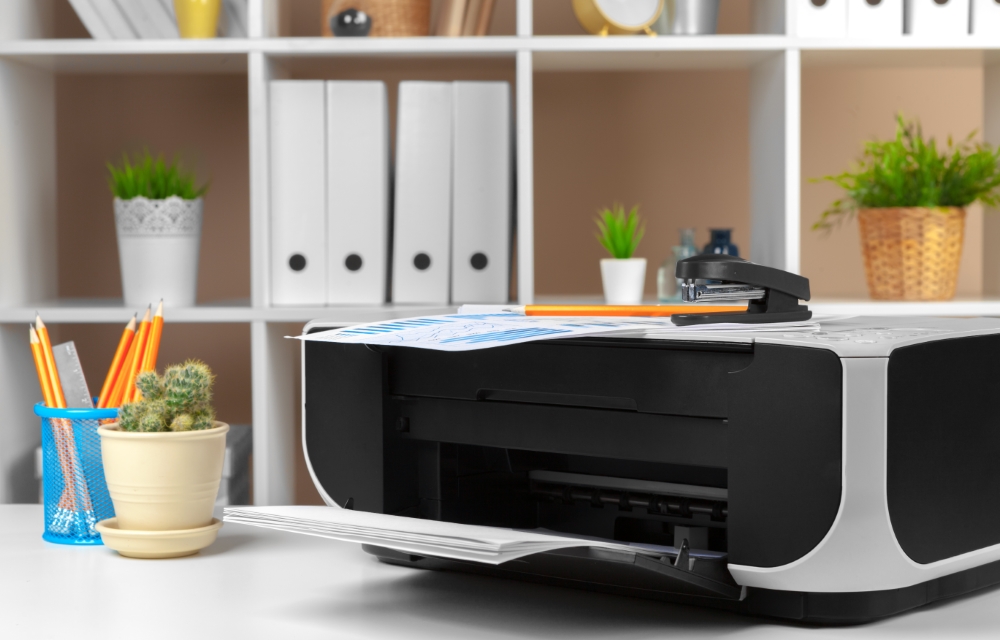
Printer, copier, scanner in office. Workplace.
If you are one of those tired of selecting the printer every time you want to print something, you are in the right place. You no longer have to select the printer whenever you print something from your browser or a PDF document or anywhere else. Windows have a feature that allows you to select your preferred printer. As soon as you choose a printer that you need to be your default in printing documents and anything you want, Windows will no longer have doubt in choosing which device to use for printing your documents or files.
Especially if you are working somewhere or running a company that requires frequent printing of documents, this could be extremely useful. In this article, we are going to list the steps required to print something on your Windows 10 PC without being asked for choosing the printer. Here we go.
Steps to set default printer on Windows 10
- Click on the Start button.
- Go to Settings.
- Go to Devices.
- Then click on the Printers & scanners.
- Choose the printer that you want to set as your default one.
- Click on Manage.
- Lastly, select Set as default.
That’s it, you have successfully set the chosen printer as the default one for the Windows printing tasks. Windows will no longer ask you for choosing a printer when you are printing something.
If you have multiple printers connected to your computer and want Windows to manage it for you by choosing the last used printer as the default for a while, you can simply select the Let Windows manage my default printer option in the Printers & scanners screen. This will be useful if you have multiple printers that you use to print different types of documents simultaneously. So take advantage of this useful feature as per your convenience. Happy printing.
More in Windows
How to Fix Printer Offline Problem in Windows 10
Sometimes you will get printer is offline message on your Windows 10. Although both your PC and Printer are in the online state, due to some communication error, the printer will appear as it is still in the offline state. If you are faced printer offline problem in Windows and looking for a fix, this…
How to Change Printer IP Address in Windows
If you are running a home network to connect to different devices and manage them all from a centralized PC, setting a static IP address to your printer would be a great option. Most of the printers use dynamic IP addresses that could result in problems after a network change or conflict that caused the…
How to Enable File and Printer Sharing on Windows
Suppose you are running a small business where you have to share files across multiple computers or you have multiple devices in your home network, instead of carrying them in an external USB drive, wouldn’t it be way easier if you could access the same files from all your devices? Just like that, if you…
The week in tech, minus the noise.
New reviews, fixes and the stories that matter — once a week, straight to your inbox.
We only use your email to send the newsletter. Unsubscribe any time. See our privacy policy.
Comments