

How to Print using Google Cloud Print
Google Cloud Print can be used to print documents from your devices on the go. If you ever wanted to print something directly from Chrome or any other browser, as well as any place that supports the printing task, without having to physically connect a printer to your smartphone or laptop, here is an article…

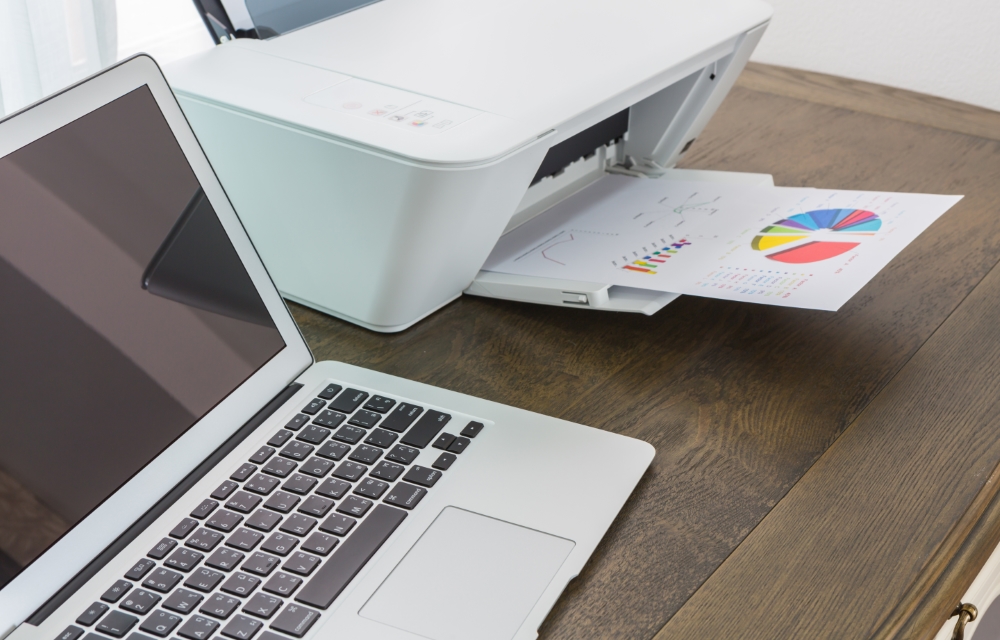
printer and Laptop on wood table
Google Cloud Print can be used to print documents from your devices on the go. If you ever wanted to print something directly from Chrome or any other browser, as well as any place that supports the printing task, without having to physically connect a printer to your smartphone or laptop, here is an article to help you out with the same.
This would be a great productivity hack especially if you have a lot of files to print more often. You do not want to manually copy-paste it to the devices with printers connected to them. So, cloud printing is an excellent option to go for.
1. Cloud Print Setup
Before getting started, you have to check if your wireless printer is cloud-ready. Here is a list of the cloud-ready printers from various manufacturers and how to make them cloud-ready. If the device is there in the list, you can follow those steps in order to get the printer ready for the Google cloud print. If the device is not listed there, you can follow these steps.
- Open Chrome.
- Click the hamburger menu (3 vertical dots) at the top right
- Go to Settings.
- Go to Advanced settings by scrolling down.
- lick Google Cloud Print option under the Printing section.
- Now, click Manage Cloud Print devices option.
- It may ask you to sign in with the Google account, do it.
- Finally, select the printer that you want to use to cloud print.
- Click Add printer(s).
That’s it. You have successfully added your printer for Google Cloud Print. That means, from now on, as soon as the printer is connected to the internet, you can print anything from anywhere with a browser that has your Google account signed in.
2. Print with Google Cloud Print
As you have your printer connected to Google for cloud printing, now let’s see the steps to print something.
- On Chrome open the page or file that you want to print.
- Press Ctrl + P on Windows or ⌘ + P on Mac.
- Choose the printer that you connected with Google Cloud Print. Also, change any printing settings if you want to.
- Click Print.
Your page will be remotely printed. You can add as many printers as you want with the service. For example, you might have a black and white printer as well as a separate color printer to print color documents. You can connect them with the Google Cloud Print service and choose them as per your needs.
One of the common errors that Google Cloud Print service often shows is the printer offline error. You can fix that by following the steps given in this article.
More in Guides
How to fix Google Cloud Printer offline error
If you are having an issue while printing a document with Google Cloud Print then you are in the right place. There are several types of Google Cloud Printer errors come as normal printers do. These are the possible Google Cloud Printer offline error messages you may encounter. When you are trying to connect a…

Advantages And Disadvantages Of Google Chromebooks
In a world of Google, “Chromebook” is a small developing place. Google is taking the development of Chrome OS and Chromebooks too seriously. Recently HP and Acer launched two brand new Chromebooks in the market. If you are looking to buy Chromebook instead of traditional Windows laptops or MacBooks just look at these main pros…

Top 5 Best Printer Apps for Android
The Android phones that we currently hold on our hands are amazing. They are powerful devices that can do almost anything. For the recent users of this platform, printing isn’t an issue as its easier now than it has ever been. When Android first started, it was a bit of a hassle to do the…
The week in tech, minus the noise.
New reviews, fixes and the stories that matter — once a week, straight to your inbox.
We only use your email to send the newsletter. Unsubscribe any time. See our privacy policy.
Comments