

How to Change Zoom Background in Windows, Mac and iOS
Knowing how to change your Zoom background is quintessential to make your virtual meetings more productive. Additionally, while you work from home, there’s always a chance of your bedroom or home office being messy or cluttered. But that won’t be a problem if you change your Zoom background to something pleasant so that it feels…


How to Change Zoom Background in Windows, Mac and iOS
Knowing how to change your Zoom background is quintessential to make your virtual meetings more productive. Additionally, while you work from home, there’s always a chance of your bedroom or home office being messy or cluttered. But that won’t be a problem if you change your Zoom background to something pleasant so that it feels like you appear to be in a professional workspace or a beach.
Since the past few months due to COVID lockdown, everyone seems to be using Zoom a lot while staying at home to attend work-related meetings, taking online lectures and standing in touch with friends and family.
So it’s important to know how to change your Zoom background. While some of us enjoy our meetings, others may find it a bit distracting due to anyone interfering during a meaningful discussion. You can enjoy your daily work routine by setting a virtual background that replaces your real-life background with an image or a video. The best part about this is you don’t need a Green screen.
The virtual background feature is a new professional way to conduct meetings. It’s also the critical difference between Zoom Vs. Other apps such as Google Hangouts and other such video meeting apps. You can be virtually at any place such as in front of Eiffel tower, or even in the outer space. Zoom has some default virtual backgrounds, or you might want to keep your own office image to the Zoom background and get the real feel while you work from home.
In this segment, we have summed up the process of changing Zoom background, and in the latter part, we even give you some great sources to discover and select a perfect background that suits your taste. So let’s get right into it.
How to Change Zoom Background on Windows and Mac
- Download and install Zoom app on Windows PC tor Mac.
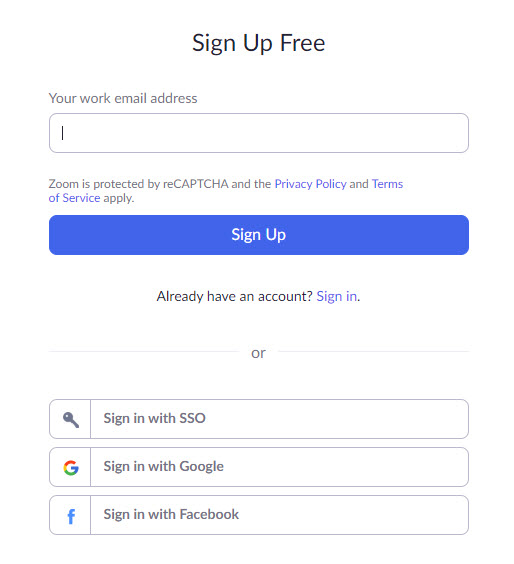
- Next step is to open the app and Login or create a new account.
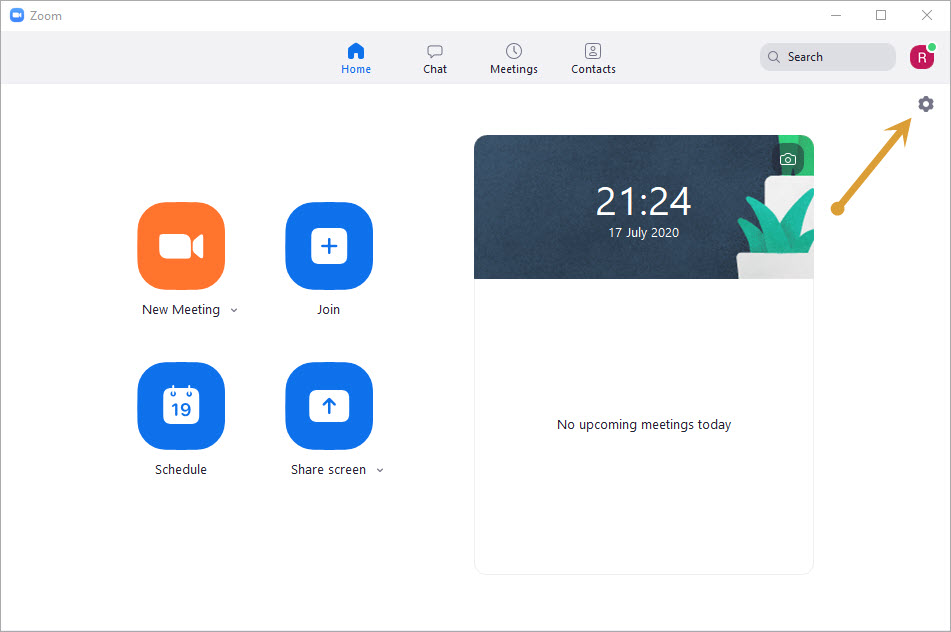
- After you are signed in, tap on the Settings icon on the top right of the Zoom app.
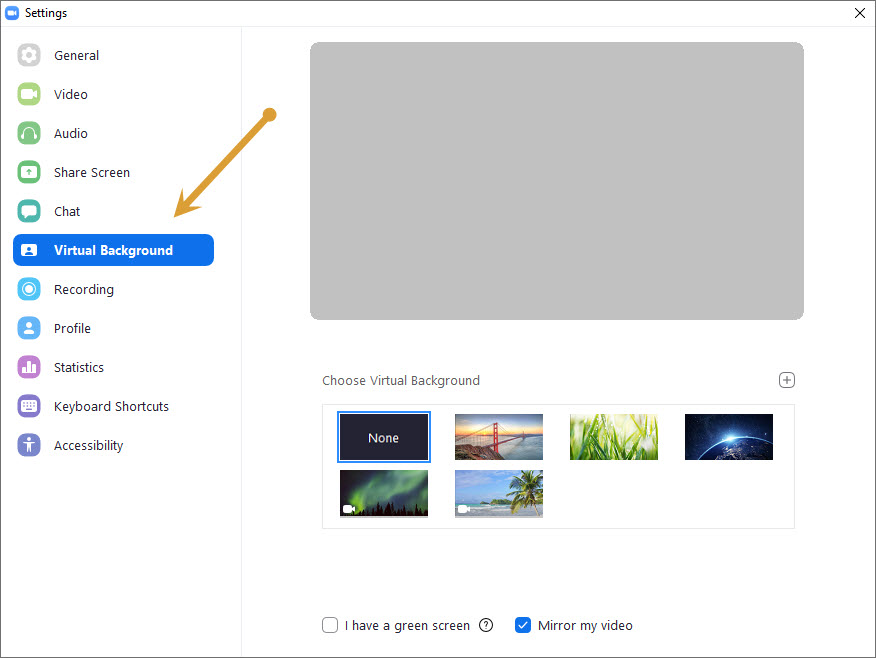
- Select Virtual Background from the left on the displayed Menu bar.
- Now you can choose any of the default virtual backgrounds.
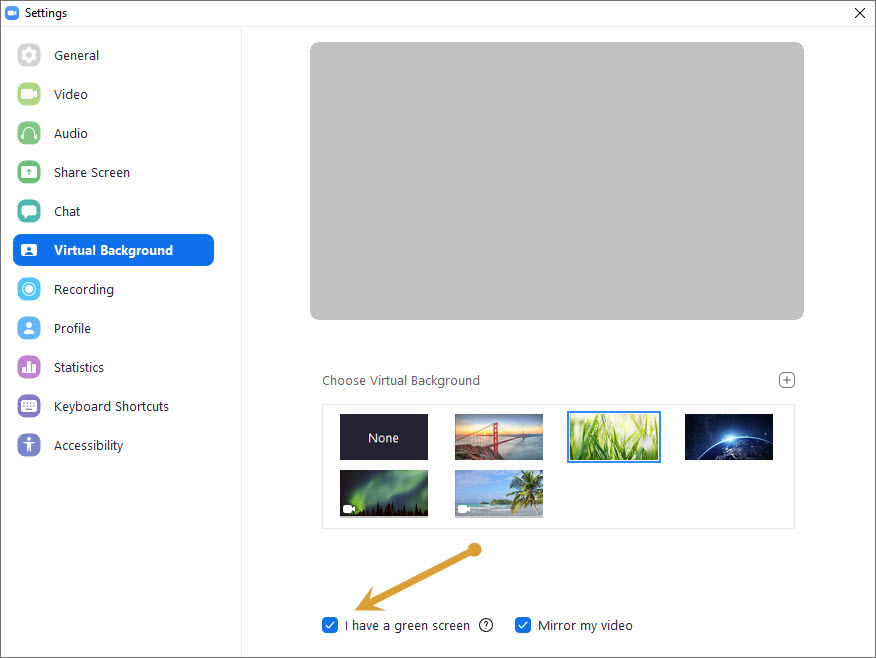
- If you have a Green Screen, then check ‘I have a green screen‘ option. It is basically to get a higher quality video output for Virtual background if you have a green screen.
- You can also check ‘Mirror my video’ option to mirror the video.
- To set a custom background, click on the ‘+’ icon and choose a video or image that you see fit.
How to Change Zoom Background on iOS-enabled devices (iPhone and iPad)
- First, download the Zoom app for iOS on your iPad or iPhone.

- Open the app and Login or create an account.
- After you are signed in, join a meeting.

- You will see three dots in the bottom right that opens an additional menu. Tap on it,
- Select Virtual Background option.
- Now, choose any of the default Zoom backgrounds, or you can choose to upload your own background.
Where to find Amazing Zoom Backgrounds for free
Well, that’s how easy it is to change a Zoom background on Windows PC, Mac or even on iOS devices. Now next thing everyone will be doing is to search for awesome backgrounds that match your personality, and we might have the right places where you can get awesome images to make your background look unique. All the mentioned websites will give you royalty-free stock images that you can use to personalise your Zoom meeting experience.
Unsplash consists of a vast library of beautiful images. There’s also an excellent Zoom background collection which you can explore from here. It consists of beautiful images ranging from indoor, office, nature and even abstract. Another great option is to look for Virtual Backgrounds on Pixbay. Furthermore, you can make your own personalised background quickly for free on Canva or other similar tools.
Taking the Zoom background game to the next level, you can try stock videos from here. It’s really cool to have a soothing environment or a start universe in the background. It calms everyone and makes you a lot more productive.
Conclusion:
Zoom Virtual Backgrounds are becoming more and more popular. People are getting creative with backgrounds, and many companies are making it mandatory to have a Zoom background while you are in a meeting or conference. Choose the background that makes you focus on work without having to worry about crazy day-to-day adventures going in the real-life background. Do let us know in the comments section below on which background do you use while you have fun with Zoom app.
More in How-to

Use ‘Raise Hand’ Feature In Zoom On Desktop and Mobile For Productive Discussions
We all have attended meetings and conferences, and even in lectures, it’s a common courtesy to raise your hand before speaking or asking a question. In the era of video conferencing, it hasn’t changed. If you use Zoom for online meetings and lectures, then it comes with a feature where you can raise your hand…

How To Fix Zoom Microphone Is Not Working Error
Errors are most common and these are most frustrating when you are actively using the service. During the Corona pandemic, many people are working from the home and Zoom is their video conferencing tool. It is a cloud-based video conference tool which perfectly works on almost all platforms. Are you experiencing Zoom microphone not working…

Look Better On Zoom With Touch Up Appearance. Here’s How
Due to the COVID outbreak, everyone has resorted to online video-conferencing. Many of us rely on Zoom to attend meetings, host webinars, and even to keep in touch with friends and family. Zoom app with its innovative features tends to keep an edge over its rival meeting apps such as Google Meet, Microsoft Teams, etc.…
The week in tech, minus the noise.
New reviews, fixes and the stories that matter — once a week, straight to your inbox.
We only use your email to send the newsletter. Unsubscribe any time. See our privacy policy.
Comments