

Look Better On Zoom With Touch Up Appearance. Here’s How
Due to the COVID outbreak, everyone has resorted to online video-conferencing. Many of us rely on Zoom to attend meetings, host webinars, and even to keep in touch with friends and family. Zoom app with its innovative features tends to keep an edge over its rival meeting apps such as Google Meet, Microsoft Teams, etc.…


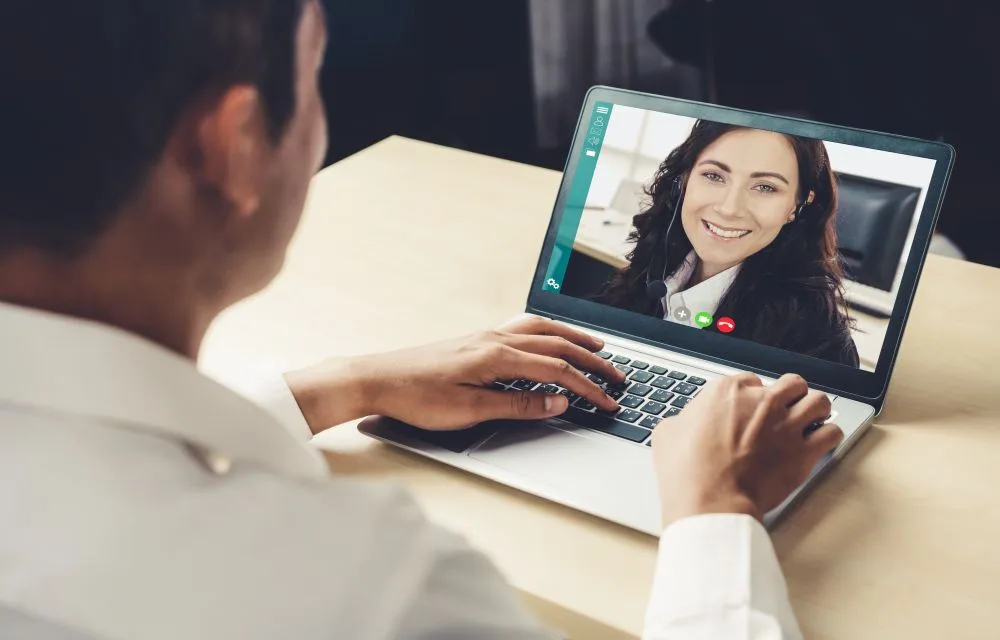
Video call business people meeting on virtual workplace or remote office
Due to the COVID outbreak, everyone has resorted to online video-conferencing. Many of us rely on Zoom to attend meetings, host webinars, and even to keep in touch with friends and family.
Zoom app with its innovative features tends to keep an edge over its rival meeting apps such as Google Meet, Microsoft Teams, etc. With a plethora of different configurations that Zoom has to offer, one such feature that stands apart from all its competition is Touch up my Appearance.
Basically, this gives your video a softer look in real-time. It’s the same as when we keep beautification filters on while taking selfies from our smartphone. When turned on, your skin looks smooth and in turns makes you nice during a Zoom meeting. If you are someone who is always in a hurry and has a tight meeting schedule and forgets about skincare, then in this segment we show you how to activate Touch up my Appearance and attend meetings with confidence.
Enable Zoom Touch Up Appearance in macOS, iOS and Windows
Many of us sleep late at night and as we are on schedule, we need to show up early in the morning for remote work. But, you don’t need to show your fatigue as a Touchup Appearance will make you look more active. It works similar to Instagram and Snapchat filters.
Unfortunately, as of now, it is not available for Android users. But, don’t worry as Zoom is continually bringing new features, this might soon be accessible to Android users as well.
Enable Touch Up Appearance on iOS (iPad and iPhone)
It’s quite simple and straightforward. Plus, you don’t need to do any extra activation steps, unlike screen sharing on Zoom.
- When in the Zoom app on iPad or iPhone, press on the Settings tab on the bottom (extreme right corner).
- Tap on Meetings option.
- Now, press Touch up my Appearance.
- Here you will see a new screen where your video will be displayed in real-time. Toggle ON the button that says Touch Up My Appearance.
You will notice real-time changes in your video, Now you can go back and join or host a Zoom meeting and flaunt your active looking face.
Enable Touch Up Appearance on macOS and Windows
Both macOS and Windows versions of the Zoom app have a similar user interface. Hence the steps to activate this zoom filter are also the same.
- Log-in to your Zoom account from the Zoom desktop app.
- Now, click on Settings from the top right corner (below your profile icon).
- In the sidebar, click on the Video option.

- Next, check the box that says Touch up my Appearance.
- Additionally, you can also activate this feature while in the zoom meeting. To do that, click on the arrow next to the video icon and go to settings and follow the above steps.
- Now you can see the real-time video output with smooth filters.
For the folks who are having trouble having the desired video output can check out our Zoom Video issue Fix guide.
Conclusion:
It’s always good to keep this feature as a backup when you are not exactly sure about your Appearance. Do share your thoughts on how you feel about Touch up Appearance feature in the comments section below,
More in How-to

Set Profile Picture In Zoom And Look Professional. Here’s How
Knowing how to set a profile picture on Zoom can make you look more professional when in Zoom Meeting with remote clients. As we all have started our daily routine with video conferencing while working remotely, it is essential to know even minor things like setting a zoom display picture. Many times there is no…

How to find Zoom Meeting Password on Android, iOS, Desktop and Web
How to find Zoom Meeting Password? Zoom Meeting Password is the same as a Skype meeting password, it has been sent to all the meeting participants, and you’re one of them. Your Zoom or Skype meeting password helps you easily join webinars without anything else needed. This article lists several ways to find your Zoom…
How to Change Zoom Background in Windows, Mac and iOS
Knowing how to change your Zoom background is quintessential to make your virtual meetings more productive. Additionally, while you work from home, there’s always a chance of your bedroom or home office being messy or cluttered. But that won’t be a problem if you change your Zoom background to something pleasant so that it feels…

The week in tech, minus the noise.
New reviews, fixes and the stories that matter — once a week, straight to your inbox.
We only use your email to send the newsletter. Unsubscribe any time. See our privacy policy.
Comments