

How to connect Apple Airpods on Windows
To all those apple users who still think that you cannot connect your Apple Airpods on Windows 11, You can! It is possible to connect even without taking any help from third-party applications. AirPods are designed to work only with Apple products but we can use them in Windows as well without even compromising on…

Wireless in-ear headphones with a case on a pink background, flat lay, conceptual minimalism.
To all those apple users who still think that you cannot connect your Apple Airpods on Windows 11, You can! It is possible to connect even without taking any help from third-party applications. AirPods are designed to work only with Apple products but we can use them in Windows as well without even compromising on any features.
In this article, you can learn fully about how to connect your Apple Airpods to windows by following the simple steps given below. It is pretty much a hassle-free process connecting Airpods to Windows. The only caution which might concern us is that Airpods sensors may not sync our inputs as seamlessly as they would work in an Apple device.
If your Windows device contains Bluetooth, Apple Airpods will get connected to that device as effortlessly as they would connect to any other Bluetooth device.
This is how you connect Airpods on Windows 11:
Connecting Airpods on Windows 11 is as easy as you think, you will be able to do that by following the below steps:
- Press Windows key + I to open the Settings app
- Guide to the left panel and pick Bluetooth & Devices
- On the right panel underneath Bluetooth & Devices, use the toggle bar next to the Bluetooth option to allow it
- Click Add Devices (+) at the top block
- Put your AirPods in their case, and then leave the case open just like you do while connecting your Apple phone
- Long press and hold the button on the Airpod’s case
- You can stop holding the button as soon as you see a white light flashing on the case (Where the light flickers from changes depending on the version of Apple Airpods you have)
- Back to your PC now, click Bluetooth under the Add a Device section
- Your PC will now begin a search for nearby Bluetooth devices. Please wait until it detects your Airpods
- Once the connection is done, go to the bottom of the window and press Done.
Once you have completed the above steps you should be able to connect your Airpods to your Windows.
How to Re-connect your Airpods on Windows:
Usually, when we try to re-connect our Airpods to Apple devices, it automatically gets connected when you leave your Airpods case open. But when it comes to reconnecting Airpods on windows it is a little complicated process though you can do so by following these few steps given below.
- Turn on Bluetooth on your Windows PC
- Take out the Airpods from their case and place them on the keyboard or anywhere closer to your computer
- Put your cursor to the bottom-right corner of the taskbar and select the speaker icon
- Following, click the > icon next to the volume control slider
- From the checklist of devices, choose Headphone (Airpods)
By doing this you will be able to reconnect your Airpods anytime you disconnect them.
This is how you connect and reconnect your Apple AirPods on Windows anytime you want without using any harmful third-party applications and complications.
More in Guides
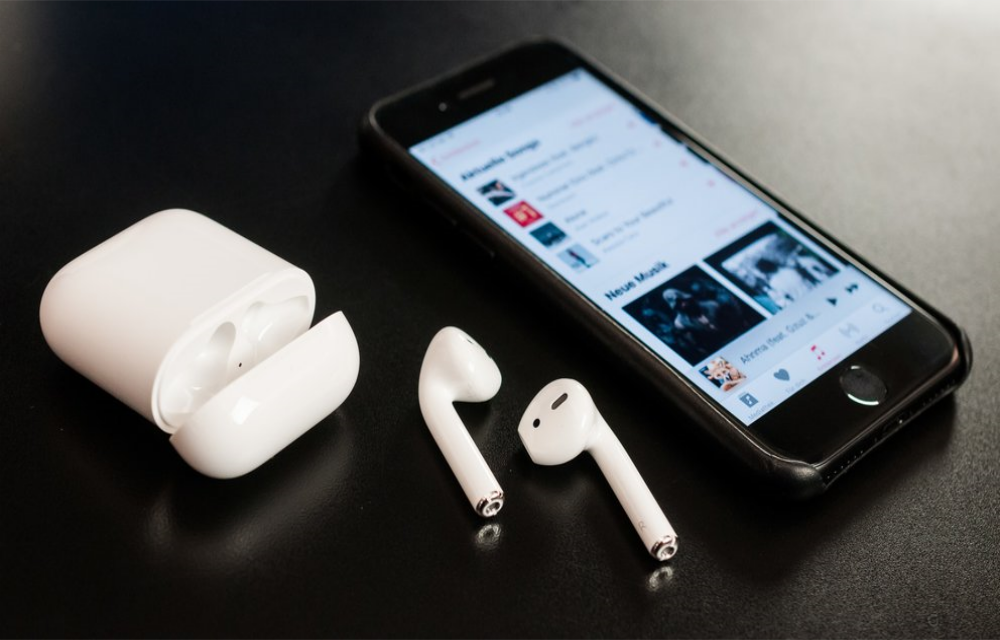
You Can Spy On Others Using Apple AirPods With This iOS feature
Apple has launched various products in their lineup of iPhones, iPads, iMacs, and Macbook. Apart from that, Apple launched a new product lineup in 2017 named as Apple AirPods. Apple AirPods is also the first truly wireless earphones from the company. Now, we know that the successor to Apple AirPods will come this year. However,…
How to Fix the ‘No Internet’ Warning When You’re Actually Online
Learn how to fix the misleading ‘No Internet’ warning in Windows even when you’re connected.

How to get Mac address in Mac
Not long ago, Microsoft Windows was the most popular operating system on the planet. Sure, with the progress of technology, we have the operating systems like Linux and Mac. Today, our topic will be a special guide on how to find the mac address in your Mac. As you know, Mac is pretty straightforward and…
The week in tech, minus the noise.
New reviews, fixes and the stories that matter — once a week, straight to your inbox.
We only use your email to send the newsletter. Unsubscribe any time. See our privacy policy.
Comments