

How to Fix Galaxy S26 Ultra Stuck at Samsung Account Sign-In on One UI 9
Is your Galaxy S26 Ultra frozen or looping at the Samsung Account sign-in screen during setup on One UI 9? Here are the workarounds Samsung and other owners have shared, and why you shouldn’t reach for a factory reset.

Galaxy phone stuck on the Samsung Account sign-in screen during setup
You’ve just unboxed or reset your Galaxy S26 Ultra and you’re tapping through setup on One UI 9. Then it stops dead at the Samsung Account sign-in screen. It freezes, loops back, or just sits there and never finishes. Some owners even get a black screen and never reach the home screen at all.
You’re not alone, and it isn’t something you did wrong. A Samsung community manager has linked the problem to the One UI 9 update, and the cause appears to be the phone’s WebView component. Samsung says a future update will fix it, but it hasn’t said which update or when it will arrive.
In this guide I’ll walk you through what you can safely try right now to finish setup and use your phone while you wait. I’ll also cover the one thing I’d strongly avoid, because it can make things worse.
Quick answer: Connect to Wi-Fi and try the Samsung Account sign-in again, which is what Samsung’s community manager recommends. If that doesn’t work, some owners report that switching to mobile data helps instead. If setup still won’t finish, skip the Samsung Account step if your phone offers it, get to the home screen, update Android System WebView, Chrome and Samsung Internet, and add your Samsung Account later from Settings. Don’t factory reset to fix this, because reports say the bug mostly appears during setup after a reset.
What’s actually going wrong
According to TechRepublic, some Galaxy S26 Ultra owners on One UI 9 are seeing failed Samsung Account sign-ins, black screens and “webpage unavailable” errors. Some phones get stuck at setup and can’t reach the home screen.
Android Police reports the exact error messages. First you see “The webpage is unavailable” for a Samsung Account policy page (policies.account.samsung.com), then “Cannot load webpage” and “net::ERR_NAME_NOT_RESOLVED”. That last one is a browser-style error that basically means the phone couldn’t find the web address it was trying to load.
The problem was first reported by a Galaxy S26 Ultra user on Samsung’s South Korean community forum. As translated by Android Central, they wrote: “Since the UI 9.0 update, this keeps appearing on my phone screen. The screen is black and the home screen isn’t appearing either.”
A Samsung community representative replied, in this translation from 9to5Google: “Upon reviewing the details you provided, it appears there is an issue following the device UI 9.0 update. The development team has confirmed that this issue occurs when using an unstable system WebView on certain networks…”
One honest note from me: I haven’t been able to find the original Samsung forum post myself, so the quotes above come from news coverage of it rather than the post directly.
What is WebView, and why does it matter here?
Android System WebView is a built-in part of Android that lets apps show web pages inside themselves without opening a full browser. The Samsung Account sign-in screen loads a web page (that policy page in the error), so if WebView misbehaves, the sign-in screen can fail to load. That’s why updating WebView and your browsers comes up so often in the advice below.
Which phones are affected?
Most reports come from Galaxy S26 Ultra owners. Android Police says similar reports came from Galaxy S24 Ultra and S25 Ultra owners too, but far fewer. Samsung hasn’t confirmed the same WebView failure on other models.
There’s also a separate One UI 9 bug where an “XML Access Denied” error froze some phones after the update, including the S26 Ultra and S24. Samsung hasn’t connected that one to this setup bug, so treat them as two different problems.
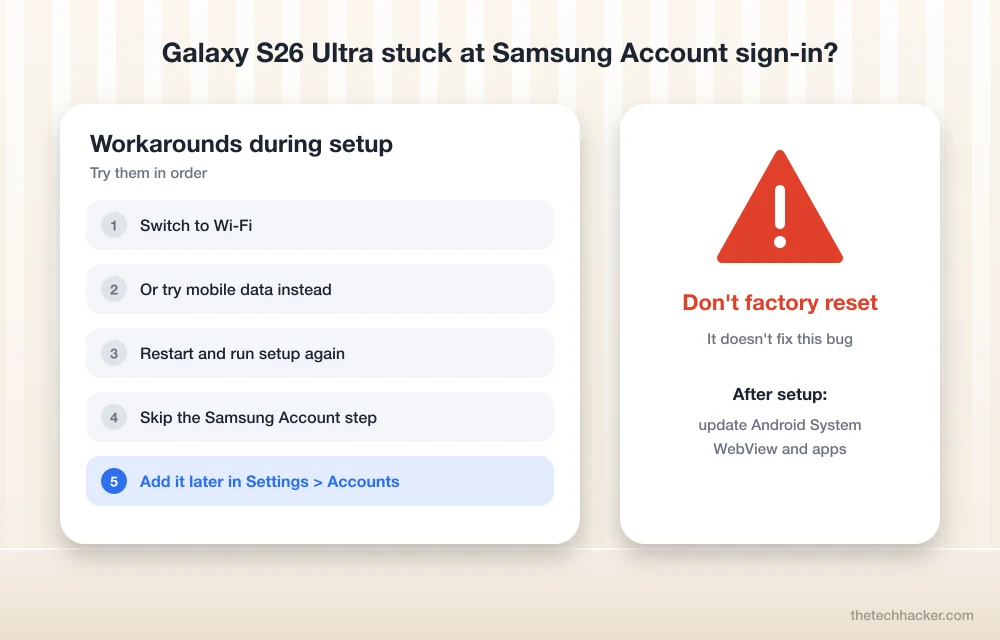
First, please don’t factory reset to fix this
When a phone gets stuck, a factory reset feels like the obvious move. Here, it’s the wrong one. 9to5Google notes the bug seems to happen during setup, so most people only run into it after resetting their phone. TechRepublic reports the same thing: a reset itself can leave some S26 Ultras stuck at setup.
In other words, resetting may cause the problem rather than fix it. And a reset erases everything on the phone that isn’t backed up: photos, messages, app data, the lot. If your phone is currently working fine on One UI 9, I’d hold off on any reset until Samsung ships its fix.
Workarounds to try on the setup screen
Try these in order. Start with the ones Samsung itself suggested, then move to the others.
1. Switch to Wi-Fi (Samsung’s advice)
Samsung’s community manager advised using Wi-Fi when signing in to your Samsung Account. TechRepublic sums it up simply: connect to Wi-Fi instead of mobile data, then try signing in again.
If you’re already on Wi-Fi, try a different network if you can, like your home router instead of a hotspot. Samsung’s own statement says the issue happens “on certain networks”, so changing networks is worth a shot.
2. Or try mobile data instead
Here’s where the advice conflicts. 9to5Google says switching from Wi-Fi to mobile data “can serve as a workaround, but your results may vary.” That’s the opposite of what Samsung recommended.
My suggestion: don’t pick a side, just try both. If Wi-Fi fails, turn it off and go through the sign-in on mobile data. If you started on mobile data, switch to Wi-Fi. Since the bug seems tied to specific networks, the one that works may differ from person to person.
3. Restart the phone and run setup again
Restart the phone and go back through the setup screens, this time choosing the network you didn’t use before. A restart is harmless and doesn’t wipe anything, so it’s a safe thing to try a couple of times. Just don’t confuse it with a reset.
4. Check that your Samsung Account login works in a browser
Samsung’s community manager suggested that if the sign-in fails in the app, you use the Samsung Account website instead at account.samsung.com. TechRepublic also recommends checking in a browser whether your login works at all.
If you’re stuck on the setup screen, do this on another phone, a tablet or a computer. If you can’t sign in there either, the problem may be your account details rather than the bug, and resetting your password from the website is the next step. If you can sign in on the website, you know your account is fine and it’s the phone’s sign-in screen that’s failing.
5. Skip the Samsung Account step for now
On earlier versions of One UI, the Samsung Account screen during setup had a “Skip” or “Later” option. If you see one on your S26 Ultra, tap it. You don’t need a Samsung Account to finish setup and start using the phone, and you can add it later.
I have to be upfront here: I couldn’t confirm that the skip option still exists on One UI 9, or whether the policy-page error blocks it. If you see it, use it. If you don’t, stick with the network and browser steps above.
Things other owners have tried (unconfirmed)
Android Central collected a couple of fixes from users. These aren’t from Samsung, and I can’t confirm they work for everyone:
- One user got past the screen by removing the SIM card.
- Another booted into Safe Mode with Wi-Fi turned off.
Removing the SIM is low risk if you’re comfortable with the SIM tray, and it effectively forces the phone off mobile data. Treat both as last tries before contacting Samsung.
After setup: update WebView, your browsers and the system
Once you reach the home screen, update the parts Samsung pointed to. Its community manager specifically recommended updating your browser (Samsung Internet or Chrome) to the latest version. Since WebView is the suspected cause, I’d update that too.
These menu names are based on One UI 8 and I haven’t been able to confirm them on One UI 9, so they may be worded slightly differently on your phone.
- Open the Play Store, search for “Android System WebView”, and tap Update if it’s available.
- Update Chrome from the Play Store, and update Samsung Internet from the Galaxy Store or Play Store.
- Check for a Google Play system update: Settings > Security and privacy > Updates > Google Play system update.
- Check for a Samsung software update: Settings > Software update > Download and install.
- Restart the phone once everything has updated.
How to add your Samsung Account later
Once WebView and your browsers are updated, try adding your Samsung Account again. Use Wi-Fi first, since that’s what Samsung suggested, and switch to mobile data if it fails.
- Open Settings.
- Tap the account banner at the top of Settings, or go to Accounts and backup > Manage accounts > Add account > Samsung account.
- Sign in with your Samsung Account email and password.
Again, this path comes from One UI 8 and is unconfirmed on One UI 9. If the sign-in still fails here, you can keep using the phone without it for now and manage your account at account.samsung.com until the fix arrives.
Which workaround should you try?
Here’s a quick summary of every option, where it came from and how confident I am in it.
| Workaround | Suggested by | Status |
|---|---|---|
| Use Wi-Fi for Samsung Account sign-in | Samsung community manager | Samsung advice |
| Update Chrome or Samsung Internet | Samsung community manager | Samsung advice |
| Sign in at account.samsung.com | Samsung community manager | Samsung advice |
| Switch to mobile data | 9to5Google | May work, results vary |
| Skip sign-in and add it later | Standard setup option | Unconfirmed on One UI 9 |
| Update Android System WebView | Follows from Samsung’s WebView diagnosis | Sensible, not confirmed as a fix |
| Remove the SIM card | One user report | Unconfirmed |
| Safe Mode with Wi-Fi off | One user report | Unconfirmed |
| Factory reset | Nobody | Avoid: may trigger the bug |
When to contact Samsung or use Smart Switch
If you’ve tried both Wi-Fi and mobile data, restarted a few times, confirmed your account works in a browser and you still can’t get past setup, it’s time to contact Samsung. Don’t keep resetting the phone hoping it clears up.
- In the US, you can reach Samsung through its support contact page or by calling 1-800-SAMSUNG.
- If you can reach the home screen, you can send an error report through the Samsung Members app (on earlier One UI versions this sits under Support > Error reports; I haven’t confirmed the path on One UI 9).
When you get in touch, mention the exact error (“net::ERR_NAME_NOT_RESOLVED” on the Samsung Account policy page) and that you’re on One UI 9. That should help support match it to the known issue.
As for Smart Switch, Samsung’s tool for moving your data from an old phone or a backup, it matters in two cases. If you’re moving to a new S26 Ultra, it’s how you’d bring your data across once setup works. And if Samsung support ever tells you a reset is needed, make sure your data is backed up first so you can restore it with Smart Switch afterwards. I haven’t seen any reports that Smart Switch itself gets around the sign-in bug, so don’t count on it as a fix.
When will Samsung fix it?
Nobody outside Samsung knows yet. Android Central and TechRepublic both say Samsung hasn’t confirmed which update will fix the bug or when it will arrive.
Android Police guesses the fix may come with the November security patch, but that’s its own speculation, not something Samsung said. TechRepublic also mentions another Galaxy S26 update released in South Korea in October, but what it contains and whether it fixes this bug are unconfirmed.
For context, stable One UI 9 (based on Android 17) started rolling out to the Galaxy S26, S26+ and S26 Ultra on September 16, 2026, in South Korea first, according to SamMobile. In the US, Notebookcheck reported it reached T-Mobile S26 Ultra owners around September 23 as a roughly 4.1GB download with the September 2026 security patch. Keep an eye on Settings > Software update and read the changelog of each new update for any mention of Samsung Account or WebView.
Frequently Asked Questions
Why is my Galaxy S26 Ultra stuck at the Samsung Account sign-in screen?
A Samsung community manager linked the problem to the One UI 9 update. Samsung’s development team says it happens when an unstable system WebView is used on certain networks, which stops the sign-in page from loading.
Should I factory reset my Galaxy S26 Ultra to fix the sign-in loop?
No. Reports say the bug mostly shows up during setup after a reset, so resetting may cause the problem rather than fix it. A reset also erases anything on the phone that isn’t backed up.
Should I use Wi-Fi or mobile data to sign in?
Samsung’s community manager recommended Wi-Fi, while 9to5Google reports that switching to mobile data can also work for some people. Try both, since the bug appears to depend on the network.
Can I skip the Samsung Account sign-in during setup?
Earlier One UI versions offered a Skip or Later option, and you can add the account afterwards in Settings. It hasn’t been confirmed whether that option is still available on One UI 9 or whether the error blocks it.
When will Samsung release a fix?
Samsung has said a future update will fix it but hasn’t said which one or when. Android Police has guessed the November security patch, but that is speculation, not a Samsung announcement.
Final thoughts
This is a frustrating bug, mostly because it hits you at the worst moment: when you just want to start using your new or freshly reset phone. The good news is that Samsung has acknowledged it, and you have a few safe things to try.
If I were stuck, I’d switch between Wi-Fi and mobile data first, check my login on account.samsung.com from another device, and skip the Samsung Account step if the option shows up. Once I reached the home screen, I’d update WebView, Chrome and Samsung Internet before signing in again. And I’d stay well away from factory resets until Samsung’s fix lands, because that’s exactly what seems to trigger the problem.
If you’ve found another workaround that got your S26 Ultra past the sign-in screen, I’d love to hear about it.
More in How-to
How to Fix One UI 9 Battery Drain and Freezing on Samsung Galaxy Phones
Battery draining faster or your Galaxy stuck on a setup or error screen after One UI 9? Here’s what Samsung has confirmed, the checks to do first, and the workarounds people are using until the next patch.
How to Fix Android Auto Not Connecting After the One UI 9 Update
Android Auto stopped working after your Galaxy phone got One UI 9? Here’s what Google said about its fix, how to make sure you get it, and the wired and wireless workarounds worth trying while you wait.

Bing Chat not working on Edge or Windows? Best fixes to get it running today
Bing Chat, now powered by the latest ChatGPT-based model and integrated across Microsoft Edge and Windows, is drawing strong adoption, but users frequently report that it stops responding, fails to load, or throws generic “Something went wrong” errors. The good news is most issues are routine and fixable with a handful of browser, network, and…
The week in tech, minus the noise.
New reviews, fixes and the stories that matter — once a week, straight to your inbox.
We only use your email to send the newsletter. Unsubscribe any time. See our privacy policy.
Comments