

How to AirDrop Between a Samsung Galaxy and an iPhone with Quick Share (Galaxy A Included)
Samsung Galaxy phones can now share files directly with iPhones over AirDrop, using Quick Share. Samsung started with the Galaxy S26 in March 2026, saying the feature is “provided by Google.” Since then it has spread to more Galaxy S and Z phones, and with One UI 9.0 owners report it working on cheaper Galaxy…

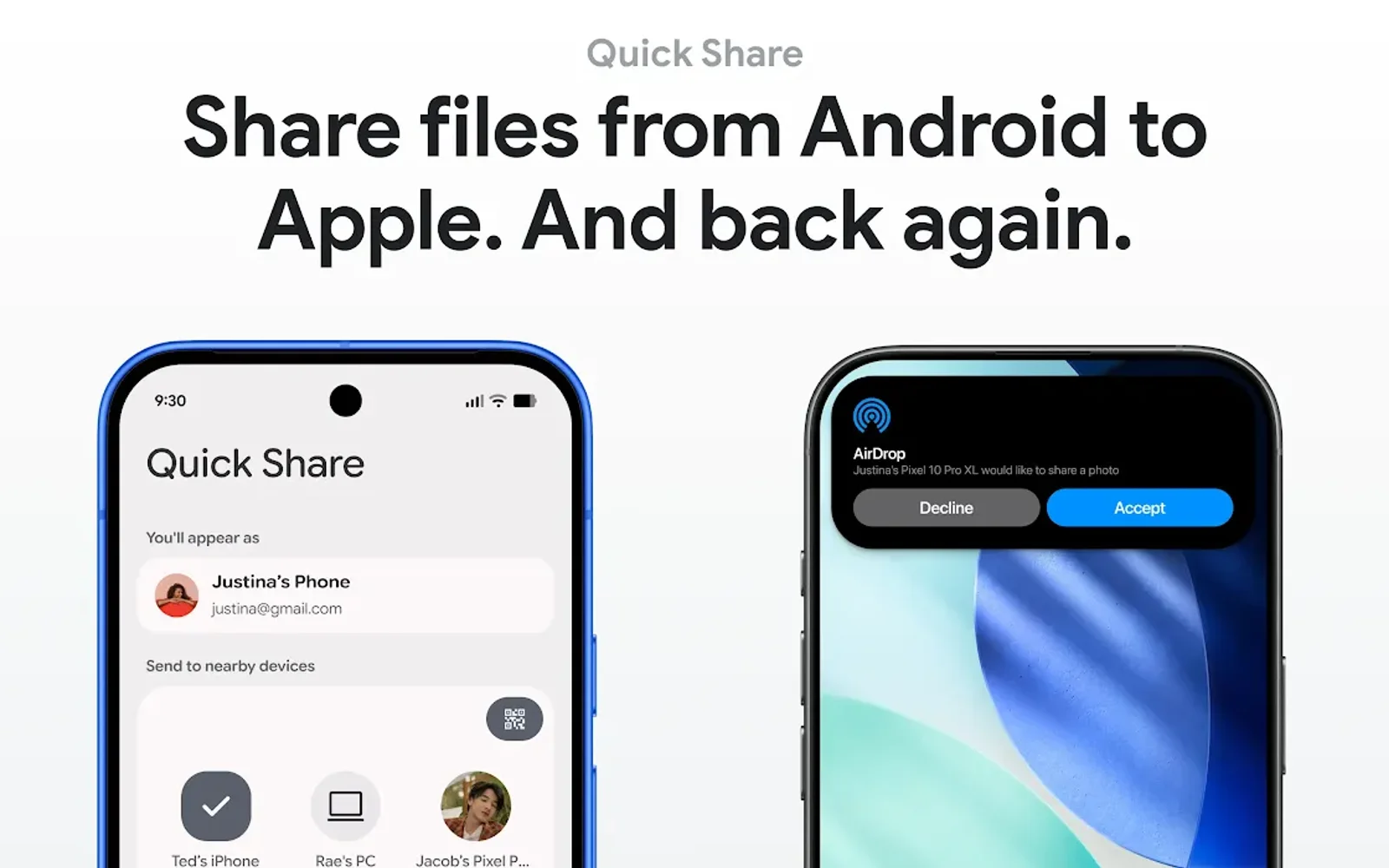
Image: Google
Samsung Galaxy phones can now share files directly with iPhones over AirDrop, using Quick Share. Samsung started with the Galaxy S26 in March 2026, saying the feature is “provided by Google.” Since then it has spread to more Galaxy S and Z phones, and with One UI 9.0 owners report it working on cheaper Galaxy A56 and A57 phones too, according to SamMobile, Gizmochina and gHacks. Samsung hasn’t officially listed any Galaxy A model yet, so check your phone using the steps below. This guide shows how to turn it on, send files both ways, and fix it when the iPhone doesn’t show up.
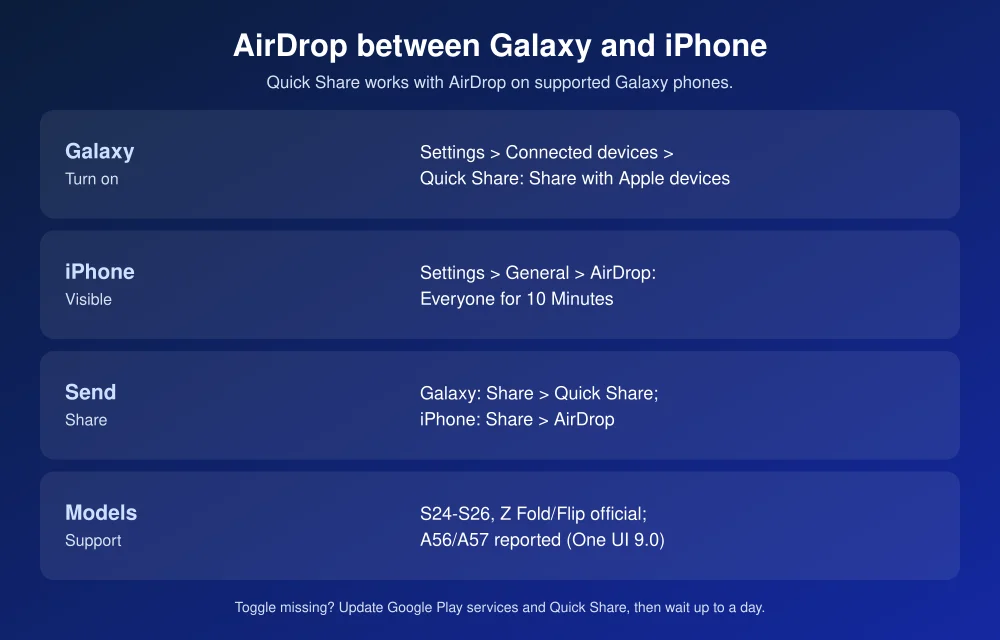
Quick answer: On your Galaxy, go to Settings > Connected devices > Quick Share and turn on Share with Apple devices. On the iPhone, go to Settings > General > AirDrop and choose Everyone for 10 Minutes. To send from Galaxy, tap Share > Quick Share and pick the iPhone. To receive, open Quick Share on the Galaxy and keep it visible, then AirDrop from the iPhone and tap Accept. If the toggle is missing, update Google Play services and the Quick Share apps, then wait up to a day. It works only with AirDrop’s Everyone mode, not Contacts Only.
Which Galaxy phones support AirDrop
| Phones | Status |
|---|---|
| Galaxy S26, S26+, S26 Ultra | Official, since March 2026 |
| Galaxy S25 series and S25 Edge, S24 series | Official |
| Z Fold7, Z Flip7, Z Fold6, Z Flip6, Z TriFold | Official |
| Galaxy A56, A57 (One UI 9.0) | Reported by owners and outlets, not yet on Samsung’s or Google’s list |
| Galaxy A55 (One UI 9.0) | Reported by SammyGuru |
The official list is Google’s Quick Share with iPhone page, which also includes Pixel phones and some Xiaomi, OnePlus, OPPO, HONOR and vivo models. Outlets say One UI 9.0’s changelog for Galaxy A phones doesn’t mention AirDrop, even though owners found it works after updating. We haven’t seen confirmation that it’s live on US Galaxy A models yet, so look for the toggle on yours.
Step 1: Turn on “Share with Apple devices” on your Galaxy
From Samsung’s support guide:
- Open Settings > Connected devices > Quick Share.
- Turn on Share with Apple devices. Samsung says it’s on by default on supported phones.
- Turn on Wi-Fi and Bluetooth. Quick Share also needs you signed in to a Samsung account.
Toggle missing? Update Google Play services at Settings > Google services > All services > Privacy & security > System services > Google Play services > Update. Samsung says it can take up to a day to appear. Also update Quick Share and its related apps in the Galaxy Store. Samsung’s S26 announcement listed Quick Share 13.8.51.27 and Google Play services 26.11 or later as the minimum.
Step 2: Make the iPhone visible
- On the iPhone, go to Settings > General > AirDrop.
- Choose Everyone for 10 Minutes.
- Keep Wi-Fi and Bluetooth on, and turn off Personal Hotspot.
You can also do this from Control Center: press and hold the connectivity controls, tap AirDrop and pick Everyone for 10 Minutes. Per Apple’s AirDrop guide, it switches back to Contacts Only after 10 minutes. Samsung says it works with iPhone 8 or later, iPad (5th generation) or later, and 2020 or later MacBooks.
How to send from Galaxy to iPhone
- Set the iPhone to Everyone for 10 Minutes.
- On the Galaxy, open the photo, video or file and tap Share > Quick Share.
- Tap the iPhone when it appears.
- The iPhone user taps Accept.
How to send from iPhone to Galaxy
- On the Galaxy, open Quick Share and keep the receiving screen open, or set who can share with you to Everyone for 10 minutes.
- On the iPhone, tap Share > AirDrop and pick the Galaxy.
- Tap Accept on the Galaxy.
Photos and videos land in Gallery, and other files go to My Files.
Limits and security
- Everyone mode only. Google says Contacts Only isn’t supported yet, and the feature was built without Apple’s involvement.
- Stay close. Devices must be within Bluetooth range.
- Wi-Fi may drop briefly. Samsung says the Galaxy “may temporarily disconnect from Wi-Fi networks” while searching for or sharing with iPhones.
- No program files. Samsung blocks file types like .exe, .bat and .msi.
- It may be slower than Galaxy-to-Galaxy Quick Share, SammyGuru reports.
Google’s security post says transfers go directly between the two phones, with no server in between, and the recipient has to accept each one. It says independent firm NetSPI reviewed the system and found it doesn’t leak information. Only accept files from people you know, especially in Everyone mode in public places.
Troubleshooting
- iPhone not showing on the Galaxy: set AirDrop to Everyone for 10 Minutes again, since it times out. Unlock both phones and move them closer.
- No “Share with Apple devices” toggle: update to the latest One UI, Google Play services and Quick Share apps, then restart. If it’s still missing, your model or region may not have it yet.
- Transfer fails partway: turn off Personal Hotspot on the iPhone and VPNs on both phones, then try again.
Need to move photos to a PC instead? See how to back up Android photos to a Windows PC with Quick Share. Weighing a Samsung foldable against Apple’s? Read our iPhone Duo vs Galaxy Z Fold8 comparison. Having car trouble after One UI 9? Try our Android Auto not connecting fix.
FAQs
Can Samsung Galaxy phones AirDrop to iPhones?
Yes, on supported models. Turn on Share with Apple devices in Quick Share settings, set the iPhone’s AirDrop to Everyone for 10 Minutes, and send with Share > Quick Share.
Does the Galaxy A56 support AirDrop?
Owners and outlets including SamMobile report it works on the Galaxy A56 and A57 after the One UI 9.0 update, but Samsung and Google haven’t officially listed Galaxy A models yet. Check for the Share with Apple devices toggle in Quick Share settings.
Why can’t my Galaxy see my iPhone?
The iPhone’s AirDrop must be set to Everyone for 10 Minutes, which turns off after 10 minutes. Both phones also need Wi-Fi and Bluetooth on, be unlocked, and be close together.
Where do AirDropped files go on a Samsung phone?
Samsung says photos and videos save to Gallery, and other files save to My Files.
Featured image: Google.
Disclosure: TheTechHacker has no paid relationship with Samsung, Google, Apple or any company mentioned here.
More in How-to
How to Back Up Android Photos to a Windows PC Automatically with Quick Share
Google’s November 2026 system update adds automatic photo and video backup from Android to Windows through Quick Share. Here’s what’s confirmed, what you need, how setup reportedly works, and what to use until it reaches you.
How to Fix Android Auto Not Connecting After the One UI 9 Update
Android Auto stopped working after your Galaxy phone got One UI 9? Here’s what Google said about its fix, how to make sure you get it, and the wired and wireless workarounds worth trying while you wait.
How to Fix Galaxy S26 Ultra Stuck at Samsung Account Sign-In on One UI 9
Is your Galaxy S26 Ultra frozen or looping at the Samsung Account sign-in screen during setup on One UI 9? Here are the workarounds Samsung and other owners have shared, and why you shouldn’t reach for a factory reset.
The week in tech, minus the noise.
New reviews, fixes and the stories that matter — once a week, straight to your inbox.
We only use your email to send the newsletter. Unsubscribe any time. See our privacy policy.
Comments