

How to Fix Pixel Camera Not Working After the November Update
If your Pixel’s camera opens to a black screen or a “Camera error” message since the November update, it’s not just you. Since November 13, Pixel 10 and Pixel 11 owners have reported the same thing, and for some of them it affects third-party camera apps too, not only Pixel Camera. Google hadn’t issued a…

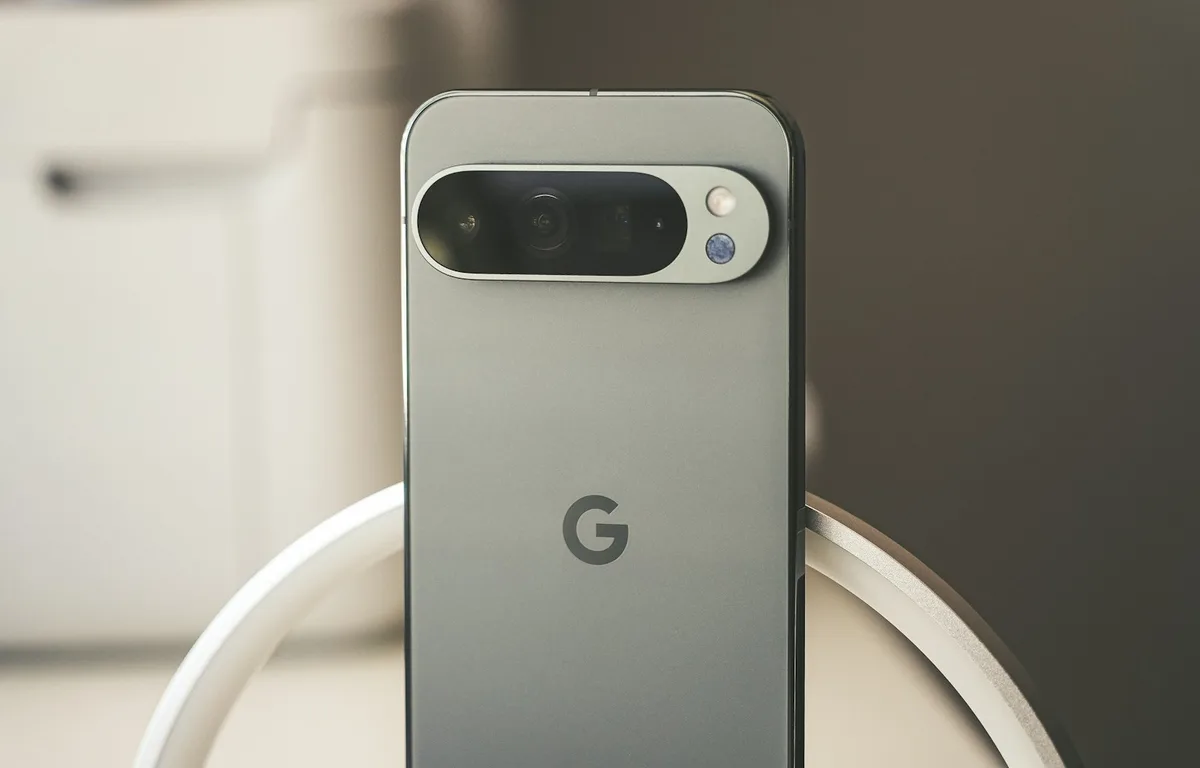
Photo by Daniel Romero on Unsplash
If your Pixel’s camera opens to a black screen or a “Camera error” message since the November update, it’s not just you. Since November 13, Pixel 10 and Pixel 11 owners have reported the same thing, and for some of them it affects third-party camera apps too, not only Pixel Camera. Google hadn’t issued a statement or a fix timeline at the time of writing.
While we wait for Google, there are a few things worth trying. I’ve put them in order from quickest to most drastic, and you should hold off on a factory reset until you’ve tried everything else, because owners report it doesn’t reliably fix this bug.
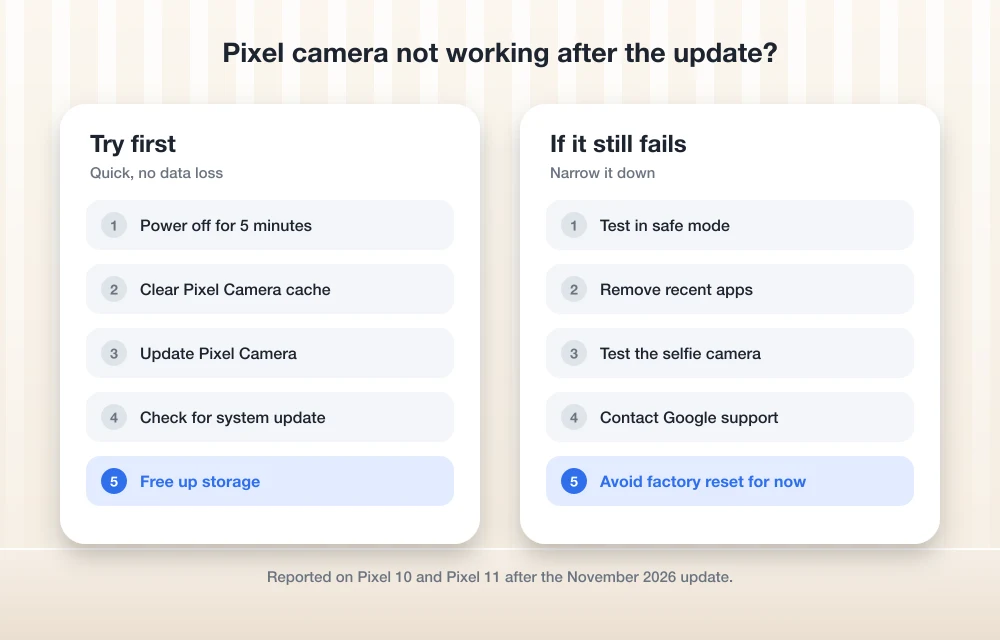
Quick answer: Power your Pixel off completely, leave it off for about five minutes, then turn it back on. That’s the workaround most affected owners report success with. If the camera still fails, clear the Pixel Camera cache, update Pixel Camera and check for a system update, and test in safe mode to rule out another app. If the selfie camera also errors out, Google recommends starting a repair or contacting support.
What’s going on with Pixel cameras
Google released its November update for Pixel phones on November 10 along with the November 2026 Pixel security bulletin, which sets the security patch level to 2026-11-05. Within days, owners of Pixel 10 and Pixel 11 series phones began reporting black camera previews, error messages, and front and rear cameras that stopped working.
The cause isn’t known yet, and Google hasn’t confirmed that the update is to blame. Because the problem reportedly hits other camera apps too, it looks like more than a glitch in Pixel Camera alone. Some owners have also reported problems with wireless charging and desktop mode since the update.
1. Power off fully and wait five minutes
A normal restart isn’t the same as a full power-off. On Pixel 6 and later, press and hold Power and Volume up, then tap Power off. Leave the phone off for about five minutes, then press and hold Power to turn it back on. Many owners say this brings the camera back, though for some it returns after a while. If that happens, repeat it while you wait for a proper fix.
2. Clear the Pixel Camera cache
Google’s Pixel camera troubleshooting guide lists this as one of the first steps. Press and hold the Camera app icon, tap App info, then Storage & cache, and tap Clear cache. This doesn’t delete your photos or settings. Open the camera again to test.
3. Update Pixel Camera and check for a system update
Google may push a fix through either the Play Store or a system update, so check both:
- Pixel Camera: open the Google Play Store, tap your profile icon, tap Manage apps & devices, and install any Pixel Camera update.
- Android: go to Settings > System > Software updates > System update and tap Check for update.
4. Test in safe mode
Safe mode turns off third-party apps so you can see whether one of them is interfering. Turn the phone off, then press and hold Power to turn it on. When the G logo appears, press and hold Volume down until “Safe mode” shows at the bottom of the screen. Open the camera.
If the camera works in safe mode, Google says to restart to exit safe mode and then uninstall recently downloaded apps one at a time until the problem stops. If it still fails in safe mode, the issue is in the system or hardware rather than another app, which fits what people are reporting after this update.
5. Test the selfie camera
Touch and hold the Camera app icon and tap Take a selfie. Google says that if you get an error here, or the selfie camera works but you can’t switch cameras in the app, you should start a repair or contact Google. With an update-related bug this widespread, I’d contact Google support first and mention that it started after the November update before sending your phone off for repair.
6. Free up storage space
The camera needs room to save photos and process images. Check Settings > Storage, and if you’re close to full, clear out large videos or move photos off the phone. Our guide to backing up Android photos to a Windows PC with Quick Share shows a quick way to do it.
7. Hold off on a factory reset
A factory reset wipes your phone, and owners report it hasn’t fixed this camera bug reliably. If Google confirms a software cause, a factory reset won’t help, and the fix will arrive as an update. If you decide to reset anyway, back up your photos and data first.
What else changed in the November update
The update arrived with Google’s November Pixel Drop, which we covered in our November Pixel Drop report. If your battery has also been draining faster since updating, see our guide to fixing Pixel 10 battery drain after an update.
FAQs
Why is my Pixel camera not working after the November update?
Pixel 10 and Pixel 11 owners have reported black camera screens and camera errors since the November 2026 update. Google hasn’t confirmed the cause or announced a fix yet.
Does restarting fix the Pixel camera black screen?
A quick restart often isn’t enough. Owners report better results from powering the phone off completely and leaving it off for about five minutes before turning it back on.
Should I factory reset my Pixel to fix the camera?
Not yet. Owners report that a factory reset doesn’t reliably fix this bug, and it erases your data. Try the other steps and wait for an update from Google first.
Which Pixel phones are affected?
Reports so far involve Pixel 10 and Pixel 11 series phones running the November 2026 update.
Featured image: Daniel Romero on Unsplash.
Disclosure: TheTechHacker has no paid relationship with Google or any company mentioned here.
You might also like
How to Fix Gemini Not Showing on Apple CarPlay: 8 Fixes That Work
Google started rolling out the Gemini app to Apple CarPlay on November 11, and plenty of iPhone owners got into their cars this week expecting a new icon that simply wasn’t there. If that’s you, the fix is usually quick. Google’s setup has a couple of steps that are easy to miss, and CarPlay itself…
How to Fix Pixel 10 Battery Drain After an Update (Works on Pixel 9 Too)
Pixel 10 or Pixel 9 losing charge fast after an update? Here’s why it happens and the Google-backed steps I’d try, in order, before contacting support.
How to Fix Android Auto Not Connecting After the One UI 9 Update
Android Auto stopped working after your Galaxy phone got One UI 9? Here’s what Google said about its fix, how to make sure you get it, and the wired and wireless workarounds worth trying while you wait.
The week in tech, minus the noise.
New reviews, fixes and the stories that matter — once a week, straight to your inbox.
We only use your email to send the newsletter. Unsubscribe any time. See our privacy policy.
Comments