

How to Fix Remote Desktop Error 0xC000000D on Windows 11 26H2
Remote Desktop failing with error 0xC000000D on Windows 11 26H2? Microsoft has confirmed the bug and fixed it in KB5127936. Here’s who is affected, how to check your build, and what to do until you’re updated.

Fix-Remote-Desktop-Error-0xC000000D-Windows-11
If you’re trying to connect to a work PC over Remote Desktop and it keeps failing with error 0xC000000D, you’re probably not doing anything wrong. This one is a Windows bug, and Microsoft has already listed it on its official Windows 11 26H2 release health page.
The good news is that it’s fixed. The catch is that the fix first arrived in an optional update, so plenty of PCs won’t have it yet. In this guide I’ll explain who gets hit by this error, how to check whether your PC already has the fix, how to install it, and what you can do in the meantime.
At the end I’ve also added some general Remote Desktop checks, clearly labelled, in case your problem turns out to be something else.
Quick answer: Error 0xC000000D affects standard (non-admin) users who connect through Remote Desktop to a Windows 11 PC that has Administrator protection turned on. Microsoft says the September 22, 2026 update KB5124010 caused it, and that it’s resolved by KB5127936 (released October 28, 2026) and later updates. Install KB5127936 or any newer cumulative update on the remote PC, then run winver to confirm you’re on build 26300.9818 or higher on 26H2. Until you can update, Microsoft offers a Group Policy workaround that needs a restart.
What the 0xC000000D Remote Desktop Error Looks Like
The symptom is simple. You try to connect, and instead of reaching the remote desktop, the connection fails with error 0xC000000D and this message:
“The token that was passed to the function is invalid.”
A quick bit of jargon here. A token is a kind of digital pass that Windows uses to confirm who you are and what you’re allowed to do once you sign in. When Windows says the token is invalid, it’s rejecting that pass, so your session never starts.
Microsoft’s own title for the problem is “Remote Desktop connections might fail for non-admin users with error 0xC000000D.” You can read the entry yourself on the Windows 11 26H2 release health page.
Who Is Affected by This Bug
This isn’t a bug that hits every Remote Desktop user. According to Microsoft, it needs two things to line up:
- The person connecting is using a non-admin (standard) account.
- The PC they’re connecting to (the host) has Administrator protection turned on.
Microsoft says the ones mainly affected are company-managed remote PCs used as Remote Desktop hosts, with Administrator protection enabled, no matter how the feature was switched on. So if you work from home and connect to an office machine with a regular employee account, you’re exactly the kind of user this bug targets.
If you’re a home user connecting to your own PC with an admin account, and you’ve never turned on Administrator protection, this particular bug probably isn’t your problem. Skip down to the general troubleshooting section instead.
What is Administrator protection?
Administrator protection is a Windows 11 security feature tied to how administrator rights are handled on a PC. Companies often turn it on to tighten security on work machines. Microsoft has a separate support page called “Administrator protection on Windows 11” if you want the full details, and it points readers there from the resolved issue entry.
Which Windows versions are affected?
It’s not only 26H2. Microsoft lists Windows 11 26H2, 26H1, 25H2 and 24H2 as affected. Here’s a quick summary of what I could confirm about the fixed builds:
| Windows 11 version | Affected? | Build that includes KB5127936 |
|---|---|---|
| 26H2 | Yes | 26300.9818 or higher |
| 25H2 | Yes | 26200.9818 or higher |
| 26H1 | Yes | Not covered by KB5127936; check Microsoft’s release health page for your version |
| 24H2 | Yes | Not covered by KB5127936; check Microsoft’s release health page for your version |
To be clear, KB5127936 applies to 25H2 and 26H2 only. Microsoft’s wording says the issue was resolved by “Windows updates released October 28, 2026 (KB5127936), and later,” which suggests other versions got their own updates that day. I couldn’t confirm the exact KB numbers for 26H1 and 24H2, so check the release health page for your version.
What Caused the Error
Microsoft traces the problem to KB5124010 (OS Build 26300.9550), which was released on September 22, 2026. Something that update changed broke Remote Desktop sign-ins for standard users on hosts with Administrator protection.
The status of the issue is now “Resolved,” and Microsoft last updated the entry on October 28, 2026. So if your problems started in late September, that timing lines up with this bug.
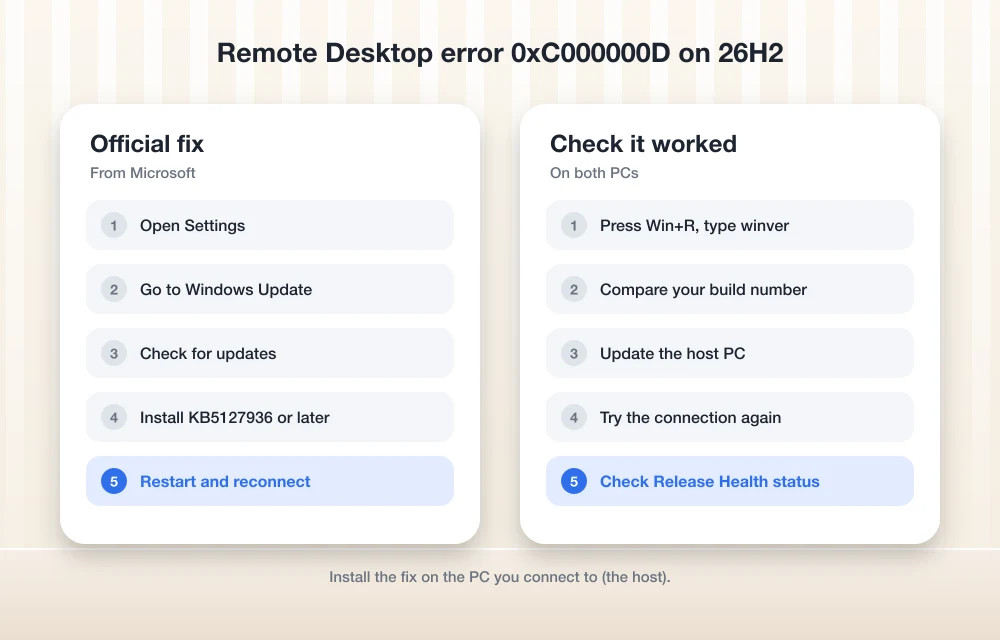
Step 1: Check Your Windows Build With winver
Before you install anything, find out where the remote PC currently stands. This takes about ten seconds.
- Press Windows key + R to open the Run box.
- Type winver and press Enter.
- Look at the line that shows the version and OS Build number.
Builds that start with 26300 are 26H2, and builds that start with 26200 are 25H2. Then compare the number after the dot. On 26H2, you want to see 26300.9818 or higher. On 25H2, you want 26200.9818 or higher. If your number is lower, you don’t have the fix yet.
Do this check on the host PC, the one you’re connecting to. As I read Microsoft’s description, the bug sits on the machine with Administrator protection turned on, so that’s the machine that needs the update.
Step 2: Install KB5127936 or a Later Update
KB5127936 is an optional Preview update released on October 28, 2026. It brings 26H2 to OS Build 26300.9818 and 25H2 to OS Build 26200.9818, and it applies to all editions of both. You can see Microsoft’s details on the KB5127936 support page.
“Optional” matters here. Windows doesn’t always install preview updates automatically, so a PC can sit unpatched for weeks even with Windows Update turned on. The usual way to get it looks like this:
- Open Settings and go to Windows Update.
- Click Check for updates.
- If KB5127936 appears as an optional update, click Download & install.
- Restart the PC when Windows asks.
If you can’t find it there, the Microsoft Update Catalog is the other common route for downloading updates manually. Menu names can shift between builds, so if your screen looks slightly different, look for the optional or preview updates area under Windows Update.
You don’t have to install this exact update. Any later cumulative update should include the fix too, since Microsoft says the issue is resolved by KB5127936 “and later.” If your PC has already moved past build 26300.9818 on 26H2, you’re covered.
One practical note: if the host is a company PC, you may not be allowed to install updates yourself. In that case, send your IT team the KB number and the error code. That’s usually enough for them to know exactly what’s going on.
Step 3: Restart and Test the Connection
Once the update is in, restart the host PC, then try connecting again with the same standard account that was failing before. Run winver once more if you want to be sure the new build number took.
If the connection now works, you’re done. If it still fails with 0xC000000D on a fully updated build, check the release health page again in case Microsoft has added anything, and look through the general checks further down.
Workarounds Until You Can Update
Sometimes you can’t install an update right away, especially on managed work machines. Here’s what’s available.
Microsoft’s Group Policy workaround
Microsoft gave a Group Policy setting that turns off the change behind this bug. You need to restart the device after applying it for it to take effect.
I’m not going to reproduce the policy name or path here, because I couldn’t confirm the exact wording, and a wrong policy path in a guide like this does more harm than good. Open the 26H2 release health page linked above, find the 0xC000000D entry, and follow Microsoft’s instructions exactly. If you’re on a company network, this is something your IT admin should apply anyway.
My own view: once the proper fix is installed, it’s worth asking your IT team whether the workaround policy should stay or go, so you’re not left running with a temporary change longer than needed.
Other options (not recommended by Microsoft)
Based on how Microsoft describes the bug, two other things would logically avoid it: connecting with an admin account, or turning off Administrator protection on the host. But I didn’t see Microsoft recommend either one, so treat them as unconfirmed.
Both also weaken security. Administrator protection exists for a reason, and handing out admin accounts just to get Remote Desktop working is a bad trade on a work PC. Please don’t try either of these on a company machine without talking to IT first.
Could It Be a Different Problem?
Windows 11 26H2 has had a couple of Remote Desktop and sign-in issues, so it’s worth ruling out look-alikes.
If Remote Desktop connects but you land on a black screen, or the desktop never finishes loading after sign-in, that’s a separate bug that Microsoft fixed in October. My guide on how to fix the Windows 11 26H2 black screen after sign-in covers it.
If your session gets past the login but hangs on a “Please wait” screen instead of showing an error code, follow my steps to fix Remote Desktop stuck on “Please wait” in Windows 11.
General Remote Desktop Troubleshooting
This section is general advice for Remote Desktop problems. It’s standard stuff, not something taken from Microsoft’s notes on the 0xC000000D bug, so use it if the update didn’t help or your error is different.
- Remote Desktop is turned on. The host PC needs Remote Desktop enabled in its settings, or nobody can connect at all.
- Your account is allowed in. Standard users usually need to be in the Remote Desktop Users group on the host. Admins are typically allowed by default.
- The firewall isn’t blocking it. Remote Desktop normally uses port 3389. If a firewall on the host or the network blocks that port, the connection will fail.
- Network Level Authentication (NLA). NLA makes you sign in before the full session starts. If the host requires it and your client doesn’t support it, connections can fail.
- Your credentials are right. It sounds obvious, but typos in the username, the wrong domain, or an expired password cause a lot of failed connections. If you juggle many work logins, one of these password managers can save you a lot of trouble.
The Bottom Line
Error 0xC000000D on Windows 11 26H2 is a confirmed Microsoft bug, not a problem with your setup. It hits standard users connecting to PCs with Administrator protection turned on, and it started with the September 22, 2026 update.
The fix is straightforward: get KB5127936 or any later cumulative update onto the host PC, confirm the build with winver, and restart. If you can’t update yet, use Microsoft’s Group Policy workaround exactly as written on the release health page, and leave the riskier shortcuts alone unless your IT team signs off.
Frequently Asked Questions
What does Remote Desktop error 0xC000000D mean on Windows 11?
It’s a known Windows bug where Remote Desktop connections fail for non-admin users connecting to a PC with Administrator protection turned on. The error comes with the message “The token that was passed to the function is invalid.” Microsoft says it was introduced by KB5124010, released on September 22, 2026.
Which update fixes error 0xC000000D?
Microsoft says the issue is resolved by Windows updates released on October 28, 2026 (KB5127936) and later. On Windows 11 26H2, KB5127936 brings the PC to OS Build 26300.9818.
How do I check if my PC has the fix?
Press Windows key + R, type winver and press Enter. On 26H2 you should see OS Build 26300.9818 or higher, and on 25H2 you should see 26200.9818 or higher.
Do I install the update on my PC or the remote PC?
Based on Microsoft’s description, the bug is on the PC you’re connecting to (the host with Administrator protection on), so that’s the machine that needs the update. On company PCs, ask your IT team to install it.
Are Windows 11 24H2 and 25H2 also affected?
Yes. Microsoft lists Windows 11 26H2, 26H1, 25H2 and 24H2 as affected. KB5127936 covers 25H2 and 26H2; check Microsoft’s release health page for the update that applies to 24H2 and 26H1.
More in How-to
How to Fix Windows 11 26H2 Black Screen After Sign-In
Seeing a black screen after signing in on Windows 11 26H2? Microsoft confirmed the issue, mainly on Azure Virtual Desktop with FSLogix, and fixed it in KB5127648. Here’s how to get your desktop back.

How to fix TeamViewer Commercial Use Detected in Windows 10
TeamViewer is a very popular program for making desktop remote connections. It will let you access any system remotely from anywhere in the world. It is complete freeware for personal use and a commercial version is available for work purposes. In the initial run of the program, TeamViewer asks your purpose of use. Depending on…
How To Fix The 0x8024401c Error In Windows 10
0x8024401c is a common error code usually appear on the Windows update page on your computer. It is an error caused by the registry keys of Windows update and you can easily fix them by running the registry script on your computer. Before going to proceed the below methods, first, check your Windows is activated…
The week in tech, minus the noise.
New reviews, fixes and the stories that matter — once a week, straight to your inbox.
We only use your email to send the newsletter. Unsubscribe any time. See our privacy policy.
Comments