

How to Fix Remote Desktop Error 0xC000000D: “The Token That Was Passed to the Function Is Invalid”
Disclosure: TheTechHacker has no paid relationship with Microsoft or any company mentioned here. A standard user opens Remote Desktop, points it at their work PC and gets stopped with error 0xC000000D and the message “The token that was passed to the function is invalid,” while anyone with an admin account can still connect to that…


Photo by Luke Peters on Unsplash
Disclosure: TheTechHacker has no paid relationship with Microsoft or any company mentioned here.
A standard user opens Remote Desktop, points it at their work PC and gets stopped with error 0xC000000D and the message “The token that was passed to the function is invalid,” while anyone with an admin account can still connect to that same machine without a problem. The firewall rules haven’t changed and the VPN is up, so it’s natural to go hunting through the network first, but the cause in this case sits in a Windows update.
Microsoft has confirmed that after the September 2026 preview update, non-admin users may not be able to RDP into machines that have Administrator protection turned on. The fix is already out, which means most of the work is getting the right update onto the right PC, and the sections below go through that along with a temporary workaround for hosts you can’t patch straight away.
Quick answer: install KB5127936 from October 28, 2026, or any update released after it, on the remote PC that people connect to rather than only on the user’s own machine. KB5127936 was an optional preview, so on its own it sits under Settings > Windows Update > Advanced options > Optional updates, and if you can’t update the host yet, you can switch off Administrator protection through Intune or Group Policy until you can.
What Causes RDP Error 0xC000000D
Microsoft’s Windows 11 release health page traces the problem back to the September 22, 2026 non-security preview update (KB5124010), and it carried on into the updates that came after it. Once a host had that update installed, non-admin users could lose the ability to open Remote Desktop sessions to it if Administrator protection was enabled.
Administrator protection is the newer Windows 11 security feature that runs admin tasks through a separate, isolated admin token, so your everyday session doesn’t sit there holding admin rights the whole time, and it’s a feature worth keeping. Microsoft hasn’t gone into the technical cause of this bug, although the wording of the error suggests the sign-in token given to standard users over RDP is where things go wrong.
Microsoft has shared a few details that help you work out whether this is the issue you’re dealing with:
- Administrator protection has to be on for the remote device, meaning the RDP host, while the client the user connects from doesn’t matter at all.
- The bug mainly affects enterprise-managed PCs that are being used as Remote Desktop hosts.
- The affected versions are Windows 11 24H2, 25H2, 26H1 and 26H2, and Windows Server isn’t on the list.
- If your organization uses Microsoft’s Windows security baselines, Administrator protection is on by default in the 24H2, 25H2 and 26H2 baselines unless you’ve configured the policy differently, which means plenty of admins have it running without realizing it.
If an admin account can connect to the same machine while a standard account can’t, and the standard account gets exactly this error code, you’re almost certainly looking at this bug.
How to Fix Remote Desktop Error 0xC000000D
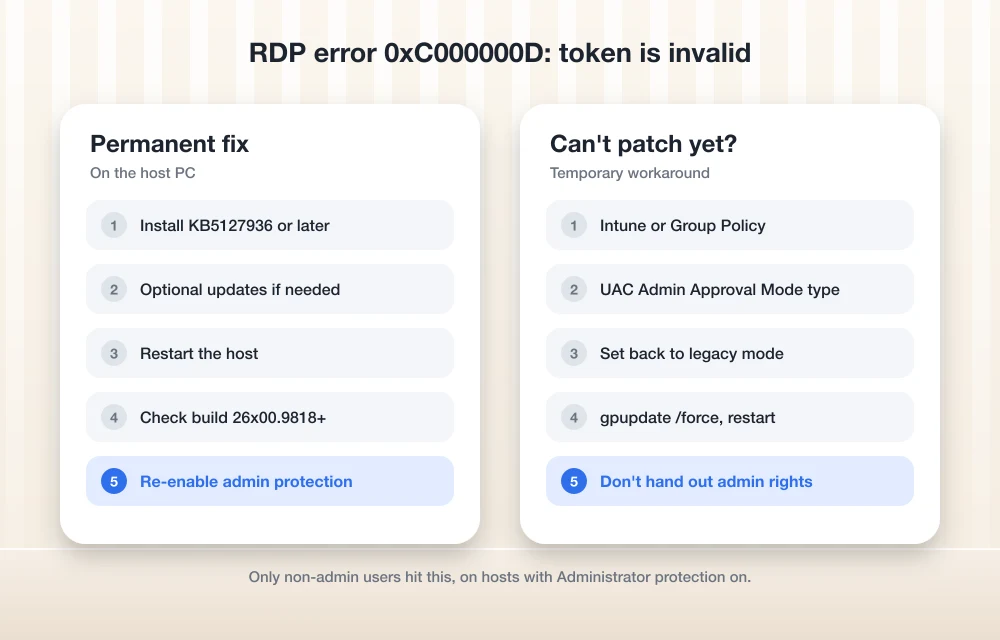
1. Install KB5127936 or later on the host PC
Microsoft fixed the issue in KB5127936, released October 28, 2026 for Windows 11 versions 25H2 and 26H2 (OS builds 26200.9818 and 26300.9818), and since it was a preview update, Windows won’t install it on its own. You’ll need to do the following on the remote PC:
- Open Settings > Windows Update.
- Click Advanced options, then Optional updates.
- Select KB5127936, or any newer cumulative update listed, and install it.
- Restart the PC.
Microsoft says these changes roll into the next regular security update, so once the following monthly Patch Tuesday update reaches your machines, the fix comes along with it. Whichever route you take, you won’t need the workaround once the host is on KB5127936 or later.
To confirm the host is patched, you can have someone run winver on it, or you can check the build remotely with PowerShell:
Get-ItemProperty "HKLM:SOFTWAREMicrosoftWindows NTCurrentVersion" |
  Select-Object CurrentBuild, UBR
On 26H2 you’re looking for a build of 26300 with a UBR of 9818 or higher, and on 25H2 you want 26200 with a UBR of 9818 or higher.
2. Managing updates with WSUS or Windows Update for Business?
This is the part where people tend to get stuck, because Microsoft says KB5127936 isn’t offered through Windows Update for Business and WSUS won’t pick it up automatically. You can import it manually from the Microsoft Update Catalog or simply wait for the next security update, which already includes the fix. For most fleets I’d wait for the monthly security update and use the workaround below in the meantime, since that’s the cleaner route.
3. Temporary workaround: turn off Administrator protection
If you can’t patch the host right away, Microsoft’s workaround is to temporarily turn off Administrator protection through whatever policy tool you already use, which you do by resetting the User Account Control: Configure type of Admin Approval Mode policy:
- Group Policy: go to Computer Configuration > Windows Settings > Security Settings > Local Policies > Security Options, find the Admin Approval Mode type policy, and set it back to legacy Admin Approval Mode.
- Intune: change the same setting in the device configuration profile that turned Administrator protection on in the first place.
After that, run gpupdate /force on the host (or wait for Intune to sync) and restart it. Treat this as a short-term measure only, because you’re switching off a security feature, so it’s worth putting a reminder on your calendar to turn it back on as soon as the host gets the update.
4. What not to do
I would not “fix” this by adding users to the local Administrators group just so they can get in, even though it does work, since the bug only affects non-admin users and you’d be handing out admin rights to dodge a bug that already has a patch. You also shouldn’t uninstall the September or October updates, because they carry security fixes and Microsoft’s fix is newer than all of them anyway.
Still Can’t Connect? Check the Basics
If the patch is installed and you still can’t connect, or you’re seeing a different error code, it’s probably a different problem, so it makes sense to run through the usual RDP checks:
- Make sure Remote Desktop is turned on (Settings > System > Remote Desktop) and that the user is a member of the Remote Desktop Users group.
- Check that port 3389 is reachable by running
Test-NetConnection hostname -Port 3389from the client. - Confirm your VPN is connected if the host is only reachable on the company network.
If the session connects but hangs on a blank screen, that’s a separate issue covered in how to fix Remote Desktop stuck on “Please Wait” in Windows 11. For the 26H2 black screen bug that hit virtual desktops last month, take a look at how to fix the Windows 11 26H2 black screen after sign-in, and if you’re still choosing a VPN for remote staff, our roundup of the best VPNs to use is a reasonable place to start.
FAQs
What does “The token that was passed to the function is invalid” mean in Remote Desktop?
It’s the message that comes with error 0xC000000D, and Microsoft has confirmed that since the September 2026 preview update it can block non-admin users from connecting to PCs that have Administrator protection enabled.
Which update fixes RDP error 0xC000000D?
The fix is in KB5127936, released October 28, 2026, and in every update that came after it, so you’ll want to install it on the remote PC that users connect to.
Why can admins connect but regular users can’t?
Microsoft limits the issue to non-admin users connecting to hosts with Administrator protection turned on, which is why admin accounts can still sign in while standard users get the error.
Final words: This is one of the easier RDP errors to fix because Microsoft has already done the hard part, so all that’s left is to patch the host and check the build number, then turn Administrator protection back on if you switched it off.
You might also like
How to Fix Remote Desktop Error 0xC000000D on Windows 11 26H2
Remote Desktop failing with error 0xC000000D on Windows 11 26H2? Microsoft has confirmed the bug and fixed it in KB5127936. Here’s who is affected, how to check your build, and what to do until you’re updated.

How to Fix Remote Desktop Stuck on “Please Wait” in Windows 11
Is your Remote Desktop session stuck on “Please wait” or “Please wait for the Remote Desktop Configuration” in Windows 11? In most cases, the remote PC is hanging during sign-in, usually because of RDP’s network detection, a UDP transport problem, a stuck old session, or a user profile that won’t load. The quickest fixes are…
How to Fix Windows 11 26H2 Black Screen After Sign-In
Seeing a black screen after signing in on Windows 11 26H2? Microsoft confirmed the issue, mainly on Azure Virtual Desktop with FSLogix, and fixed it in KB5127648. Here’s how to get your desktop back.
The week in tech, minus the noise.
New reviews, fixes and the stories that matter — once a week, straight to your inbox.
We only use your email to send the newsletter. Unsubscribe any time. See our privacy policy.
Comments