

Best E-Signature Software: DocuSign vs Adobe Acrobat Sign vs Dropbox Sign (2026)
I compare DocuSign, Adobe Acrobat Sign, Dropbox Sign, PandaDoc, signNow and Zoho Sign for US small businesses, covering ESIGN Act basics, envelope limits and which tool fits freelancers, real estate, HR and sales teams.

Photo by Signature Pro on Unsplash
Printing a contract, signing it with a pen, scanning it and then emailing it back? Once you’ve used e-signatures, that whole routine feels painfully slow. And yet plenty of small businesses still do it exactly that way. Others just bounce PDFs back and forth until nobody has a clue which version is the final one. A decent e-signature tool sorts all of that out for a monthly fee.
The hard part is picking one. DocuSign, Adobe Acrobat Sign, Dropbox Sign, PandaDoc, signNow and Zoho Sign all cover the basics (upload a document, drop in signature fields, send it off, get it back signed). Where they actually differ is how they charge you, how many documents you’re allowed to send, and which extras they lock behind a pricier plan.
So this is how I’d go about choosing if I ran a US small business. I’ll walk through the legal side, the features I think are worth paying for, the pricing traps, and which tool fits which kind of team. One honest note first. I confirmed DocuSign’s pricing and Adobe’s transaction limits on their official pages, but I couldn’t verify current prices for the other four. Wherever something’s unconfirmed, I’ll just say so instead of guessing.
Quick answer: For most US small businesses, DocuSign is the safest all-round choice. Its Standard plan ($25 per user per month, billed annually) adds templates and branding, and Business Pro ($40 per user per month) adds bulk send and payment collection. If your team already pays for Adobe Acrobat Standard or Pro, you get e-signatures with unlimited transactions per user (subject to Adobe’s usage limits), so check that before buying anything new. E-signatures are legally valid for most business documents under the federal ESIGN Act and state UETA laws, though wills and some other documents are excluded.
Is an E-Signature Legal in the US?
Yes, for most business paperwork. There are two laws doing the heavy lifting here.
The federal Electronic Signatures in Global and National Commerce Act (ESIGN Act) was signed back in 2000. The basic idea is simple: a signature or contract can’t be denied legal effect just because it happens to be electronic. Then at the state level you’ve got UETA, the Uniform Electronic Transactions Act. It’s a model law, and nearly every state has adopted it. New York did its own thing, though, with its Electronic Signatures and Records Act.
Now, there’s a catch if you deal with consumers. Under ESIGN, consumers have to agree to receive records electronically and get certain disclosures before you can swap paper for screens. If you sell to the public, ask your vendor how their signing flow handles that consent step. Don’t just assume.
Some documents are cut out of ESIGN completely. The exclusions in the law include:
- Wills, codicils and testamentary trusts
- Adoption, divorce and other family law stuff
- Most of the Uniform Commercial Code
- Court orders and official court documents
- Notices of utility shutoffs, plus notices of default, foreclosure or eviction on a primary residence
- Cancelling health or life insurance
- Product recall notices
- Documents that have to go along with hazardous materials shipments
On top of that, states and certain industries can pile on extra rules. I’m not a lawyer (obviously), so take this as background reading and talk to an actual one about anything high-stakes.

Features Worth Paying For
Every single tool here can collect a signature. That’s table stakes. What I care about is the stuff that makes the difference between a tool you put up with and one you actually like using.
Audit trail. Basically a log of who viewed and signed a document, and when they did it. If anyone ever disputes a signature, that log is your evidence. Adobe confirms Acrobat includes audit trails, and honestly, I wouldn’t touch a tool that doesn’t give you one.
Templates. A template is a reusable document where the signature, date and name fields are already in place. Sending the same NDA or service agreement every week? Templates will save you a ridiculous amount of clicking. On DocuSign you get templates starting on Standard, not on Personal.
Bulk send. You send one document to a bunch of people, and each of them gets their own copy to sign. Picture policy acknowledgments for 30 employees. DocuSign keeps Bulk Send on Business Pro. Adobe lists bulk sending as one of Acrobat Sign’s features, but check which plan actually includes it for your setup.
Payments. A few tools let the signer pay right while they sign, which is really handy for deposits and retainers. DocuSign puts payment collection on Business Pro. I couldn’t confirm which PandaDoc tiers include payments, so if that matters to you, check its pricing page.
Mobile signing. Your clients are going to sign on their phones whether you plan for it or not. As far as I know, mobile signing for recipients is standard across this whole category, but I didn’t go and verify every vendor’s mobile experience. So during the trial, send yourself a test document.
Integrations. Think about where your files actually live. Adobe says signed files can be saved to Document Cloud, Box, Dropbox, Google Drive or OneDrive, and Acrobat Sign connects with Microsoft 365. For the other tools (and for the CRM connectors sales teams always want), look at each vendor’s integrations page, because I couldn’t confirm native connectors for every tool. Also, once a contract’s signed, the follow-up work usually ends up on somebody’s to-do list. So it helps if your signing tool plays nicely with whatever you pick from my comparison of project management software for small teams.
Per-User vs Envelope Pricing, Send Limits and Free Plans
This is the bit where people get caught out. Most of these tools charge per user, so that’s one paid seat for each person who sends documents. And on top of that, some plans cap how many documents you can send. Generally it’s the senders who need seats, not the people signing, but confirm that on whatever plan you end up with.
DocuSign counts sends in envelopes. An envelope is pretty much one package you send out for signature. Personal comes with 5 envelopes a month. The Standard and Business Pro annual plans allow up to 100 envelopes per user per year, and the monthly plans allow up to 10 per user per month. If you run out, you can buy extra envelopes from the Plans & Billing page.
Now do the math on that 100. It works out to roughly eight a month. Totally fine for a consultant sending a few contracts. For an HR team onboarding people every week? Maybe not so fine.
Adobe does it differently. Acrobat Standard and Pro plans bought on adobe.com come with unlimited transactions per user, subject to usage limits. Acrobat Sign plans sold per user include 150 transactions per user per year, unless your contract says otherwise. And each upload is capped at 10 MB.
Please read the cancellation terms too. DocuSign says annual plans bought on its site can be refunded within 30 days, and monthly plans can be cancelled whenever. Adobe, on the other hand, charges a fee of half your remaining annual commitment if you cancel more than 14 days after your free trial ends. That’s a pretty big difference if you aren’t sure the tool’s going to stick.
Free plans? I didn’t find a permanent free plan for DocuSign or Adobe. DocuSign does offer a free trial. I’ve seen free tiers mentioned for Dropbox Sign, PandaDoc and Zoho Sign, but I couldn’t confirm any of them on official pages, so check before you build your whole workflow around one.
The Best E-Signature Software for Small Businesses
The prices below come from official vendor pages, wherever I could actually confirm them. They change a lot and tax might be extra, so double-check before you pay.
1. DocuSign
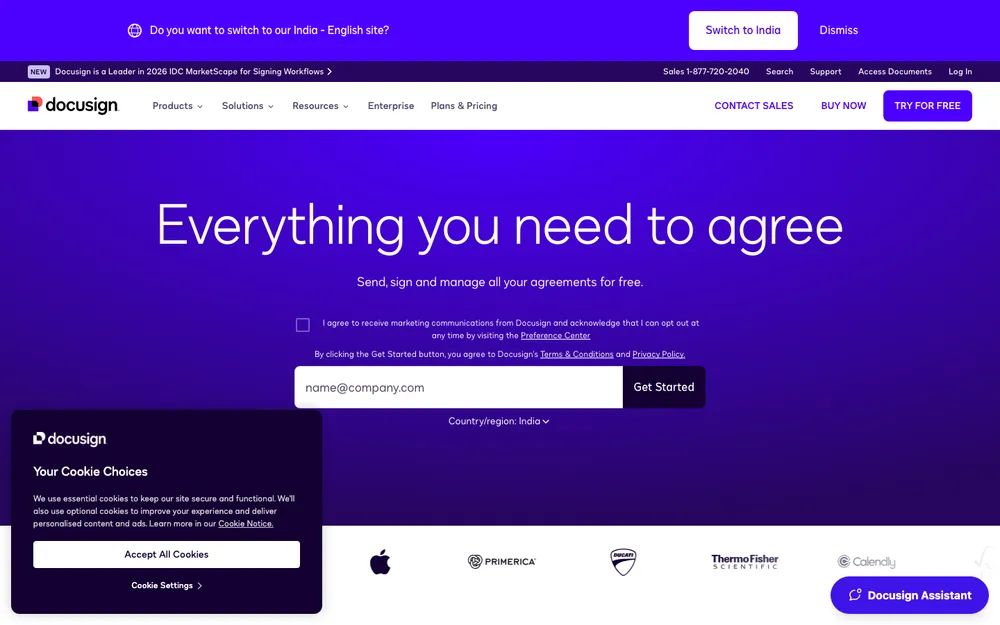
DocuSign is the name most people know, and that counts for more than you’d expect. When a DocuSign email shows up in a client’s inbox, they rarely hesitate. The company also says it helps customers comply with the ESIGN Act and UETA.
The main eSignature plans look like this, billed annually:
- Personal: $10/month ($120/year), one user, 5 envelopes a month
- Standard: $25/user/month ($300/year), and you get templates and branding
- Business Pro: $40/user/month ($480/year), which adds Bulk Send, payment collection, web forms, PowerForms and signer attachments
Rather pay monthly on an annual commitment? Then Personal is $11 a month and Standard is $30 per user per month. There’s a free trial, and nonprofits can save up to 70%. DocuSign also sells separate Real Estate plans, which I get to further down.
My take? Standard is the sweet spot for most small teams, because templates are where the real time savings are. Only jump up to Business Pro if you’re genuinely going to use bulk send or payments. The catch is that envelope cap, so estimate your volume first.
2. Adobe Acrobat Sign

Already paying for Adobe Acrobat? Start here. Acrobat Standard and Pro plans bought on adobe.com include e-signatures with unlimited transactions per user, subject to usage limits. There’s a decent chance you already own a perfectly good e-signature tool and just never noticed.
Adobe includes audit trails, bulk sending and form templates, and it hooks into Microsoft 365 and Box. Signed files can be stored in Document Cloud, Box, Dropbox, Google Drive or OneDrive, which is great if your team basically lives in one of those.
Two things you should know, though. Adobe says the e-signatures in Acrobat Standard and Pro don’t give you the same compliance level as its Acrobat Sign Solutions plans (those are priced through sales and add APIs). If you’re in a regulated industry, ask about that. And don’t forget the cancellation fee I mentioned earlier.
I couldn’t confirm Adobe’s current US prices from its official pricing page, so check adobe.com before you set a budget.
3. Dropbox Sign
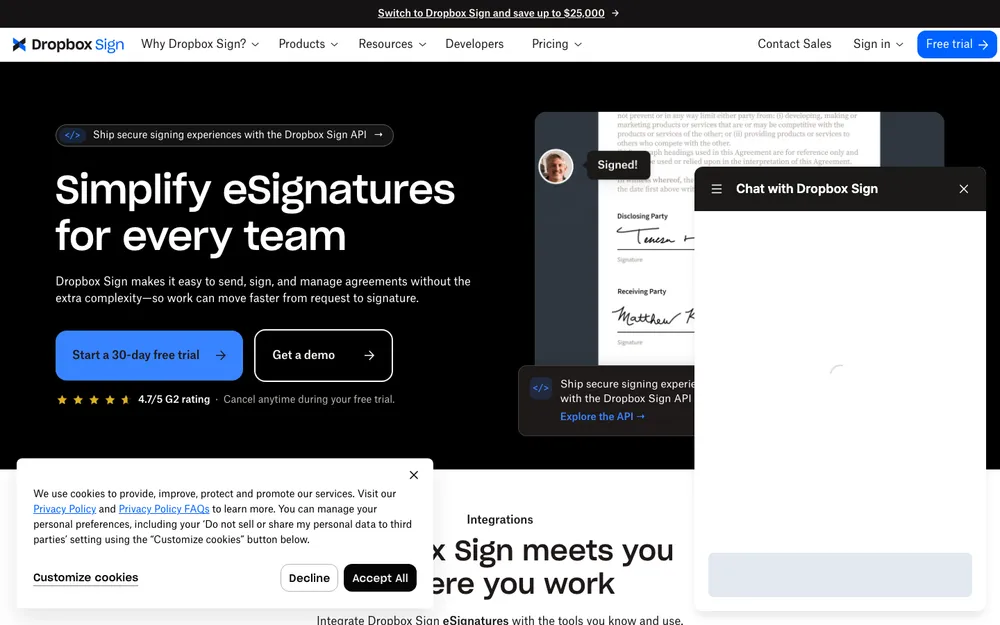
Dropbox Sign is Dropbox’s own e-signature product, so if your team already keeps everything in Dropbox, it’s the natural one to try. I wasn’t able to confirm its current plans, prices, template limits or free tier on Dropbox’s official pricing page, so please check all of that yourself.
When you trial it, look at how many signature requests each plan gives you, whether templates are capped, and whether the team plans need a minimum number of users. Those little details are what decide whether it ends up cheaper than DocuSign for you or not.
4. PandaDoc
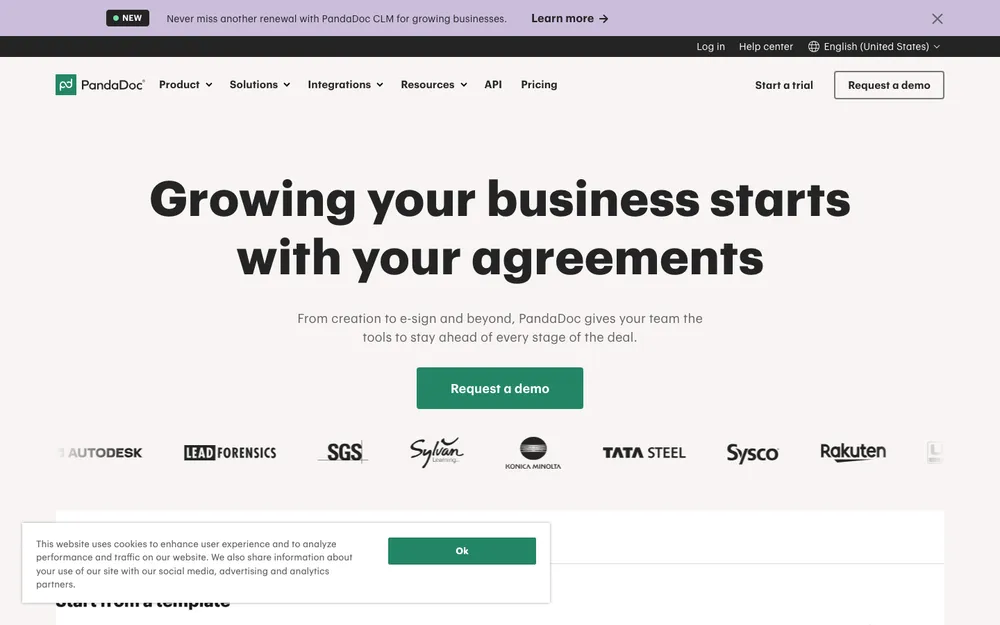
PandaDoc usually gets pitched at sales teams, because it’s built around creating documents like proposals and quotes, not only signing them. If your sales process goes build a quote, send it, get it signed, collect a deposit, then yeah, it deserves a trial.
I couldn’t verify PandaDoc’s current pricing. My understanding is it’s priced per seat with an Enterprise tier by quote, and that payment collection might only show up on the higher tiers. Treat all that as unconfirmed until you’ve looked at its official pricing page.
5. signNow
signNow goes on my shortlist if DocuSign’s envelope caps feel tight, or if its per-user price feels steep for what you actually need. I couldn’t confirm its current plans or prices, so I’m not going to guess at numbers. As I understand it, it’s priced per user across a few business tiers.
While you’re trialling it, compare send limits, templates and bulk send plan by plan against DocuSign. Honestly that’s the only fair way to judge the value here.
6. Zoho Sign

Zoho Sign makes the most sense if you already run the business on Zoho apps, since sticking with one family of tools usually means fewer integrations to babysit. It might also have a free plan for a single user with a small monthly document limit, but I couldn’t confirm that (or its paid tier prices) on Zoho’s official pricing page.
Working solo and only signing a handful of documents a month? See if that free tier actually exists and covers you before you pay for anything.
Side-by-Side Comparison
| Tool | Pricing model | Confirmed details | Free option |
|---|---|---|---|
| DocuSign | Per user, with envelope limits | Personal $10/mo, Standard $25/user/mo, Business Pro $40/user/mo (billed annually); up to 100 envelopes per user per year on annual Standard and Business Pro | Free trial only |
| Adobe Acrobat Sign | Per user (Acrobat), sales quote (Sign Solutions) | Unlimited transactions per user on Acrobat Standard and Pro, subject to usage limits; 150 per user per year on per-user Acrobat Sign plans; 10 MB per upload | No permanent free plan found |
| Dropbox Sign | Check official page | Not confirmed | Not confirmed |
| PandaDoc | Check official page | Not confirmed | Not confirmed |
| signNow | Check official page | Not confirmed | Not confirmed |
| Zoho Sign | Check official page | Not confirmed | Not confirmed |
Which E-Signature Tool Fits Your Business?
Freelancers. First, count. If you send five or fewer contracts a month, DocuSign Personal at $10 a month (billed annually) has you covered. If you already pay for Acrobat, just use what you’ve got. And if you’re on Google Workspace, Google offers eSignature in Google Docs on certain paid plans, which might honestly be all a freelancer needs. Check Google’s page for the current plan list though, because I couldn’t confirm it.
Real estate. DocuSign has dedicated plans for this. Real Estate Starter is $10 a month for one user with 5 envelopes a month. The Real Estate plan is $25 per user per month for 1 to 5 users, with 100 envelopes per user per year. NAR members can get the REALTORS® plan at $20 per user per month, billed annually. Solo agent with low volume? Starter is the obvious first step.
HR onboarding. For offer letters, policy acknowledgments and new-hire forms, it’s templates and bulk send that matter. That points you to DocuSign Business Pro or Acrobat. But before buying a separate tool, check whether your HR platform already does document signing. My guide to the best HR software for small businesses is a good place to compare.
Sales teams. You’ll want templates, a CRM connection and, ideally, payment collection at signing. DocuSign Business Pro ticks the payment box, and PandaDoc is worth trying if your quotes and proposals need to look polished. Whatever you go with, confirm it connects to your CRM. Still picking a CRM? Have a look at my roundup of the best CRM software for small businesses.
Frequently Asked Questions
Are electronic signatures legally binding in the US?
For most business documents, yes. The federal ESIGN Act says a signature or contract can’t be denied legal effect just because it’s electronic, and nearly every state has adopted UETA (New York has its own law instead). Some documents are excluded, though, and consumer transactions need consent and disclosures, so for anything high-stakes, check with a lawyer.
Can I sign a will with e-signature software?
The ESIGN Act excludes wills, codicils and testamentary trusts, along with family law matters, court documents and certain notices. So don’t rely on regular e-signature software for a will. Check your state’s rules and talk to an attorney.
Does DocuSign have a free plan?
Not that I could find. DocuSign’s official pages only showed a free trial, no permanent free plan. The cheapest paid option is Personal at $10 a month billed annually, for one user with 5 envelopes a month. Annual Standard and Business Pro plans allow up to 100 envelopes per user per year. Prices can change, so check DocuSign’s pricing page.
Is Adobe Acrobat’s built-in e-signature enough for a small business?
For a lot of small businesses, it can be. Acrobat Standard and Pro plans bought on adobe.com include unlimited transactions per user, subject to usage limits. Adobe does say these don’t offer the same compliance level as its Acrobat Sign Solutions plans, so if you’re a regulated business, ask Adobe’s sales team.
Can I sign documents in Google Docs without a separate tool?
Google offers eSignature in Google Docs on certain paid Google Workspace plans. That plan list can change, so check Google’s official eSignature help page to see if yours includes it.
Final Verdict
If I had to pick just one tool for a typical US small business, it’d be DocuSign Standard. People recognize it, templates come included and the pricing is clear. Move up to Business Pro only once bulk send or payments turn into a real need.
Already paying for Adobe Acrobat? Then check its built-in e-signatures before you spend a cent anywhere else. And if DocuSign’s envelope limits just don’t fit your volume, trial Dropbox Sign, PandaDoc, signNow or Zoho Sign, but confirm their current prices and limits on their official pages first (because, again, I couldn’t).
Whichever one you go with, use the free trial properly. Send a real document to your own phone, look through the audit trail, and make sure signed files end up somewhere your team can actually find them. I’ll be real, that half hour will tell you more than any pricing page ever will.
Featured image: Signature Pro on Unsplash.
You might also like

How to Convert PDF to Word
Can’t find a cheap freelancer to convert your PDF files into an editable Microsoft Word document, or you’re just too tired to retype the whole PDF? There’s actually no need for an extra hand (except of course if you have bulk work), given that you can conveniently convert PDF to Word documents in a matter…
12 Best PDF Editors
Want to send a document to your colleague that uses a different operating system? Well, many document formats are available, but the one format everyone relies on is PDF. PDF is the most ubiquitous document format available till date. May it be Linux or a mobile OS like Android, the flexibility of PDF makes it…

Best PDF Suites for Everyday Use
PDFs are the best way to send in official documents, or things which people want that they cannot be changed, there are many different things such as Government orders, Mark sheets, certificates which are usually sent via PDFs so that the other person cannot easily change the information printed and then use them in illegal…
The week in tech, minus the noise.
New reviews, fixes and the stories that matter — once a week, straight to your inbox.
We only use your email to send the newsletter. Unsubscribe any time. See our privacy policy.
Comments