

Best Cloud Storage for Business in 2026: Google Drive vs OneDrive vs Dropbox vs Box
Google Drive, OneDrive, Dropbox and Box compared for business on storage, sharing, admin controls, security, backup vs sync and per-user pricing. Confirmed prices only, with clear notes where details couldn’t be verified.

Photo by Kajetan Sumila on Unsplash
Picking cloud storage for a business sounds like it should take five minutes. Then you open four pricing pages, bump into stuff like “pooled storage”, “Known Folder Move” and “version history”, and there goes your afternoon.
So I put Google Drive, OneDrive, Dropbox and Box next to each other and looked at what actually matters when you’re paying per user. Storage, sharing, admin controls, security. And whether the tool really backs up your files or just syncs them (that last one catches out a lot of small businesses, honestly).
Quick heads-up first. I checked the Google Workspace and Dropbox details on their official pages, and I went through Microsoft’s own admin docs for OneDrive. What I couldn’t confirm were Microsoft 365 business prices and Box’s plan details. So if a number’s missing, that’s on purpose. I’d rather leave a blank than guess at your budget.
Quick answer: For most small teams, Google Drive through Google Workspace is the easiest pick. Confirmed pricing starts at $7 per user per month on an annual plan, and storage is pooled across the whole company. Already running on Windows and Microsoft 365? Go with OneDrive, since admins can automatically move each PC’s Desktop, Documents and Pictures folders into it. Dropbox makes sense if you work with huge files or want a proper computer backup feature with long file recovery. Box might suit you too, but I couldn’t confirm its prices or plan details, so check its official page first.
Backup vs sync: the part most people get wrong
This is honestly the most important bit of the whole article, so I’m getting it out of the way first.
Sync keeps the same files in a bunch of places at once: your laptop, the cloud, your coworker’s PC. Great for teamwork. Here’s the thing though. Sync copies your mistakes too. Someone deletes or overwrites a file on their laptop and that change goes everywhere. Then you’re relying on the service’s deleted-file recovery and version history to undo it.
Backup is a separate copy you can go back to when stuff goes wrong. Dropbox actually draws this line pretty clearly in its own help pages. Its backup feature keeps up-to-date copies of the files on your computer, but it doesn’t free up any space on your drive, and you can’t share backed-up content. It’s there to protect you. Not to help you collaborate.
OneDrive’s Known Folder Move kind of sits in the middle. It moves your Desktop, Documents and Pictures folders into OneDrive, so a dead or stolen laptop doesn’t take those files down with it. But under the hood? It’s still sync.
If you want to dig into that second layer, I’ve gone through the options in our guide on how to back up your business data.
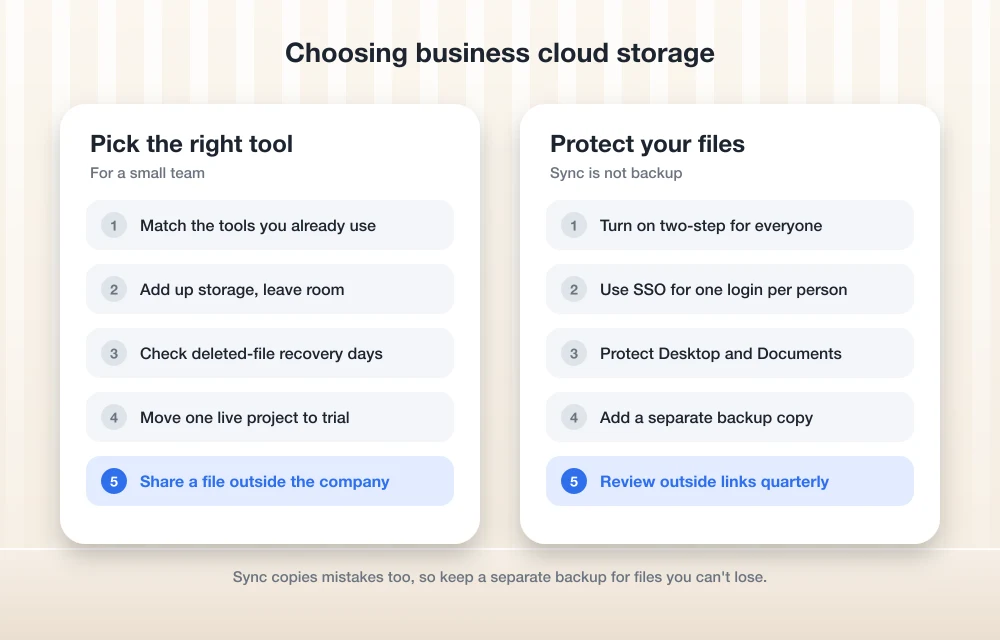
The best cloud storage for business, compared
Here’s the big-picture table. Where a cell says “Not confirmed”, I just couldn’t verify it on an official page. It doesn’t mean the feature isn’t there.
| Feature | Google Drive (Workspace) | OneDrive (Microsoft 365) | Dropbox | Box |
|---|---|---|---|---|
| Entry price per user | $7/mo (annual), $8.40/mo (flexible) | Not confirmed | $15/mo (Standard) | Not confirmed |
| Storage | 30 GB, 2 TB or 5 TB per user, pooled | Not confirmed | From 3 TB per team (Standard), 15 TB (Advanced) | Not confirmed |
| Deleted-file recovery | Not confirmed | Not confirmed | 180 days (Standard), 1 year (Advanced) | Not confirmed |
| Computer folder protection | Not confirmed | Known Folder Move (Desktop, Documents, Pictures) | Dropbox Backup on business plans | Not confirmed |
| Single sign-on (SSO) | Yes | Not confirmed | Yes (Advanced) | Not confirmed |
| Free trial | 14 days | Not confirmed | Not confirmed | Not confirmed |
My picks
1. Google Drive (Google Workspace)
This is where I’d send most small teams first, especially if you already live in Gmail and Google Docs. You don’t really buy Drive by itself for business. It comes bundled in Google Workspace, along with business email, Docs, Sheets and all the rest.
The storage model is what I like most, I’ll be real. Storage is pooled across your organization. Business Starter gives you 30 GB per user, Business Standard 2 TB per user, and Business Plus 5 TB per user, and all of that goes into one shared pot. So a 10-person team on Business Standard gets 20 TB to share, and the one person editing video can use way more than the person who only sends invoices. If you outgrow it, admins can buy extra storage.
Google says its business plans include two-step authentication, SSO, admin controls for user accounts and 24/7 support. There’s a 14-day free trial too, which is enough time to move a few real projects over and see how your team gets on with it.
What I couldn’t confirm: which plans include Google Vault (its tool for keeping and searching company data for legal reasons), data loss prevention (rules that stop sensitive info getting shared by accident) and endpoint management. I also didn’t verify how Google Drive for desktop handles backup versus sync for business users. If any of that matters to you, ask Google’s sales team before you sign up.
What I liked
- Per-user pricing that’s clear and actually published
- Pooled storage, so nobody’s quota just sits there wasted
- 14-day free trial
- Two-step authentication and SSO on the business plans
What could be better
- Starter’s 30 GB per user is pretty tight for file-heavy teams
- Enterprise pricing isn’t listed publicly
- I couldn’t confirm the security add-ons plan by plan
2. OneDrive (Microsoft 365)
If your office runs on Windows laptops and Outlook, OneDrive is kind of the obvious fit. It’s built right into Windows, and Microsoft gives admins a strong tool for protecting each employee’s most important folders without the employee having to lift a finger.
That tool is Known Folder Move. Microsoft documents three admin policies for it: “Prompt users to move Windows known folders to OneDrive”, “Silently move Windows known folders to OneDrive” and “Prevent users from turning off Known Folder Move”. Microsoft recommends using the silent one together with the prompt one. What that means in real life: most people get their Desktop, Documents and Pictures moved into OneDrive automatically, and you can stop them switching it off.
There are a couple of catches though, both straight from Microsoft’s Known Folder Move documentation. It doesn’t work for users syncing files in SharePoint Server (that’s the version some companies run on their own servers). And it fails if those folders were already redirected somewhere other than OneDrive using Windows Folder Redirection Group Policy. If some IT person set up your PCs years ago, check this before rolling it out.
I haven’t put Intune menu steps in here, because the only path I found wasn’t from Microsoft’s official docs, and those menu labels change anyway. Go by Microsoft’s current documentation when you set it up.
Now the gaps. I couldn’t confirm Microsoft 365 business prices or per-user OneDrive storage on Microsoft’s own site, so I’m not putting numbers on either one. Grab both from microsoft.com before you budget.
What I liked
- Known Folder Move can protect Desktop, Documents and Pictures automatically
- Admins can stop users from switching that protection off
- Slots right into Windows-based offices
What could be better
- Known Folder Move clashes with older folder redirection setups
- Doesn’t work for SharePoint Server sync
- You’ll need to check prices and storage on Microsoft’s site
3. Dropbox
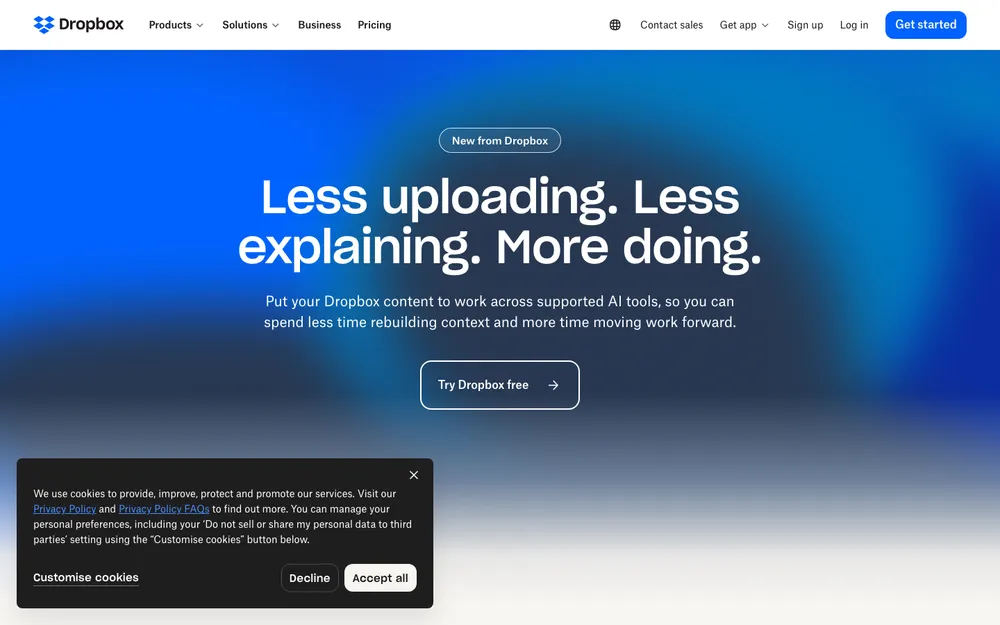
Dropbox is the one I’d go for if your team shoves big files around all day. Designers, video editors, architects, agencies, that kind of crowd. It’s also the only one here where I could confirm a clearly separate backup feature for computers.
Dropbox Standard is $15 per user per month. Dropbox lists it for one person or more, and it starts at 3 TB of storage for the team. Deleted files can be restored for 180 days, and you can send transfers up to 100 GB. Admin-wise, Standard gets you admin control, groups and roles, team folders and password-protected files.
Advanced is for three or more people and starts at 15 TB for the team. You get a full year of version history and deleted-file recovery, plus 250 AI credits per person per month. On top of that there’s tiered admin management, end-to-end encryption, advanced key management, compliance tracking and SSO. I did see a price for Advanced on Dropbox’s site, but I honestly couldn’t tell if it was the annual or monthly rate, so I left it out. Check the plans page.
Enterprise is custom-priced, with transfers up to 250 GB. Dropbox says file version history can be stretched to as long as 10 years on some enterprise setups, which is a big deal if your industry has long record-keeping rules.
And then there’s Dropbox Backup. Teams on Standard, Advanced and Enterprise can back up as many computers as they like, as long as they stay inside the plan’s storage. Admins on business plans can manage team backup settings and keep an eye on backup activity, so you don’t have to wander round asking everyone “Is your backup on?”
What I liked
- Generous team storage, starting at 3 TB on Standard
- 180-day deleted-file recovery, even on the entry plan
- Separate computer backup that admins can monitor
- End-to-end encryption and SSO on Advanced
What could be better
- Costs more to get in than Google Workspace
- Backup doesn’t free up any space on your drive
- The Advanced price wasn’t clear on the official page
4. Box
Box sells plans aimed at businesses, and you’ll probably bump into it if a client or partner already uses it. I wanted to give it a fair shake, but I couldn’t get to Box’s official pricing page, and the numbers I found elsewhere didn’t match each other.
So I’m not going to guess. I couldn’t confirm Box’s prices, storage, version history limits, how its Box Drive desktop app behaves, or which security and governance features come with which plan. If Box is on your shortlist, head straight to box.com/pricing and ask about minimum user counts, version history and the security add-ons on whatever plan you’re eyeing.
Pricing per user
These are the only prices I could actually confirm on official vendor pages. Prices change a lot, and Google’s don’t include tax.
Google Workspace Business Starter
On the annual plan. $8.40 if you go Flexible (monthly).
- 30 GB per user, pooled
- Two-step authentication and SSO
- 14-day free trial
Google Workspace Business Standard
On the annual plan. $16.80 if you go Flexible.
- 2 TB per user, pooled
- Admin controls for user accounts
- 24/7 support
Google Workspace Business Plus
On the annual plan. $26.40 if you go Flexible.
- 5 TB per user, pooled
- Admins can buy extra storage
Dropbox Standard
Double-check billing terms on Dropbox’s plans page.
- Starts at 3 TB for the team
- 180-day deleted-file recovery
- Transfers up to 100 GB
Prices checked November 2026 on the official pricing pages. Microsoft 365 and Box aren’t in here because I couldn’t confirm their prices. Re-check every vendor before you buy, seriously.
Admin controls and file sharing security
For a small business, security mostly boils down to two questions. Who can get into the account? And who can see the stuff you share?
On the first one, Google lists two-step authentication and SSO on its business plans. Dropbox lists SSO on Advanced. Single sign-on just means your team logs in through one company account, so when someone leaves you switch off one login instead of chasing down ten.
On the second, Dropbox Standard has password-protected files plus groups and roles, which helps keep the finance folder away from the interns. Advanced goes further with end-to-end encryption (files get scrambled so only the intended people can read them), plus advanced key management and compliance tracking. Over on the Microsoft side, the admin control I could confirm is being able to force Known Folder Move on and stop users turning it off.
If a lot of what you share is contracts and agreements, don’t just email PDFs around. Pair your storage with a proper signing tool. I compared the options in our roundup of the best e-signature software.
How I’d choose for a small team
Start with the tools you already use
Using Gmail? Lean toward Google Workspace. On Outlook and Windows? Lean toward Microsoft 365.
Estimate your storage honestly
Add up what your files take up right now and leave room to grow. If your team is file-heavy, compare Dropbox’s team storage against Google’s pooled plans.
Decide how you’ll handle backup
Pick between built-in folder protection and a separate backup, and check how many days of deleted-file recovery you actually get.
Run a real trial
Move one live project over, invite your team, and share a few files with someone outside the company before you commit to anything.
One more thing. Storage is only half of it if your files and tasks live in different places. If your team is juggling deadlines in email threads, have a look at our picks for the best project management software for small teams.
So which one should you pick?
If I were setting up a new small business tomorrow, I’d start with Google Workspace Business Standard. The pricing’s clear, the 2 TB per user is pooled, and the free trial lets you test it properly.
If your team’s already deep into Windows, I’d go OneDrive and turn on Known Folder Move from day one. Just confirm Microsoft’s current prices and storage first. And if you deal with huge files or want backup that’s clearly separate from sync, Dropbox is worth the higher price.
Box? Check its official page and make your own call. Whatever you end up with, please don’t treat sync as your only backup. That’s the mistake that really ends up costing small businesses.
Frequently Asked Questions
Is OneDrive a backup or just sync?
It’s sync. Known Folder Move moves your Desktop, Documents and Pictures folders into OneDrive, so they’re safe if a laptop dies, but changes and deletions still sync across. For files you really can’t lose, add a separate backup.
Which business cloud storage is cheapest?
Out of the prices I could confirm, Google Workspace Business Starter comes in lowest at $7 per user per month on an annual plan ($8.40 on the Flexible plan). I couldn’t confirm Microsoft 365 or Box prices on their official sites, so compare those yourself before you decide.
Is Google Workspace storage per user or shared?
Shared. It’s pooled across your organization, with each user adding 30 GB on Business Starter, 2 TB on Business Standard or 5 TB on Business Plus to one big pot. Admins can buy more storage if you need it.
Does Dropbox Backup free up space on my computer?
Nope. Dropbox says its backup feature keeps up-to-date copies of the files on your computer but doesn’t free up local disk space. You also can’t share backed-up content.
Which Dropbox plan has end-to-end encryption?
That’s on the Advanced plan, according to Dropbox, along with advanced key management, compliance tracking, tiered admin management and SSO. Advanced is for teams of three or more.
Featured image: Kajetan Sumila on Unsplash.
You might also like

10 Best Cloud Storage for iPhone
Whether you’re an Apple fan or not, you have to appreciate how ahead of time they were with their iCloud cloud storage – especially in today’s day and age, when you have a ton of music, books, videos and other things available at a click of a mouse. The problem arises when you’re limited with…

Best E-Signature Software: DocuSign vs Adobe Acrobat Sign vs Dropbox Sign (2026)
I compare DocuSign, Adobe Acrobat Sign, Dropbox Sign, PandaDoc, signNow and Zoho Sign for US small businesses, covering ESIGN Act basics, envelope limits and which tool fits freelancers, real estate, HR and sales teams.

Best Mac Synchronization Software
Data Sync on Mac is always a challenge when you have tons of different online accounts and other portable devices. We all need to stay on top with all the information being up to date. It doesn’t matter if its iCal, Music, Address books, or even photos. It’s good to have them everywhere and, most…
The week in tech, minus the noise.
New reviews, fixes and the stories that matter — once a week, straight to your inbox.
We only use your email to send the newsletter. Unsubscribe any time. See our privacy policy.
Comments