

How to Fix Siri AI Not Working on Apple TV 4K After tvOS 27.2.1
Apple released tvOS 27.2.1 on November 13, and it brings Siri AI, the new Apple Intelligence version of Siri, to older Apple TV 4K boxes from 2021 and 2022. The same day, the new fourth-generation Apple TV 4K went on sale. Plenty of people updated, pressed the Siri button, and got the same old Siri.…
Photo by Omar Rodriguez on Unsplash
Apple released tvOS 27.2.1 on November 13, and it brings Siri AI, the new Apple Intelligence version of Siri, to older Apple TV 4K boxes from 2021 and 2022. The same day, the new fourth-generation Apple TV 4K went on sale. Plenty of people updated, pressed the Siri button, and got the same old Siri. If that’s you, the reason is usually one of a handful of requirements that are easy to miss, and most of them live on your iPhone rather than the Apple TV.
I’ve put the fixes in the order I’d check them, starting with whether your Apple TV can run Siri AI at all.
Quick answer: Siri AI works on Apple TV 4K (2nd generation, 2021) and later. Older models need tvOS 27.2.1, which you install from Settings > System > Software Updates. Apple also says the owner of the home in the Home app needs an Apple Intelligence-enabled iPhone or iPad running the latest software with Siri AI turned on. Siri AI is a beta, in English only, and isn’t available in the EU. On older models, use the Siri button on the remote, since only the new 4th-generation box has built-in microphones.
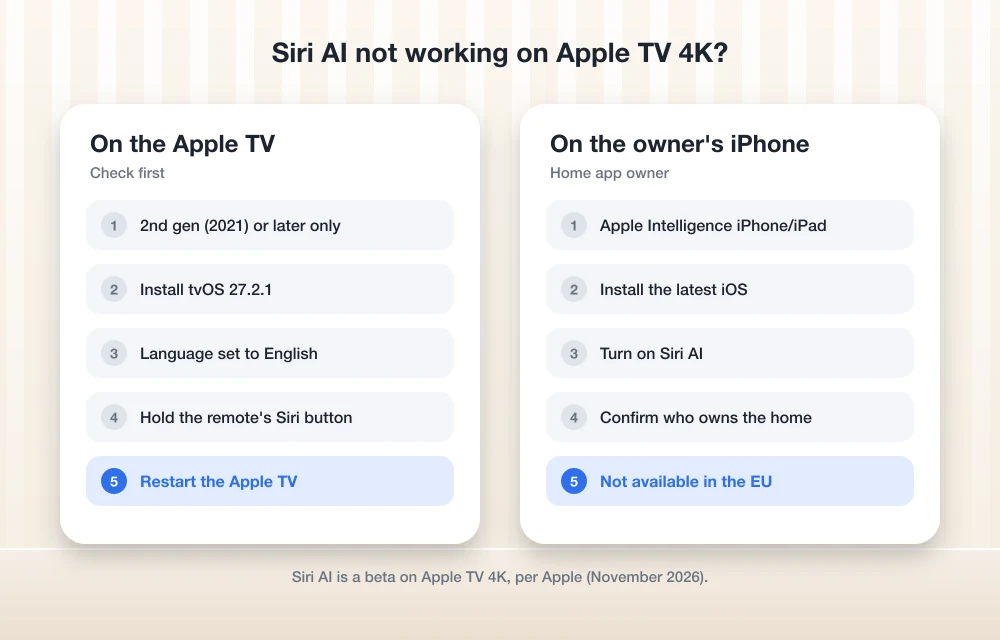
1. Check that your Apple TV model is supported
In its Apple TV 4K announcement, Apple says Siri AI is available as a beta on Apple TV 4K (2nd generation) or later. That leaves out the first-generation Apple TV 4K from 2017 and the Apple TV HD.
To check your model, go to Settings > General > About on the Apple TV and look at the model number:
| Model | Model number | Siri AI |
|---|---|---|
| Apple TV 4K (4th generation, 2026) | New model | Yes |
| Apple TV 4K (3rd generation, 2022) | A2737 or A2843 | Yes, with tvOS 27.2.1 |
| Apple TV 4K (2nd generation, 2021) | A2169 | Yes, with tvOS 27.2.1 |
| Apple TV 4K (1st generation, 2017) | A1842 | No |
| Apple TV HD | A1625 | No |
2. Update to tvOS 27.2.1
Older supported models only get Siri AI with tvOS 27.2.1. Apple’s Apple TV update guide says to open Settings, go to System > Software Updates, and select Update Software. If an update is available, choose Download and Install. Keep the Apple TV connected to power until it finishes. While you’re there, turn on Automatically Update so future fixes arrive on their own.
3. Update the home owner’s iPhone or iPad
This is the step that catches most people. Apple says Siri AI on Apple TV requires the owner of the home in the Home app to have an Apple Intelligence-enabled iPhone or iPad, running the latest software, with Siri AI turned on. If that device is a few updates behind, Apple TV won’t offer Siri AI.
On the iPhone, go to Settings > General > Software Update and install anything waiting. Our guide to the iOS 27.2.1 update explains what the latest release includes, and if your phone isn’t offering the update at all, see how to fix iPhone not showing the iOS 27.2 update.
4. Make sure the right person owns the home
The requirement is tied to the owner of the home in the Home app, not whoever happens to be holding the remote. If your partner set up the Home app years ago on an older iPhone, their phone is the one that has to qualify. Open the Home app, tap the More button, then Home Settings to see who’s listed as owner. If the owner’s phone doesn’t support Apple Intelligence, Siri AI won’t work on the Apple TV even if your own iPhone does.
5. Turn on Siri AI on the iPhone
Apple says the owner’s iPhone or iPad needs Siri AI turned on, not just installed. Open Settings on that device, go to the Apple Intelligence and Siri section, and confirm Siri AI is switched on. Siri AI is labeled as a beta, so it may need to be turned on separately even after the update installs.
6. Check your language and region
Apple says Siri AI on Apple TV launched in English, in the US, Australia, Canada, India, New Zealand, Singapore, South Africa and the UK. Siri needs to be set to a supported language. Apple also says Siri AI will not initially be available in the EU. If your Apple TV or iPhone is set to another language, Siri AI won’t appear.
7. Use the Siri button on older models
Only the new 4th-generation Apple TV 4K has built-in microphones that let you just say “Siri” while a show is playing. On the 2021 and 2022 models, press and hold the Siri button on the remote. If nothing happens when you speak across the room to an older box, that’s expected.
8. Restart the Apple TV
If everything above checks out, restart. Go to Settings > System > Restart, or unplug the Apple TV for a few seconds and plug it back in. Then try a Siri request again.
What to expect once it works
Apple says some Siri AI features that rely on server-side models have daily usage limits, and that personal requests, such as asking about your calendar, need a paired Apple Intelligence-enabled device. Apple also notes that Siri requests on Apple TV can use on-device processing or Private Cloud Compute. For the full rundown of the new hardware, see our report on Apple HomeView and the new Apple TV 4K.
FAQs
Which Apple TV models get Siri AI?
Apple TV 4K (2nd generation, 2021) and later. The 2021 and 2022 models need tvOS 27.2.1. The first-generation Apple TV 4K and Apple TV HD are not supported.
Do I need an iPhone for Siri AI on Apple TV?
Yes. Apple says the owner of the home in the Home app needs an Apple Intelligence-enabled iPhone or iPad running the latest software, with Siri AI turned on.
Why can’t I say “Siri” to my older Apple TV?
Only the 4th-generation Apple TV 4K has built-in microphones for hands-free requests. On older models, press and hold the Siri button on the remote.
Is Siri AI available on Apple TV in Europe?
Not at launch. Apple says Siri AI will not initially be available in the EU.
Featured image: Omar Rodriguez on Unsplash.
Disclosure: TheTechHacker has no paid relationship with Apple or any company mentioned here.
More in How-to
How to Fix Siri Not Responding on Apple Watch
Is Siri not responding when you try to use it on your Apple Watch? You may raise your wrist, say “Hey Siri,” or press the Digital Crown, but nothing happens. This can be frustrating, especially when you depend on Siri for quick messages, reminders, calls, directions, or other hands-free tasks. The problem may be caused…
How to Fix iPhone Siri Activating Randomly Without Saying “Hey Siri” on iOS 26
Has Siri started activating randomly on your iPhone after the iOS 26 update? You may suddenly see the Siri interface appear even though you did not say “Hey Siri” or intentionally touch the screen. Apart from being frustrating, unexpected Siri activation can interrupt your work, trigger unwanted actions, or create privacy concerns when the phone…
How to fix Siri does not respond or answers correctly
Having trouble with Siri after an iOS update? Here’s how to fix it!
The week in tech, minus the noise.
New reviews, fixes and the stories that matter — once a week, straight to your inbox.
We only use your email to send the newsletter. Unsubscribe any time. See our privacy policy.
Comments