

Best Backup Software for PC and Mac in 2026: Free and Paid Options Compared
Windows and macOS both include free backup tools, and cloud services like Backblaze and Acronis add an offsite copy. Here’s how Windows Backup, File History, Time Machine, Backblaze, Acronis, IDrive and Carbonite compare, and which mix I’d pick.


Photo by Samsung Memory on Unsplash
Backups are the most boring thing on your computer. Right up until the day you need one. A drive dies, your laptop gets stolen, or ransomware locks up your Documents folder, and years of photos and work can vanish in a single afternoon.
The good news? Backing up a PC or Mac is cheaper and easier than most people think. Both Windows and macOS come with free backup tools built in, and if you want a copy sitting somewhere other than your desk, there are paid cloud services for that.
These are the six options people ask me about most. What each one does, what it costs, and which one I’d go with if I were you.
Quick answer: On a Mac, start with Time Machine and an external drive. It’s free and built in. On Windows, use File History to an external drive, plus Windows Backup to save your folders and settings to OneDrive. Then add a cloud service such as Backblaze, which backs up one computer with no size limit, or Acronis True Image if you want local backup, cloud backup and disk cloning in one app.
Local vs cloud backup: which one do you need?
A local backup is a copy on something you can actually pick up, like an external hard drive, an SSD, or a network drive (NAS) at home. It’s fast. And once you’ve paid for the drive, it costs nothing to keep going. Restoring a whole computer from a local drive is also way quicker than dragging everything back down over the internet.
The catch? Location. If your house floods, or a burglar grabs your laptop and the drive sitting right next to it, you’ve lost both copies in one go.
A cloud backup lives on some company’s servers instead. Fire, theft, spilled coffee, it doesn’t care. But you do pay a subscription, and the first upload can take ages if you’ve got a lot of data (think days, not minutes).
Apple’s own advice is to keep backups somewhere other than your computer’s internal disk, so you can restore to another machine if yours dies. Plenty of people go by the 3-2-1 rule: three copies of your data, on two different kinds of storage, with one copy offsite. You don’t have to follow it to the letter. The idea’s sound, though.
The best backup software for PC and Mac
1. Windows Backup and File History (free, Windows)
Windows actually has two built-in tools, and they don’t do the same job. I’d use both.
Windows Backup showed up with Windows 10 and Windows 11 updates released on or after August 22, 2023. It saves your folders, apps, settings and credentials to your Microsoft account and OneDrive. So your settings follow you to any Windows PC you sign into with the same Microsoft account, which makes setting up a new laptop a whole lot less painful.
To open it, click Start, type “windows backup” and pick Windows Backup. Or switch it on under Settings > Accounts > Windows backup.
It has a few limits. A free Microsoft account gets 5 GB of storage, and Microsoft says transfers over 5 GB need an active Microsoft subscription or trial. Restoring works on Windows 11, version 22H2 and later. It’s built for home users with a personal Microsoft account (outlook.com, live.com and so on), so work accounts on Microsoft Entra ID or Active Directory aren’t supported. And after the January 25, 2024 updates, it’s hidden on Enterprise-managed devices.
I couldn’t confirm current Microsoft 365 or OneDrive storage prices on Microsoft’s official pages, so I’ve left them out.
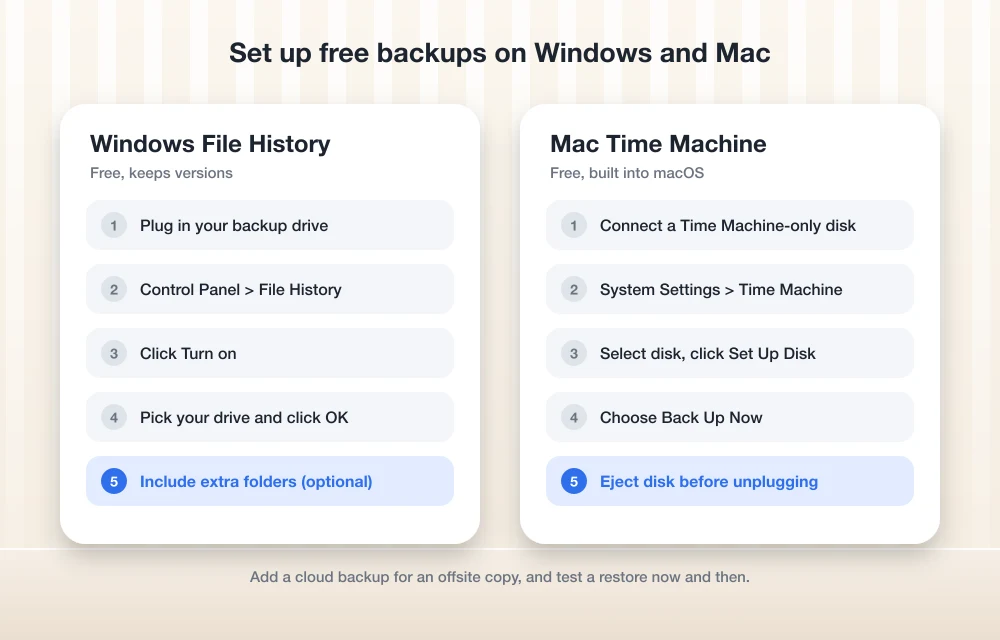
File History is the one I’d really lean on for your files. It copies your stuff to an external drive or network location and keeps earlier versions, so you can roll back that document you overwrote last week. Out of the box it covers Documents, Pictures, Videos and Desktop. Setup’s pretty simple, and these steps follow Microsoft’s File History guide.
Plug in your backup drive
Connect an external drive, or make sure your network location is up and reachable.
Open File History
Go to Control Panel > System and Security > Save backup copies of your files with File History.
Turn it on
Click Turn on. That’s it for this step.
Pick your drive
Under Select a File History drive, choose your external drive or network location and click OK.
Add other folders (optional)
Right-click a folder, choose Show more options > Include in library, and File History will pick it up.
Need a file back? You browse the earlier versions and restore the one you want. And if you’d like to force a backup right now, community answers on Microsoft’s Q&A forum point to Control Panel > System and Security > File History > Run now.
If Windows won’t see your backup drive at all, I’ve got a guide on fixing an external drive that’s not showing up on Windows 11 or Mac that runs through the usual suspects.
2. Apple Time Machine (free, Mac)
Time Machine is probably the easiest good backup tool around, and it’s already on your Mac. It backs up your apps, music, photos, email and documents to an external drive or other storage. After the first full backup it only copies what’s changed. So later backups are quick.
It makes hourly, daily and weekly backups by itself. Apple doesn’t spell out the exact retention period in the pages I checked, so I can’t tell you precisely how far back you’ll be able to go. It also skips system files and the apps that came with macOS. Not a problem, since those can be reinstalled anyway.
Apple suggests a backup disk with at least twice your Mac’s storage, used only for Time Machine. You can back up to USB-C or Thunderbolt external drives, another Mac on your network, a NAS that supports Time Machine over SMB, or an AirPort Time Capsule. Still on an older network setup? Note that AFP network backup isn’t supported in macOS 27 or later.
Setup takes a couple of minutes, and these steps come straight from Apple’s Time Machine support page.
Connect your backup disk
Plug in an external drive you’ll use only for Time Machine.
Open Time Machine settings
Go to Apple menu > System Settings > General > Time Machine.
Choose the disk
Select your disk and click Set Up Disk. Your Mac may offer to erase it, so move anything important off it first.
Run your first backup
Choose Back Up Now from the Time Machine menu in the menu bar.
On macOS Ventura 13 or later, you can change how often it runs under Open Time Machine Settings > Options > Back up frequency. And if you unplug the drive? No big deal. The schedule picks up again when you reconnect it.
Two smaller things. Local snapshots only happen on APFS-formatted disks, and backups made on macOS 12 or later can only be restored to a Mac running macOS 11 or later.
3. Backblaze Computer Backup
Backblaze is the cloud service I’d point most home users to first. Why? It’s built around one simple idea: back up everything on your computer, no size limit. It covers all user-created data on one Mac or Windows computer, including internal drives and any external drives that are physically plugged in.
That external drive bit matters. Got a huge photo library on a USB drive? Backblaze can send that to the cloud too, as long as it stays connected.
Version history is the part to get your head around. It’s how long Backblaze hangs on to older copies of your files, and the default is 30 days. With the Backblaze client version 7.0 or later you can stretch it to 1 year or Forever (Forever costs extra). To change it, head to the web console > Computer Backup > Overview and click Upgrade in the Version History field. You have to do this for each computer separately. A little annoying.
If you’re the type who notices missing files weeks later, I’d just bump it to a year and stop worrying.
Price: I couldn’t confirm Backblaze’s current price on its official site, so I’m not quoting a number. Check backblaze.com before you sign up.
4. Acronis True Image
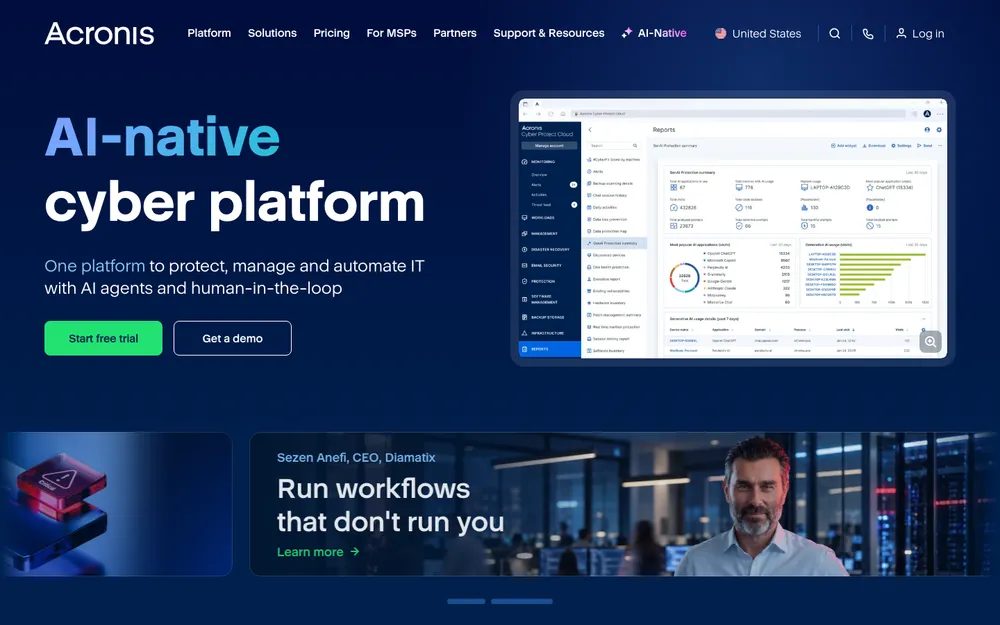
Acronis True Image is what I’d pick if you want one app for local backups, cloud backups and full disk cloning (basically copying your whole drive onto a new one, which is handy when you move to a bigger SSD). It runs on Windows, macOS, Android and iOS, and Acronis says it covers up to 5 PCs or Macs plus unlimited mobile devices.
You get three plans, all one-year subscriptions with 1, 3 or 5 computer options. Essentials is local backup only. No cloud. Advanced adds cloud storage in 50, 250 or 500 GB tiers, along with malware protection and Microsoft 365 backup. Premium sits at the top, but I couldn’t confirm its full feature list, so check the purchasing page for that one.
Essentials
1 computer, 1-year subscription
- Local backup only (no cloud)
- Disk cloning
- Universal Restore
Advanced
Starting price, 1-year subscription
- Cloud storage: 50, 250 or 500 GB tiers
- Malware protection
- Microsoft 365 backup
Premium
Starting price, 1-year subscription
- Top tier; see Acronis for the full feature list
I checked these prices in November 2026 on the official Acronis purchasing page. Acronis’s own comparison page shows different “from” prices, and prices move around a lot, so confirm before you buy.
For most people, Advanced is the sweet spot. It’s only a little more than Essentials, and you get the offsite cloud copy thrown in.
5. IDrive
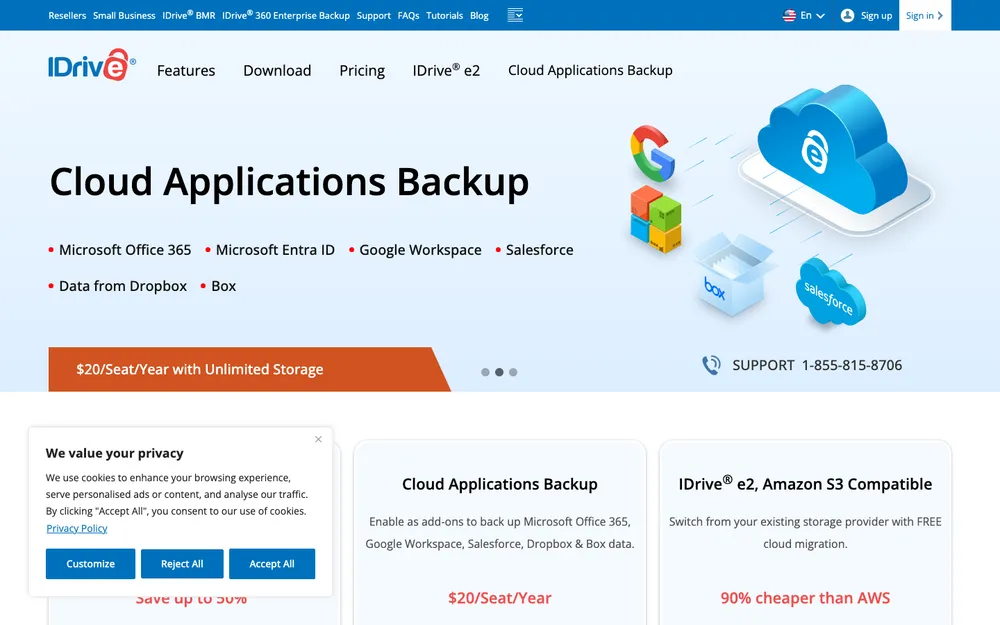
IDrive is a cloud backup service lots of people weigh up against Backblaze, especially if they’ve got several devices to protect. I’d love to give you real numbers. But I couldn’t confirm IDrive’s current plans or prices on its official pricing page, and I’m not going to repeat figures I can’t check.
If IDrive’s on your shortlist, go straight to its official pricing page. Look at how much storage you get, how many devices it covers, and what the price jumps to after the first year.
6. Carbonite Safe
Carbonite Safe is Carbonite’s home cloud backup line. Same story as IDrive, sadly. I couldn’t verify its current plans or prices on carbonite.com, so you won’t get numbers from me.
Before you sign up, check the official site for how many computers each plan covers, whether external drives are included, and what the renewal price looks like.
Backup software comparison table
Everything in this table comes from each vendor’s own support and pricing pages. That’s also why IDrive and Carbonite aren’t in it.
| Feature | Windows Backup + File History | Time Machine | Backblaze | Acronis True Image |
|---|---|---|---|---|
| Works on | Windows | Mac | Windows and Mac | Windows, Mac, Android, iOS |
| Local backup to a drive | Yes (File History) | Yes | Cloud service | Yes |
| Cloud backup | OneDrive, 5 GB free | No | Unlimited size, one computer | Advanced and up (50 to 500 GB) |
| Older versions kept | Earlier file versions | Hourly, daily, weekly | 30 days, up to 1 year or Forever | Not confirmed |
| Disk cloning | Not included | Not included | Not included | Yes |
| Price | Free | Free | Not confirmed | From $49.99/yr |
Can backups help you recover from ransomware?
Yes. It’s one of the best reasons to have them, actually. Ransomware scrambles your files and then demands payment, but if you’ve got a backup with older versions, you can restore copies from before the infection hit.
Version history is what makes this work. File History, Time Machine and Backblaze all keep earlier versions, so you’re not stuck with just the latest (encrypted) copy. Acronis Advanced also lists malware protection as part of the plan.
One habit I really like: unplug your local backup drive when you’re not using it. A drive that isn’t connected can’t get encrypted along with everything else. Simple. And Time Machine will pick its schedule back up once you plug it in again.
Still, backups are your safety net, not your whole defense. For the prevention side, have a look at my take on whether you still need antivirus on Windows 11 and Mac.
Which backup software should you pick?
Time Machine
It’s built in, it runs by itself, and restoring is easy. Just grab a drive about twice the size of your Mac’s storage.
File History + Windows Backup
File History looks after local file versions, while Windows Backup handles settings and folders in OneDrive.
Backblaze
No backup size limit for one computer. Connected external drives come along too.
Acronis True Image
Local backup, cloud backup and disk cloning in one app, on up to 5 computers plus phones.
Running a small business rather than a home setup? That’s a slightly different game, with shared drives, multiple users and compliance to think about. My guide on how to back up your business data walks through those options.
Frequently Asked Questions
Is Time Machine enough to back up a Mac?
It’s a great local backup, and it’s free. But it only backs up to drives or network storage near you, so a fire or a break-in could take out your Mac and the backup together. I’d pair it with a cloud service so you’ve got an offsite copy too.
Does Windows 11 have built-in backup?
Yes, two of them. Windows Backup saves folders, apps, settings and credentials to your Microsoft account and OneDrive. File History copies your files to an external drive or network location and keeps earlier versions you can restore.
How big should my backup drive be?
For Time Machine, Apple recommends a disk with at least twice your Mac’s storage, used only for backups. That same rule of thumb works nicely for File History on Windows, since both keep older versions of your files around.
Is cloud backup better than an external hard drive?
Neither wins on its own. An external drive is fast and there’s no monthly fee, while a cloud backup survives theft, fire and flooding. Use both. That’s where you want to be.
Does Windows Backup work with a work or school account?
No. Microsoft says Windows Backup is meant for personal Microsoft accounts and doesn’t support Microsoft Entra ID or Active Directory accounts. It’s also hidden on Enterprise-managed devices after the January 25, 2024 updates.
Start free today, add an offsite copy next
You don’t need to spend much to be safe. Turn on Time Machine or File History today with any decent external drive, and you’re already ahead of most people.
Then add an offsite copy. Backblaze is the easy “set it and forget it” route for a single computer, while Acronis True Image makes more sense if you also want cloning and coverage across several devices. Whichever you pick, try restoring a file every so often. A backup you’ve never tested? That’s really just a hope.
Featured image: Samsung Memory on Unsplash.
Disclosure: TheTechHacker has no paid relationship with the companies in this article.
You might also like

Tired of iTunes? Here Are The Best iTunes Alternatives
Apple designed iTunes as a complete dependent program for iOS devices users. To take backup, media file transfer and for software updates, iTunes is the one-stop solution. When considering features, iTunes has everything built-in. Starting from file management, it can handle tasks like audio file conversion, and even ebook management. On the other side, the…
Do You Still Need Antivirus on Windows 11 and Mac in 2026?
Windows 11 and macOS both ship with built-in malware protection that’s on by default. Here’s what it covers, what paid suites add, and who should still pay for one.

Best Mac Synchronization Software
Data Sync on Mac is always a challenge when you have tons of different online accounts and other portable devices. We all need to stay on top with all the information being up to date. It doesn’t matter if its iCal, Music, Address books, or even photos. It’s good to have them everywhere and, most…
The week in tech, minus the noise.
New reviews, fixes and the stories that matter — once a week, straight to your inbox.
We only use your email to send the newsletter. Unsubscribe any time. See our privacy policy.
Comments