

Best Free Video Editors for Beginners in 2026: Watermarks, Export Limits and Ease of Use
The free video editors I’d point a beginner to, from DaVinci Resolve and CapCut to iMovie and Kdenlive, with the watermark rules and export limits to know before you start.

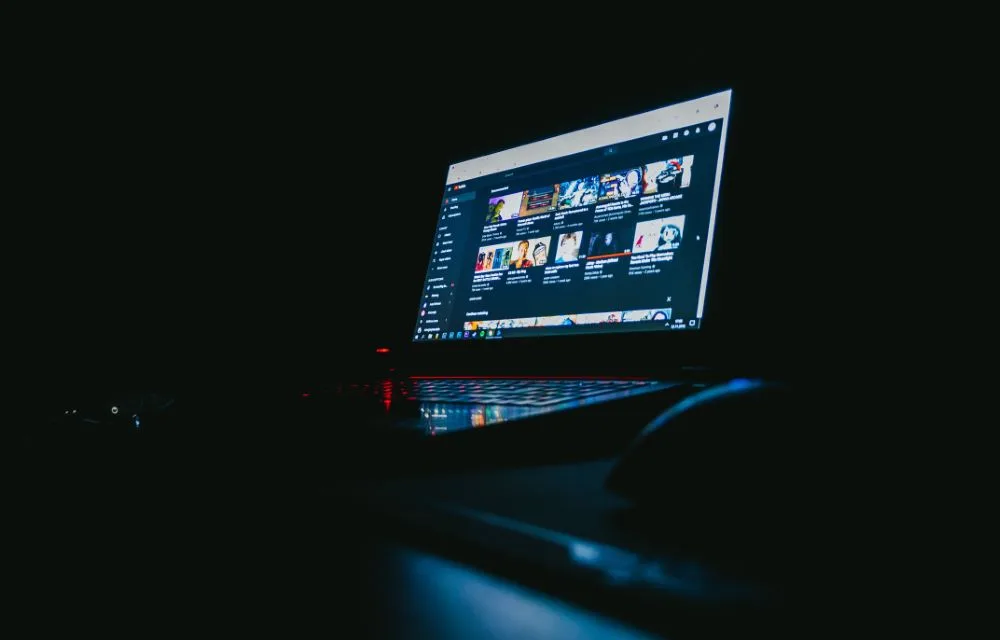
Photo by Mark Cruz on Unsplash
Free video editors love hiding the catch until the very end. You spend an hour on your clip, hit export, and there’s a logo stamped in the corner. Not ideal. Or the app quietly keeps the better quality locked away until you pay up.
I wanted a list I could just hand to a beginner, no surprises attached. So this guide covers the free video editing software I’d actually recommend, and I’ve looked closely at watermarks, export limits and how steep each learning curve feels. A few of these are open source (basically, a community builds them out in the open and anyone can use them for free).
Quick answer: If you want one free editor you won’t outgrow, get DaVinci Resolve. Its free version goes up to Ultra HD at 60 fps, and Blackmagic doesn’t list a watermark. For quick social clips, CapCut is the fastest, as long as you avoid Pro-only assets and template endings that trigger a watermark. On a Mac or iPhone, start with iMovie; on Windows 11, try Clipchamp; and if you want open-source tools with no strings attached, look at Shotcut, OpenShot or Kdenlive.
Best free video editors compared
The DaVinci Resolve and CapCut details below come straight from their official pages. The rest lean on widely published listings, so I’ve marked those and you’ll know where to double-check.
| Editor | Cost | Watermark on free exports | Platforms | Best for |
|---|---|---|---|---|
| DaVinci Resolve | Free (paid Studio version) | None listed | Windows, Mac, Linux, iPad* | Learning serious editing |
| CapCut | Free (paid Pro plan) | Sometimes | Check CapCut’s site | Fast social media clips |
| iMovie* | Free | None | Mac, iPhone, iPad | Apple users |
| Clipchamp* | Free plan (paid Premium) | None on free plan | Comes with Windows 11 | Quick edits on Windows |
| Shotcut* | Free, open source | None | Windows, Mac, Linux | A capable middle ground |
| OpenShot* | Free, open source | None | Windows, Mac, Linux, ChromeOS | Absolute basics, Chromebooks |
| Kdenlive* | Free, open source | None | Windows, Mac, Linux | A step up, especially on Linux |
* Anything marked with an asterisk wasn’t confirmed on the official site for this update. Have a look at the official page before you download.
The 7 best free video editors for beginners
1. DaVinci Resolve (free version)

If you think you’ll actually stick with editing, this is the one I’d pick. Blackmagic Design (the company behind it) gives away a free version that does far more than most beginners will ever ask of it.
Going by Blackmagic’s official DaVinci Resolve page, the free version handles almost all 8-bit video formats at up to 60 frames per second, at resolutions as high as Ultra HD 3840 x 2160. That’s 4K, for most people. Blackmagic also says the free version gets multi-user collaboration and HDR grading, plus color tools like luma, HSL and 3D keyers and the color warper.
Color grading is just tweaking the look and color of your footage. And it’s where Resolve really shines. That’s a big reason I’d push ambitious beginners toward it, rather than some simpler app they’ll be bored of in six months.
The latest major release is DaVinci Resolve 21, which Blackmagic announced at the NAB show in April 2026. New in this one: a Photo page for working with still images.
So what do you miss by not paying? Studio adds the DaVinci AI Neural Engine and AI tools like Magic Mask, AI noise reduction and text-based editing, along with more Resolve FX effects and film grain. It also supports up to 120 fps at 32K, 10-bit formats, multiple GPUs and hardware H.264/H.265 encoding. For a beginner, though? None of that’s a dealbreaker. Not even close.
The interface is the downside. Resolve is a professional tool and doesn’t pretend otherwise, so expect to sit through a few tutorials before it clicks. It’s heavy on hardware too. I couldn’t confirm the exact system requirements for version 21 on Blackmagic’s own pages, so check their support page before you put it on an older laptop.
Watermarks? Blackmagic doesn’t list a watermark or trial limit for the free version. But the page never spells that out in one plain sentence, so I’d export a short test clip first. Just to be sure.
What I liked
- The free version goes all the way up to Ultra HD at 60 fps
- Blackmagic doesn’t list a watermark or trial limit
- Proper color grading tools, and you pay nothing for them
- There’s a paid upgrade path if you ever need it
What could be better
- Pretty steep learning curve if you’re totally new
- Older computers will struggle with it
- AI stuff like Magic Mask and text-based editing is Studio-only
- You need Studio for 10-bit formats and hardware H.264/H.265 encoding
DaVinci Resolve
Free download
- Up to Ultra HD 3840 x 2160 at 60 fps
- Multi-user collaboration and HDR grading
- Color warper and keyers
DaVinci Resolve Studio
Limited-time 20% discount price shown on Blackmagic’s site
- DaVinci AI Neural Engine and Magic Mask
- Up to 120 fps at 32K
- 10-bit formats and multiple GPUs
Studio price is what Blackmagic’s official DaVinci Resolve Studio page showed (“Buy Online Now $236”) during its limited-time discount announced in October 2026. Prices change, so check the official page before you buy.
2. CapCut
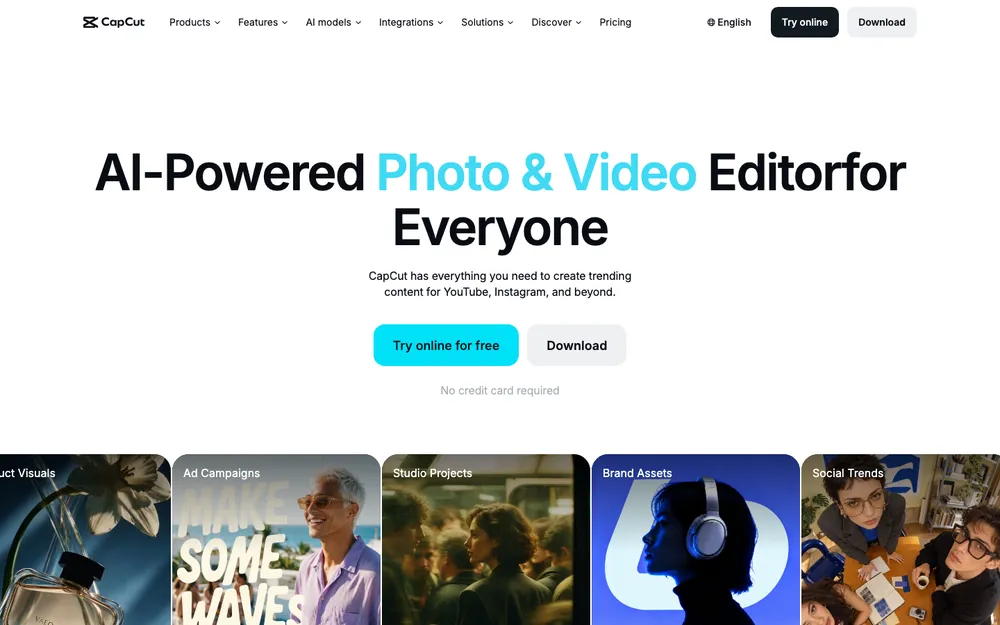
CapCut is what I’d hand to someone who mostly wants short videos for social media and has zero interest in learning a whole editing suite. It leans hard on templates and stock assets. So you can get something decent out the door pretty fast.
Watermarks are where it gets a bit tricky. CapCut’s own help center says most free exports don’t have one. But one can sneak in if a template has an ending clip, if a stock asset you used needs attribution, or if your export settings still include the default ending.
Pro assets are the bigger gotcha. CapCut says that if your video uses anything Pro-only, getting rid of the watermark always needs Pro, whatever resolution you export at. And premium assets are really easy to drop in without noticing. That’s the annoying part. Keep an eye out before you sink an hour into a project.
I’m not quoting a price here. CapCut’s pricing shifts by region, device and app store, and there’s also a cheaper Standard tier I couldn’t confirm a price for. Check what it costs on the device you’d actually be paying on.
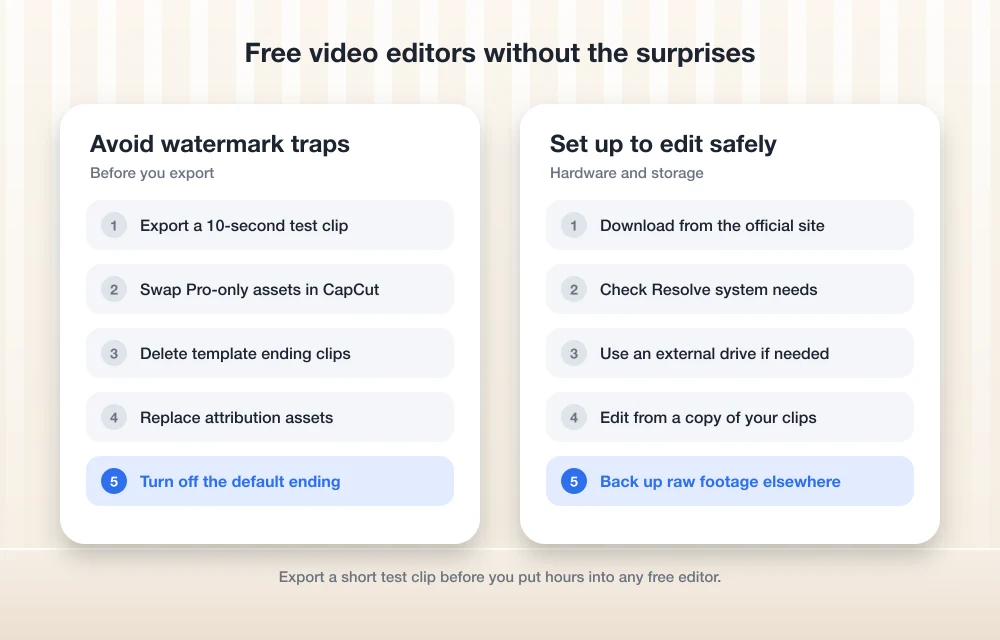
Avoid Pro-only assets
Swap out anything Pro-only for a free alternative before you export.
Check your template’s ending
Started from a template? Delete its ending clip if it has one.
Swap attribution assets
Replace any stock asset that needs attribution.
Review export settings
Make sure the default ending isn’t switched on, then export.
What I liked
- Most free exports have no watermark, according to CapCut
- You can knock out a short social video really quickly
- Templates give beginners a nice head start
What could be better
- Use Pro-only assets and you get a watermark unless you pay
- Template endings and attribution assets can add one too
- Pricing is all over the place by region, device and app store
3. iMovie
Got a Mac, iPhone or iPad? Then the friendliest option is probably already on it. iMovie is Apple’s free editor for all three, and it’s widely listed as exporting up to 4K.
It’s the kind of app I’d expect most people to figure out in an afternoon, which is exactly what you want when you’re starting out. No Resolve-level color tools, sure. But you won’t be drowning in panels either. I couldn’t confirm the current version and export details this time, so peek at Apple’s iMovie page or the App Store listing before you count on a specific feature.
4. Clipchamp
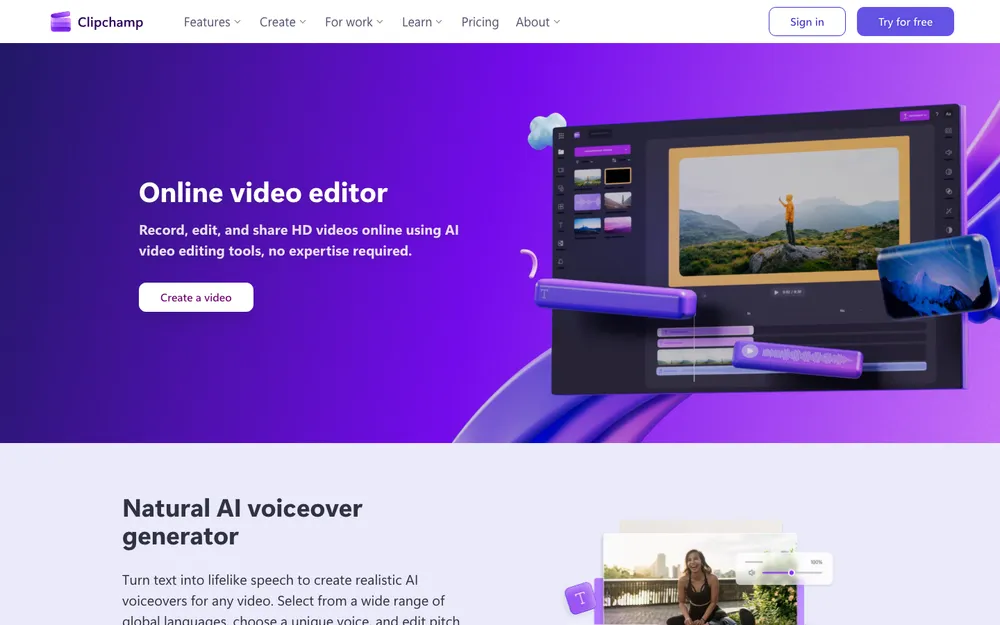
Clipchamp comes with Windows 11, so for a lot of PC owners it’s the obvious first stop. The free plan reportedly exports at up to 1080p, no watermark. Plenty for YouTube, Instagram and most family videos.
There’s a paid Premium plan as well. I didn’t confirm what it costs right now, so trust Clipchamp’s official pricing page over whatever number happens to be floating around.
5. Shotcut
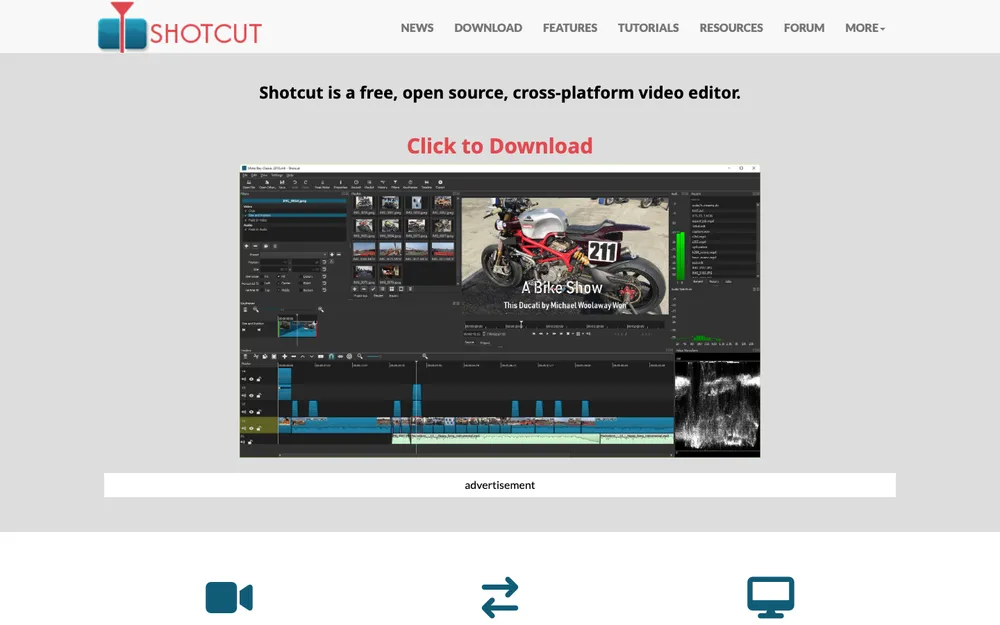
Shotcut is free, open source and listed for Windows, Mac and Linux, with no watermark. I like where it sits. It does more than the phone-style apps, but it’s nowhere near as overwhelming as Resolve.
The interface looks kind of plain at first. Once you know where everything lives, though, it’s a solid all-rounder that’ll never ask you for money. Version numbers follow a year-based pattern, so check shotcut.org for the newest release.
6. OpenShot
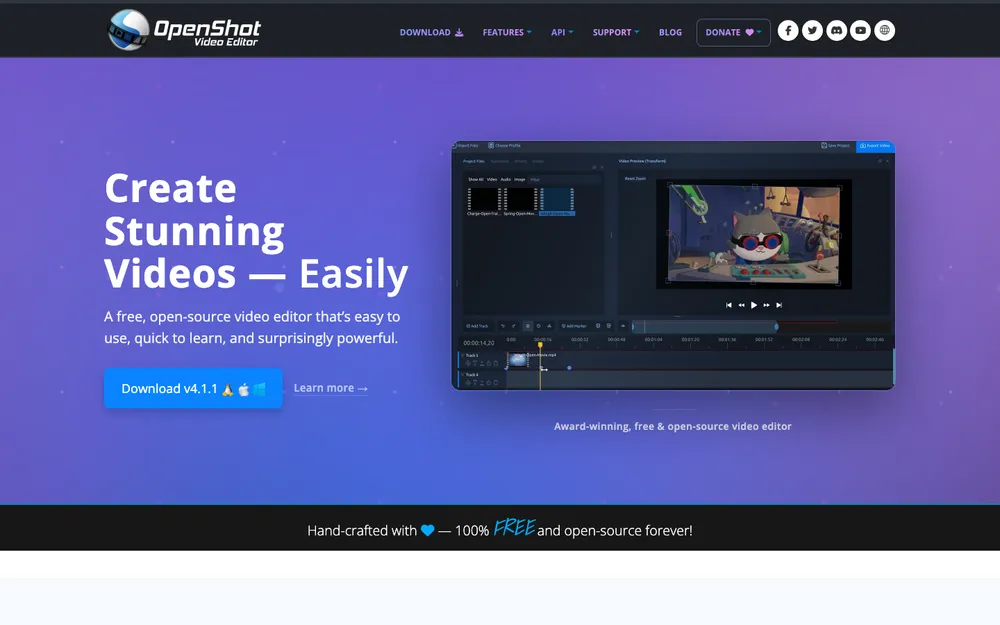
OpenShot is another free, open-source editor. No watermark. It’s listed for Windows, Mac, Linux and ChromeOS, and that last one matters more than it sounds, because on a Chromebook your choices for a real desktop editor are pretty thin and OpenShot is one of the few names that keeps coming up.
I’d file it under “absolute basics.” Just need to cut some clips together, throw on a bit of text and export? It’s a gentle place to start.
7. Kdenlive
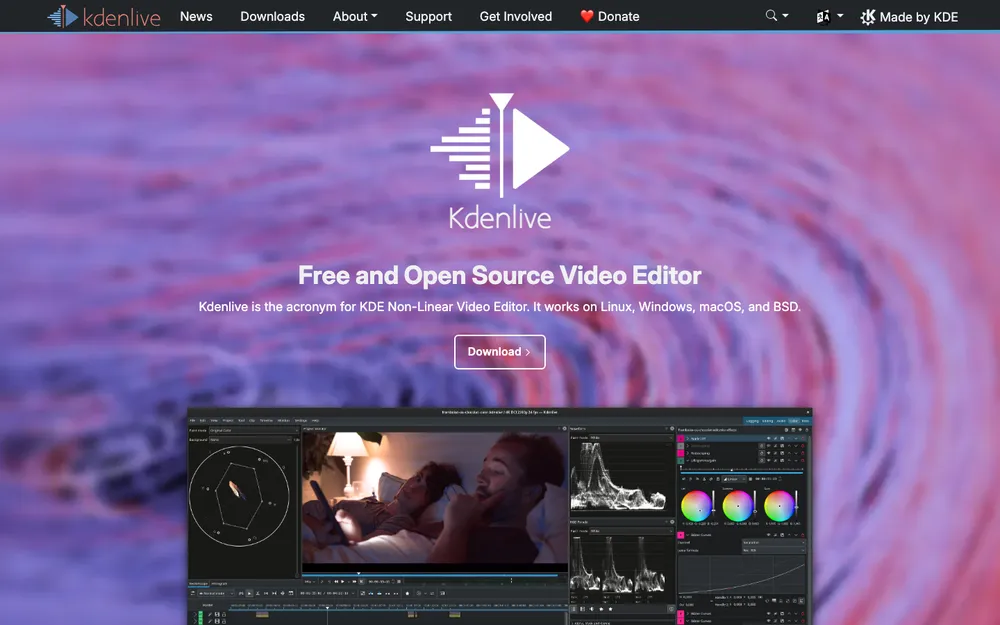
Kdenlive comes from KDE, a long-running free software community best known for its Linux desktop. It’s free, open source and listed for Windows, Mac and Linux. And it doesn’t slap a watermark on anything.
I see it as the natural step up from OpenShot. It’s also the one I’d suggest first to anyone editing on Linux. Releases use year.month numbering, so the version on kdenlive.org tells you at a glance how fresh it is.
Watermarks and export limits: what actually catches beginners
You’re watching for two kinds of limits. A watermark is a logo or bit of text burned right into your video. An export cap is sneakier: the free version just won’t save above a certain resolution or frame rate.
DaVinci Resolve’s free version tops out at Ultra HD 3840 x 2160 and 60 fps, with 8-bit formats. Want 120 fps, higher resolutions or 10-bit? That’s Studio territory. But the cap is so generous you’ll probably never bump into it.
CapCut doesn’t stamp everything. Whether you get a watermark depends on Pro assets, template endings, attribution assets and the default ending in your export settings. Clipchamp’s free plan is reportedly stuck at 1080p, while iMovie is widely listed at up to 4K. And the three open-source editors? No watermark at all.
Which free editor is easiest to learn?
This is my own read of how each tool is designed, not a timed test. If you want results today, iMovie on Apple devices and Clipchamp on Windows are the gentlest way in. CapCut’s right up there too, especially for vertical social videos.
Next comes OpenShot. Then Shotcut, which asks a bit more of you but gives you more back, and Kdenlive sits a step past that.
DaVinci Resolve has the steepest learning curve here. By far the highest ceiling, too. If you’re the sort of person who’d happily watch tutorials on a lazy Sunday afternoon, I’d honestly skip the in-between apps and start there.
Before you start: your computer, storage and backups
Free software won’t do you much good if your computer chokes on the timeline. Video editing hammers your processor, graphics and memory, and Resolve is the hungriest of the lot. Shopping for a new machine? My roundup of the best laptops for small business is a decent place to find something that can handle editing too.
Storage is the other thing that sneaks up on people. Video files get huge fast, so plenty of folks end up keeping footage and projects on an external drive. If yours suddenly vanishes mid-project (it happens), here’s how to fix an external drive not detected on Windows or Mac.
And please, please back up your raw footage somewhere other than the drive you’re editing from. Once your projects start to matter, cloud backup for video is worth paying for. My guide to the best cloud storage for business compares options that work just as well for personal projects.
Resolve if you’re patient, iMovie or Clipchamp if you’re not
Got a reasonably capable computer and a bit of patience? I’d start with DaVinci Resolve. It’s free, Blackmagic doesn’t list a watermark, and you’re learning something professionals actually use.
If you’d rather get the hang of something tonight, go with whatever’s closest to hand: iMovie on Apple devices, Clipchamp on Windows 11, or CapCut for social clips (watch those Pro assets, seriously). And if you never want to deal with upsells, Shotcut, OpenShot and Kdenlive really are free. No catch.
Whatever you pick, export a quick test clip before you commit. It’s the easiest way I know to dodge a watermark surprise.
Frequently Asked Questions
Is DaVinci Resolve really free?
Yes. Blackmagic Design offers a free version that handles almost all 8-bit formats at up to 60 fps in Ultra HD 3840 x 2160, and you get multi-user collaboration and HDR grading too. Blackmagic doesn’t list a watermark or trial limit. The paid Studio version adds AI tools like Magic Mask, 10-bit formats and up to 120 fps at 32K.
Does CapCut add a watermark to free videos?
Mostly no, according to CapCut’s help center. One can show up if a template includes an ending clip, a stock asset needs attribution, or your export settings include the default ending. And if your video uses Pro-only assets, you’ll need CapCut Pro to remove the watermark.
What is the easiest free video editor for a complete beginner?
On a Mac, iPhone or iPad, start with iMovie. On Windows 11, Clipchamp is the obvious pick. CapCut is also very beginner-friendly for short social media videos. DaVinci Resolve is the most powerful, but it takes the longest to learn.
Which free video editor can export in 4K?
DaVinci Resolve’s free version exports up to Ultra HD 3840 x 2160 at 60 fps, according to Blackmagic. iMovie is widely listed as exporting up to 4K, though it’s worth checking Apple’s official page for current details. Clipchamp’s free plan is reportedly limited to 1080p.
Do I need a powerful computer for free video editing software?
Depends on the app. Simpler editors go easier on older hardware, while DaVinci Resolve leans hard on your processor, graphics and memory. Check Blackmagic’s support page for Resolve’s current system requirements before you install it.
Featured image: Mark Cruz on Unsplash.
Disclosure: TheTechHacker has no paid relationship with the companies in this article.
You might also like
Top Free Video Editors for Creating YouTube Content in 2023
YouTube’s success in 2023 will depend heavily on the creation of interesting video content, and video editing will be an integral part of that process. Unfortunately, it might be difficult to select the correct video editing software, especially for beginners. Creators may now make interesting content without breaking the bank thanks to the availability of…
10 Best Video Editing Software for YouTube
One of the most sought after social media network of the 21st century is, without doubt, the one and only one ‘YouTube’. The number of videos uploaded to this video sharing platform is truly unlimited. In fact, people are of the belief that YouTube is the answer to most of their queries and it gives…

Best Video Editing Software in 2026 for Windows and Mac: 6 Picks Compared
I compare Adobe Premiere, DaVinci Resolve, Final Cut Pro, PowerDirector, Filmora and CapCut desktop on features, learning curve and how each one is sold, so you can pick the right editor for Windows or Mac.

The week in tech, minus the noise.
New reviews, fixes and the stories that matter — once a week, straight to your inbox.
We only use your email to send the newsletter. Unsubscribe any time. See our privacy policy.
Comments