

How to Fix Mission Control and Window Bugs in macOS 27 Golden Gate
Mission Control has been unreliable for many Mac users since macOS 27 Golden Gate came out. TechRadar reports that the animations stutter, and that dragging a desktop to another monitor can leave a frozen black screen behind. Some users also get a black screen when they switch to a full-screen app. Mac Observer reports that…


Image: Apple
Mission Control has been unreliable for many Mac users since macOS 27 Golden Gate came out. TechRadar reports that the animations stutter, and that dragging a desktop to another monitor can leave a frozen black screen behind. Some users also get a black screen when they switch to a full-screen app. Mac Observer reports that later updates didn’t fix it. Apple hasn’t acknowledged the problem. The release notes for macOS 27.2, 27.2.1 (November 9) and the 27.3 beta don’t mention a Mission Control fix. Until Apple patches it, these settings changes and workarounds make Mission Control, Spaces and windows behave better.
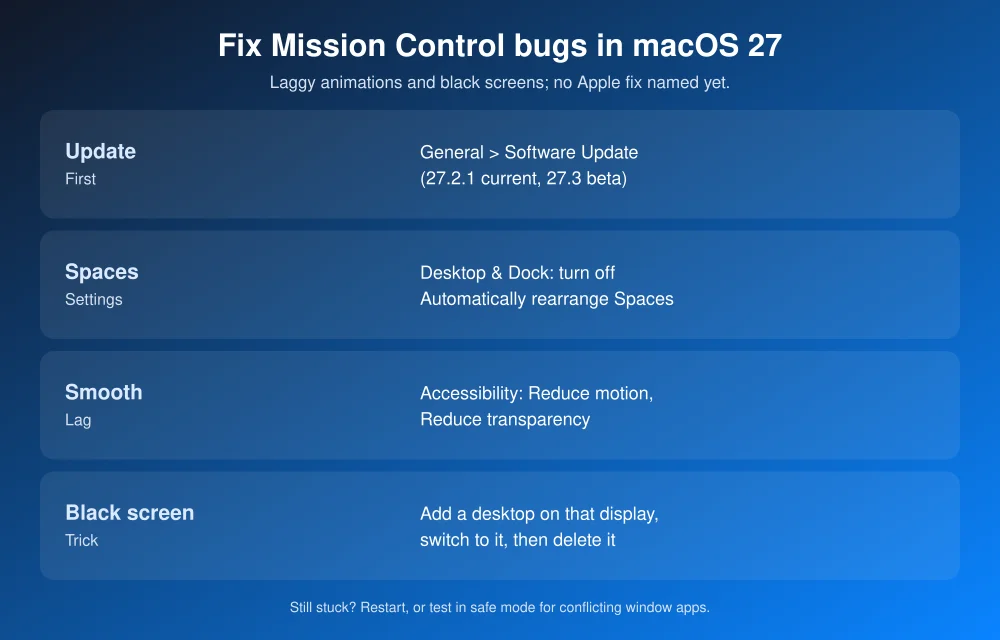
Quick answer: To fix Mission Control bugs in macOS 27, update to the latest version in System Settings > General > Software Update. Then go to System Settings > Desktop & Dock > Mission Control and turn off Automatically rearrange Spaces based on most recent use. Under Accessibility > Display, turn on Reduce motion and Reduce transparency to cut the lag. If a desktop leaves a black screen behind, open Mission Control, add a new desktop on that display, switch to it, then delete it. Restarting your Mac clears most stuck windows.
What’s wrong with Mission Control in macOS 27
- Laggy animations: TechRadar reports that opening Mission Control judders and feels sluggish, and the menu bar and Control Center can be slow too.
- Black screen on external displays: moving a desktop to another monitor can leave an unresponsive black screen behind.
- Black full-screen apps: switching to a full-screen app sometimes shows only black.
- Display layout resetting: Apple lists one related known issue in the macOS 27.2 release notes. With an external display connected, display settings might not be restored correctly, and the arrangement might change.
How to fix Mission Control and window bugs
1. Update macOS
Go to System Settings > General > Software Update. macOS 27.2.1 is the current release, and 27.3 is in beta. No update has named a fix yet, but each one includes bug fixes, so stay on the latest version.
2. Change Mission Control settings
Go to Apple menu > System Settings > Desktop & Dock and scroll to Mission Control, per Apple’s Desktop & Dock guide:
- Turn off Automatically rearrange Spaces based on most recent use, so your desktops stay in order.
- Try turning Group windows by application on or off to see which layout is easier to read.
- If you use more than one display, toggle Displays have separate Spaces. You’ll need to log out and back in for this change to take effect. Stage Manager needs this setting turned on.
3. Reduce motion and transparency
OSXDaily suggests cutting back the visual effects that make animations stutter:
- Go to System Settings > Accessibility > Display and turn on Reduce transparency.
- Go to Accessibility > Motion (or Display on some Macs) and turn on Reduce motion.
- In Desktop & Dock, turn off Automatically hide and show the Dock.
4. Clear a black screen left behind
This trick comes from a user quoted by TechRadar:
- Open Mission Control with a three-finger swipe up or Control-Up Arrow.
- On the display with the black screen, click + in the Spaces bar to add a desktop.
- Switch to the new desktop, then go back to Mission Control and delete it.
5. Fix window tiling settings
If windows snap in ways you don’t want, go to Desktop & Dock > Windows. You can turn off Drag windows to left or right edge of screen to tile and Drag windows to menu bar to fill screen, or turn on Hold ⌥ key while dragging windows to tile so tiling only happens when you want it.
6. Restart, or try safe mode
A restart from the Apple menu clears most stuck windows. If problems come back right away, start up in safe mode.
- Apple silicon: shut down, hold the power button until you see startup options, select your disk, then hold Shift and click Continue in Safe Mode.
- Intel: restart while holding Shift.
If the bugs don’t happen in safe mode, a login item or third-party window manager may be the cause. A report on Apple’s developer forums says macOS 27 changed how Spaces are stored, which can break older window-management apps, so update or remove them.
7. Give indexing time to finish
Right after a major upgrade, your Mac reindexes files for Spotlight, which can slow everything down for a few days. Keep it plugged in and awake overnight.
More Mac help: fix iPhone to Mac copy and paste not working, external drive not detected on Mac, and how to use Gemini computer use on a Mac.
FAQs
Why is Mission Control laggy in macOS 27?
Users have reported stuttering animations since macOS 27 Golden Gate launched, and Apple hasn’t named a fix. Turning on Reduce motion and Reduce transparency and updating macOS help.
How do I fix a black screen after moving a desktop in macOS 27?
Open Mission Control, add a new desktop on that display, switch to it, then delete it. Restarting your Mac also clears it.
How do I stop my Mac desktops from rearranging?
Go to System Settings > Desktop & Dock > Mission Control and turn off Automatically rearrange Spaces based on most recent use.
Did macOS 27.2.1 fix Mission Control?
No. Apple describes macOS 27.2.1 as bug fixes and security updates, and none of its release notes, including the 27.3 beta’s, mention a Mission Control fix.
Featured image: Apple.
Disclosure: TheTechHacker has no paid relationship with Apple or any company mentioned here.
More in How-to
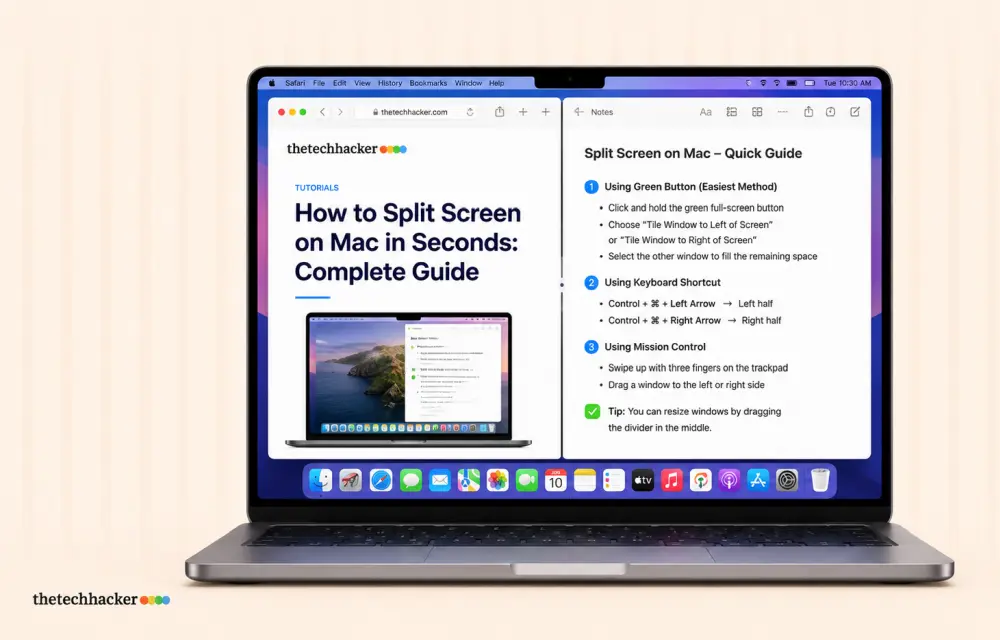
How to Split Screen on Mac in Seconds: Complete Guide
Learn how to split screen on Mac to view two apps side by side. This guide walks you through Split View setup, keyboard shortcuts, and troubleshooting tips.

How to fix Windows 10/11 users report “can’t create new folder” bug
A number of Windows 10 and 11 users are seeing a strange issue where the “New > Folder” option disappears, stopping fresh folders from being created. The glitch is usually fixable with a few quick steps. Below are seven practical solutions, arranged from simplest to advanced, along with a registry repair that restores the missing…

How to Fix DNS Error- DNS_Probe_Finished_no_Internet in your PC
We have all known that Windows is the preferred Operating System around the World when it comes to OS of choice. Now, some of you may argue that MacOS is better than Windows. However, we will reserve that debate for some other day. If you are an avid Windows user, you might have known that there…
The week in tech, minus the noise.
New reviews, fixes and the stories that matter — once a week, straight to your inbox.
We only use your email to send the newsletter. Unsubscribe any time. See our privacy policy.
Comments