

How to Free Up Disk Space on a Windows PC Using Claude
Recently, I have used many tools to clean up my PC, but the best hidden tool turned out to be Claude. It cleared many unwanted files from my PC, and it isn’t even sold as a cleaner. A typical cleaner works from a fixed list of junk locations. Claude can look at your folders, explain…


Image: Anthropic
Recently, I have used many tools to clean up my PC, but the best hidden tool turned out to be Claude. It cleared many unwanted files from my PC, and it isn’t even sold as a cleaner. A typical cleaner works from a fixed list of junk locations. Claude can look at your folders, explain what is using the space and why, and remove only what you approve. The catch is that a mistake can delete something you need, so the order of the steps matters. This guide covers the setup, the prompts to copy, what’s safe to remove, and the settings that stop Claude from deleting files without asking.
Quick answer: To free up disk space on a Windows PC using Claude, install the Claude desktop app, sign in with a paid plan, and open the Code tab. Choose Local, open a new empty folder such as C:\PC-Cleanup, and set the permission mode to Manual. Ask Claude to scan the C: drive and list the largest folders without deleting anything. Review the list, approve one group at a time, and have Claude send personal files to the Recycle Bin. Use Windows’ own tools for system files. Never let Claude delete anything inside C:\Windows\WinSxS.
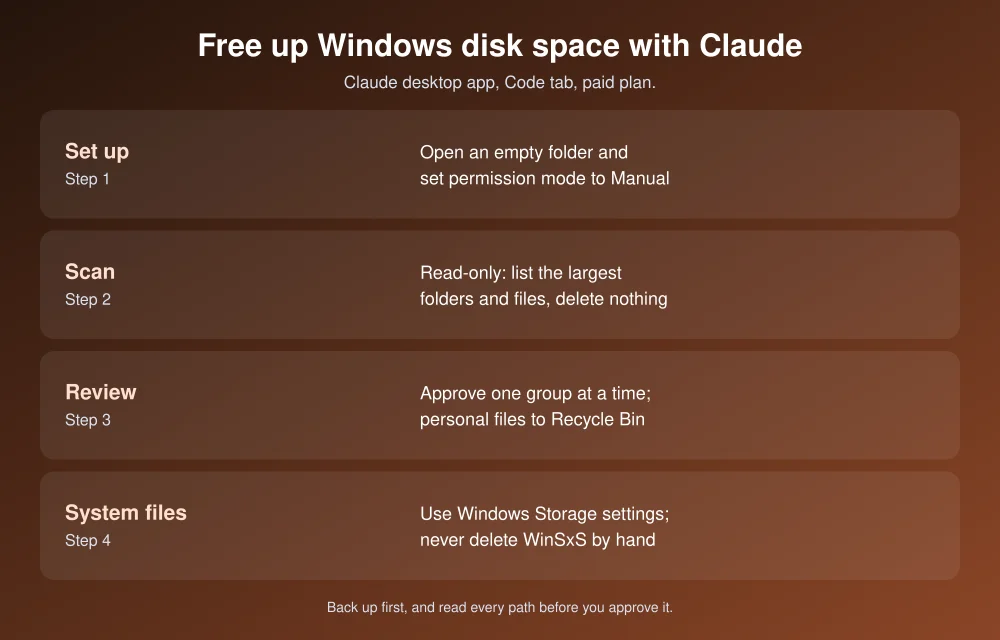
What you need
- Windows 10 version 1809 or later. The Claude Code setup page lists this as the minimum. Both x64 and ARM64 PCs have an installer.
- A paid Claude plan. Anthropic says the free plan doesn’t include Claude Code. Claude Pro costs $20 a month, or $17 a month billed yearly.
- A backup of anything you can’t lose. Copy photos, documents and work files to an external drive or cloud storage first.
Regular Claude chat in a browser can’t scan your drive. It can only suggest steps. You need Claude Code or Claude Cowork, which work with files on your PC.
Claude Code or Cowork: which should you use?
| Claude Code (Code tab) | Claude Cowork | |
|---|---|---|
| Best for | Finding what fills the whole C: drive | Cleaning one folder, such as Downloads |
| What it reaches | Anything your Windows account can, through commands you approve | Only folders you connect, unless you use computer use |
| Deleting files | Asks first in Manual mode | Needs your permission before permanent deletion |
| Plan | Any paid plan | Any paid plan |
Use Cowork if you’re nervous or only want a tidy Downloads folder. Use Claude Code if your C: drive is full and you don’t know why. Anthropic’s Cowork safety guide warns that its deletion protection doesn’t cover computer use, so leave that feature off for this job.
How to free up disk space on Windows using Claude
Step 1: Install Claude and open the Code tab
- Download the Windows app from claude.com/download and run the installer.
- Open Claude from the Start menu and sign in.
- Click the Code tab. You don’t need to install Node.js or the command-line version.
Step 2: Open an empty folder and switch to Manual
- In File Explorer, create an empty folder called C:\PC-Cleanup.
- In Claude, choose Local in the environment selector under the prompt box.
- Click the folder control, choose Open folder, and pick C:\PC-Cleanup. Don’t open your user folder or the whole drive.
- Set the permission mode to Manual.
Check the mode before your first message, because sessions can start in Auto, where a background check approves commands instead of you. In Manual, Claude asks before running commands or editing files. Avoid Accept edits too. In that mode, Anthropic’s docs say Remove-Item, the PowerShell delete command, can be approved automatically inside the open folder. Never use Bypass permissions for cleanup.
Step 3: Run a read-only scan
Paste this prompt:
Scan my C: drive and tell me what is using the most space. This is read-only: do not delete, move or change anything. Show total and free space, the 20 largest folders, and the 30 largest files. Skip anything you can’t read and tell me what you skipped. Save the result as report.md in this folder.
Claude will usually ask before running PowerShell commands. Commands such as Get-ChildItem, Get-PSDrive and Measure-Object only read information. If you see Remove-Item, del, rd, rmdir or rm at this stage, choose No. A full scan can take several minutes.
Step 4: Ask Claude to sort the results
Sort the report into three groups: (A) caches and temporary files that apps rebuild, (B) files only I can decide on, such as videos, installers, virtual machines and old projects, and (C) Windows and app files that must not be touched. For each item give the path, size, what created it, what happens if I delete it, and how sure you are. Don’t delete anything.
This is where Claude beats a normal cleaner. It can tell you that a large folder belongs to a game you uninstalled, or that a huge .vhdx file is a virtual disk. If it says it isn’t sure, leave that item alone.
Step 5: Approve one group at a time
Start with group A only. Before each deletion, show me the exact path and size and wait for my approval. Close nothing and skip files in use. Don’t use wildcards on a parent folder. After each item, tell me how much space was freed.
Read each path before you approve it. If a command is hard to understand, ask Claude to explain it first.
Step 6: Send personal files to the Recycle Bin
For the group B items I list next, move them to the Recycle Bin instead of deleting them permanently. Confirm each one is in the Recycle Bin afterward.
This step matters because Remove-Item in PowerShell doesn’t use the Recycle Bin, and Claude Code’s /rewind can’t bring back files that only a command changed. The space isn’t freed until you empty the Recycle Bin, so use your PC for a few days, then empty it.
Step 7: Check the result
Compare free space now with the first report. List everything that was removed, with sizes, and save it as removed.md in this folder.
Keep removed.md. If an app misbehaves later, you’ll know what changed.
What’s safe to remove and what isn’t
| Item | Remove it? | What to know |
|---|---|---|
| Temporary files (%TEMP%) | Usually yes | Close apps first and skip files in use |
| Browser and app caches | Usually yes | Remove only the cache, not the whole profile with your passwords and bookmarks |
| Developer caches (npm, pip) | Usually yes | Downloaded again when needed |
| Old installers and ISO files | Your call | Check you can download them again |
| Virtual machines, .vhdx, AI models | Your call | Can be huge, but may hold your only copy of data |
| AppData folders of current apps | No | Holds settings, saved games and sign-ins |
| Windows.old | Use Windows Settings | You lose the option to go back to the previous Windows version, and it can’t be undone |
| hiberfil.sys | Don’t delete the file | Turning off hibernation removes it, but hibernation and hybrid sleep stop working |
| C:\Windows\WinSxS | Never by hand | Microsoft says your PC might not boot or update |
| C:\Windows\Installer, System32, Program Files | No | Uninstall apps from Settings instead |
Use Windows for system files
Let Claude find the problem, then let Windows clean its own files. From Microsoft’s storage guide:
- On Windows 11, go to Settings > System > Storage > Cleanup recommendations.
- Open Temporary files, Large or unused files, Files synced to the cloud and Unused apps.
- Select what you don’t need and choose Clean up.
- Turn on Storage Sense on the same Storage page to clear temporary files and the Recycle Bin automatically.
On Windows 10, search for Disk Cleanup and choose Clean up system files.
To shrink WinSxS safely, open Command Prompt as administrator and run these yourself, per Microsoft’s WinSxS page:
Dism.exe /Online /Cleanup-Image /AnalyzeComponentStore
Dism.exe /Online /Cleanup-Image /StartComponentCleanup
Run the second command only if the first says cleanup is recommended. Don’t add /ResetBase unless you accept that the updates already installed can’t be uninstalled afterward.
Safety rules before you approve anything
-
Block permanent deletes while you scan. Create a folder named .claude inside C:\PC-Cleanup, add a file named settings.json with the rule below, then start a new session. Remove the rule when you’re ready to delete.
{
  "permissions": {
    "deny": ["PowerShell(Remove-Item *)", "Bash(rm *)"]
  }
}
It’s a safety net, not a guarantee, since other commands can also delete files.
Remove-Item on drive roots, top-level system folders and your home folder, and refuses wildcard deletes, according to its permission docs. It doesn’t protect every folder inside them.Deleted the wrong file? Stop using the drive and see our best data recovery software. If Claude won’t sign in, use our fixes for Claude login errors. If Windows itself is broken, compare Cloud Rebuild and Reset This PC. Windows can also log which AI agents you run, so see how to turn off AI agent telemetry.
FAQs
Can Claude really clean up my PC?
Yes. Claude Code and Claude Cowork can scan folders on a Windows PC and remove files you approve. Claude chat in a browser can only give instructions.
Is it safe to let Claude delete files?
It’s reasonably safe if you use Manual mode, back up first, read every path and send personal files to the Recycle Bin. It isn’t safe to approve deletions without reading them.
Can I use Claude to free up disk space for free?
No. The free plan doesn’t include Claude Code or Cowork. Windows’ own Cleanup recommendations and Storage Sense are free.
Does Claude replace Storage Sense or Disk Cleanup?
No. Use Windows’ tools for system files and Claude for finding large folders those tools don’t explain, such as old projects, app leftovers and virtual machines.
Featured image: Anthropic.
Disclosure: TheTechHacker has no paid relationship with Anthropic, Microsoft or any company mentioned here.
More in How-to
What is $WINDOWS.~BT Folder On your PC Hard Drive
Windows installation directory (Most probably C:/) will be filled up by the new program installation or desktop files in you PC. Once you have found that, it consuming some storage without any installations or files, It might look suspicious. You have cleared the Temp folder and cleaned junk files, but nothing pays. This might be due to…
Speed up Lenovo Laptop Running Slow in Windows 10
Your Windows 10 laptop may go slower and slower over time. There are several reasons why your Lenovo laptop is acting up and gone painfully slow over time. Run through the checklist given below to fix this issue permanently.
How To Make Your Old Computer As New
Is old computer lying around in your House? You can make it run like a new one by following simple steps.

The week in tech, minus the noise.
New reviews, fixes and the stories that matter — once a week, straight to your inbox.
We only use your email to send the newsletter. Unsubscribe any time. See our privacy policy.
Comments