

Windows 11 Tracks Which AI Coding Agents You Use: How to Check and Turn It Off
Windows 11 may be noting which AI coding agents you use, such as Claude Code, OpenAI Codex, GitHub Copilot CLI and Cursor, and reporting it to Microsoft as diagnostic data. Independent researcher Xusheng Li published the findings on November 16, 2026, after reverse-engineering a Windows component called MissionControlAggregator. Microsoft hasn’t commented. It records which tools…

Image: Microsoft
Windows 11 may be noting which AI coding agents you use, such as Claude Code, OpenAI Codex, GitHub Copilot CLI and Cursor, and reporting it to Microsoft as diagnostic data. Independent researcher Xusheng Li published the findings on November 16, 2026, after reverse-engineering a Windows component called MissionControlAggregator. Microsoft hasn’t commented. It records which tools ran, not what you typed, and a setting every Windows user already has controls whether it leaves your PC. This guide covers what it collects, how to check your PC, and how to turn it off without breaking anything.
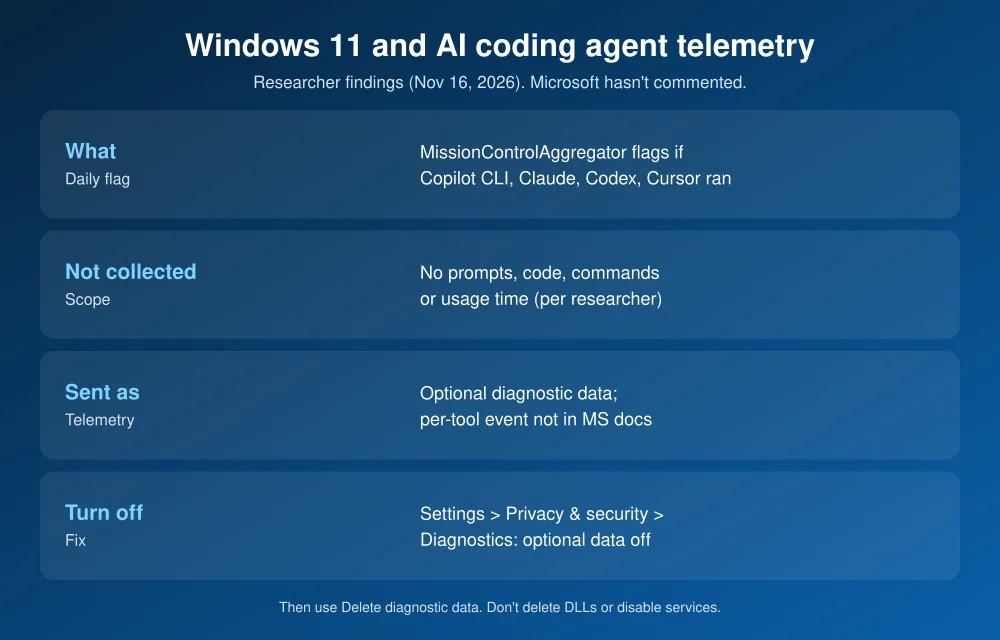
Quick answer: A Windows 11 diagnostic component (MissionControlAggregator.dll, run by the telemetry service) can flag whether you ran AI coding agents such as copilot.exe, claude.exe, codex.exe, cursor.exe or Google Antigravity during the day. It also checks developer tools like Python, Node.js and VS Code. According to the researcher, it records only which tools were seen, not your prompts, code or commands. The data is classed as optional diagnostic data. To stop it being sent, go to Settings > Privacy & security > Diagnostics & feedback, turn Send optional diagnostic data off, then use Delete diagnostic data. Don’t delete Windows files or disable services.
What the researcher found
- The component: MissionControlAggregator.dll, loaded by AggregatorHost.exe. Windows’ “Connected User Experiences and Telemetry” (DiagTrack) service runs it.
- Command-line agents it checks for: copilot.exe (GitHub Copilot CLI), claude.exe (Claude Code), codex.exe (OpenAI Codex) and agy.exe (Google Antigravity), including when run inside WSL.
- Desktop agents: GitHub Desktop, Claude, Codex, Cursor and Antigravity.
- Developer tools: 12 categories, including Node.js, Python, .NET, GCC, Clang, Java, Visual Studio and VS Code.
- What it records: one on/off flag per tool for whether it was seen during a reporting window of about a day. Li says it doesn’t capture prompts, source code, commands or how long you used a tool.
- How it detects tools: by file name only. Li renamed a copy of cmd.exe to codex.exe, and Windows flagged it as Codex.
- Where it was found: Windows 11 25H2, build 26200.9974. A feature flag named CLICodingAgentUsage was already switched on for him as a server-side experiment. IT-Connect reports that the flag was off on a fresh install from Microsoft’s public ISO, so it may not be active on every PC.
What Microsoft documents, and what it doesn’t
Microsoft already lists a related event from the same component in its required diagnostic data documentation for Windows 11. That event “classifies users into Cohorts based on App usage,” and it notes that “IsDeveloper is the only cohort being reported.” In other words, Windows officially reports whether you look like a developer.
The newer, per-tool event that Li found isn’t in Microsoft’s published docs. It’s marked as optional diagnostic data, which matters because optional data is only sent when that setting is on. Microsoft hasn’t explained why it wants this data.
How to stop it being sent to Microsoft
- Open Settings > Privacy & security > Diagnostics & feedback.
- Expand Diagnostic data and turn Send optional diagnostic data off. Windows then sends only required diagnostic data. According to Li, the per-agent event is optional, so it stops being uploaded.
- Expand Delete diagnostic data and click Delete to clear what Microsoft has already collected from this device.
- While you’re there, consider turning off Tailored experiences as well.
Microsoft explains these options on its diagnostics and privacy support page. On work PCs, your IT department may set diagnostic data through policy, and the toggle may be grayed out.
Turning off optional data doesn’t stop the required “IsDeveloper” event Microsoft documents. Windows Home and Pro don’t let you turn required diagnostic data off.
How to check your PC (read-only)
- Is the host running? Open Task Manager > Details and look for AggregatorHost.exe.
- Is the component loaded? In an admin Command Prompt, run
tasklist /m MissionControlAggregator.dll. A result means it’s loaded. - Local state: Li found its saved data in
C:\ProgramData\Microsoft\Diagnosis\AggregatorStorage\. You can look, with admin rights, but leave it alone. - See what’s sent: turn on View diagnostic data on the same Settings page and open the Diagnostic Data Viewer. It only shows events from while it’s running, so leave it open for a while and search for “MissionControlAggregator.”
What not to do: don’t delete the DLL, disable the DiagTrack service, or flip hidden feature flags with tools like ViVeTool. None of that is supported. It can break Windows Update or other features, and a future update may undo it anyway. The Settings toggle is the supported way to stop optional data.
Should developers worry?
By what Li found, this is usage telemetry, not surveillance of your work. No code or prompts are collected, and it’s in the optional data you can switch off. The bigger issue is transparency: the per-tool tracking isn’t in Microsoft’s published docs, and it was switched on for some users through a server-side experiment. If your company has rules about which AI tools staff can use, ask IT whether diagnostic data settings are managed. If you’re choosing AI tools for work, see our guide to ChatGPT Space. For other recent Windows 11 issues, read our passkey “Something went wrong” fix and how to tell whether Microsoft 365 is down.
FAQs
Does Windows 11 track which AI coding tools I use?
A researcher found a Windows 11 component that flags whether tools such as Claude Code, Codex, Copilot CLI and Cursor ran each day, and sends it as optional diagnostic data. Microsoft hasn’t commented, and it may not be active on every PC.
Does it send my code or prompts to Microsoft?
No, according to the researcher. It records only whether each tool was seen during a roughly one-day window, based on the program’s file name.
How do I turn off Windows 11 AI agent tracking?
Go to Settings > Privacy & security > Diagnostics & feedback and turn off Send optional diagnostic data, then use Delete diagnostic data. Don’t delete Windows files or disable services.
Is this the same as Windows Recall?
No. Recall saves snapshots of your screen on Copilot+ PCs. This is a diagnostic flag recording which developer tools ran, with no screenshots or content.
Featured image: Microsoft Windows.
Disclosure: TheTechHacker has no paid relationship with Microsoft, Anthropic, OpenAI, GitHub, Google, Cursor or any company mentioned here.
More in How-to

How to Fix Claude Not Working: Login Errors, Outages and Sign in With Apple
Claude had a rough couple of days. On November 13, Anthropic logged two separate incidents with elevated errors across claude.ai, the Claude API and Claude Code. The first stopped people from signing in, and the second, a few hours later, hit chats, connectors and agents. Late that night, purchases and plan upgrades failed for about…
How to Check If You Installed the Hijacked Microsoft agent-framework Package (1.26.1 and 1.26.2)
On November 17, two malicious versions of Microsoft’s agent-framework Python package, 1.26.1 and 1.26.2, were published to PyPI and stayed up for less than an hour before being pulled. That was long enough to matter: any machine or CI pipeline that installed or upgraded agent-framework in that window may have run a credential stealer that…
How to Fix Memory Integrity Problems After the Windows 11 Update
After installing this month’s Windows 11 update, some people opened Windows Security and found Memory Integrity switched on when they never touched it. Others ran into a warning about an incompatible driver, or a game or older tool that stopped behaving. That’s not a bug. Microsoft is now turning the feature on automatically for supported…
The week in tech, minus the noise.
New reviews, fixes and the stories that matter — once a week, straight to your inbox.
We only use your email to send the newsletter. Unsubscribe any time. See our privacy policy.
Comments