

Best Laptops for Video Editing in 2026: MacBook Pro, ProArt and More
The laptops I’d look at for video editing in 2026, from the M5 Pro and M5 Max MacBook Pro to the ASUS ProArt P16, Lenovo, Razer, Dell and the MacBook Air. I also cover what matters in the CPU, GPU, RAM, screen, storage and ports.

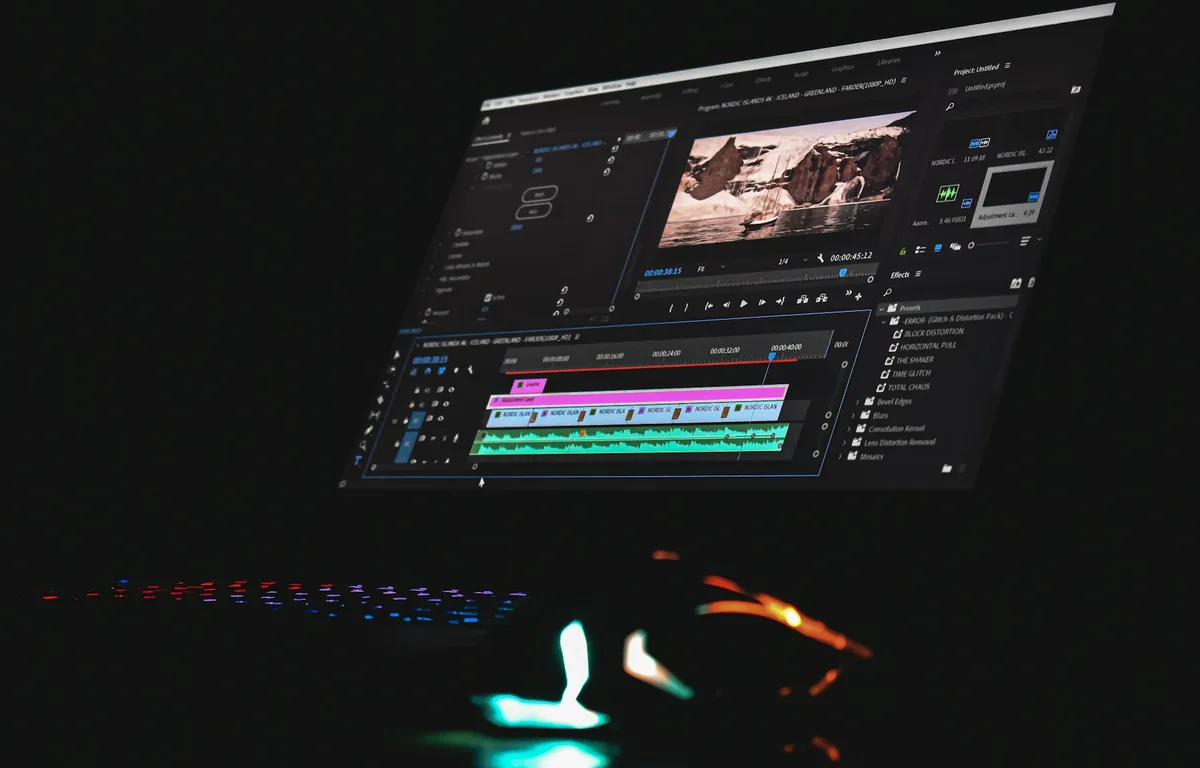
Photo by Sanjeev Nagaraj on Unsplash
Disclosure: This article contains affiliate links. If you buy through them, TheTechHacker may earn a small commission at no extra cost to you.
Nothing exposes a weak laptop faster than video editing. It’s brutal. A machine that feels quick in a browser can start stuttering (and spinning its fans like it’s about to take off) the moment you drop a few 4K clips on a timeline and add a color grade.
So this list is about matching the hardware to the editing you actually do. It runs from the MacBook Pro with Apple’s M5 chips through Windows creator machines from ASUS, Lenovo, Razer and Dell, and the MacBook Air sits at the end for the lighter stuff.
Quick answer: If editing is your work, my top pick is the MacBook Pro with M5 Pro or M5 Max. You get up to 128GB of memory on the M5 Max, a built-in SD card slot and storage that starts at 1TB. Need Windows? The ASUS ProArt P16 is the creator-focused choice, with an OLED screen rated Delta E under 1. The 14-inch MacBook Pro with the base M5 suits 1080p and lighter 4K work, and the MacBook Air with M5 is fine for short, simple edits.
What matters in a video editing laptop
These are the things I’d check, roughly in the order you’ll feel them in your day-to-day editing.
CPU and GPU
The CPU (the main processor) does a lot of the timeline work and some exports. The GPU (the graphics processor) handles effects, color grading and, in plenty of apps, playback too. Modern editing apps lean on both. So a weak GPU will drag you down even if the CPU looks amazing on paper.
What people tend to forget is the media engine, which is dedicated hardware for encoding and decoding specific codecs. And a codec? That’s just the format your video is squashed into, like H.264, HEVC or ProRes. If your chip accelerates the codec your camera shoots in, playback stays smooth even on a fairly modest machine. If it doesn’t, a powerful laptop can still choke. Annoying, but avoidable. Look at codec support, not just core counts.
RAM
Your editing app parks footage, effects and previews in memory while you work. Run short and you’ll get slow previews and dropped frames. On Apple Silicon Macs the memory is “unified,” so the CPU and GPU dip into the same pool, which is why Apple’s memory numbers matter for graphics work too.
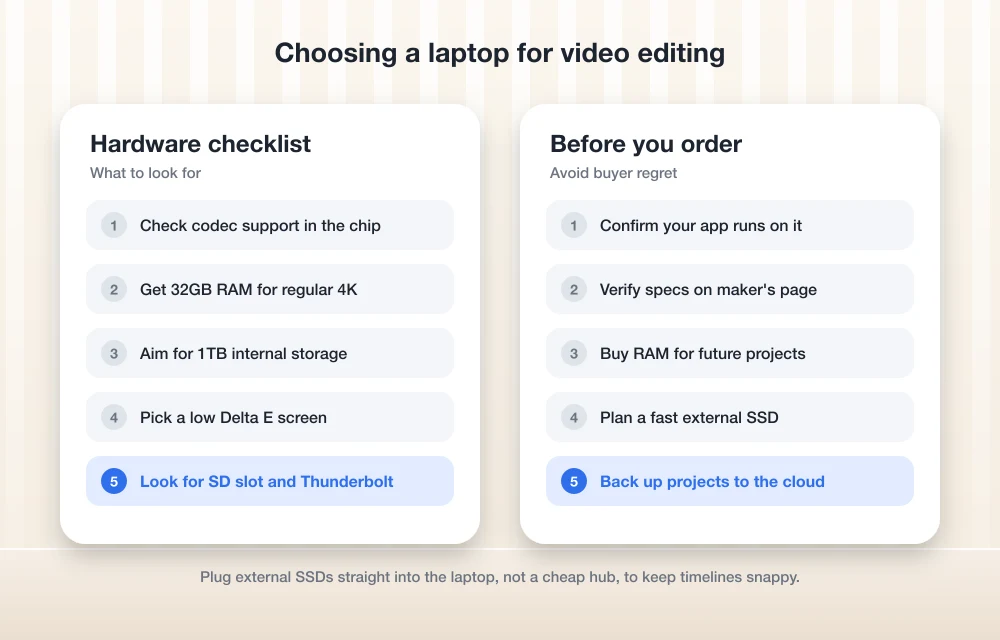
My rough rule: 16GB for light 1080p work, 32GB if you edit 4K regularly. Go higher for multicam, heavy effects or RAW footage. But watch out, because a lot of thin laptops have the memory soldered to the board and you can’t add more later. Buy for the projects you’ll probably be doing in a couple of years, not just this month’s.
Display color
You judge color with your eyes, so yes, the screen matters a lot. Two color ranges come up everywhere. sRGB is the standard one for the web. DCI-P3 is wider, comes from digital cinema and shows up alongside HDR video. Then there’s Delta E, which tells you how far a screen’s colors wander from where they should be. Lower is better.
Grading HDR footage? Then brightness counts too. HDR highlights only look right if the screen can actually get bright enough to show them.
Storage
Video eats space ridiculously fast, especially high-quality formats like ProRes. I’d aim for at least 1TB inside the laptop and plan on a fast external SSD for active projects and archives. Thin laptops usually won’t let you upgrade internal storage, so this is one more thing you’ve got to get right at checkout.
Ports
An SD card slot means one less reader rattling around in your bag. Thunderbolt ports let you hook up fast external SSDs and monitors. HDMI is handy when a client wants to watch a cut on a TV. And a laptop with just two USB-C ports? That’s dongle life, and it gets old fast.
The best laptops for video editing in 2026
1. Apple MacBook Pro with M5 Pro or M5 Max
If you edit for a living, this is where I’d start. Apple announced the 14- and 16-inch MacBook Pro with M5 Pro and M5 Max on March 3, 2026. Both chips use what Apple calls Fusion Architecture, which joins two dies (separate pieces of silicon) into one chip.
The M5 Pro comes as a 15-core CPU with a 16-core GPU, or an 18-core CPU with a 20-core GPU. Its memory bandwidth, basically how fast the chip can shove data in and out of memory, is 307GB/s. The M5 Max has an 18-core CPU with either a 32-core GPU at 460GB/s or a 40-core GPU at 614GB/s. Why should you care about bandwidth? Because big video frames are flying through memory the whole time you’re editing.
Memory starts at 24GB and tops out at 128GB, but only the M5 Max with the 40-core GPU gets you that 128GB. Storage starts at 1TB on the M5 Pro and 2TB on the M5 Max. You can go to 2TB or 4TB on either chip, and 8TB on the M5 Max only. The whole tangle of chips and memory options is laid out on Apple’s MacBook Pro tech specs page.
The 14-inch M5 Pro model weighs 3.5 lb and has an SDXC card slot plus Apple’s N1 wireless chip. So which config? For most 4K work I’d go M5 Pro, and I’d save the 40-core M5 Max for effects-heavy timelines or anyone who needs more than 64GB of memory.
A few things I couldn’t confirm from Apple’s pages: whether the Pro and Max models have Thunderbolt 5, plus the 16-inch screen and battery figures. If any of that matters to you, check the spec page before you order.
What I liked
- Up to 128GB of unified memory on the top M5 Max
- Memory bandwidth up to 614GB/s
- Built-in SDXC slot, so no card reader to carry
- Storage starts at 1TB (2TB on M5 Max)
What could be better
- You only get 128GB on the top M5 Max config
- Couldn’t confirm Thunderbolt 5 on the Apple pages I checked
- 3.5 lb for the 14-inch M5 Pro isn’t exactly ultralight
- It’s macOS only, so Windows-only plugins are out
2. Apple MacBook Pro 14-inch with M5
Apple announced this one with the base M5 chip on October 15, 2025. It’s the sensible Mac if you edit a lot but don’t need the Pro or Max chips. The M5 has a 10-core CPU (4 super cores and 6 efficiency cores) and a 10-core GPU with Neural Accelerators and hardware ray tracing. You also get a 16-core Neural Engine and 153GB/s of memory bandwidth. Memory comes in 16GB, 24GB or 32GB.
Why do I rate it for editing? Mostly the media hardware. Apple lists hardware acceleration for H.264, HEVC, ProRes and ProRes RAW, plus a video decode engine, a video encode engine, a ProRes encode/decode engine and AV1 decode. Shoot ProRes? Then that’s a big deal.
The screen is a 14.2-inch Liquid Retina XDR at 3024×1964. It holds 1000 nits full-screen in XDR and peaks at 1600 nits for HDR content, which is really nice when you’re checking an HDR grade. You get ProMotion up to 120Hz, and there’s a nano-texture option if you work near bright windows.
Ports are generous: an SDXC slot, HDMI, a headphone jack, MagSafe 3 and three Thunderbolt 4 (USB-C) ports at up to 40Gb/s. The 72.4Wh battery ships with a 70W adapter, and Apple claims up to 24 hours of video streaming. Editing burns far more power than streaming, though, so treat that as the best case (a very generous one).
The real limit is the 32GB memory ceiling. Plenty for 1080p and lighter 4K. For long multicam projects, I’d step up to the M5 Pro.
3. ASUS ProArt P16
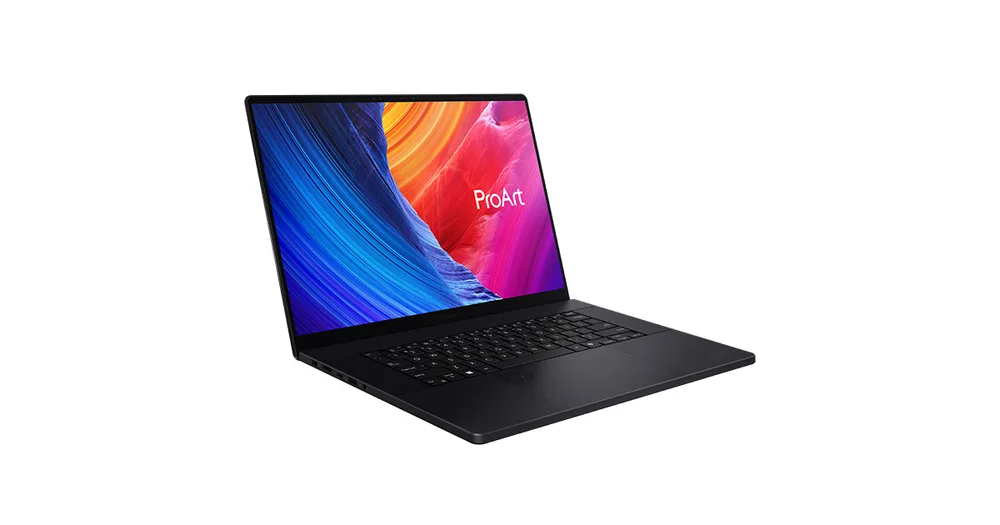
ProArt is ASUS’s creator line, and the P16 is the Windows laptop I’d point most editors to first. Right now there are two versions to know about.
The new one, announced at Computex 2026, runs on the NVIDIA RTX Spark chip. According to ASUS’s Computex 2026 announcement, it’s 13% thinner and 16% lighter than the previous ProArt P16 (H7606). ASUS claims all-day battery life and up to 128GB of unified memory. The Lumina Pro OLED screen is rated Delta E under 1, which is a seriously tight color accuracy rating, and the P16 goes up to 4K at 120Hz with variable refresh and G-Sync. It comes in Nano Black and Neo White.
The H7606 is the AMD-based version that’s still on sale. ASUS lists up to a Ryzen AI 9 465, up to an RTX 5090 Laptop GPU, up to 64GB of LPDDR5X-7500 memory and up to a 4K Tandem OLED. ASUS also says the RTX 50-series GPU speeds up video decoding, encoding and AI effects.
So which one? If you want the biggest GPU ASUS offers, the H7606 with an RTX 5090 Laptop GPU is the known quantity. If you’d rather have more memory in a thinner, lighter body, the RTX Spark model is the newer bet.
What I liked
- The OLED screen is rated Delta E under 1
- Goes up to 4K 120Hz on the P16
- Up to 128GB of unified memory on the RTX Spark model
- The H7606 goes up to an RTX 5090 Laptop GPU
What could be better
- RTX Spark is a brand-new platform, so check your apps first
- Couldn’t confirm the new model’s full port list from ASUS’s announcement
- The H7606 maxes out at 64GB of memory
4. Lenovo Yoga Pro 9i 16 or Legion Pro 7i 16
Lenovo gives you two pretty different routes. The Yoga Pro 9i is a creator laptop. The Legion Pro 7i is a gaming laptop, but don’t let that put you off, because a big gaming GPU often makes for a great editing machine.
The 2026 Yoga Pro 9i 16 (Gen 11, “Aura Edition”) is reported with an Intel Core Ultra 9 386H, RTX 5050, 5060 or 5070 graphics at up to 100W, and a 3.2K Tandem OLED at 120Hz covering 100% DCI-P3. Reported ports include an SD reader, Thunderbolt 4 and USB-A, and there’s a 92.5Wh battery. On paper, that’s a really editor-friendly mix.
The 2026 Legion Pro 7i 16 is reported with a Core Ultra 9 290HX Plus or 275HX, up to an RTX 5090 Laptop GPU and a 2560×1600 240Hz OLED. I’d only go for it if you do GPU-heavy work like effects and grading, and you’re fine with a chunkier gaming design.
I couldn’t confirm any of these specs on Lenovo’s own pages. Not ideal. So check the exact configuration on Lenovo’s site before you buy.
5. Razer Blade 16
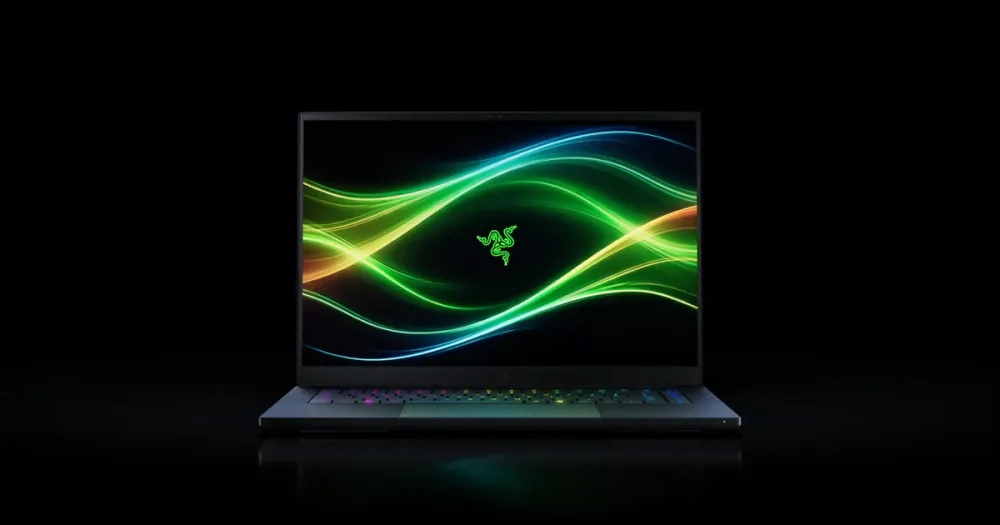
The Blade 16 is for editors who want top-end GPU power in a sleek metal body. The 2026 model is reported with an Intel Core Ultra 9 386H, up to an RTX 5090 Laptop GPU with 24GB of video memory at 175W, up to 64GB of LPDDR5X-9600 memory and a 2560×1600 OLED. One retailer listing shows both Thunderbolt 5 and Thunderbolt 4 ports, which would be great for fast external drives.
Razer hadn’t confirmed any of this on a page I could check, so treat it all as reported. But if the final specs hold up, it’s a strong pick for heavy GPU work, and the most portable package on this list for that much graphics muscle.
6. Dell XPS 14

The XPS 14 suits people who mostly write emails, hop on calls and cut the odd video. Dell launched the 2026 model in January with Intel Core Ultra Series 3 chips, according to reports, including options like the Core Ultra X7 358H with Intel Arc B390 integrated graphics.
Reportedly, the 2880×1800 OLED (120Hz, 100% DCI-P3) only comes on higher configs, while the lower ones get a 1920×1200 LCD covering 100% sRGB. For editing, I’d insist on the OLED. Memory is reported to be soldered, and I couldn’t find a discrete GPU option, so it’s better for 1080p and light 4K than for heavy grading.
You might also spot Dell’s higher-end laptops sold under different names. I couldn’t confirm the current branding or specs on Dell’s own site, so double-check there.
7. Apple MacBook Air with M5
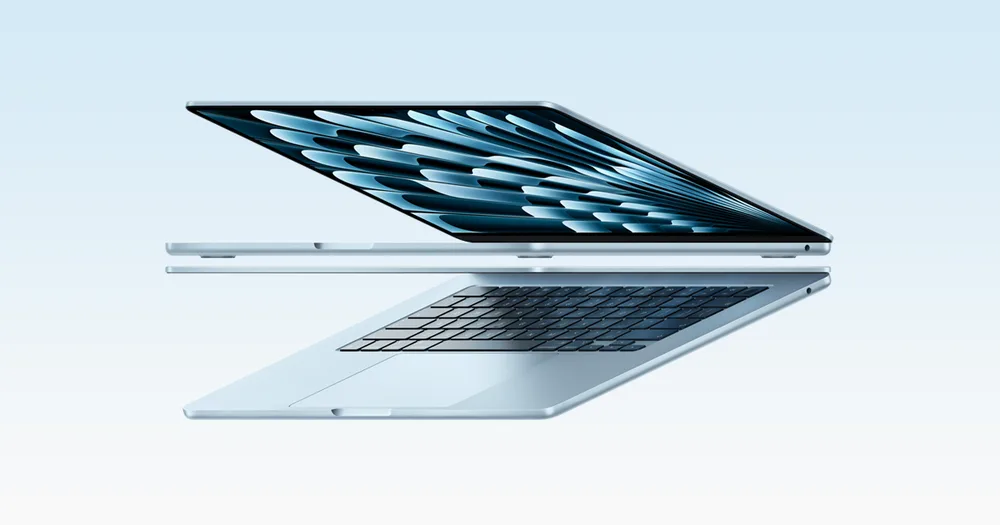
The MacBook Air is the light editing pick. Apple announced the M5 model on March 3, 2026, with double the starting storage of the previous Air and better wireless. That extra storage is really welcome if you keep footage on the laptop.
I’d use it for social clips, YouTube videos with simple edits and quick trims on the road. I couldn’t confirm the screen sizes, memory options or ports from Apple’s spec page, so check those before you buy. And get as much memory as your budget will stretch to.
Video editing laptops compared
Here are the five I’d shortlist, side by side. Numbers come from the makers’ spec pages where those exist, anything marked as reported comes from early listings, and none of it is from my own benchmarking.
| Spec | MacBook Pro (M5 Pro/Max) | MacBook Pro 14 (M5) | ASUS ProArt P16 | Lenovo Yoga Pro 9i 16 | Razer Blade 16 |
|---|---|---|---|---|---|
| Best for | Pro 4K and heavy projects | 1080p and lighter 4K | Windows color work | Windows creators (reported) | Heavy GPU work (reported) |
| Max memory | 128GB | 32GB | Up to 128GB (RTX Spark) | Check Lenovo | Up to 64GB (reported) |
| Display | Check 16-inch specs | 14.2-inch XDR, 1600 nits HDR peak | OLED, Delta E under 1, up to 4K 120Hz | 3.2K Tandem OLED (reported) | 2560×1600 OLED (reported) |
| SD card slot | Yes | Yes | Check ASUS | Yes (reported) | Check Razer |
| Specs on maker’s page | Yes | Yes | Yes | No | No |
Mac or Windows for video editing?
Pick whichever platform your editing app and plugins run best on. Simple as that. If you live in Final Cut Pro, the decision’s made for you, since it’s Mac only. If your workflow depends on Windows-only plugins or you want an NVIDIA GPU, go Windows.
Beyond that, Apple’s edge is how much it actually tells you about its media engines, plus how much memory the GPU can reach on the M5 Max. Windows gives you far more choice in screens, GPUs and designs, from the color-focused ProArt all the way over to gaming-grade machines like the Legion and Blade.
Plan your storage before you plan your edit
Whatever laptop you end up with, you’ll almost certainly want an external SSD for footage too. Use a Thunderbolt or fast USB-C drive and plug it straight into the laptop, not through some cheap hub. If a drive ever refuses to show up halfway through a project (it happens), my guide on fixing an external drive that’s not detected on Windows or Mac walks through the fixes.
Backups matter just as much. One drive is one drop away from losing a client project. That’s the scary part. I’d keep finished projects and key source files in the cloud as well, and my roundup of the best cloud storage for business covers options for teams and freelancers.
Which one should you buy?
If video is your job, get the MacBook Pro with M5 Pro. Only step up to the 40-core M5 Max if you need more than 64GB of memory or you do heavy effects work. Edit a lot, but not for money? The 14-inch MacBook Pro with the base M5 is kind of the sweet spot, thanks to its ProRes support, bright XDR screen and full set of ports.
On Windows, the ASUS ProArt P16 is the safest creator pick, mainly because ASUS has actually published the specs that matter for color work. The Yoga Pro 9i, Legion Pro 7i and Razer Blade 16 all look promising on paper, but confirm the final specs on the makers’ sites first. The XPS 14 and MacBook Air are for lighter editing on top of everyday work.
Oh, and if you’re buying laptops for a small team where editing is only part of the job, my guide to the best laptops for small business might be a better place to start.
Video editing laptops on Amazon
Once you’ve settled on a model, check the current price on Amazon and make sure the listing matches the exact model number (chip, memory and storage).
- Apple 14-inch MacBook Pro with M5 Pro
- Apple 14-inch MacBook Pro with M5
- Razer Blade 16 (2026) with RTX 5080
- Apple 15-inch MacBook Air with M5
As an Amazon Associate, thetechhacker earns from qualifying purchases.
Frequently Asked Questions
How much RAM do I need for video editing?
Roughly, 16GB works for light 1080p editing, and 32GB is a comfortable minimum if you edit 4K regularly. Doing multicam, heavy effects or RAW footage? Go higher. Apple’s M5 Max MacBook Pro goes up to 128GB, and ASUS says the RTX Spark ProArt P16 does too.
Is the MacBook Air good enough for video editing?
For light stuff like social clips, short YouTube videos and quick trims, yes. Apple announced the M5 MacBook Air on March 3, 2026, with double the starting storage of the previous model. But for long 4K projects or heavy effects, I’d go MacBook Pro.
Do I need a dedicated GPU for video editing on Windows?
For heavy color grading, effects and 4K timelines, a dedicated GPU helps a lot. ASUS says the RTX 50-series GPUs in the ProArt P16 H7606 speed up video decoding, encoding and AI effects. Laptops with only integrated graphics are a better fit for 1080p and lighter 4K.
What screen specs matter most for video editing?
You want wide color coverage like DCI-P3, a low Delta E rating for accurate color, and enough brightness if you grade HDR. Apple’s 14-inch M5 MacBook Pro peaks at 1600 nits for HDR, and ASUS rates the ProArt P16’s OLED at Delta E under 1.
Should I edit video from an external SSD?
Yes. A fast external SSD over Thunderbolt or fast USB-C works well for active projects and keeps your internal drive free. Plug it straight into the laptop rather than a cheap hub, and keep backups somewhere else too, like cloud storage.
Featured image: Sanjeev Nagaraj on Unsplash.
You might also like

Best Laptops for Small Business in 2026 (Windows and Mac)
My picks for the best small business laptops in 2026, grouped by role, from the MacBook Air M5 to ThinkPad, Dell, HP EliteBook and Surface. You’ll also find what specs to check, Black Friday tips and fleet management basics.

10 Best Video Editing Software for YouTube
One of the most sought after social media network of the 21st century is, without doubt, the one and only one ‘YouTube’. The number of videos uploaded to this video sharing platform is truly unlimited. In fact, people are of the belief that YouTube is the answer to most of their queries and it gives…
Premiere vs DaVinci Resolve vs Final Cut Pro in 2026: Pricing, Platforms and Features Compared
Adobe Premiere, DaVinci Resolve and Final Cut Pro compared on pricing model, platforms, editing, color, audio and system requirements, using only official sources. Where something couldn’t be confirmed, I say so.
The week in tech, minus the noise.
New reviews, fixes and the stories that matter — once a week, straight to your inbox.
We only use your email to send the newsletter. Unsubscribe any time. See our privacy policy.
Comments