

How to Change Liquid Glass From Clear to Tinted on iPhone in iOS 27
Liquid Glass changed the look of the iPhone in iOS 26. Buttons, search bars and menus became see-through, and they pick up whatever is behind them. Some people love the new design. Many others find text hard to read when a photo or a busy page sits behind a button. In iOS 26, later updates…

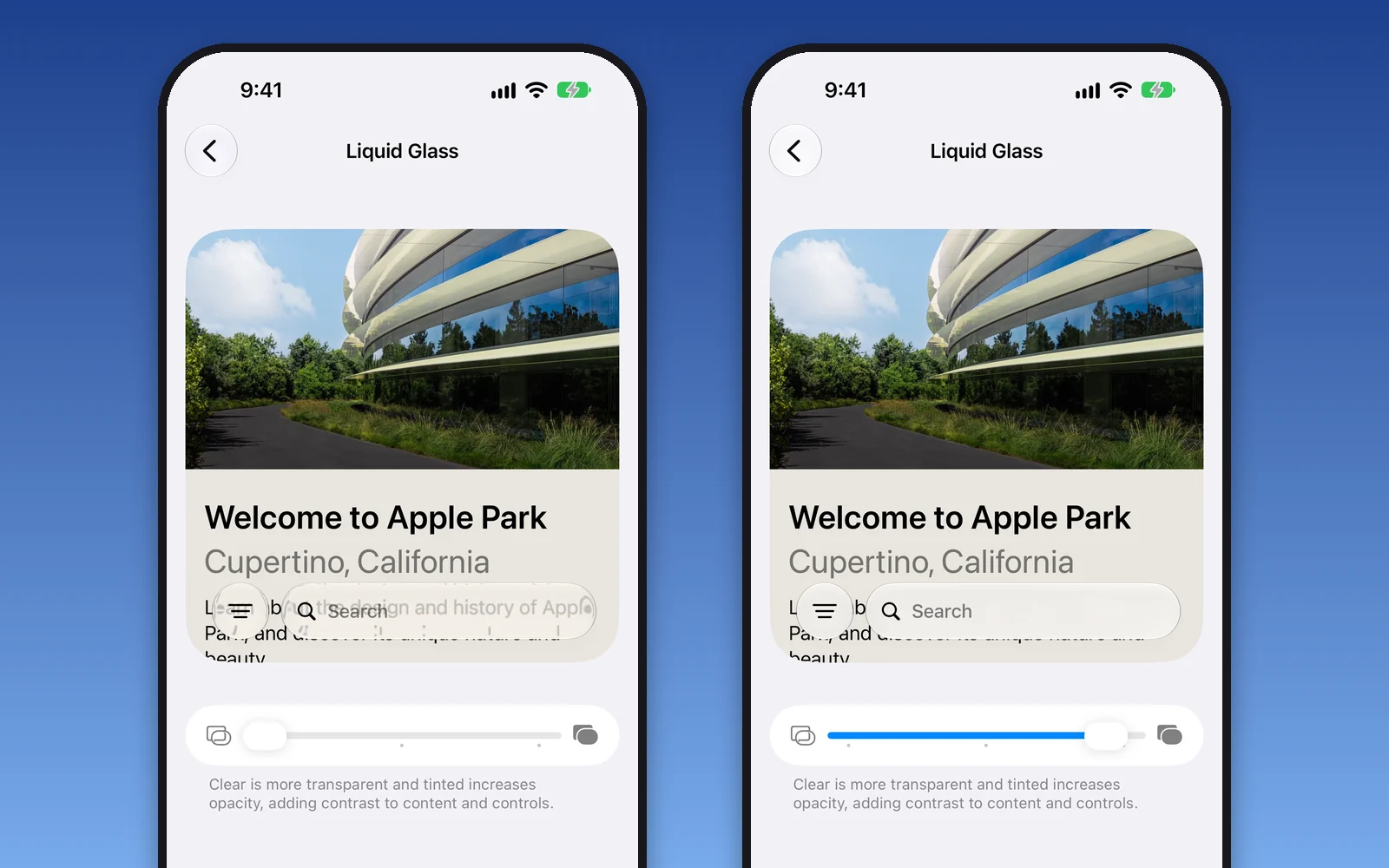
Screenshots: TheTechHacker
Liquid Glass changed the look of the iPhone in iOS 26. Buttons, search bars and menus became see-through, and they pick up whatever is behind them. Some people love the new design. Many others find text hard to read when a photo or a busy page sits behind a button. In iOS 26, later updates added a simple choice between Clear and Tinted. iOS 27 goes one step further with a slider, so you can pick any level you like.
Now in this article, I will show how to change the Liquid Glass look on your iPhone, and what to do if it’s still hard to read.
Quick answer: On an iPhone with iOS 27, go to Settings > Appearance > Liquid Glass. Drag the slider to the left for a clearer look, or to the right for a more tinted look. The preview above the slider changes as you drag. For solid backgrounds, go to Settings > Accessibility > Display & Text Size and turn on Reduce Transparency.
Getting Started
You need an iPhone running iOS 27. To check your version, go to Settings > General > About. The steps below are from iOS 27.2.
How to Change Liquid Glass on iPhone
- Open Settings on your iPhone.
- Scroll down and tap Appearance. In iOS 27, this section holds the display options that used to be in Display & Brightness, MacRumors notes.
- Tap Liquid Glass. The current level, such as More Tinted, shows next to it.
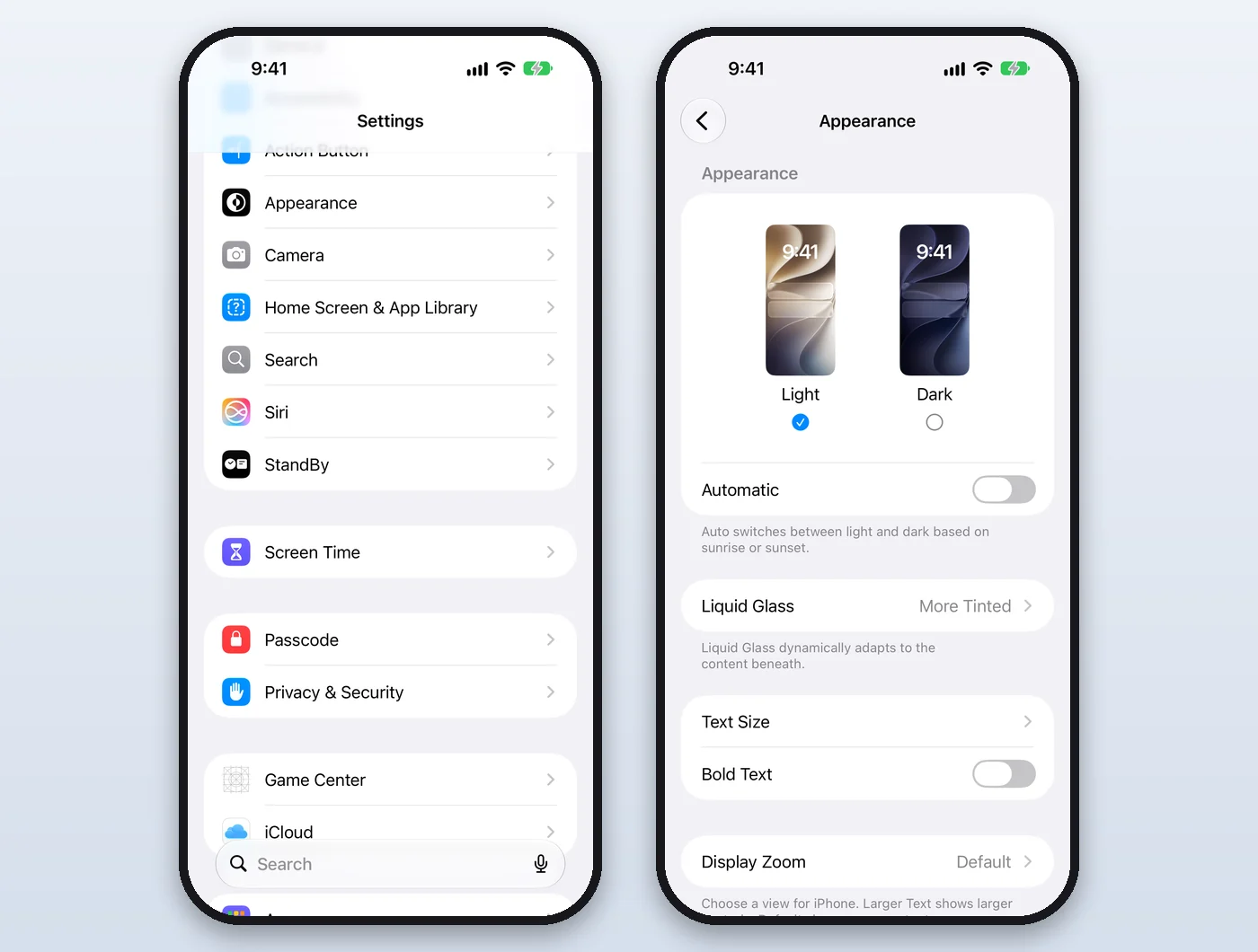
- Drag the slider to the left to make the glass clearer.
- Drag it to the right to make it more tinted, which adds contrast.
- Watch the search bar in the preview to see the change. Go back when you like it.
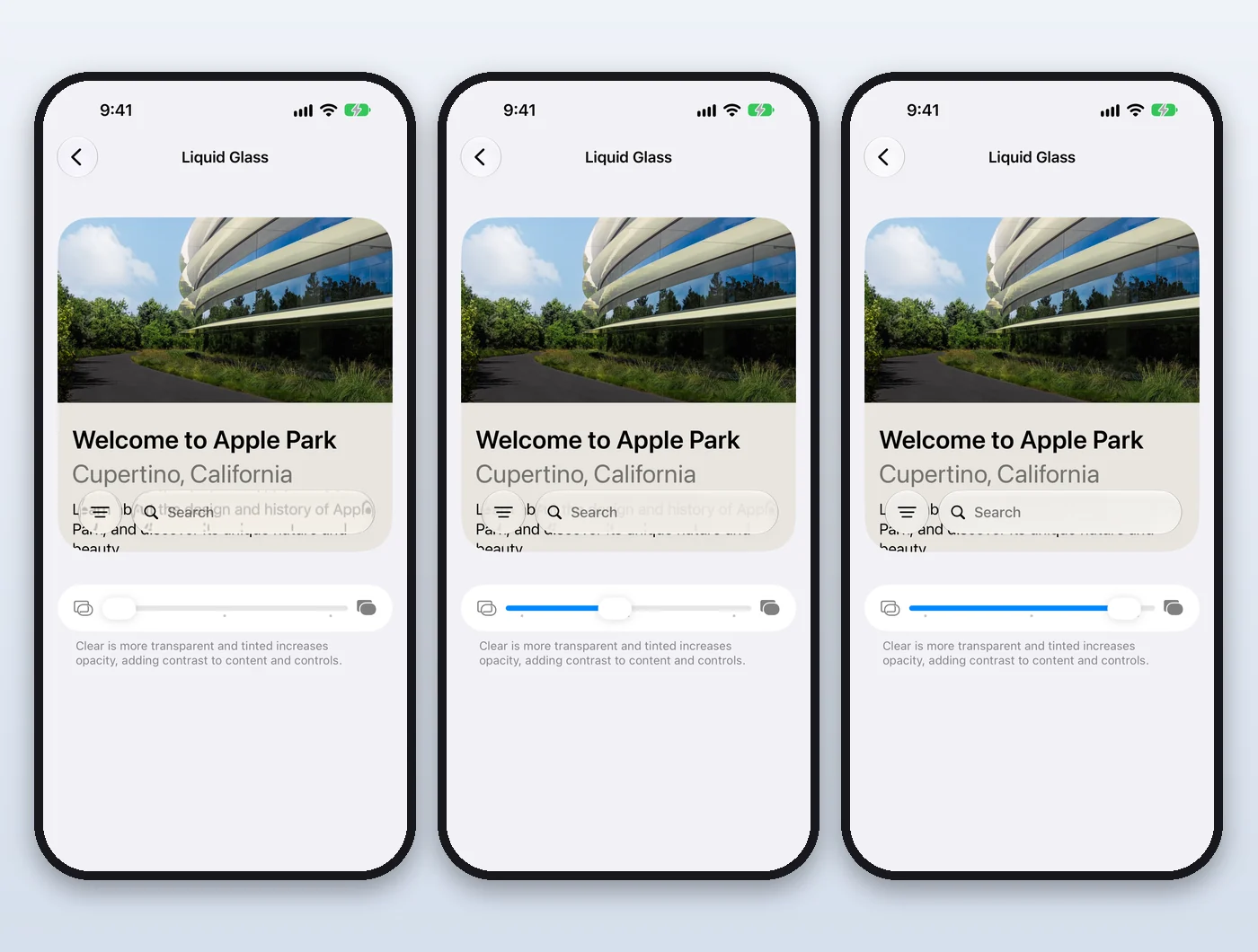
On this screen, Apple explains that clear is more transparent and tinted increases opacity, adding contrast to content and controls. As you can see in the screenshots, the text behind the search bar shows through at the clear end and fades at the tinted end.
Which Level Should You Choose?
- Clear: best if you like the glass effect and use a simple wallpaper.
- Middle: a good balance for most people.
- Tinted: best if you find buttons or search bars hard to read.
Still Hard to Read? Reduce Transparency
If the tinted end isn’t enough, there is a stronger option.
- Go to Settings > Accessibility > Display & Text Size.
- Turn on Reduce Transparency. It improves contrast by reducing transparency and blurs on some backgrounds.
- You can also turn on Increase Contrast or Show Borders on the same screen.
On iOS 26
There’s no slider in iOS 26. Guides for iOS 26.1 and later describe a choice of Clear or Tinted in Settings > Display & Brightness > Liquid Glass. For the slider, update to iOS 27. MacRumors also has a guide to toning down Liquid Glass.
You can also change the Messages audio button and set a separate alarm volume in iOS 27. If your phone loses charge faster after updating, see our iOS 27 battery drain fix.
That’s all for now. Please do share your views and feedback in the comment box below.
FAQs
Can I turn off Liquid Glass completely on iPhone?
There is no off switch on this screen. Drag the slider to tinted, or turn on Reduce Transparency for more solid backgrounds.
Where is the Liquid Glass slider in iOS 27?
Go to Settings > Appearance > Liquid Glass.
Does iOS 26 have the Liquid Glass slider?
No. iOS 26.1 and later are reported to have a Clear or Tinted choice in Display & Brightness.
Screenshots: captured by TheTechHacker in the iOS 27.2 simulator (iPhone 18 Pro).
Disclosure: TheTechHacker has no paid relationship with Apple or any company mentioned here.
More in How-to
How to Fix Apps Crashing While Multitasking After iOS 26 Update
The latest iPhones are powerful enough to handle heavy multitasking without breaking a sweat. So when your device starts crashing, freezing, or stalling while switching apps after the iOS 26 update, it feels especially frustrating. This issue can stem from several sources: a bug in the iOS build, misconfigured background refresh settings, insufficient storage, or…
How to Fix iPhone Proximity Sensor Not Working Properly After iOS 26
After the iOS 26 update, a growing number of iPhone users are reporting issues with the proximity sensor. In some cases, the screen does not turn off during voice calls. In others, features like Always On Display behave oddly in low-light conditions. If your iPhone’s proximity sensor feels “broken” or inconsistent after updating, you are…
How to Fix Safari Slow Page Load and Crashes After iOS 26 Update
After installing iOS 26, many iPhone users are reporting that Safari has become noticeably slower. Pages take longer to load, scrolling feels laggy, and in some cases, the browser crashes altogether. While some performance dips are common after a major iOS update, the severity of these reports suggests deeper compatibility issues. The good news: most…
The week in tech, minus the noise.
New reviews, fixes and the stories that matter — once a week, straight to your inbox.
We only use your email to send the newsletter. Unsubscribe any time. See our privacy policy.
Comments