

How to Turn Off or Change the Messages Audio Button in iOS 27
If you’ve ever sent an accidental voice message because your thumb hit the wrong spot, iOS 27 has a fix. You can now decide what the button at the end of the Messages text field does, or remove it. Pick Record Audio, Start Dictation or None. The option is buried in Settings, so it’s easy…

Image: Apple
If you’ve ever sent an accidental voice message because your thumb hit the wrong spot, iOS 27 has a fix. You can now decide what the button at the end of the Messages text field does, or remove it. Pick Record Audio, Start Dictation or None. The option is buried in Settings, so it’s easy to miss. 9to5Mac, MacRumors and Macworld all describe the same path. Apple’s own pages we could open don’t name the setting. These are the steps, what you lose by hiding the button, and two related settings worth checking.
Quick answer: On an iPhone with iOS 27, go to Settings > Apps > Messages > Show in Text Field. Choose None to remove the button, Start Dictation for voice typing, or Record Audio for voice messages. With None, you can still send a voice message by tapping + > Audio, and dictate with the microphone key on the keyboard.
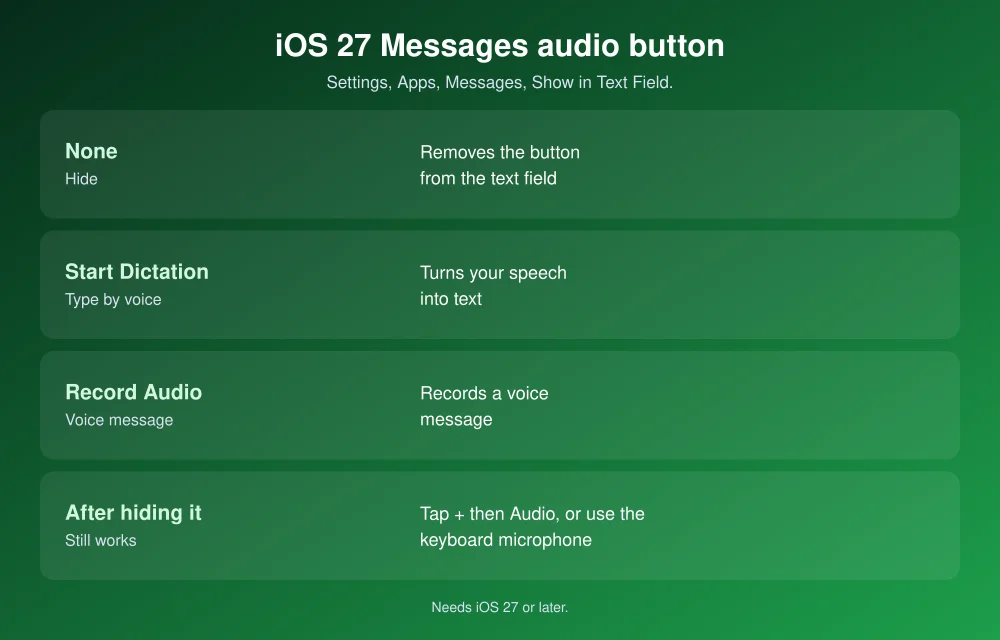
How to turn off or change the Messages audio button
- Open Settings on your iPhone.
- Scroll down and tap Apps, then Messages.
- Tap Show in Text Field.
- Choose None, Start Dictation or Record Audio.
- Open a conversation in Messages to check the text field.
MacRumors says the setting is also on iPad with iPadOS 27.
Which option should you choose?
| Option | What the button does | Best if you |
|---|---|---|
| None | Nothing is shown | Keep tapping it by accident |
| Start Dictation | Turns speech into text | Prefer to talk and send text |
| Record Audio | Records a voice message | Send voice messages often |
You can tell them apart by the icon. MacRumors says the waveform is audio recording and the microphone is dictation. 9to5Mac says that once you choose one, it stays put instead of changing with what you’re doing.
How to send a voice message after you hide it
- Open a conversation in Messages.
- Tap the + button.
- Tap Audio and record your message.
To dictate instead, tap the microphone on the keyboard. If it’s missing, go to Settings > General > Keyboard and turn on Enable Dictation.
Don’t see Show in Text Field?
- Check your version. Go to Settings > General > About. The setting needs iOS 27 or later.
- Update your iPhone. Go to Settings > General > Software Update. Apple lists current versions on its security releases page.
- Look in the right place. It’s under Apps > Messages, not Keyboard or Sounds.
- Restart your iPhone if you’ve just updated.
9to5Mac listed the option in September, so you don’t need iOS 27.2 or 27.3 for it. See what else is coming in our iOS 27.3 features guide.
Two more Messages settings to check
Raise to Listen
Your iPhone may still play or record audio when you lift it to your ear. That’s a separate setting. Go to Settings > Apps > Messages and turn off Raise to Listen. This path comes from a 2025 guide, so the wording may differ a little on iOS 27.
Suggestions in Messages
iOS 27.2 added suggestions in Messages, which Apple lists in its iOS 27.2 notes. 9to5Mac says you can control the categories in Settings > Apps > Messages > Suggested Actions.
More iOS 27 tips: set a separate alarm volume, stop Siri AI from reading your apps, and use two iPhones with one number.
FAQs
How do I remove the microphone from iMessage?
On iOS 27, go to Settings > Apps > Messages > Show in Text Field and choose None.
Can I still send voice messages after turning it off?
Yes. Tap the + button in a conversation, then Audio.
Does hiding the button turn off dictation?
No. You can still use the microphone key on the keyboard.
Does this work on older iPhones?
It works on iPhones running iOS 27. If the setting is missing, check your version in Settings > General > About.
Featured image: Apple.
Disclosure: TheTechHacker has no paid relationship with Apple or any company mentioned here.
More in How-to
How to Fix iPhone Proximity Sensor Not Working Properly After iOS 26
After the iOS 26 update, a growing number of iPhone users are reporting issues with the proximity sensor. In some cases, the screen does not turn off during voice calls. In others, features like Always On Display behave oddly in low-light conditions. If your iPhone’s proximity sensor feels “broken” or inconsistent after updating, you are…
How to Fix Apps Crashing While Multitasking After iOS 26 Update
The latest iPhones are powerful enough to handle heavy multitasking without breaking a sweat. So when your device starts crashing, freezing, or stalling while switching apps after the iOS 26 update, it feels especially frustrating. This issue can stem from several sources: a bug in the iOS build, misconfigured background refresh settings, insufficient storage, or…
How to Fix iPhone Siri Activating Randomly Without Saying “Hey Siri” on iOS 26
Has Siri started activating randomly on your iPhone after the iOS 26 update? You may suddenly see the Siri interface appear even though you did not say “Hey Siri” or intentionally touch the screen. Apart from being frustrating, unexpected Siri activation can interrupt your work, trigger unwanted actions, or create privacy concerns when the phone…
The week in tech, minus the noise.
New reviews, fixes and the stories that matter — once a week, straight to your inbox.
We only use your email to send the newsletter. Unsubscribe any time. See our privacy policy.
Comments