

How to Get Speed Camera Alerts in Android Auto (Google Maps and Waze)
More US states and cities now use speed cameras and red light cameras, and a sudden drop in the speed limit on an unfamiliar road is easy to miss. Android Auto can warn you about them, but the setting lives in your navigation app, not in Android Auto itself. Now in this article, I will…

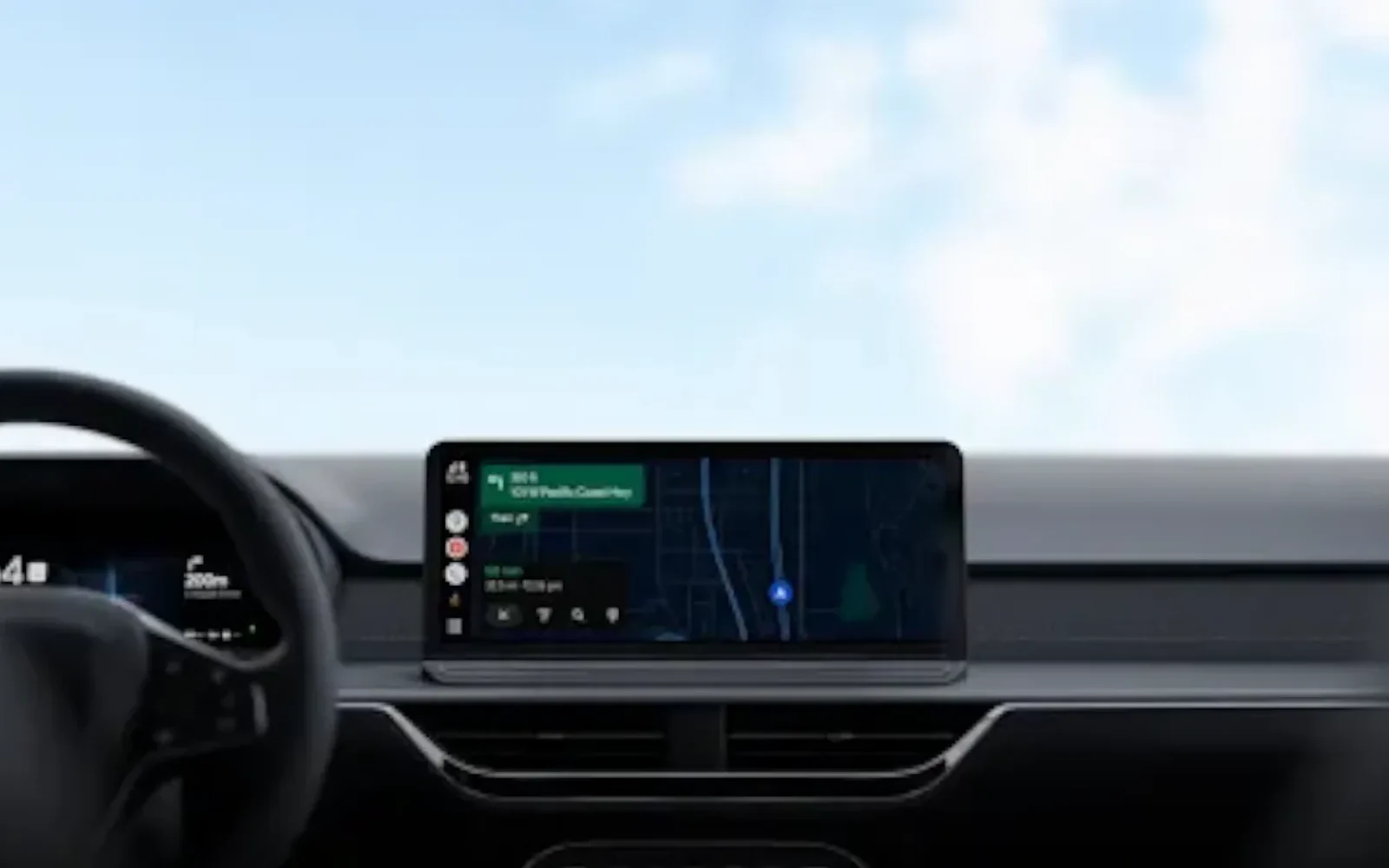
Android Auto Speed Camera Alerts
More US states and cities now use speed cameras and red light cameras, and a sudden drop in the speed limit on an unfamiliar road is easy to miss. Android Auto can warn you about them, but the setting lives in your navigation app, not in Android Auto itself.
Now in this article, I will show how to get speed camera alerts in Android Auto with Google Maps and Waze, and how to fix them when they don’t show up.
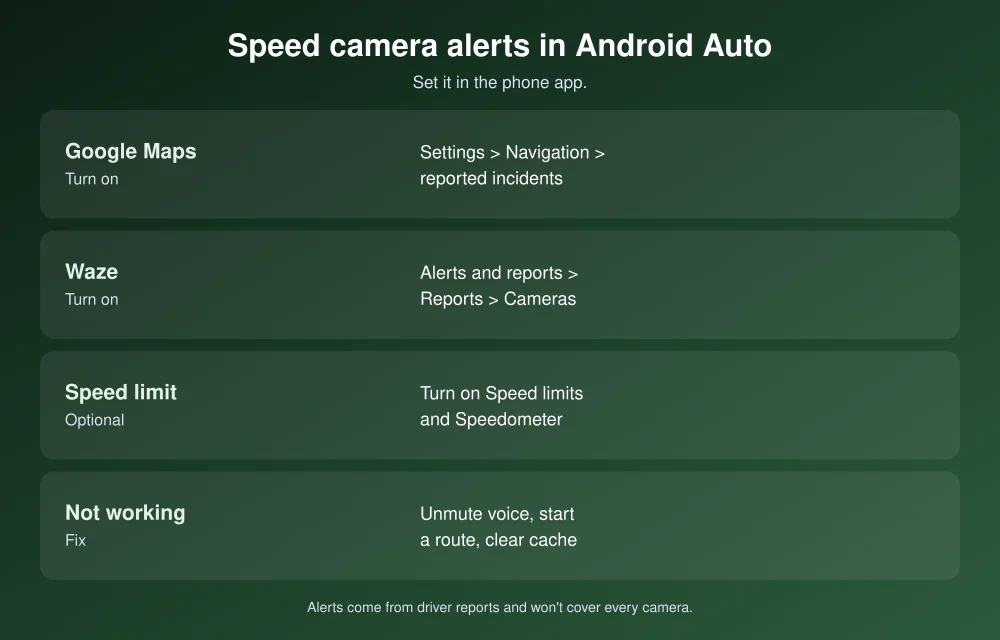
Quick answer: In Google Maps, tap your profile picture, go to Settings > Navigation and turn on Get alerts for reported incidents and other conditions that may impact your drive. In Waze, go to Settings > Alerts and reports > Reports > Cameras and turn on the camera types you want. Both work on your car’s screen through Android Auto. Waze usually warns about cameras more often than Google Maps, Engadget reports.
Getting Started
Update Google Maps, Waze and Android Auto from Google Play. Camera alerts come from reports by other drivers, so they won’t cover every camera.
1. Turn On Speed Camera Alerts in Google Maps
- Open Google Maps on your phone.
- Tap your profile picture at the top right.
- Tap Settings > Navigation.
- Turn on Get alerts for reported incidents and other conditions that may impact your drive.
The setting carries over to Android Auto. Google explains more navigation options in its Google Maps navigation help.
2. Turn On Speed Camera Alerts in Waze
- Open Waze on your phone.
- Go to Settings > Alerts and reports > Reports > Cameras.
- Turn on the camera types you want, such as speed cameras, red light cameras and police cameras.
- Set Waze to alert you while driving.
Waze offers five camera types, according to Engadget. Android Auto opens the last navigation app you used, so pick Waze once and it stays the default on your car’s screen.
3. Show the Speed Limit and Your Speed
Both apps can show the posted speed limit and a speedometer based on your phone’s GPS.
- Google Maps: Settings > Navigation > turn on Speed limits and Speedometer.
- Waze: Settings > Speedometer > turn on the speed limit display and set an alert when you go over.
How to Fix Speed Camera Alerts Not Working in Android Auto
- Change the setting on your phone. Android Auto uses the phone app’s settings.
- Check sound. Make sure navigation voice isn’t muted on the car screen and the car’s volume is up.
- Start a route. Some alerts only show during active navigation.
- Clear the app cache. Go to Settings > Apps > Google Maps (or Waze) > Storage > Clear cache.
- Try Waze. It has more camera reports in many areas.
Speed camera alerts are legal in most of the US, but rules vary by state and country, so check local law. See Google’s Android Auto page for supported cars. Also read how to fix wireless Android Auto battery drain , what Gemini can do on Android Auto and the new Google Messages features.
That’s all for now. Please do share your views and feedback in the comment box below.
FAQs
Does Android Auto show speed cameras?
Yes, through Google Maps or Waze, once you turn on camera alerts in the app on your phone.
Which is better for speed camera alerts, Google Maps or Waze?
Waze usually warns about cameras more often and lets you pick camera types.
Why are speed camera alerts not working in Android Auto?
The setting is usually off in the phone app, or navigation sound is muted on the car screen.
Can I see the speed limit in Android Auto?
Yes. Turn on Speed limits and Speedometer in Google Maps or Waze settings.
Featured image: Google.
Disclosure: TheTechHacker has no paid relationship with Google.
More in How-to
How to Stop Android Auto Overheating Your Phone: 5 Fixes That Actually Work
If you’ve ever reached for your phone after a long drive and felt like you were picking up a hot baked potato, you aren’t alone. A quick search for “Android auto makes phone hot reddit” shows thousands of drivers dealing with the exact same issue every single day. Whether you are experiencing a Samsung S22…
How to Fix Wireless Android Auto Battery Drain
Wireless Android Auto is handy until you park and find your phone at 30%. Engadget reports that an hour of wireless use with everything running can take up to 16 percent, though it doesn’t cite a test. The reasons are simple. Wi-Fi and Bluetooth stay on for the whole drive, navigation keeps using GPS and…
How to Use Gemini on Apple CarPlay: Setup, Voice Tips and Limits
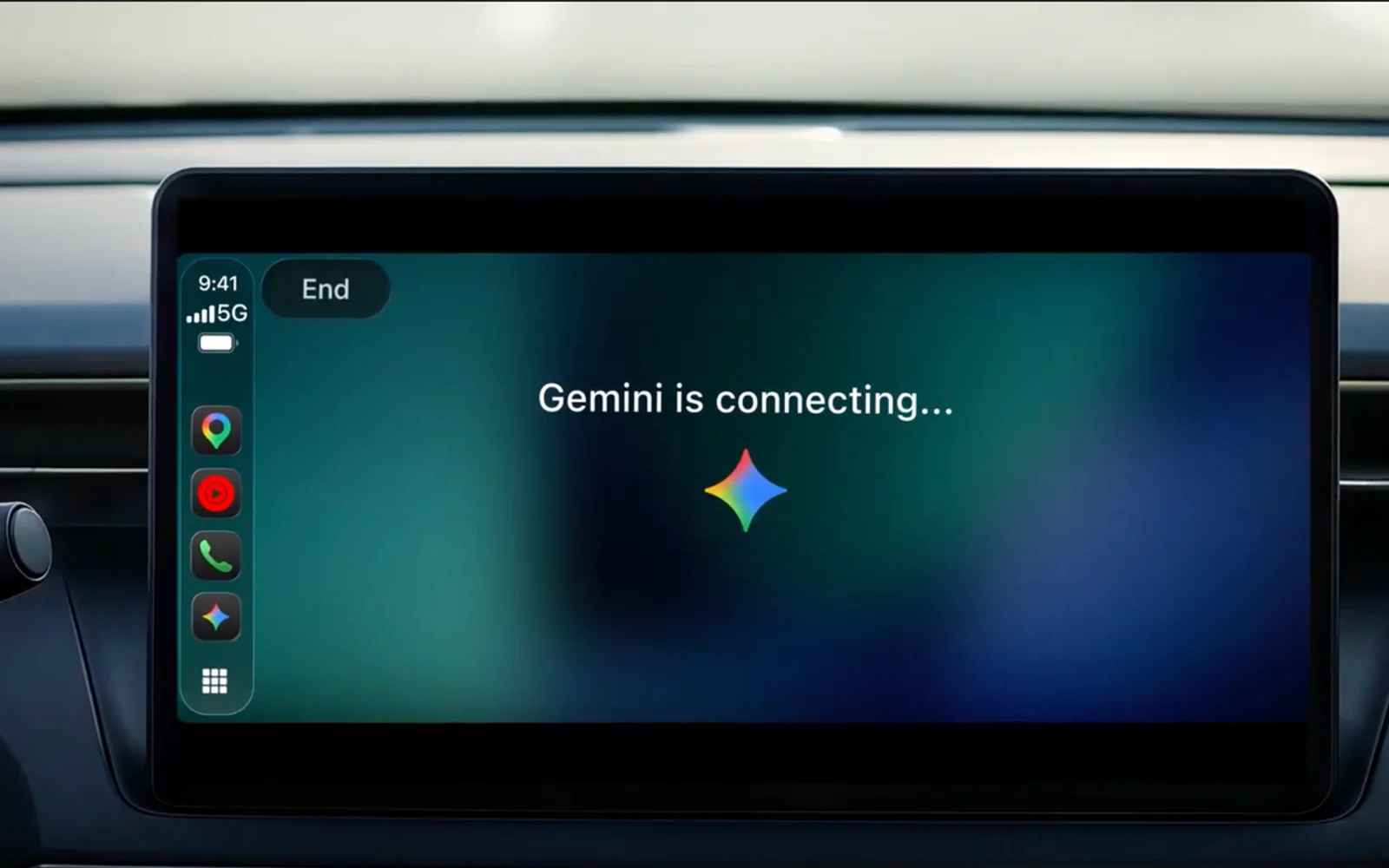
Google’s Gemini app now works on Apple CarPlay. Google announced it on November 11, 2026, rolling out “to all Gemini users on iOS,” and the App Store listing now shows a “Gemini is now on CarPlay” banner. Many people will be on the road for Thanksgiving this week, and Gemini can read out your calendar,…
The week in tech, minus the noise.
New reviews, fixes and the stories that matter — once a week, straight to your inbox.
We only use your email to send the newsletter. Unsubscribe any time. See our privacy policy.
Comments