

iCloud Security Settings You Should Turn On Now (iPhone Guide)
Your iCloud account holds your photos, messages, passwords and backups, so anyone who gets into it gets into your whole digital life. Apple has added several strong protections over the years, but most of them aren’t on by default. Now in this article, I will show the iCloud security settings you should turn on, and…


iCloud Security Settings
Your iCloud account holds your photos, messages, passwords and backups, so anyone who gets into it gets into your whole digital life. Apple has added several strong protections over the years, but most of them aren’t on by default.
Now in this article, I will show the iCloud security settings you should turn on, and where to find each one on your iPhone.
Quick answer: Turn on Stolen Device Protection (Settings > Face ID & Passcode), check two-factor authentication and add a Recovery Contact (Settings > your name > Sign-In & Security), consider Advanced Data Protection for end-to-end encryption, use Hide My Email and Private Relay if you have iCloud+, and run Safety Check (Settings > Privacy & Security). Never share an Apple verification code. Apple will never ask for one.
Getting Started
Update your iPhone in Settings > General > Software Update. Then open the Passwords app and fix any weak or leaked passwords, starting with your Apple Account password.
1. Check Two-Factor Authentication
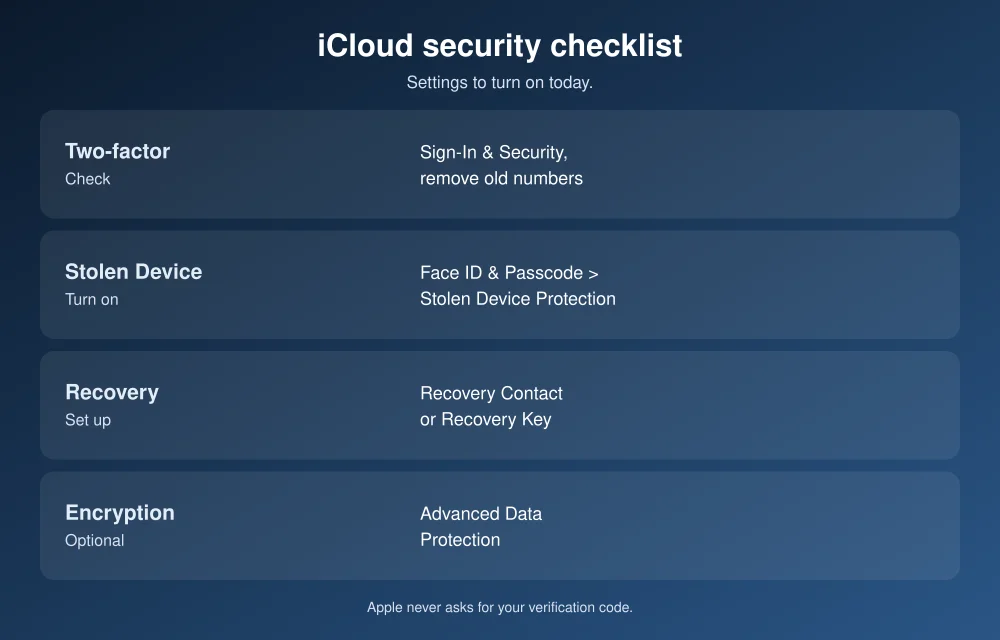
Go to Settings > [your name] > Sign-In & Security. Two-factor authentication should be on. Remove trusted phone numbers and emails you no longer use. Apple explains how it works in its two-factor authentication guide.
2. Turn On Stolen Device Protection
Go to Settings > Face ID & Passcode > Stolen Device Protection. Away from familiar places like home and work, your iPhone requires Face ID or Touch ID for sensitive actions, and adds a one-hour delay before key changes like your Apple Account password. This stops a thief who has watched you type your passcode.
3. Set Up Account Recovery
In Settings > [your name] > Sign-In & Security:
- Recovery Contact: add up to five trusted people who can generate a code to help you get back in.
- Recovery Key: a 28-character key that replaces Apple’s recovery process. It’s very secure, but if you lose the key and your devices, you can be locked out for good.
- Legacy Contact: lets someone you trust access your data after you die, with a death certificate.
4. Turn On Advanced Data Protection
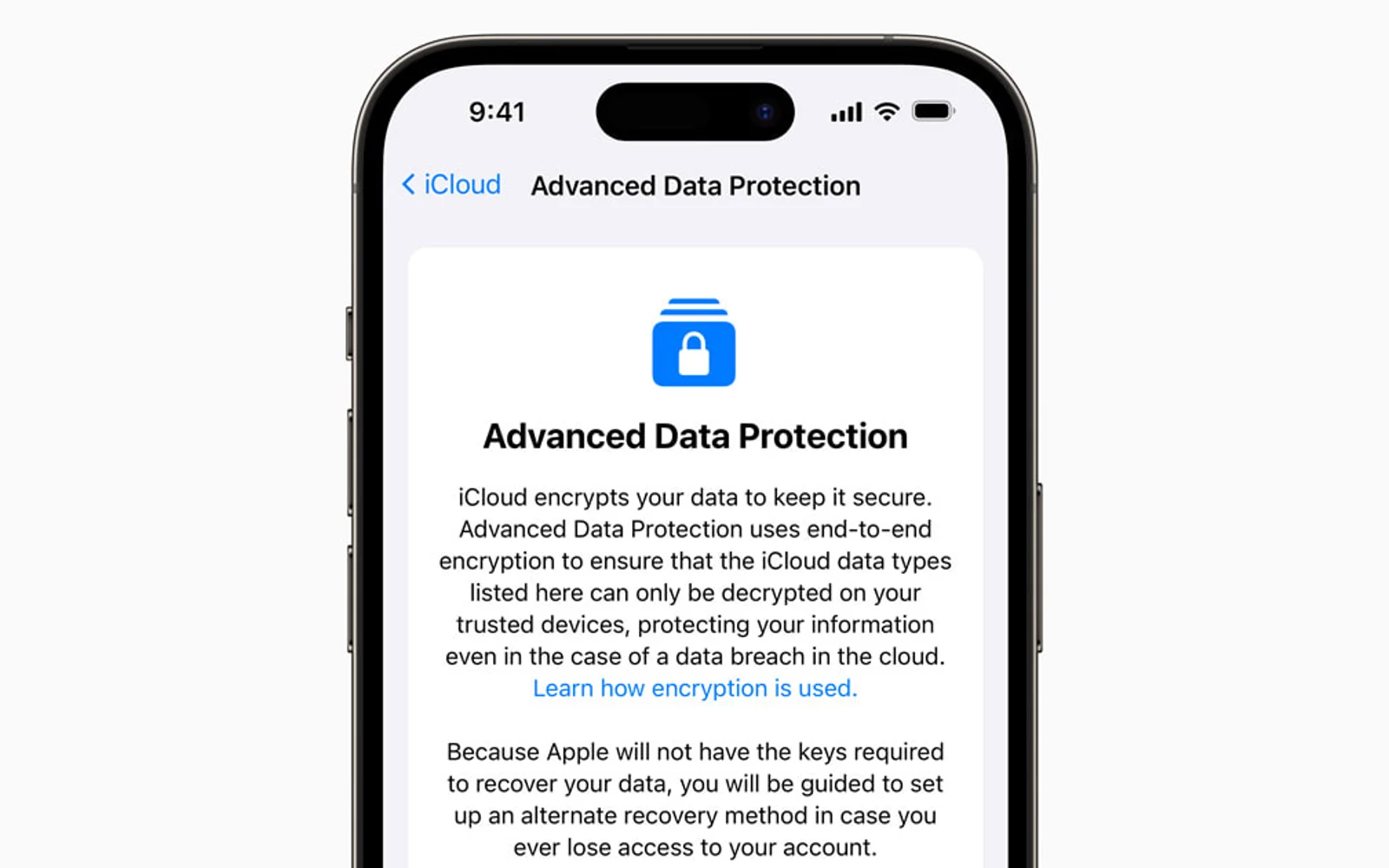
By default, Apple can decrypt some iCloud data, such as iCloud Drive, Photos and Notes. Advanced Data Protection end-to-end encrypts nearly everything except Mail, Contacts and Calendar, according to Apple’s iCloud data security overview. You need a Recovery Contact or Recovery Key first, because Apple can’t help you recover data once it’s on.
5. Use Hide My Email and Private Relay
With iCloud+, Hide My Email creates random forwarding addresses for sign-ups (Settings > [your name] > iCloud > Hide My Email). Private Relay hides your IP address in Safari. It’s similar to a VPN but not a replacement for one.
6. Add Security Keys (Optional)
You can use FIDO-certified physical security keys instead of codes for two-factor authentication. It’s the strongest option, but losing your keys and trusted devices can lock you out.
7. Run Safety Check
Go to Settings > Privacy & Security > Safety Check to see who has access to your location, photos and other data. If something looks wrong, tap Emergency Reset to stop sharing with everyone.
See our step-by-step guide to turning on Advanced Data Protection, plus what to do after the pCloud Pass breach and why Telegram is warning iPhone users to update.
That’s all for now. Please do share your views and feedback in the comment box below.
FAQs
What is the most important iCloud security setting?
Two-factor authentication, followed by Stolen Device Protection.
Should I turn on Advanced Data Protection?
Yes, if you want Apple unable to decrypt most of your data. Set up a Recovery Contact or Recovery Key first.
Where is Stolen Device Protection?
Settings > Face ID & Passcode > Stolen Device Protection.
Does Apple ever ask for my verification code?
No. Never share it with anyone who calls, texts or emails you.
Featured image: Apple.
Disclosure: TheTechHacker has no paid relationship with Apple.
More in How-to
How to Turn On Advanced Data Protection for iCloud on iPhone, iPad and Mac
By default, a lot of what you store in iCloud is encrypted in a way that Apple can unlock, including your iPhone backups, photos and notes. That’s convenient if you forget your password, because Apple can help you get back in. But it also means that data could be handed over in response to a…
How to Fix Apple Services Not Working: Check If iCloud, App Store or Apple TV Is Down
You open Apple Music and nothing loads. The App Store spins forever. iCloud keeps asking you to sign in again. My first instinct is always to start toggling settings, but the smarter first move is finding out whether Apple itself is having a bad day, because if it is, nothing you do on your phone…

Steps To Fix Contact Names Showing As Numbers On iOS
If you have been using a smartphone for calling or messaging and you have a contact which you interact with frequently, it is quite obvious that you will save their number. This is so that the next time that same number calls, you know who it is from the saved contact and not have to…
The week in tech, minus the noise.
New reviews, fixes and the stories that matter — once a week, straight to your inbox.
We only use your email to send the newsletter. Unsubscribe any time. See our privacy policy.
Comments