

Securely Delete Files In Mac With FileShredder
Regular cleaning is necessary for every Mac, cleaning off hard disk by deleting unnecessary files is a good option. In a hurry, if you delete important file instead of unwanted one what would you do?. Fileshredder is a hassle-free app for file deletion in Mac, it offers different ways to securely delete files. How Fileshredder…


Regular cleaning is necessary for every Mac, cleaning off hard disk by deleting unnecessary files is a good option. In a hurry, if you delete important file instead of unwanted one what would you do?. Fileshredder is a hassle-free app for file deletion in Mac, it offers different ways to securely delete files.

How Fileshredder works:
Fileshredder actually sends only pointer file to trash, actual file resides on your system. File Shredder uses an algorithm to overwrite the file with data and erase it past the point of recovery. It is a very useful app to securely delete files in Mac.

Via TUAW.
Updated…
There’s only one way of keeping your files away from the prying eyes of people, and it’s by deleting it. But lately, technological advancements have led to the development of powerful software that can recover deleted files.
Ironically, these technological advancements have also led to the creation of software that can delete traces of deleted files. Need I say that regular cleaning is necessary for every Mac, and cleaning off hard disk by deleting unnecessary files is a good option?
Welcome, the powerful “FileShredder” software.
File Shredder gives you the freedom to choose different levels of shredding as per your needs.
- Go to File Shredder to download and install the software on your Mac.
- Launch the software, and then drag and drop the file you’d like to shred into the app interface. Better still, you can simply right-click on the file you’d like to shred and select “File Shredder” > then select “Secure delete files.”
If you aren’t so keen on using the software to securely delete your data from your Mac computer, you can at least use the inbuilt function on your Mac computer.
The secure empty trash feature even though it has been done away with on OS X El Capitan, is still a handy tool for securely deleting your files on Mac.
- Move the file to the Trash
- Navigate to the Finder menu and select “Secure Empty Trash” and click the “Secure Empty Trash” button on the dialogue box that appears for confirmation.
To ensure that your document is deleted securely without first being moved to the trash, you can set your preferences to delete automatically.
- Navigate to the “Finder” menu > then choose Preferences.
- Navigate to the “Advanced Tab” and tick the option that reads “Empty Trash Securely.”
To deactivate it, simply follow the same procedure again and uncheck the “Empty Trash Securely” box.
More in Mac

MacKeeper – An App to Master All the Apps for your Mac
Do you have a Mac that takes like eons to start? Is your Mac infected with viruses and your best efforts and software can’t do anything about it? Are you worried about your expensive Mac getting stolen? These are common issues with Mac owners. But you don’t have to live with them. You can simply…
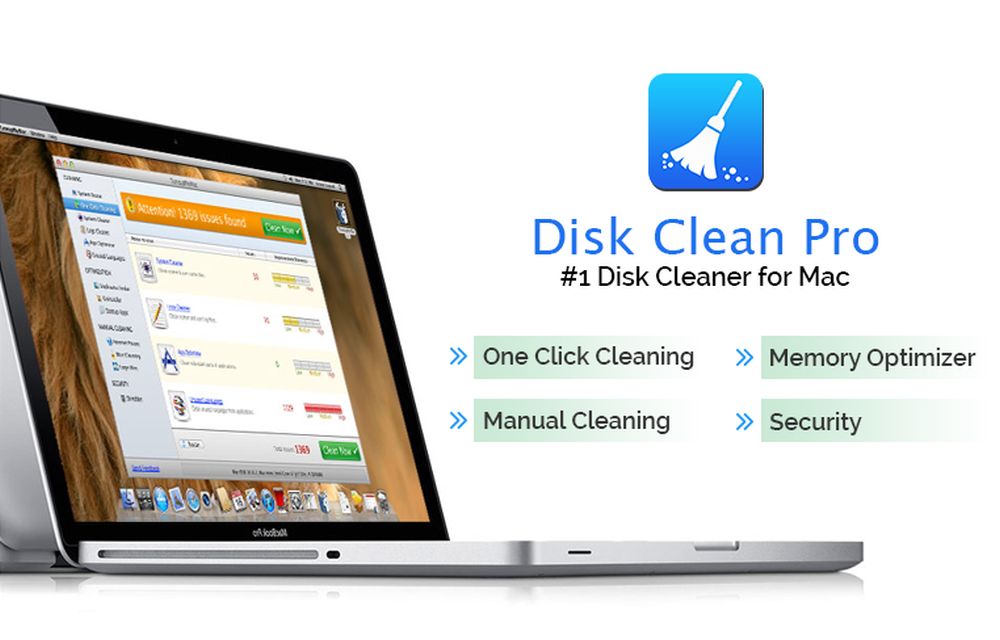
Disk Clean Pro: An App to Clean Mac Disk Space
If you are looking forward to installing a Mac-cleaning application, there is no shortage of available options. Whether you are searching for a quick solution to boost your Mac’s speed or looking for an affordable way of keeping your computer agile for years to come, cleaning applications tick the right boxes. But not all apps…

8 Best Uninstaller Apps For Mac
Do you have any application on your Mac that you wish to totally remove from your system? Simply deleting it will not work because the app will still leave temporary files and preferences. To get rid of it, you have to completely uninstall the application using a reliable Mac uninstaller. Here are some of the…
The week in tech, minus the noise.
New reviews, fixes and the stories that matter — once a week, straight to your inbox.
We only use your email to send the newsletter. Unsubscribe any time. See our privacy policy.
Comments