

Best Web Hosting for Small Business Websites (2026)
How to choose web hosting for a US small business site, from shared and managed WordPress plans to cloud servers and website builders, plus the renewal-price traps to avoid and how to migrate safely.


Photo by Taylor Vick on Unsplash
Disclosure: TheTechHacker has no paid relationship with the companies in this article.
Picking a web host for a small business site looks like a ten-minute job. Then you hit the pricing page: a big intro discount, four plan tiers, and a checkout that pushes a three-year term before you’ve even picked a domain.
And you’ll live with the host longer than you think. It decides how fast your pages load, whether your business email works, how painful it is to recover from a bad plugin update, and what you pay in year two and after.
So here’s a simple way to match a hosting type to the site you actually run, plus what to compare and what to check before you pay.
Quick answer: For most US small businesses with a basic brochure site, a reputable shared hosting plan or a website builder like Squarespace or Wix is enough. If you run an online store, take bookings with payments, or get steady traffic, step up to managed WordPress hosting (such as WP Engine or Kinsta) or managed cloud hosting (such as Cloudways). Whatever you pick, compare the renewal price, not the intro price, and confirm that SSL, backups and business email are covered.
The Main Types of Web Hosting
Almost every plan you’ll see fits one of five buckets:
| Hosting type | What it is | Good fit for | Watch out for |
|---|---|---|---|
| Shared | Your site shares a server with many others | Small, low-traffic sites | Shared resources, big renewal jumps |
| Managed WordPress | Hosting tuned for WordPress, with the host handling much of the upkeep | Business WordPress sites, WooCommerce stores | Higher price, WordPress only |
| VPS | Your own virtual slice of a server | Sites needing more control | You may have to manage the server yourself |
| Cloud | Scalable servers on cloud infrastructure | Growing sites, custom apps | Can get technical without a managed layer |
| Website builder | Hosting, templates and an editor in one subscription | DIY owners who want zero server work | Lock-in, fewer customization options |
Shared hosting
Your site sits on one server with a lot of other customers’ sites. It’s the cheapest way in, and Bluehost, SiteGround, Hostinger and DreamHost all sell shared plans. A five-page site with a contact form often doesn’t need anything more.
The catch is that everyone draws from the same pool of resources. If another site on that server gets a traffic spike, its neighbors (you included) can slow down, and how badly depends on the host. Either way, you get less control than on the higher tiers.
Managed WordPress hosting
This is hosting set up specifically for WordPress. The host usually takes care of core updates, caching and security settings, so you spend less time babysitting the site. WP Engine and Kinsta are built around this model. It costs more than shared hosting, and what you’re really buying is time back plus a support team that should know WordPress well. I’ve compared the faster options in my roundup of managed WordPress hosting services built for speed.
VPS hosting
A VPS (virtual private server) gives you a fixed slice of a physical server, with its own memory and CPU. Other customers’ traffic doesn’t touch it. But unmanaged VPS plans leave setup, updates and security to you. Never used SSH? Then I’d pick a managed VPS or skip this tier for now.
Cloud hosting
Cloud hosting puts your site on infrastructure that can scale up or down as you need it. DigitalOcean sells virtual servers it calls Droplets, and you configure and run those yourself. Cloudways sells managed cloud hosting, so you get the cloud servers without doing the server admin. If you’re stuck between cloud and renting a whole machine, my piece on cloud or dedicated hosting walks through that call.
Website builders
Squarespace and Wix roll hosting, templates and a drag-and-drop editor into one subscription. No server to manage at all. If you need a clean site this week and don’t care about plugins, this fits. The downside is lock-in, because moving a builder site somewhere else usually means rebuilding it from scratch.
What Actually Matters When You Compare Hosts
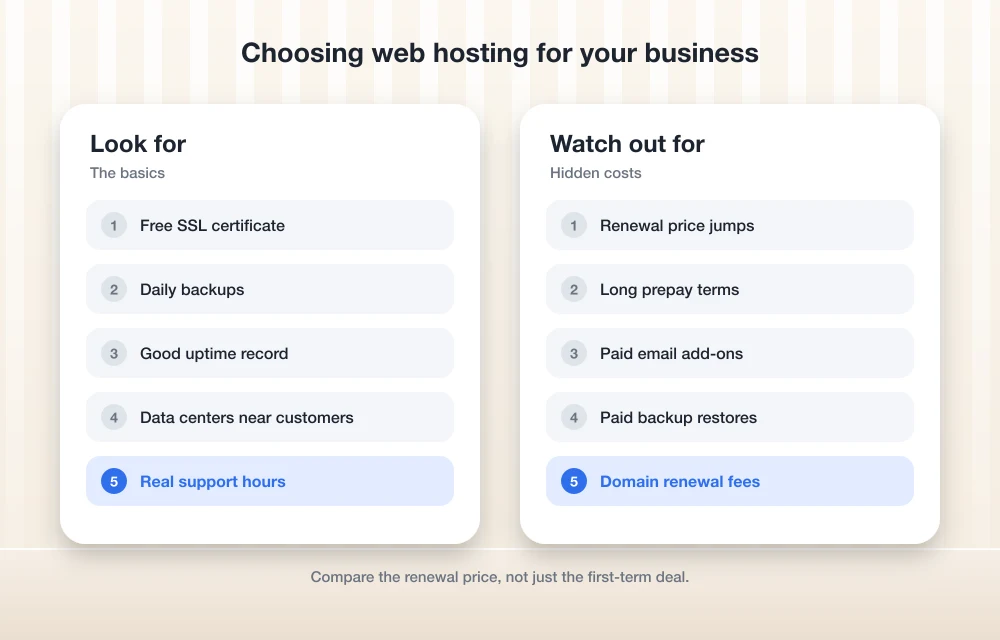
Pricing pages list dozens of features. Most don’t matter much. These do.
Uptime
Uptime is simply how much of the time your site is reachable. Some hosts put an uptime guarantee in their terms of service, and if yours does, read what you actually get when they miss it. Usually it’s an account credit, which doesn’t bring back the customers who couldn’t load your site during the outage. I couldn’t confirm current uptime terms for the hosts in this guide, so check each one’s terms yourself.
Speed, caching and a CDN
Google measures real-world page experience with Core Web Vitals. According to Google Search Central’s Core Web Vitals page, there are three metrics: Largest Contentful Paint (how fast the main content shows up), Interaction to Next Paint (how quickly the page reacts to a tap or click) and Cumulative Layout Shift (how much the layout jumps around while loading). Google counts it as “good” when LCP is 2.5 seconds or less, INP is 200 milliseconds or less, and CLS is 0.1 or less. INP replaced the older First Input Delay metric in March 2024.
Your host isn’t responsible for all of that. Oversized images and heavy themes hurt too. But a slow server sets a bad floor that everything else sits on. A CDN (content delivery network) keeps cached copies of your images and files on servers in lots of locations, so a visitor in Texas isn’t waiting on one server across the country. Check whether the CDN is included or billed on top.
SSL certificates and security
An SSL certificate (technically TLS these days) encrypts traffic between your site and your visitors, and it’s what gives you the padlock and “https” in the address bar. Skip it and Chrome labels your site “Not Secure”, and may make visitors click through a warning before it opens. Not a great first impression for a business. I’ve explained what that Chrome HTTP “Not Secure” prompt means and how to handle it.
Bluehost says on its pricing page that every plan includes SSL certificates. I couldn’t confirm SSL details for the other hosts here, so look for free SSL in each plan comparison table. For security more broadly, the FTC’s cybersecurity guidance for small businesses covers HTTPS, email authentication and keeping software updated. It takes about ten minutes, and I’d read it before you sign up anywhere.
Backups
Nobody thinks about backups until they need one. Ask how often the host backs up your site, how long it keeps the copies, whether you can restore it yourself in a click or two, and whether any of that costs extra. Backup features can change from plan to plan on the same host, so check the exact tier you’re buying. And keep your own off-site copy anyway.
Business email
You want [email protected] on your business cards, not a free personal address. Some hosting plans include email accounts. Some don’t. Builders handle it their own way again. Check before you buy.
Once email is up, add the SPF, DKIM and DMARC records your email provider gives you. They’re DNS records that prove your mail really comes from your domain, which helps keep your messages out of spam folders and makes it harder for scammers to send email pretending to be you.
Support
When your checkout page breaks on a Saturday, support is the only feature you’ll care about. Bluehost says its plans include 24/7 support. For any host on your list, send a pre-sales chat question first and see how fast and how useful the answer is. Costs nothing. Tells you a lot.
Data center location
If most of your customers are in the US, serve the site from US data centers, or at least through a CDN with US locations. Many cloud and managed hosts let you pick a server region, though I couldn’t confirm the exact options for each vendor here. Customers mostly in one part of the country? Pick the closest region you can.
The Renewal-Price Trap (Read This Before Checkout)
This is where most small business owners get caught. The price in the banner is an introductory rate, it usually only applies if you prepay a long term, and when that term runs out the plan auto-renews at a much higher regular price.
Bluehost’s official pricing pages show this pattern clearly. Below is what they listed while I was researching this guide. Prices change often, so treat these as an example of how the pricing is structured and check the live page before you buy.
| Bluehost plan | Intro price | Term | Renewal price |
|---|---|---|---|
| Starter | $3.99/mo | 36 months | $9.99/mo |
| Starter (monthly billing) | $15.99/mo | Month to month | Not applicable |
| Business | $6.99/mo | 36 months | $13.99/mo |
| eCommerce Essentials | Not confirmed | 36 months | $21.99/mo |
Look at Starter. The $3.99 rate needs a 36-month prepay, so that’s $143.64 upfront before add-ons or taxes. Then it renews at $9.99 a month, roughly two and a half times the intro rate. Month-to-month billing is listed at $15.99 a month. So the lowest monthly price is tied to the longest commitment. That’s the part people miss.
Bluehost also says its terms run from monthly to 36 months, and that every plan includes free domain registration, SSL certificates, unmetered bandwidth and 24/7 support. Check how long the free domain stays free and what it costs to renew.
SiteGround deserves some credit here. It publishes a knowledge base article listing the regular (renewal) rates for its StartUp, GrowBig and GoGeek shared plans by prepaid period and currency. I couldn’t confirm the current figures from its official pages for this guide, so I’m not quoting numbers. Open that article next to SiteGround’s main web hosting page and compare before you decide.
Checklist for any host:
- Find the renewal price for the exact term you’re picking, not just the headline rate.
- Work out the total cost over three years: intro period plus renewal.
- Untick any checkout add-ons you didn’t ask for.
- Set a calendar reminder a month before renewal so auto-renew doesn’t catch you off guard.
Shortlist: Hosts by Category
Everything in the table below comes from the hosts’ own published pages, and I didn’t run any speed or uptime benchmarks for this guide. Bluehost’s are the only prices I could confirm. For everyone else, open their official pricing page on the day you buy and compare intro and renewal prices yourself.
| Host | Type | Good fit for | What I could confirm |
|---|---|---|---|
| Bluehost | Shared and ecommerce plans | Budget brochure sites, first WordPress site | Intro and renewal prices above; SSL, free domain and 24/7 support listed on its pricing page |
| SiteGround | Shared (StartUp, GrowBig, GoGeek) | Small WordPress sites | Publishes renewal rates in its knowledge base; figures not quoted here |
| Hostinger | Shared | Small sites on a tight budget | Pricing and features not confirmed |
| DreamHost | Shared | Small sites on a tight budget | Pricing and features not confirmed |
| WP Engine | Managed WordPress | Busier WordPress sites and stores | Pricing and features not confirmed |
| Kinsta | Managed WordPress | Speed-focused WordPress sites | Pricing and features not confirmed |
| Cloudways | Managed cloud | Growing sites that want cloud without server admin | Pricing and features not confirmed |
| DigitalOcean | Cloud servers (Droplets) | Developers and custom setups | Pricing and features not confirmed |
| Squarespace | Website builder | Design-led brochure sites | Pricing and features not confirmed |
| Wix | Website builder | DIY sites with built-in tools | Pricing and features not confirmed |
Comfortable with WordPress and want it cheap? Start with the shared hosts. Want WordPress without the maintenance, look at WP Engine and Kinsta. If you’ve got a developer or you’re expecting real growth, Cloudways and DigitalOcean make more sense. And if managing plugins sounds like a chore, a builder is probably your answer.
How to Pick by Site Type
Brochure site
Think a handful of pages: home, services, about, contact. Traffic is modest and usually local. Shared hosting from a reputable host, or a builder like Squarespace or Wix, will do the job. Go with shared hosting plus WordPress if you want flexibility and plugins, and a builder if you never want to touch an update.
Online store
Stores are a different story. Every slow product page and every minute of downtime costs you sales, and you’re handling customer data on top of that. On WooCommerce, I’d start with a managed WordPress host or an ecommerce-focused plan rather than the cheapest shared tier. Bluehost, for example, lists an eCommerce Essentials plan. Builders can run stores on certain plans too, so check the official pricing page to see which plans include selling and whether transaction fees apply.
Booking site
Salons, clinics, tutors and consultants mostly need a calendar that works: it syncs, sends reminders and maybe takes deposits. So the booking tool matters more than raw server capacity here. Builders may offer scheduling built in or as an add-on, while on WordPress you’d run a booking plugin on decent shared or managed hosting. If you take payments or the plugin is resource-heavy, lean toward managed WordPress for the extra headroom and support.
Website Migration Tips
Switching hosts is where small sites tend to break, and it’s usually email or DNS that goes. Some hosts offer free or paid migration help, but the offers and exact steps vary, and I couldn’t confirm them for each vendor. Read your new host’s migration docs first. Then roughly this order:
- Take a full backup of your site files and database, and save a copy on your own computer.
- Write down your current DNS records, especially your MX records (they route your email), so nothing gets lost in the move.
- A day or two before the switch, lower the TTL on your DNS records. TTL controls how long other servers cache your settings, so a lower value gets the change out faster.
- Set up the site on the new host and test it on a temporary URL or preview link before it goes live.
- Point your domain at the new host and make sure SSL works on the new server.
- Test contact forms, checkout, the booking calendar, and email (sending and receiving).
- Keep the old hosting account running for a couple of weeks before you cancel, in case you missed something.
Do the move during a quiet stretch, like a weekday evening for most local businesses. Never during a big sale.
Matching the Host to Your Site’s Next Stage
The right host for most small businesses fits the site you have today and gives you a sensible way to upgrade later. A brochure site doesn’t need cloud servers. And a growing store shouldn’t sit on the cheapest shared plan just because the intro price looked low.
Start with the kind of site you run, shortlist a couple of hosts in that category, then compare renewal prices, backups, email and support on their official pages. Prices and features change constantly, so verify everything on the day you buy. If a deal only looks good because of a 36-month prepay, do the three-year math first.
Frequently Asked Questions
What type of web hosting does a small business website need?
Depends on the site. A basic brochure site with a few pages usually runs fine on shared hosting or a builder like Squarespace or Wix. Online stores and booking sites that take payments do better on managed WordPress or managed cloud hosting, where speed and support get more attention. If you start on shared hosting and traffic grows, plan to move up.
Why does my hosting bill go up after the first term?
Most hosts advertise an intro price that only covers your first prepaid term, then renew at a higher regular rate. Bluehost’s official pricing page, for example, listed its Starter plan at $3.99 a month on a 36-month term, renewing at $9.99 a month. Prices change, so always check the renewal rate on the live pricing page.
Do I need an SSL certificate for my business website?
Yes. SSL (TLS) encrypts traffic between your site and visitors and gives you https and the padlock in the browser. Without it, Chrome labels your site Not Secure. Plenty of hosts include SSL; Bluehost says all of its plans do, but check the plan comparison table for any host you’re looking at.
Should I use Wix or Squarespace instead of regular web hosting?
If you want a good-looking site with no server work and you don’t need plugins, a builder is a solid pick, since hosting comes bundled in. The catch is lock-in. Moving a builder site to another platform usually means rebuilding it.
How do I move my website to a new host without losing email?
Back up your site, write down your current DNS records (especially MX records, which route email), and set the site up on the new host before you switch the domain. After the switch, test everything, email included, and keep your old account active for a couple of weeks. Check your new host’s migration docs too, since steps and migration offers vary.
Featured image: Taylor Vick on Unsplash.
You might also like

Best Website Builders for Small Business: Wix vs Squarespace vs Shopify vs WordPress (2026)
Comparing Wix, Squarespace, Shopify, WordPress and GoDaddy for US small businesses, using official pricing and help pages. Covers payment fees, bookings, domains, ownership and the gap between intro and renewal prices.
Top 5 Managed WordPress Hosting Services for Maximum Speed in 2026
There is more to a website’s speed than speed itself—it affects the user experience, search engines and how well or poorly your visitors convert. Research has shown that as little as a second delay in loading a web page can reduce conversion rates and increase the number of bounce visitors. One of the most effective…

No Developer? No Problem. 5 Website Builders Every Startup Should Know in 2026
Your website is your business’s digital front door. It gives the first impression that either builds trust or sends visitors running to competitors. A website plays a key role in turning visitors to build revenue. Having a good website is like having a 24/7, professional and welcoming storefront that operates globally, providing a “digital handshake”…
The week in tech, minus the noise.
New reviews, fixes and the stories that matter — once a week, straight to your inbox.
We only use your email to send the newsletter. Unsubscribe any time. See our privacy policy.
Comments