

How To Transfer iPhone Text Messages SMS To Android Device
After choosing Android over iPhone now it is the time to transfer all the existing content to new device. There are several programs available in software market to transfer all the data present in iPhone to Android device.

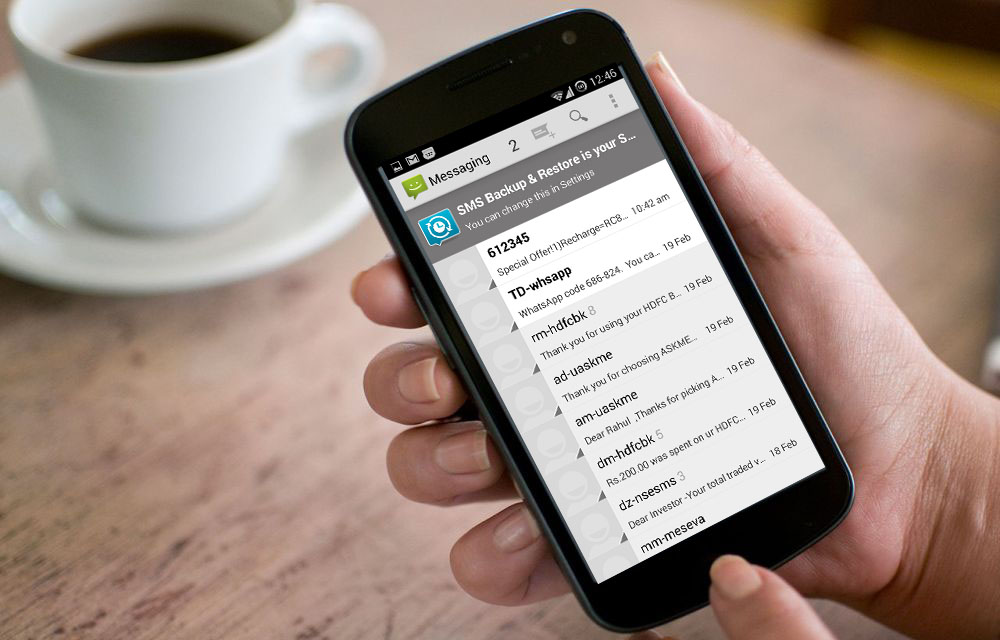
After choosing Android over iPhone now it is the time to transfer all the existing content to new device. There are several programs available in software market to transfer all the data present in iPhone to Android device. But the most difficult task comes in transferring text messages. Before proceeding any further, in this post we give detailed instructions to transfer all Text messages present in iPhone to new Android device.
Related Articles:
The tutorial involves installation of some apps and iTunes Backup file of your iPhone.
How To Transfer iPhone Text Messages SMS To Android Device
- First of all, you have to take a complete backup of your iPhone using Apple iTunes program.
- After successful backup you need to locate the backup file on your computer.
In Windows OS machines: C://[Users]/[Username]/AppData/Roaming/Apple Computer/Mobile SyncHere you’ll find whole backup file of your iPhone, in that open the most recent backup file and search for the file named: 3d0d7e5fb2ce288813306e4d4636395e047a3d28
In Mac machines: ~/Library/Application Support/MobileSync/Backup/
You can search the file using Windows Explorer default search box or usin best desktop search engine VoidTools Everything. - After finding the file transfer it to your Android device SD card folder.
- Now install iSMS2droid (iPhone SMS Import) app on your Android device and open it.
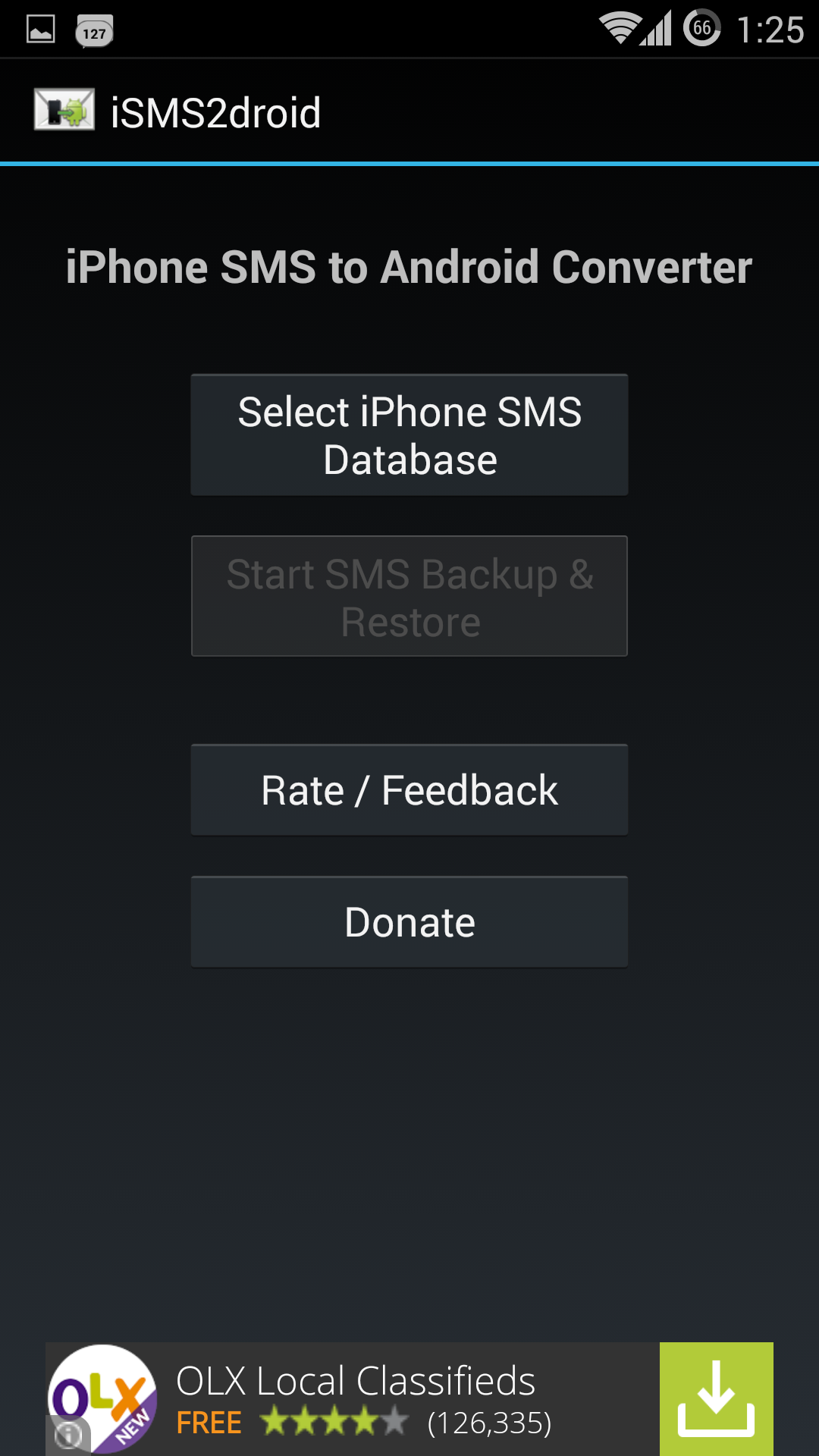
- In the iSMS2droid app UI click on “Select iPhone SMS Database” option.
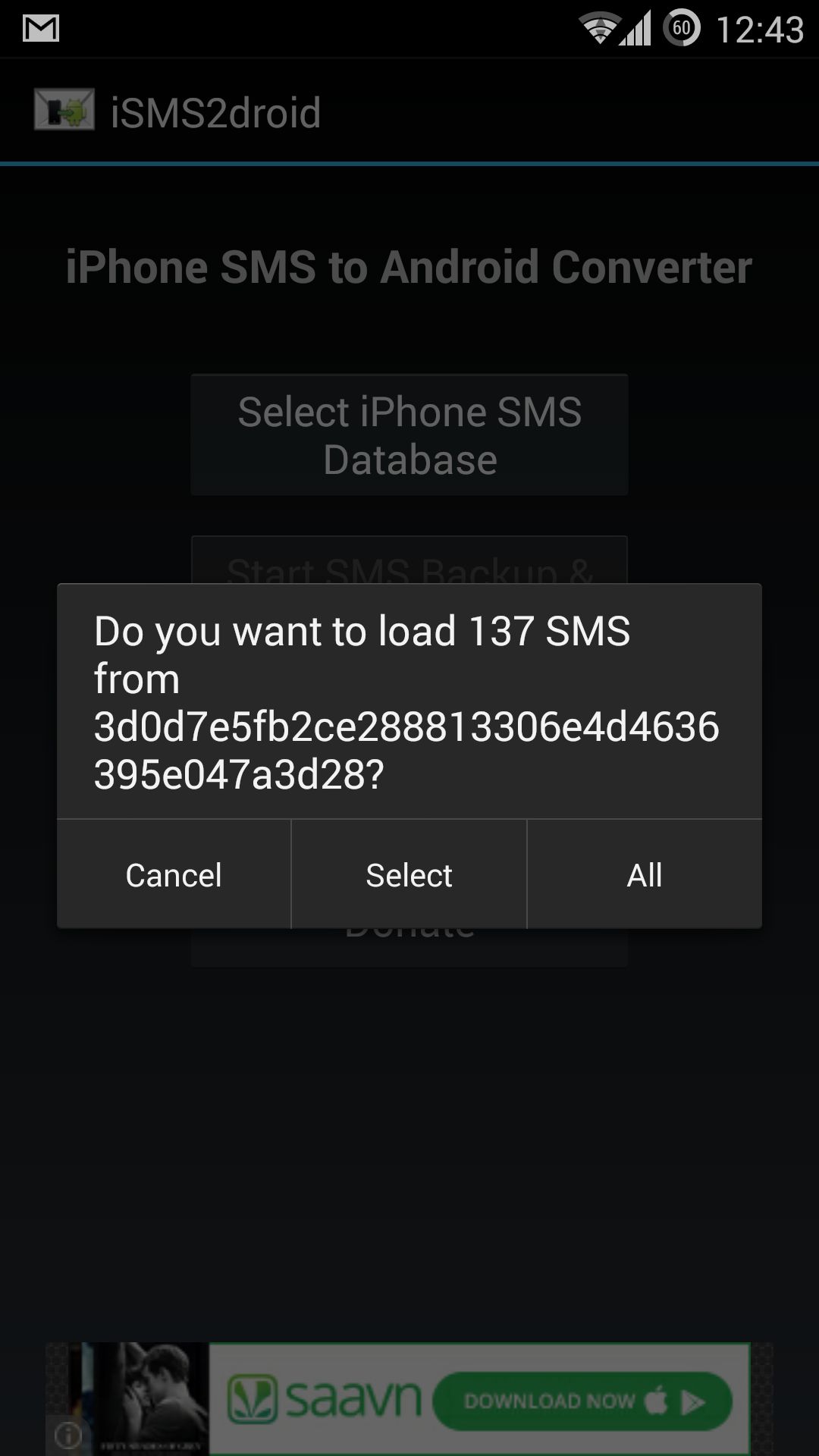
- Here choose the transferred file step 3 and select it.
- Now click on All option to convert the iPhone SMS backup file to Android recognizable format.
- In the next step install SMS Backup & Restore app to restore the file created in step 7.
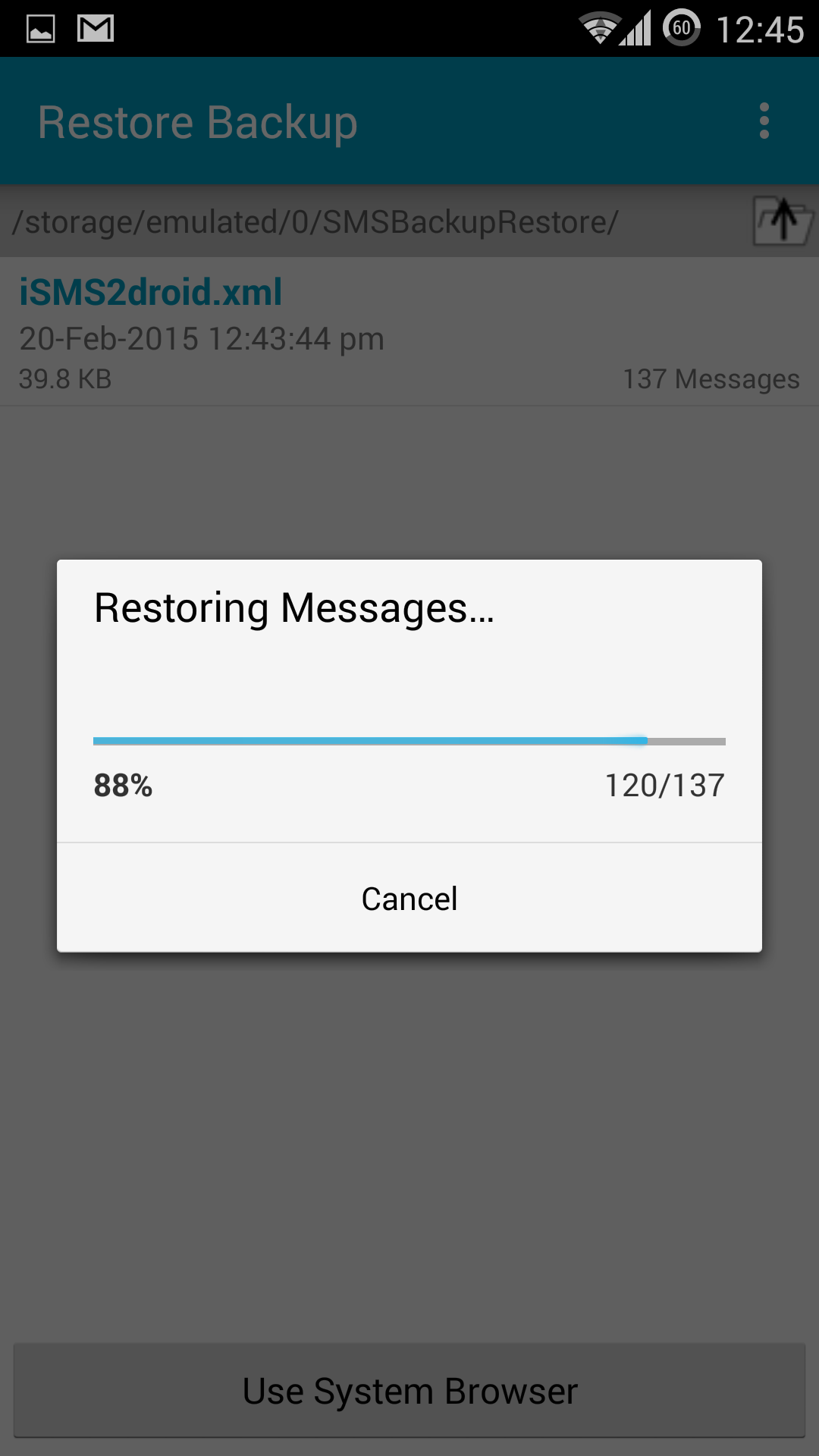
- Now open SMS Backup & Restore app and select the XML file created by iSMS2droid app.
- After selecting the XML file click on restore option to restore all old iPhone messages to your new Android device.
That’s it now you can access all old iPhone SMS on your new Android device.
More in How-to
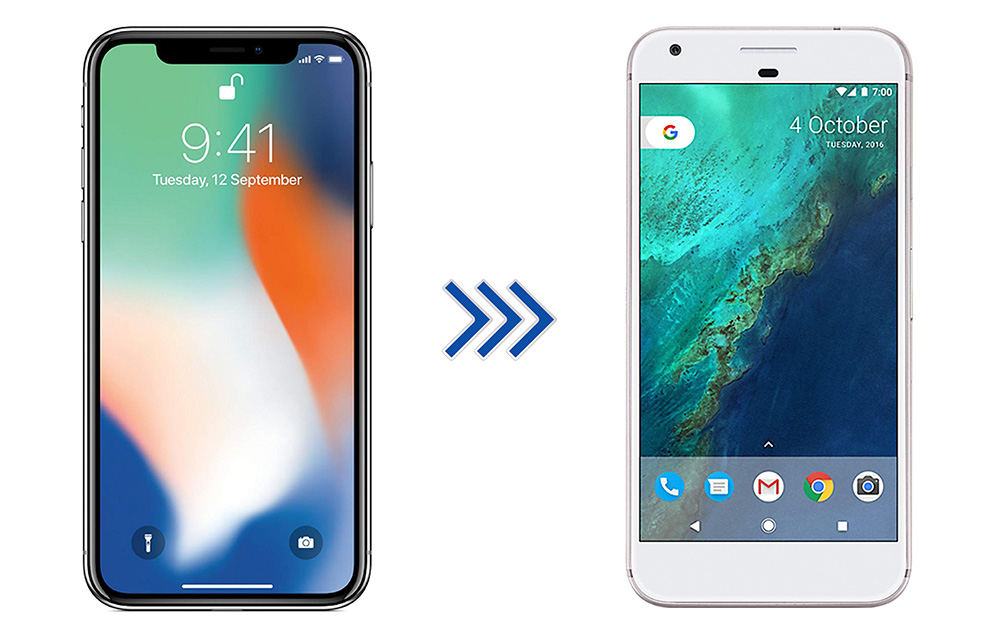
How to Switch from iPhone to Android Smartphone
iPhone is great, it is one of the best devices in terms of quality, it has some unique functions, and everything is perfect. But, then there is Android, which has more features, extremely flexible, various brands to choose from, and a ton of apps to accomplish almost anything that you can do with a smartphone.…

How To Search Text Messages (SMS) On Android Smartphone
SMS short messaging service is still one of the best ways to communicate even in Facebook and Whatsapp generation. If you are looking for the best Android text messaging apps for easy texting, you can check our previous articles. SMS doesn’t require an internet connection to work, all you need is a working phone with…
How to Unlock the Hidden iPhone Emoji Keyboard
Sometimes a single emoji is enough to express our emotion more than a text message. That is why emojis gained more popularity in messaging. There is plenty of variety emojis available, apart from faces you can use animals, car, food and flag emojis. If you are using iPhone or any other iOS device, then you…
The week in tech, minus the noise.
New reviews, fixes and the stories that matter — once a week, straight to your inbox.
We only use your email to send the newsletter. Unsubscribe any time. See our privacy policy.
1 comment
In Mac, maybe you wont find MobileSync in the Application Support folder. If this is the case after the backup finish go to iTunes>Preferences>Devices, then
select what update you are trying to locate, "right click" said update,
then select "Show in Finder." It should bring you to exactly where your
backups are located in your computer. Then you find the file and copy
it to the root of phone memory (not the external sd card). If you copy to the external sd card you may get the message that the file is encrypted.