

How To Charge Your Phone In Sleep Mode With The Laptop Lid Closed
Powering the devices is always a difficult task, thus we fitting power sockets over and over in all of our rooms. The smartphones are the largest drinkers of the power. The modern day devices even can’t hold their battery for one day and it makes a situation of charging the device every day and we must…

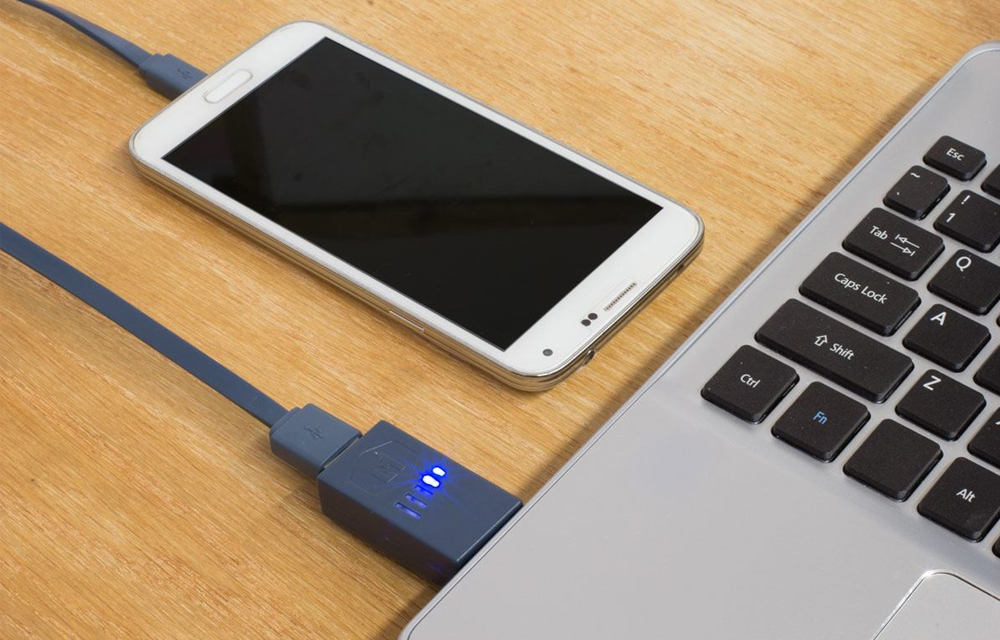
charge-your-phone-in-sleep-mode-with-the-laptop-lid-closed
Powering the devices is always a difficult task, thus we fitting power sockets over and over in all of our rooms. The smartphones are the largest drinkers of the power. The modern day devices even can’t hold their battery for one day and it makes a situation of charging the device every day and we must allot 3 or 4 hours to fully charge our devices. Most of you are solving this problem by charging your device by connecting it with the Computer using an OTG which is the easiest and fastest way to charge the device.
Even there is an abundance of power outlets, you always tend to charge your device using your own PC. The device automatically charges while we are on the work. It simply saves the time to charge the smartphone and it charges in front of us and within our hand reach area. But, what about while the system goes into sleep mode or the lid of your laptop is closed? The computer will stop giving power to the phone. Thus, the phone stops charging. We wrote this tutorial on How to charge your phone in sleep mode with the laptop lid closed. Follow the simple steps given below to activate charging even your computer fall into sleep or you closed the lid of your laptop and gone away.
How To Charge Your Phone In Sleep Mode With The Laptop Lid Closed
- Open Device Manager by right clicking My Computer icon, then select Properties.
- Once you are on the Properties window, Click Device Manager on the left sidebar.
- Find the Universal Serial Bus Controller section and expand it.
- Now, you will see a few devices namely ‘USB Root Hub’.
- Right click on each one of them one by one and go to their properties.
- While you are on the Properties window for each USB Root Hub.
- Simply Go to the Power Management tab.
- Then, Uncheck the ‘Allow the computer to turn off this device to save power’ option.
- If you have done this for all USB Root Hub devices, you might be able to continue charging your phone even when the laptop lid closed and even on the sleep mode of the laptop
If this method fails, Your must enable the USB wake support from the BIOS of your computer. As it is different for different computers, we are unable to list all of them here. So please search for the same with your model number and you might find the results.
More in How-to

How To Charge Your Smartphone While Your Computer is in Sleep Mode
It is a myth that the computer totally sleeps after closing the laptop lid. But technically when the laptop lid is closed the USB ports go into sleep mode. But with a simple tweak you can disable the sleep mode of the USB ports while the computer in sleeping mode. Sounds interesting? Yes, this simple…
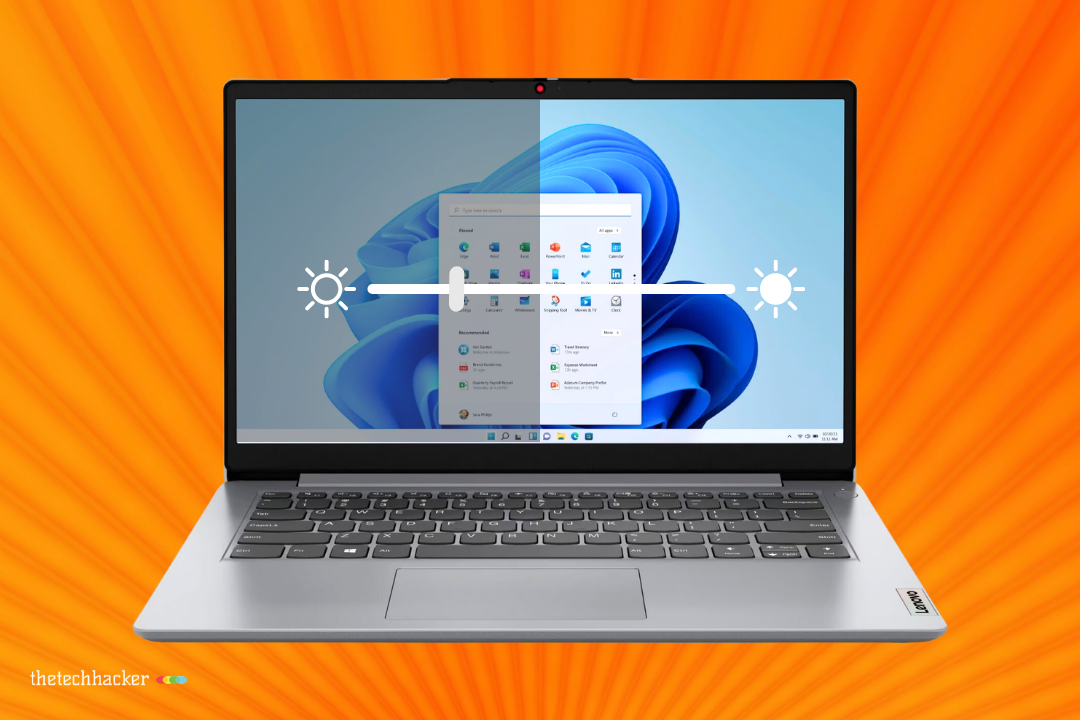
Why Does My Laptop Screen Keep Dimming?
It is a very common problem among the laptop users. If your screen keeps dimming on its own, the problem is usually tied to a power setting, adaptive brightness, display driver behavior, or a device-specific sensor. The good news is that most of these issues are fixable with a few quick checks, and you do…
How to Fix iPhone 18 Pro and Pro Max Overheating
Is your iPhone 18 Pro or Pro Max running hot? Here’s how to tell normal warmth from a real problem, what Apple’s temperature guidance says, and the checks to try before you book a repair.
The week in tech, minus the noise.
New reviews, fixes and the stories that matter — once a week, straight to your inbox.
We only use your email to send the newsletter. Unsubscribe any time. See our privacy policy.
Comments